
How to Use Recent Searches in the Helperbird Dictionary
Recent searches were removed from the Helperbird Dictionary. Use Back and Forward to revisit lookups in the current tab instead.
On this page
This feature has been removed. It is no longer part of Helperbird as of version 2026.9.6, so the steps below will not match what you see. This page is kept for reference.
Look up a word in the Dictionary
What This Does
From version 2026.9.6, the Dictionary no longer shows or records a separate recent-search list. Use your browser's Back and Forward buttons to revisit lookups in the current tab, or enter the word again. This is not a replacement vocabulary list.
The instructions below describe the previous version and are kept for reference.
Previously, the Helperbird Dictionary remembered the words you have looked up and listed them under Recent searches, so you could get back to one without retyping it.
Who is This For?
This is helpful for:
- Students building a list of new words from a reading
- Anyone who looked something up, moved on, and wants it back
- People revising vocabulary
- Anyone who finds retyping a long or awkward word slow
Finding Your Recent Words
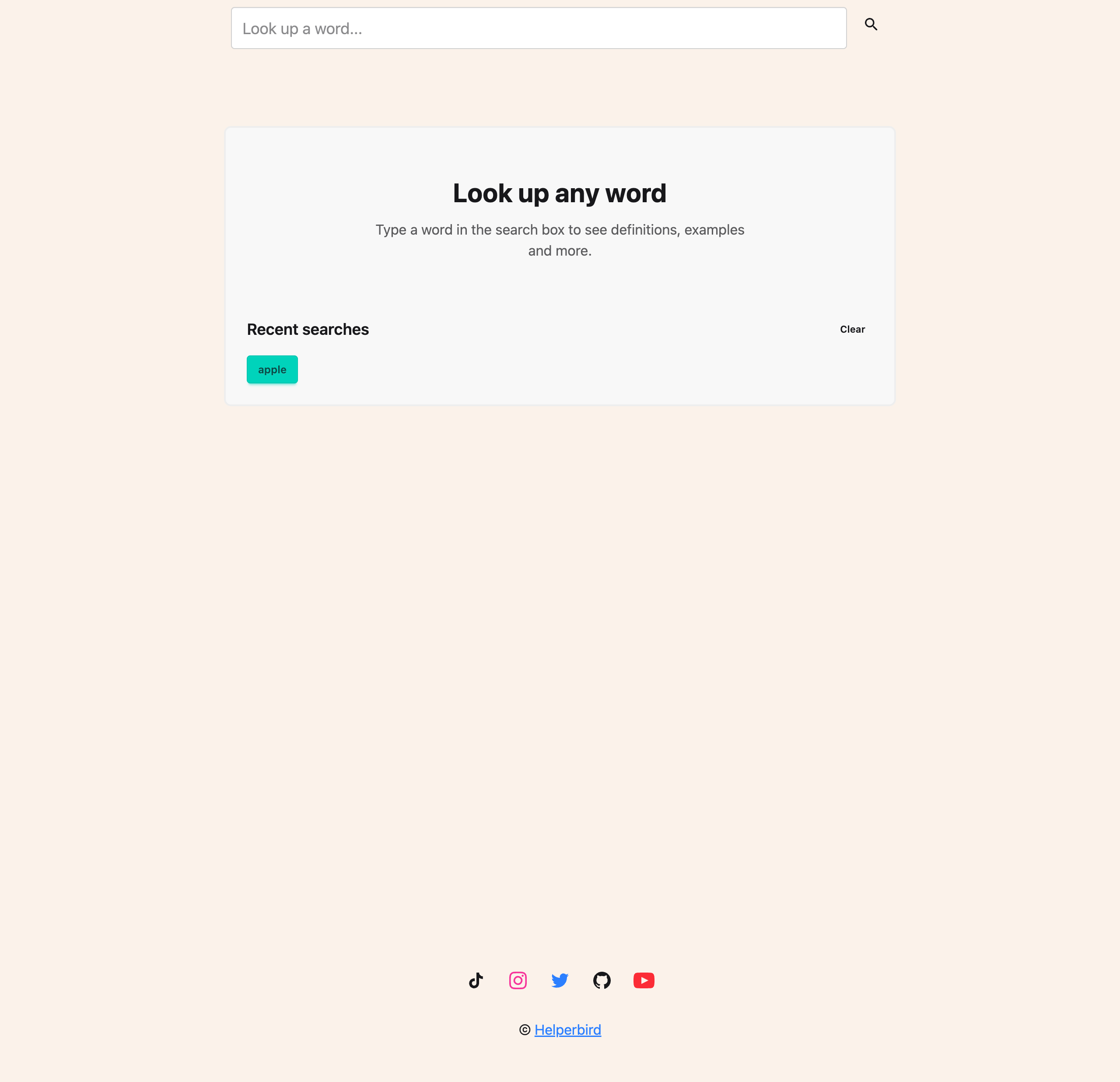
Recent searches appear on the Dictionary's opening screen, underneath Look up any word. You see them when the search box is empty, so open the Dictionary fresh, or clear the box, to get back to them.
 View full-size image (opens in a new tab)
Going Back to a Word
Click any word in the list and the Dictionary looks it up again straight away.
Clearing the List
Click Clear to the right of the heading. The whole list is removed.
Use this if you share a computer, or if the list has filled up with words you no longer need. There is no undo, so anything you clear has to be looked up again.
Need Additional Help?
If you have any questions or run into any issues, please contact the Helperbird support team. You can reach us at Helperbird support. We are happy to help you get the most out of Helperbird.
Printed from the Helperbird Help Center · Updated September 6th, 2026
Questions? We are happy to help — helperbird.com/support