
How to Use Word Prediction on Any Website or Google Docs
Learn how to use Helperbird's Word Prediction feature to get word suggestions as you type. Word prediction helps you write faster and spell words correctly.
Jump to the stepsOn this page
What is Word Prediction?
Word Prediction suggests words as you type. When you start typing a word, Helperbird shows you a list of words that you might be trying to write. You can click on a suggestion to insert it instead of typing the whole word.
This helps you write faster and also helps with spelling, since you can see the correct spelling before you finish typing.
Who is This For?
This feature is helpful for:
- People with dyslexia who struggle with spelling
- Anyone who wants to type faster
- People with motor difficulties who want to reduce keystrokes
- Students writing essays or assignments
- Anyone learning to spell in a new language
Step 1: Open Helperbird
Click the Helperbird icon in your browser toolbar. It looks like a small owl and is usually in the top-right corner of your browser.
This will open the Helperbird menu.
Step 2: Go to the All Features Section
Scroll down to the bottom of the Helperbird menu. You will see a section called All Features.
Click the arrow next to All Features to expand it and show all available features.
Step 3: Find Word Prediction
Look through the list of features until you see Word prediction.
Step 4: Open Word Prediction
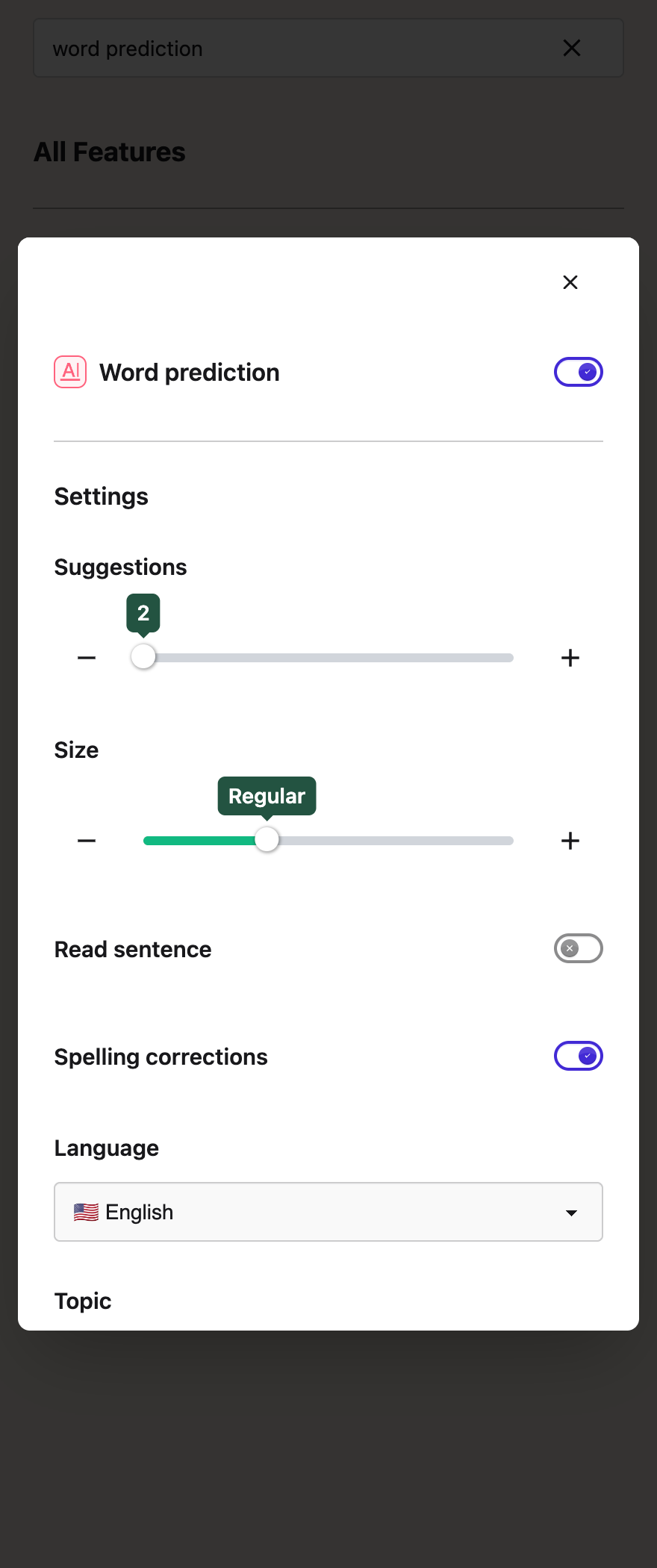
Click Open on the Word prediction row to open its panel.
 View full-size image (opens in a new tab)
Step 5: Turn on Word Prediction
In the Word Prediction panel, you will see a toggle switch at the top.
Click the toggle switch to turn Word Prediction on. The toggle will turn purple when it is enabled. Word prediction is a Pro feature: on the free plan the toggle is greyed out and clicking it shows an upgrade message.
Step 6: Adjust Settings
You can customize Word Prediction with these options:
Suggestions – Use the slider or the - and + buttons to choose how many word suggestions appear as you type. You can choose between 2 and 8 suggestions.
Size – Use the slider or the - and + buttons to change how big the whole suggestion bar appears. Choose between Small, Regular, Large, and Extra large. Bigger sizes can make suggestions easier to read at a glance.
Read sentence – Turn this on to hear each sentence read aloud as soon as you finish it with a full stop, question mark, or exclamation point. Hearing your writing read back helps you catch mistakes and check that it says what you meant. This works on websites and in Google Docs, and it uses the same voice as your text to speech settings.
Spelling corrections – Suggested spelling fixes appear in the suggestion bar as amber chips when a word looks misspelled. Turn this off if you would rather see predictions only.
Language – Pick the language you will be typing in from the dropdown. Options include English, French, German, Spanish, and Portuguese.
Topic – When your language is English, you can also pick a topic: This page, Science, History, Geography, Space, or Animals. This page builds the word list from the page you are on, so the suggestions match whatever you are reading. Each topic adds between about 150 and 200 subject words to your predictions, so words like "photosynthesis" or "archaeology" appear as you start typing them. Pick None to turn this off. Everything works offline, because the topic word lists are built into Helperbird. Read the full guide to topic dictionaries.
Layout – Choose Across for the original horizontal bar or Stacked for one suggestion per row. Your choice is saved. See how to change the prediction layout.
Bar theme – Choose how the suggestion bar looks: Light, Dark, or Auto. Auto follows whatever your browser is set to, so the bar matches the rest of your screen.
Clear learned words – Word prediction learns the words you use often so it can suggest them sooner. This button empties that list and starts it again. Useful if you have been typing something one-off, or if you are handing the computer to someone else.
Step 7: Start Typing
Now go to any text field on a website or in Google Docs and start typing.
A bar will appear showing word suggestions. On websites the bar sits under the text you are typing in; in Google Docs it docks under your cursor. You can drag it anywhere on the screen if you prefer a different spot. These are words that match what you have typed so far.
To use a suggestion:
- Click on any word to insert it into your text
- Click the speaker icon next to a word to hear how it is pronounced
You can also use the keyboard:
- Press Alt + Left Arrow or Alt + Right Arrow to move between suggestions
- Press Alt + Enter to insert the highlighted suggestion
- Press Alt + 1 through Alt + 9 to insert a suggestion by its position. In Firefox, use Ctrl + Alt + 1–9. On a Mac, Alt is labelled Option. The number pad works too.
- Press Escape to close the suggestion bar
Each suggestion shows its keyboard shortcut. Number keys on their own still type numbers.
There is no countdown while you choose a word: you can pause for 10 seconds or longer. Suggestions update when you type, move the writing cursor, or select a word. Background Google Docs updates do not replace your choices. Moving away from the editor or closing the bar can dismiss it.
Editing Earlier Text in Google Docs
Click within a sentence, or use the arrow keys to move back to an earlier word. The suggestions follow your cursor and use the text before it. You can continue writing in the middle of a sentence or return to an earlier paragraph.
If you move inside a word, choosing a suggestion replaces that word while keeping the surrounding text. For example, placing the cursor after ca in cats and choosing cattle gives you cattle, with the next sentence preserved.
For word prediction, place the cursor where you want to write rather than highlighting a passage. Suggestions pause while a passage is selected or Docs cannot provide the cursor position. Click in the document to continue. If Docs has just loaded or the cursor is outside the visible text, bring that paragraph into view and place the cursor again.
To listen to a passage you have already written, select it and use Text to Speech. To dictate at your cursor, see direct-to-page dictation.
Word Prediction automatically learns from what you type. On Google Docs, it will also learn from the existing text in your document to provide better suggestions.
Helperbird can also detect and correct misspellings. If you type a misspelled word and press space, corrections may appear highlighted in the suggestion bar.
Tip: You do not need to finish typing a word. As soon as you see the word you want in the suggestions, click it. This saves time and helps with correct spelling.
Video Tutorial
Google Docs and Slides
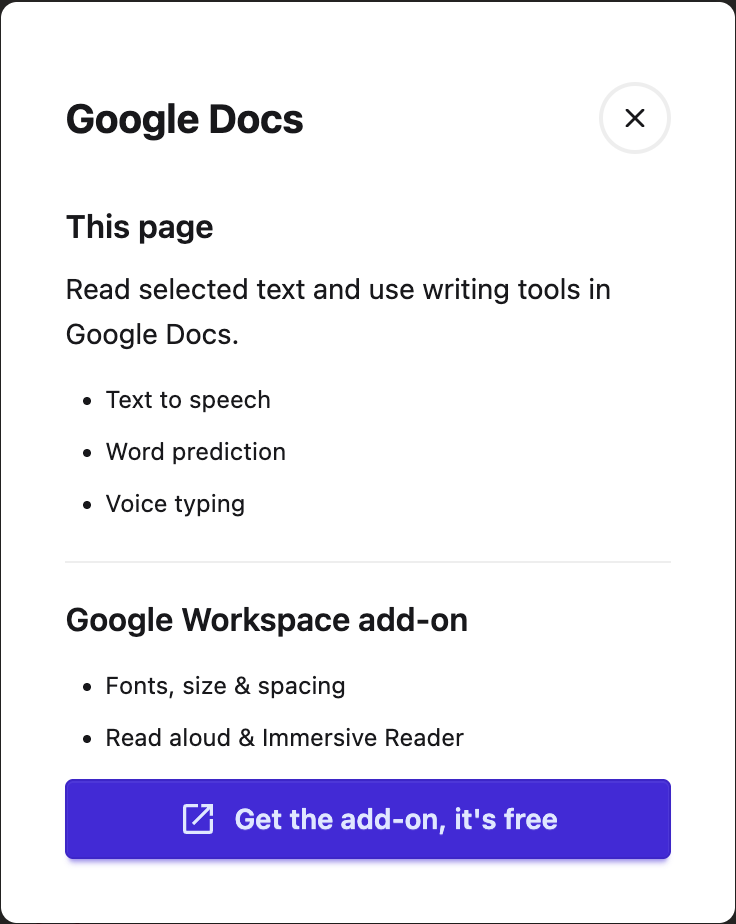
Google Docs supports tools such as Text to Speech, word prediction and voice typing. Features that change webpage fonts or spacing cannot change every part of the Docs editing canvas.
Open the information button in the Workspace banner for the options available on that page. Google Slides has different limits; use Screenshot Reader or the Workspace add-on when needed.
 View full-size image (opens in a new tab)
Need Additional Help?
If you have any questions or run into any issues, please contact the Helperbird support team. You can reach us at Helperbird support. We are happy to help you get the most out of Helperbird.
Printed from the Helperbird Help Center · Updated September 25th, 2026
Questions? We are happy to help — helperbird.com/support