
How to Hide Images and GIFs on Any Website
Learn how to hide images and animated GIFs on any website using Helperbird. Removing images can help you focus on text and reduce distractions.
Jump to the stepsOn this page
What is Hide Images?
Hide images & GIFs takes every picture off a web page and leaves the text. Animated images go with them, so nothing on the page moves.
This helps you focus on reading the actual content without being distracted by pictures or moving images.
Who is This For?
This feature is helpful for:
- People who are distracted by images when trying to read
- Anyone sensitive to motion or flashing images
- People with slow internet connections who want pages to load faster
- Students who want to focus on text content
- Anyone who finds animated GIFs overwhelming
Step 1: Open Helperbird
Click the Helperbird icon in your browser toolbar. It looks like a small owl and is usually in the top-right corner of your browser.
This will open the Helperbird menu.
 View full-size image (opens in a new tab)
Step 2: Go to the All Features Section
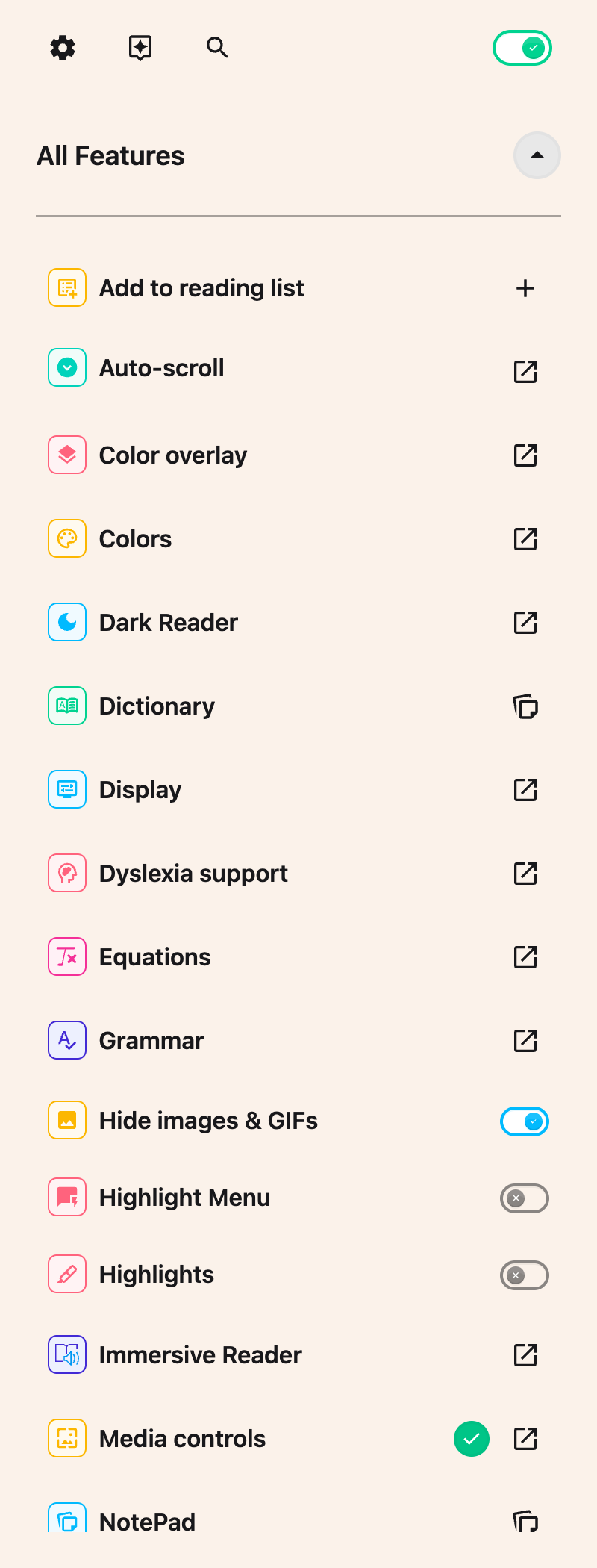
Scroll down to the bottom of the Helperbird menu. You will see a section called All Features.
Click the arrow next to All Features to expand it and show all available features.
Step 3: Find Hide Images & GIFs
Look through the list of features until you see Hide images & GIFs.
This used to be two separate rows. It is now one, so there is a single toggle to find rather than a pair.
Step 4: Turn It On
Click the toggle switch next to the feature you want to use:
Click the toggle. Every image on the page disappears, animated ones included, and the text stays exactly where it was.
The toggles will turn green when enabled. The changes apply immediately to the current page.
There is no longer a way to hide only the animated images and keep the still ones. If movement is the problem rather than the pictures, use Reduce motion instead, which stops animation without taking the images away.
Video Tutorial
Need Additional Help?
If you have any questions or run into any issues, please contact the Helperbird support team. You can reach us at Helperbird support. We are happy to help you get the most out of Helperbird.
Printed from the Helperbird Help Center · Updated September 22nd, 2026
Questions? We are happy to help — helperbird.com/support