
How to Change the Font Size on Any Website
Learn how to increase or decrease the font size on any website using Helperbird. Make text larger for easier reading or smaller to fit more content on screen.
Jump to the stepsOn this page
What is the Font Size Feature?
Helperbird lets you change the size of text on any website. You can make text larger if it is too small to read comfortably, or make it smaller if you prefer more compact text.
The size change applies to all text on the page instantly. You can adjust it using a simple slider to find the perfect size for you.
Who is This For?
This feature is helpful for:
- People with low vision who need larger text
- Anyone who finds website text too small to read comfortably
- People who get eye strain from reading small text
- Students reading long articles or documents online
- Anyone who wants more control over how websites look
Step 1: Open Helperbird
Click the Helperbird icon in your browser toolbar. It looks like a small owl and is usually in the top-right corner of your browser.
This will open the Helperbird menu.
Step 2: Open the All Features Section
Scroll down to the bottom of the Helperbird menu. You will see a section called All Features.
Click the arrow next to All Features to expand it and show all available features.
Step 3: Find Text Settings
Look through the list of features until you see Text settings.
It has a yellow icon with the letter "T" on it.
Step 4: Open Text Settings
Click on Text settings to open it.
A panel will appear with all of the text options in a single list. This is where you will find the font size option.
Step 5: Turn on Font Size
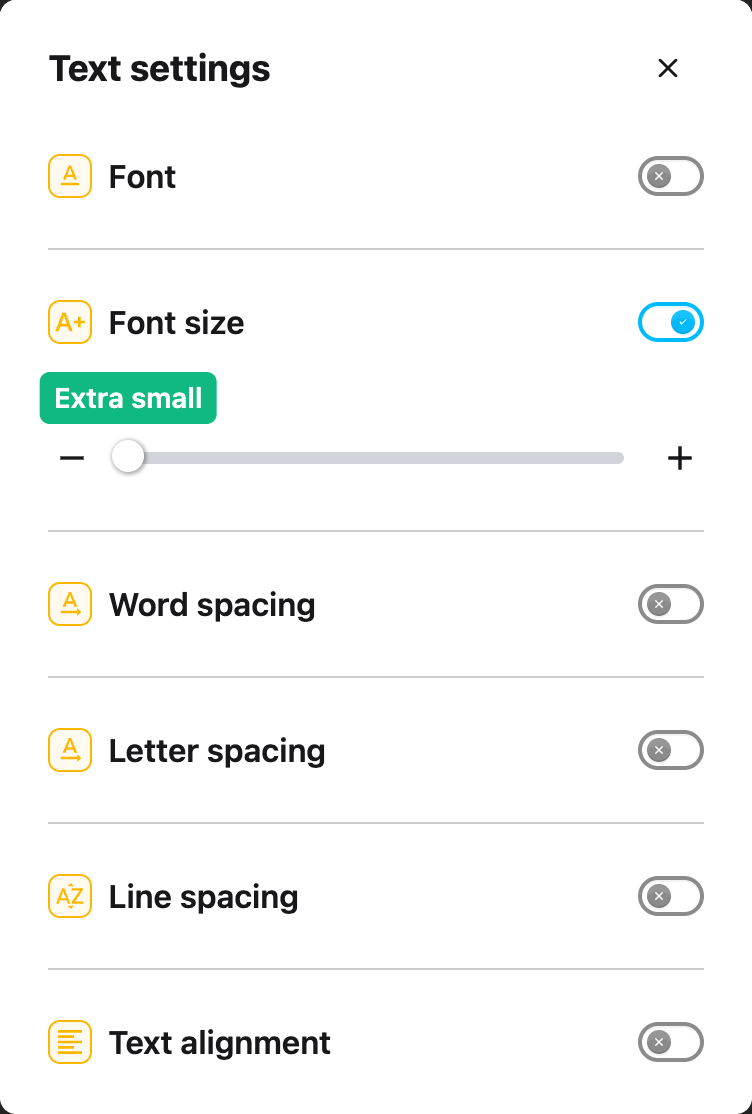
In the panel, look for Font size. It has a yellow icon with an "A+" symbol.
Click the toggle switch next to it to turn it on. The toggle will turn blue when it is enabled.
 View full-size image (opens in a new tab)
Step 6: Adjust the Size
Once Font size is turned on, a slider will appear below the toggle. A bubble above the slider always shows the current size, and there is a minus button on the left and a plus button on the right.
Drag the slider to the right to make text larger, or drag it to the left to make text smaller. You can also click the minus and plus buttons to change the size one step at a time.
The changes will apply to the website immediately, so you can see the effect as you adjust the slider.
Tip: Start with a small adjustment and keep increasing until the text feels comfortable to read. Everyone has different preferences, so take your time to find the size that works best for you.
Video Tutorial
Need Additional Help?
If you have any questions or run into any issues, please contact the Helperbird support team. You can reach us at Helperbird support. We are happy to help you get the most out of Helperbird.
Printed from the Helperbird Help Center · Updated September 22nd, 2026
Questions? We are happy to help — helperbird.com/support