
How to Use the Helperbird PDF Reader
The Helperbird PDF Reader in one page. What it is, what the toolbar buttons do, what the reader cannot do, and which guide covers each job.
On this page
This page is the map of the Helperbird PDF Reader. It covers what the reader is, what each button in the toolbar does, and which guide takes over from here.
What the PDF Reader Is
The PDF Reader is a separate Helperbird app that opens in its own browser tab. It draws the PDF itself and puts a toolbar above it, so a document you could not type into or listen to in your browser becomes one you can.
Your file stays on your computer. Nothing is uploaded to open a PDF.
Opening PDFs, page search, zoom, typing and inserting Notepad content are free. Drawing, natural voices, dictation, grammar, translation and equation editing need Helperbird Pro.
 View full-size image (opens in a new tab)
What Each Toolbar Button Does
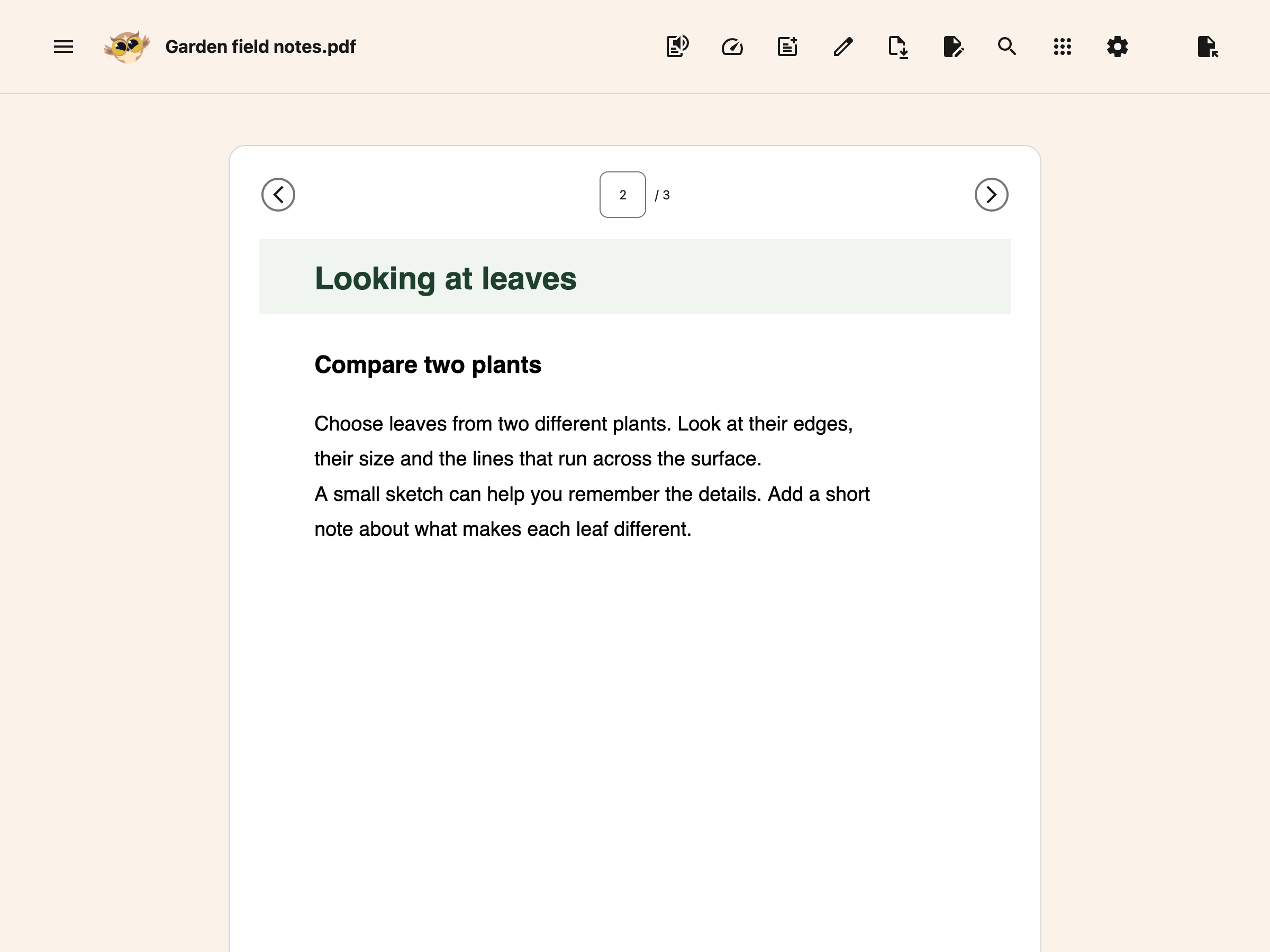
The header contains the main document tools. Choose Zoom and search to show or hide the page-search and zoom controls.
| Button | What it does | Full guide |
|---|---|---|
| Text to Speech | Opens a player bar and reads the page you are on, or the text you highlighted | Read a PDF and take notes |
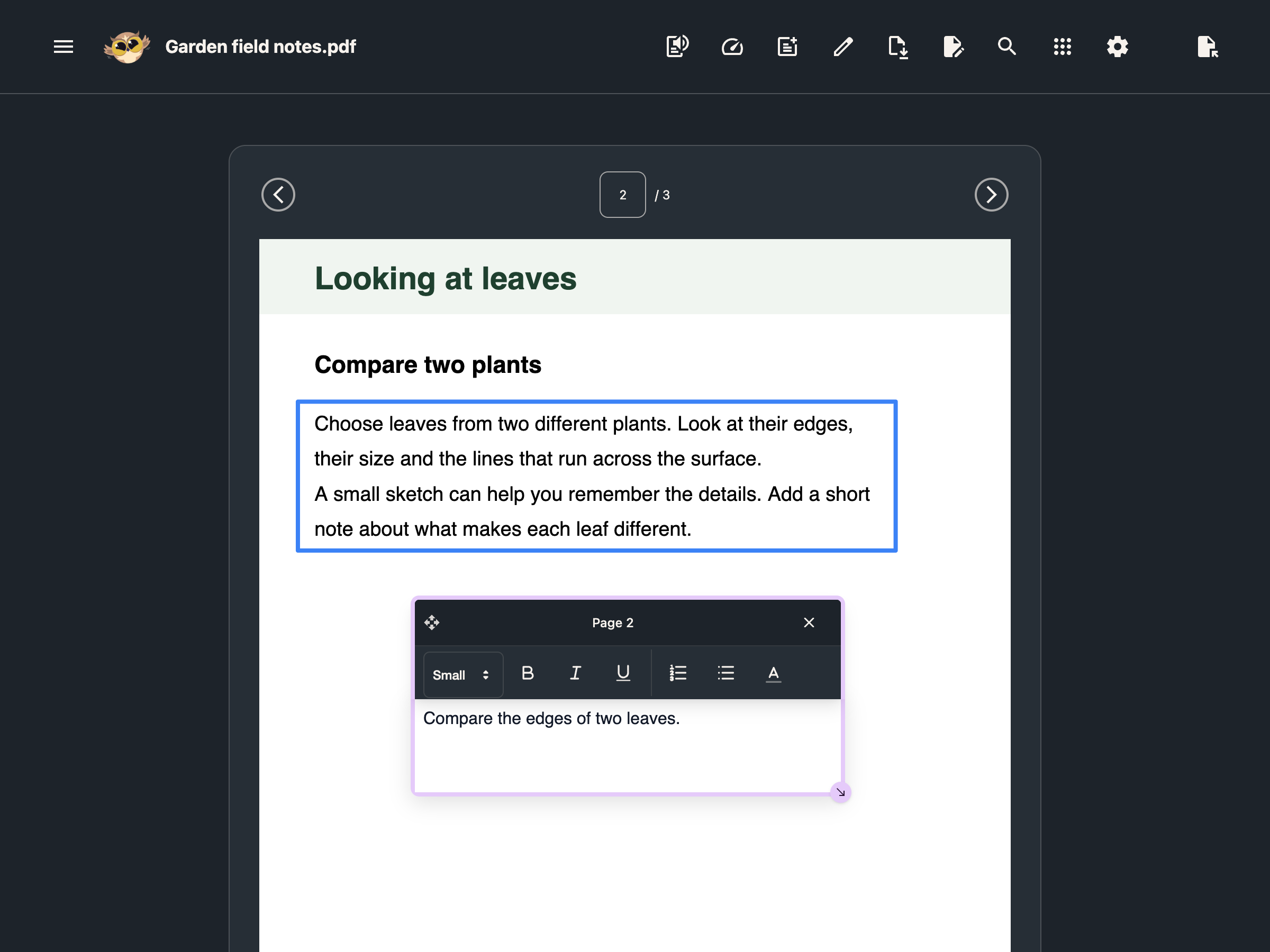
| Add Textbox | Puts a box on the page that you can type in, format and move | Add text boxes to PDFs |
| Draw | Freehand pen, shapes, lines and arrows over the page | Drawing tools on PDFs |
| Download | Saves the file, with or without the changes you made | Save and download PDFs |
| Notepad | Opens a writing panel beside the PDF, with dictation and a grammar check | Read a PDF and take notes |
| Tools | Holds Immersive Reader, Translate, Summarize, Screenshot Reader and Insert equation | The Tools menu |
| Zoom and search | Shows or hides the bar for page search, zoom, Fit width, and Fit page | Read long PDFs |
| Open PDF | Loads a file from your computer | Open the PDF Reader |
View full-size image (opens in a new tab)
Reading and Layout Controls
Choose Speed Reading for a word-by-word view of the current page. It has its own pace control and a middle-letter highlight. Use Speed Reading.
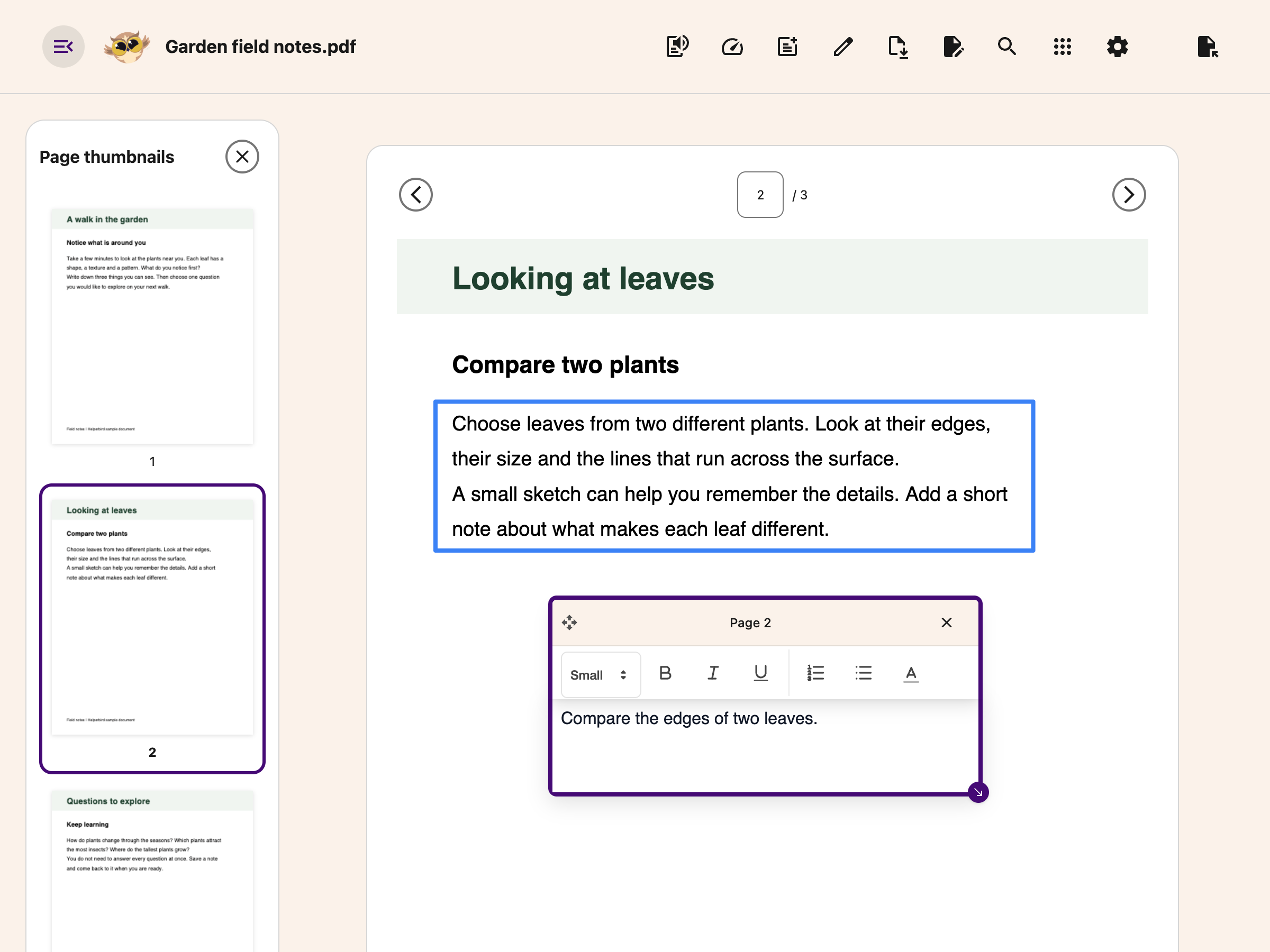
Settings contains PDF Reader Width, light or dark mode, and Keyboard shortcuts. The theme changes the reader interface. It does not recolor the original PDF page.
 View full-size image (opens in a new tab)
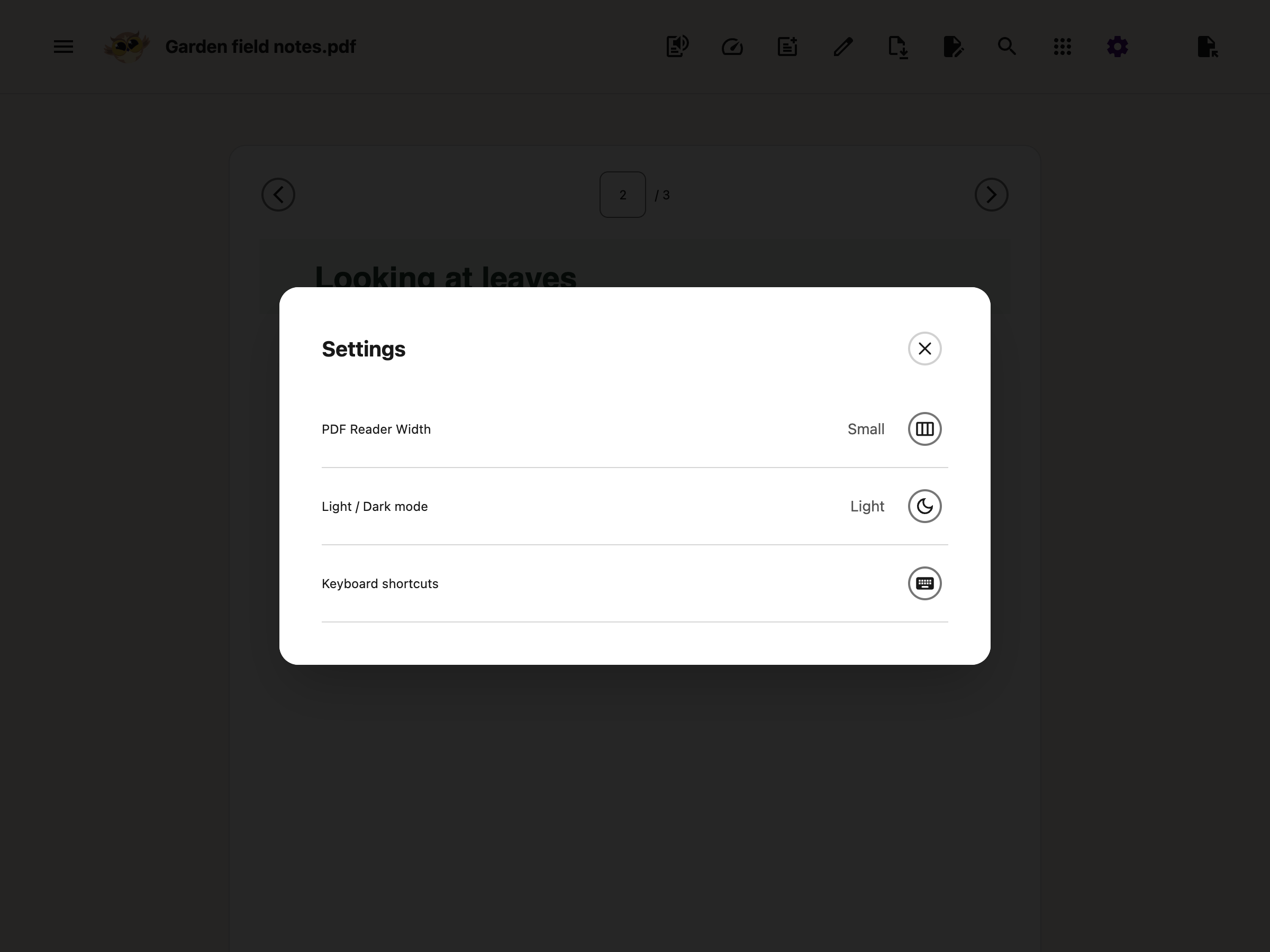
Page thumbnails opens page previews. The Page number field above and below the document also lets you jump directly to a page.
 View full-size image (opens in a new tab)
What the Reader Cannot Do
- It shows one page at a time. There is no continuous scroll.
- The web Highlighter palette and Highlight Menu do not appear in the PDF Reader. Use Draw or Add Textbox to annotate the page.
- Search looks only through the current page, not the whole document. It is free.
- Use the Page field or Page thumbnails to jump to another page.
- You cannot change the words already in the PDF. Anything you add sits on top of the page.
- If the PDF has its own fill-in boxes, what you type into them is lost when you download. Put a text box on top instead.
- Local recovery keeps one current PDF session, not a library. Opening another PDF replaces that recovery copy. Download your changes before moving on.
Where to Go Next
Search and zoom - Find text on the current page and adjust the view.
Translate a PDF page - Compare the translation with the original.
Paste text, links and images - Create boxes from your clipboard.
Add equations - Insert maths and edit it later.
Open the PDF Reader - Get the reader open and a file loaded.
Read a PDF and take notes - Move through pages, listen to them, write beside them.
The Tools menu - Immersive Reader, Translate, Summarize and Screenshot Reader.
Add text boxes - Type onto a worksheet or a handout.
Drawing tools - Circle, underline and sketch on the page.
Save and download - Which of your changes end up in the file.
Share and export PDFs - Send a marked-up PDF to someone else.
Reading long PDFs - A working order for a long document.
Video Tutorial
Need Additional Help?
Ran into a snag while using the PDF Reader? Reach out to our Helperbird support team and we will help you sort it out.
Printed from the Helperbird Help Center · Updated September 25th, 2026
Questions? We are happy to help — helperbird.com/support