
How to Use the Highlight Menu in Helperbird
Select text to open Helperbird’s reading tools above it. Learn to use Play, Dictionary, Search Web, Immersive and Translate alongside the separate Highlighter.
Jump to the stepsOn this page
What is the Highlight Menu?
The Highlight Menu is a toolbar that appears when you select text on any webpage. It gives you quick access to Helperbird's most useful tools without having to open the main extension panel.
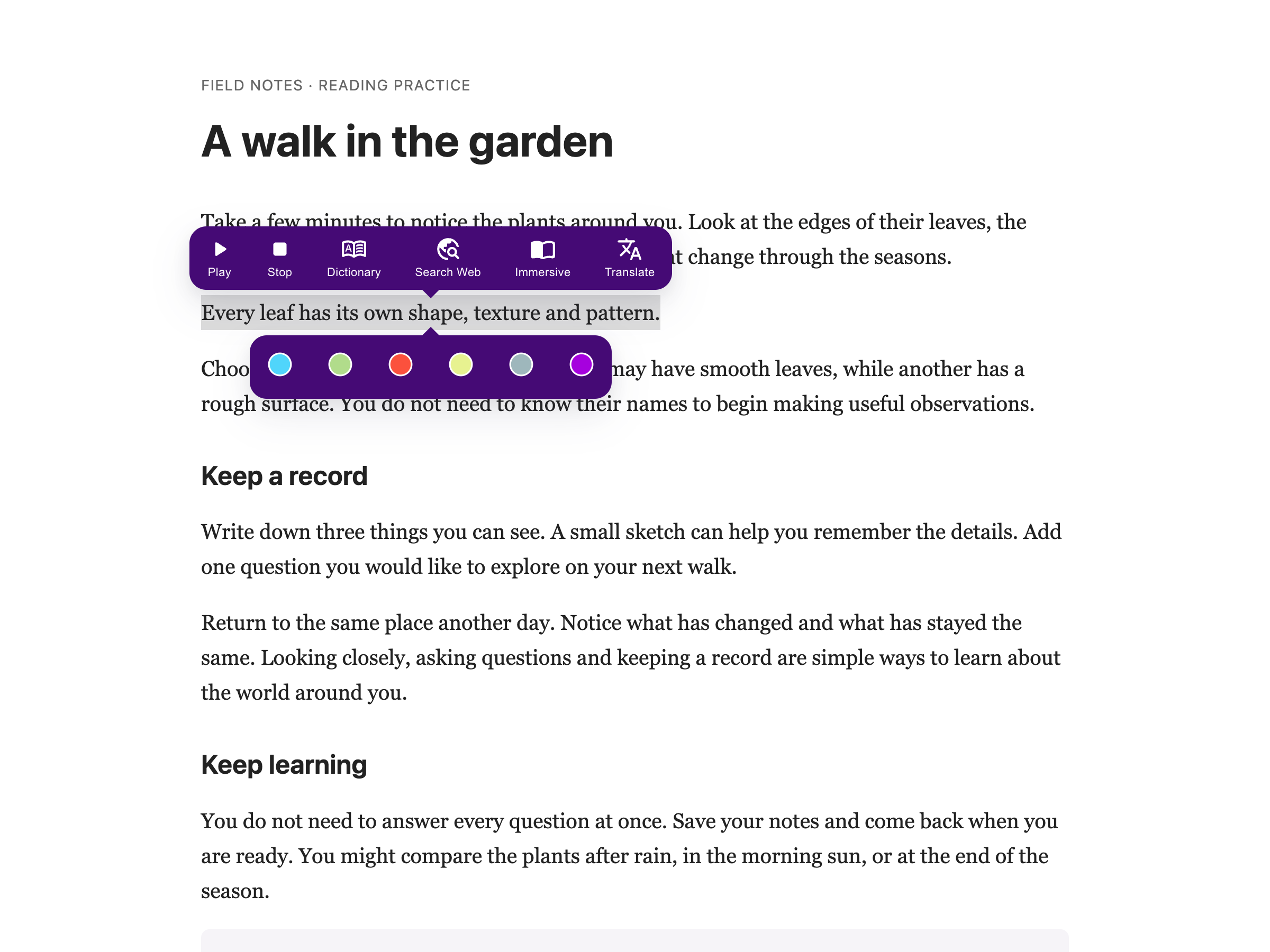
Select some text and a small menu appears above your selection.
Who is This For?
This feature is helpful for:
- Anyone who wants quick access to reading tools
- People who frequently use text-to-speech on selected text
- Students who need to look up words while reading
- Anyone who translates text often
Step 1: Open Helperbird
Click the Helperbird icon in your browser toolbar. It looks like a small owl and is usually in the top-right corner of your browser.
This will open the Helperbird menu.
Step 2: Go to the All Features Section
Open All Features in Helperbird.
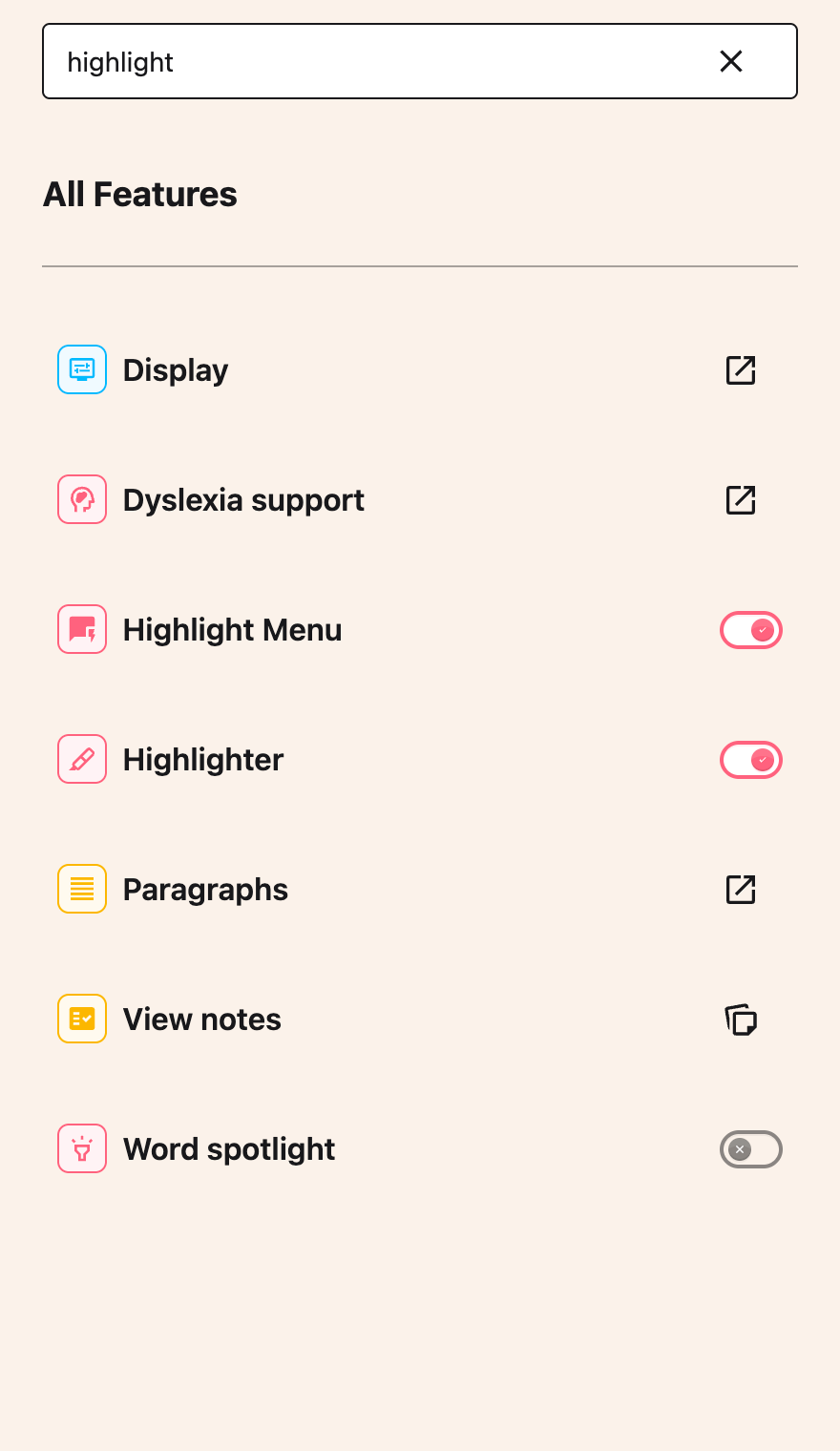
Step 3: Find Highlight Menu
Look through the list of features until you see Highlight Menu.
Step 4: Turn on Highlight Menu
Click the toggle switch next to Highlight Menu to turn it on. The switch shows a check when it is enabled.
 View full-size image (opens in a new tab)
Step 5: Select Text on a Webpage
Go to any webpage and use your mouse to select some text. Click and drag to highlight a word, sentence, or paragraph.
A small toolbar will appear above your selected text.
 View full-size image (opens in a new tab)
Step 6: Use the Menu Tools
Click any button in the toolbar to use that tool on your selected text. The action happens immediately.
Available Tools
The Highlight Menu includes these tools:
Play - Reads the selected text aloud using Text to Speech
Stop - Stops the text-to-speech playback
Dictionary - Opens a definition for the selected word
Search Web - Searches the web for the selected text
Immersive - Opens the selected text in Microsoft Immersive Reader
Translate - Translates the highlighted text to your chosen language
To save colored highlights, turn on Highlighter separately in All Features. Its color palette appears below the selection while this reading menu stays above it. Near a window edge, both menus move to fit. Each toggle works independently. See how to highlight text.
Tip: The Highlight Menu works on almost any text on the web, making it easy to quickly access Helperbird's tools without opening the main extension panel.
Video Tutorial
This video shows an older combined menu. Highlighter now has its own toggle and palette.
Need Additional Help?
If you have any questions or run into any issues, please contact the Helperbird support team. You can reach us at Helperbird support. We are happy to help you get the most out of Helperbird.
Printed from the Helperbird Help Center · Updated September 25th, 2026
Questions? We are happy to help — helperbird.com/support