
How to Start a New Document in the Helperbird Notepad
Learn how to start a fresh document in the Helperbird Notepad without losing the one you were already working on.
Jump to the stepsOn this page
What This Does
New document clears the page and starts you on a fresh one, so you can keep separate pieces of writing apart instead of piling everything into one.
Who is This For?
This is helpful for:
- Students with more than one assignment on the go
- Anyone who keeps a separate page per subject, per class or per day
- Anyone who has finished one thing and wants to start the next
Step 1: Save What You Have
If you want to keep what is on the page, save it first. Starting a new document clears the page.
Step 2: Click New Document
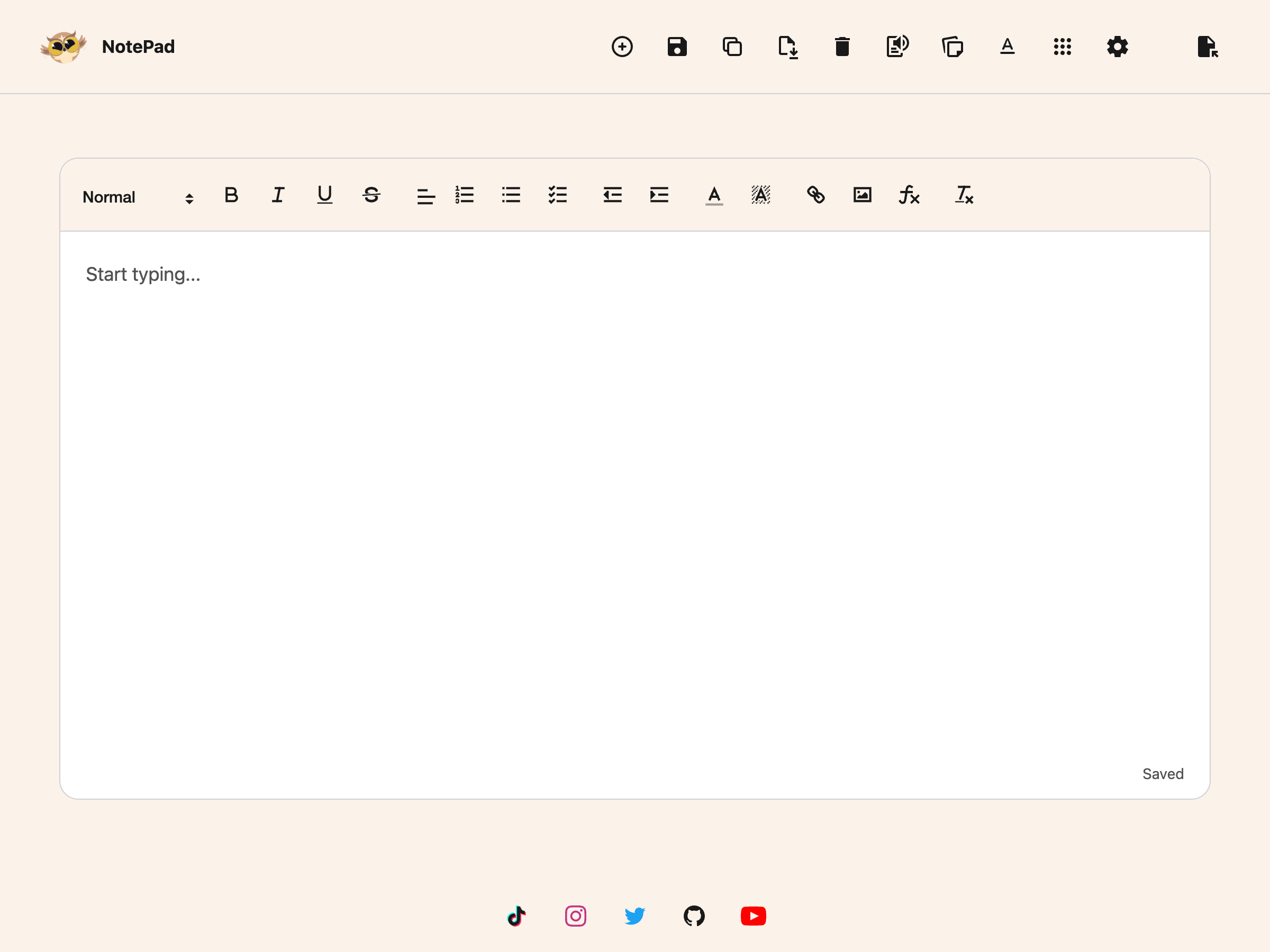
Click New document in the toolbar. It is the circled plus in the top toolbar.
 View full-size image (opens in a new tab)
The page clears and you can start typing.
Everything you saved before is still there. Open it again from Open document whenever you need it.
Need Additional Help?
If you have any questions or run into any issues, please contact the Helperbird support team. You can reach us at Helperbird support. We are happy to help you get the most out of Helperbird.
Printed from the Helperbird Help Center · Updated September 25th, 2026
Questions? We are happy to help — helperbird.com/support