
How to Use the Line Focus on Any Website
Learn how to use line focus on any website. Highlight one line at a time for better reading. Support accessibility for everyone.
Jump to the stepsOn this page
What is Line Focus?
Line Focus (also called Focus Ruler) creates a spotlight effect on the line you are reading. It dims everything on the page except for one strip of text, making it much easier to concentrate.
Think of it like shining a flashlight on just one line while the rest of the page fades into the background. This helps reduce visual clutter and keeps your attention on the text you are reading.
Who is This For?
This feature is helpful for:
- People with dyslexia who get distracted by surrounding text
- Anyone with ADHD or attention difficulties
- People who find busy web pages overwhelming
- Students who need to focus while studying
- Anyone who wants to reduce visual distractions while reading
Step 1: Open Helperbird
Click the Helperbird icon in your browser toolbar. It looks like a small owl and is usually in the top-right corner of your browser.
This will open the Helperbird menu.
Step 2: Open the All Features Section
Scroll down to the bottom of the Helperbird menu. You will see a section called All Features.
Click the arrow next to All Features to expand it and show all available features.
Step 3: Find Dyslexia Support
Look through the list of features until you see Dyslexia support.
It has a purple icon with a brain symbol on it.
Step 4: Open Dyslexia Support
Click on Dyslexia support to open it.
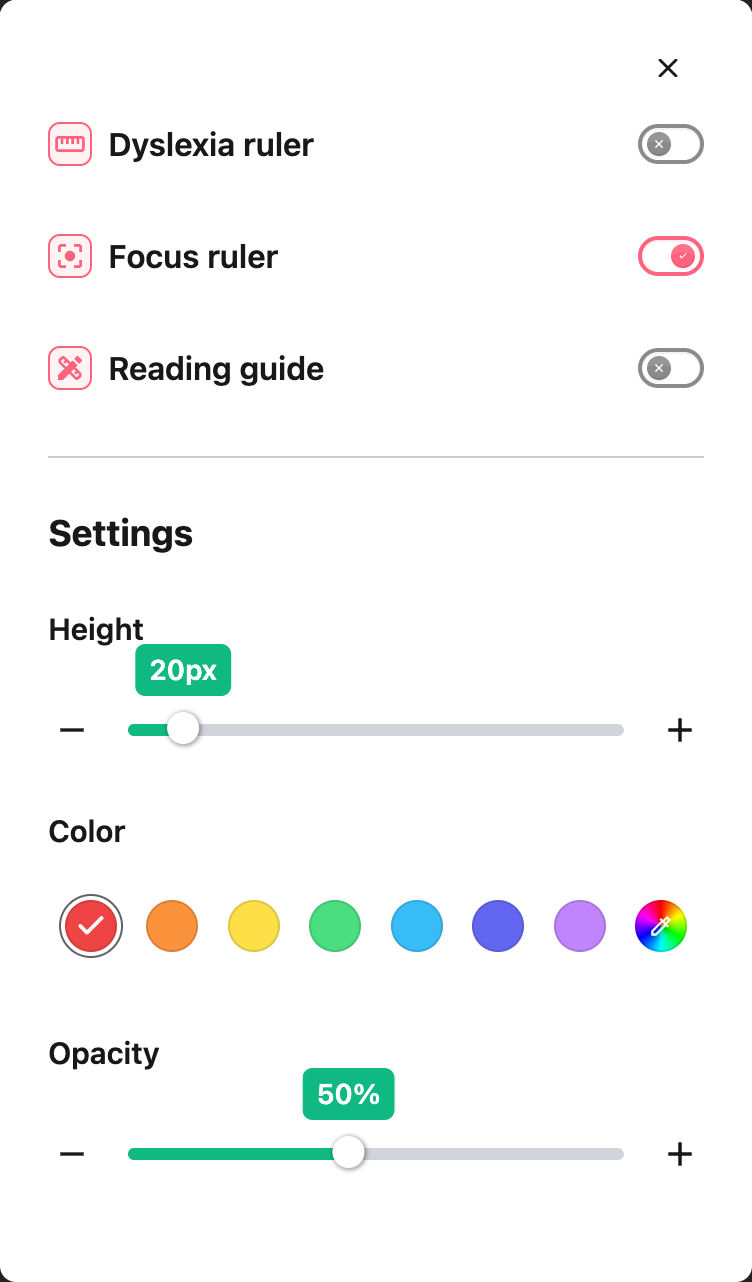
A panel will appear with three toggles: Dyslexia ruler, Focus ruler and Reading guide, with a Settings section below them.
The Focus ruler toggle is the one you need for Line Focus.
Step 5: Turn on Line Focus
In the panel, look for Focus ruler (also called Line Focus).
Click the toggle switch next to it to turn it on. The toggle will turn green when it is enabled.
The page will immediately dim except for a strip of text where you can focus.
Step 6: Customize the Focus
To adjust how the line focus looks, scroll to the Settings section below the toggles in the same panel.
Here you can change the size, color, and opacity of the focus area.
 View full-size image (opens in a new tab)
Focus Settings
In the Settings section, you can customize the following:
Height - Adjust how tall the focused reading area is. Make it taller to see more lines or shorter to focus on just one line.
Color - Choose the color of the dimmed area around your focus strip. Darker colors create more contrast.
Opacity - Adjust how dark the dimmed area is. Higher opacity makes the surrounding area darker.
Tip: For the best reading experience, use a dark mask color with a higher opacity. The focus area follows your mouse automatically, creating a spotlight effect as you read down the page.
Video Tutorial
Need Additional Help?
If you have any questions or run into any issues, please contact the Helperbird support team. You can reach us at Helperbird support. We are happy to help you get the most out of Helperbird.
Printed from the Helperbird Help Center · Updated September 22nd, 2026
Questions? We are happy to help — helperbird.com/support