
How to Change Text Color on Any Website
Learn how to change the color of text on any website using Helperbird. Choose a text color that is easier for you to read and reduces eye strain.
Jump to the stepsOn this page
What is Text Color?
The text color feature lets you change the color of all text on a website. Instead of reading black text on white, you can choose any color that is more comfortable for your eyes.
This can help reduce eye strain and make reading easier, especially if you are sensitive to certain color combinations.
Who is This For?
This feature is helpful for:
- People with visual stress who find certain colors easier to read
- Anyone who experiences eye strain from black text on white backgrounds
- People with dyslexia who benefit from specific color combinations
- Anyone who wants to customize how websites look
- People who read for long periods and want to reduce fatigue
Step 1: Open Helperbird
Click the Helperbird icon in your browser toolbar. It looks like a small owl and is usually in the top-right corner of your browser.
This will open the Helperbird menu.
Step 2: Open the All Features Section
Scroll down to the bottom of the Helperbird menu. You will see a section called All Features.
Click the arrow next to All Features to expand it and show all available features.
Step 3: Find Colors
Look through the list of features until you see Colors.
It has a yellow icon with a paint palette on it.
Step 4: Open Colors
Click the arrow button next to Colors to open it.
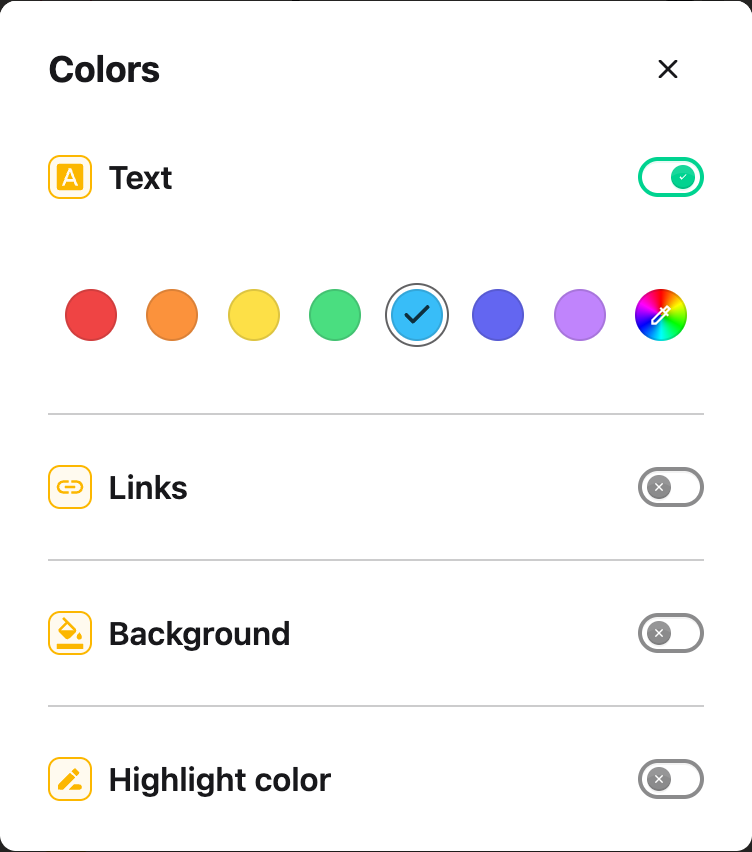
A panel will appear with color options for Text, Links, Background, and Highlight.
Step 5: Turn on Text Color
In the Colors panel, look for Text at the top of the list.
Click the toggle switch next to it to turn it on. The toggle will turn green when it is enabled.
Step 6: Choose Your Color
Once Text is turned on, a color palette will appear below the toggle.
Click on any color to select it. The text color on the website will change immediately so you can see how it looks.
If you do not see a color you like, you can click the color picker icon to choose any custom color.
Tip: Try pairing a custom text color with a custom background color for the best results. For example, cream-colored text on a dark blue background, or dark text on a soft pastel background.
 View full-size image (opens in a new tab)
Video Tutorial
Need Additional Help?
If you have any questions or run into any issues, please contact the Helperbird support team. You can reach us at Helperbird support. We are happy to help you get the most out of Helperbird.
Printed from the Helperbird Help Center · Updated September 22nd, 2026
Questions? We are happy to help — helperbird.com/support