
How to translate PDFs with Helperbird
Translate the current PDF page, compare the original and translation, and use Helperbird's reading tools on the translated text.
On this page
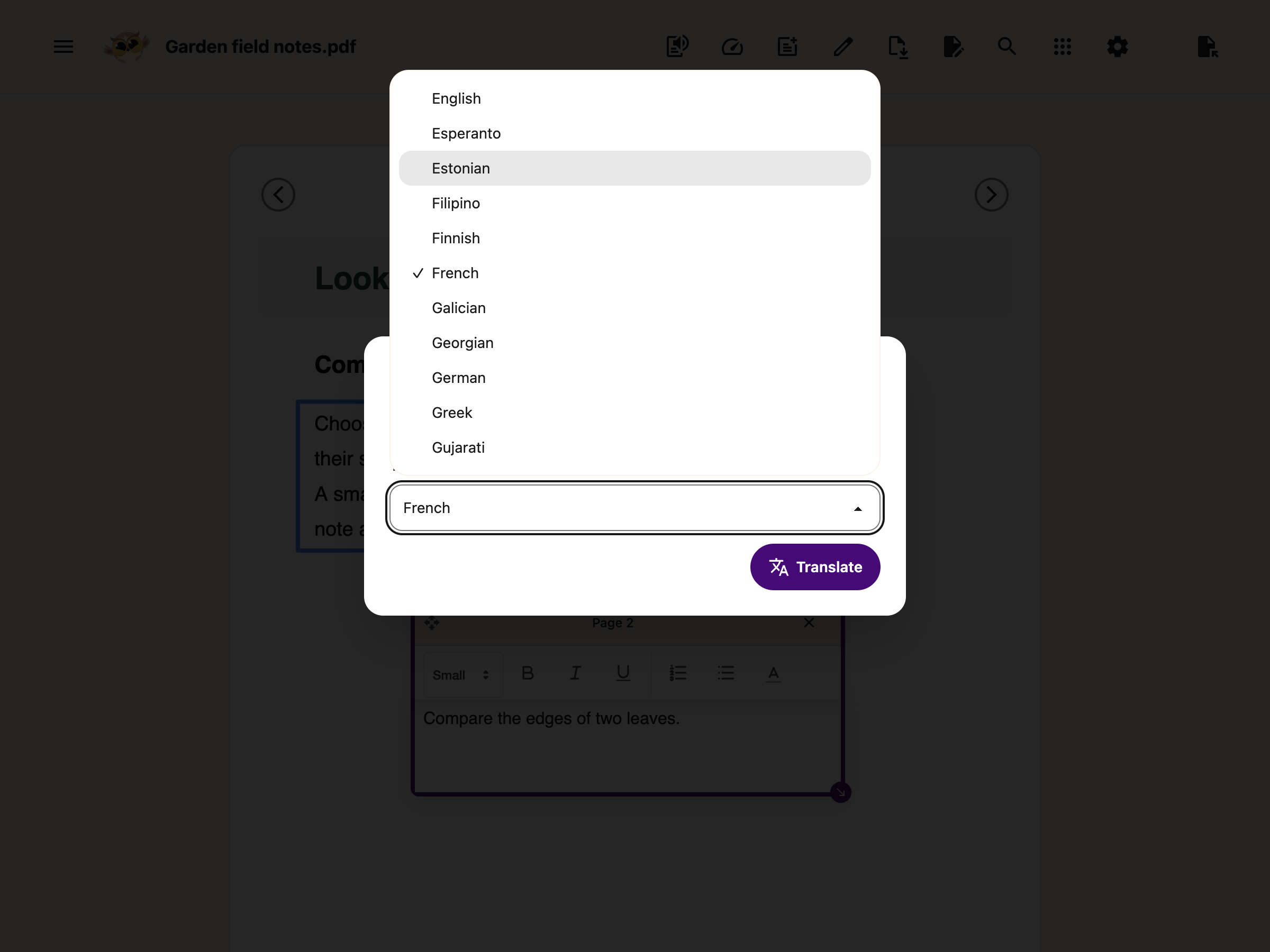
Translate turns the text on the current PDF page into your chosen language. It is a Helperbird Pro feature. Your source PDF, drawings and text boxes stay unchanged.
Translate the current page
- Open a PDF in Helperbird and go to the page you want to translate.
- Open Tools in the PDF toolbar and choose Translate.
- The dialog title shows the page number. Choose a language under Translate to.
- Press Translate. Loading placeholders appear while Helperbird translates the page. You can use the Close icon or press Escape to stop waiting.
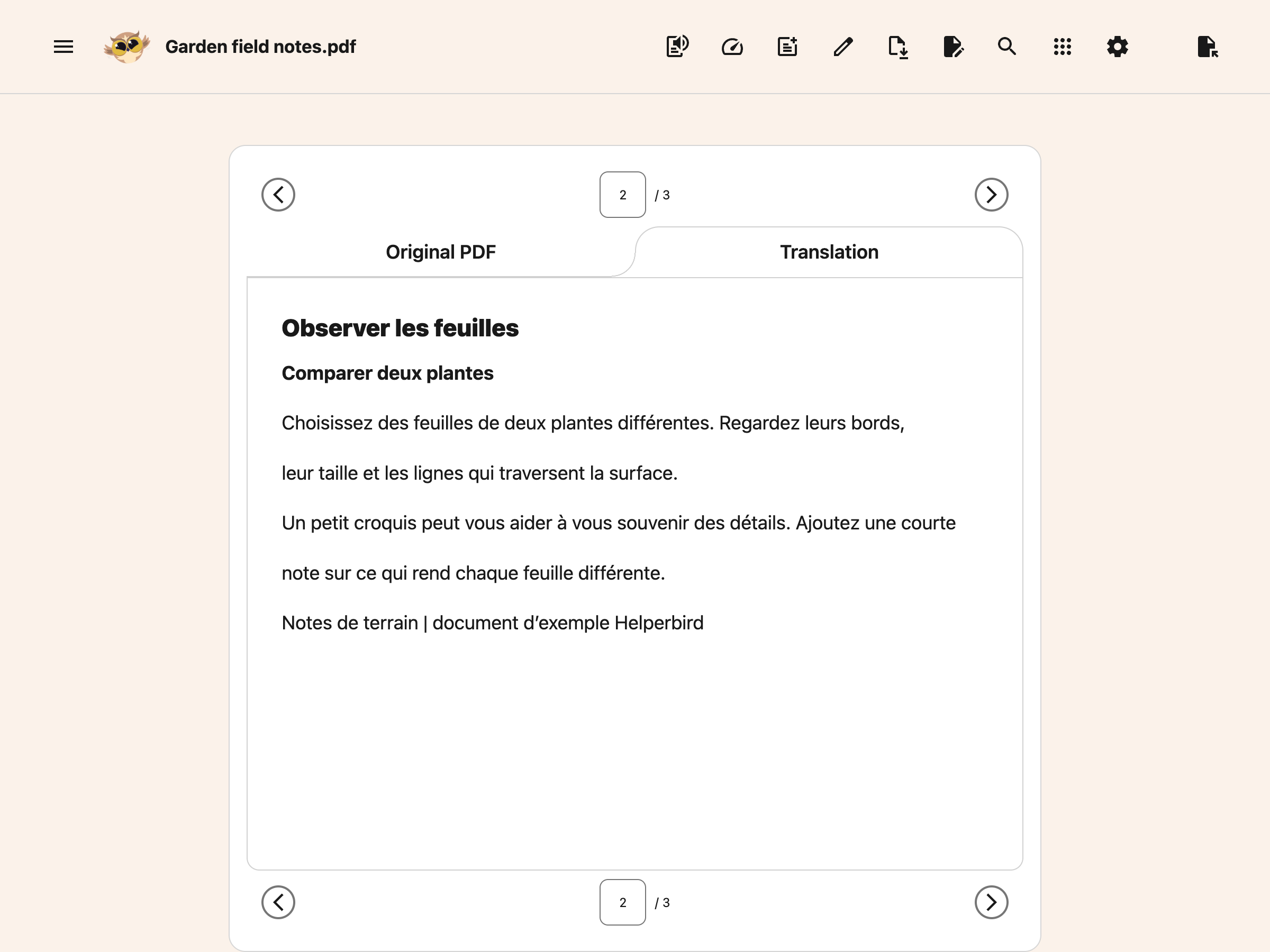
- When it finishes, the dialog closes and the Translation tab opens beside Original PDF.
Only the current page is translated. Highlighting a passage does not change the scope, and other pages are not translated automatically. Helperbird remembers your chosen language for next time.
Read and compare
Switch between Original PDF and Translation to compare them. You can also focus either tab and use the arrow keys to switch.
The translated page uses the existing reading tools. Open Text to Speech in the main toolbar to listen, or select translated words before using a reading tool. The translated view has no separate copy or speech toolbar.
 View full-size image (opens in a new tab)
Changing pages clears the previous translation and returns to the original PDF. Choose Translate again when you want to translate the new page. To change languages on the same page, open Translate again. Cancelling that dialog keeps the translation you already have.
PDF drawing, text boxes and page-layout tools work on the original PDF. Downloading the PDF preserves the original document and your annotations; it does not replace the source text with the translation.
Formatting and indentation
The translation is a reading view. Where the PDF exposes enough structure, it keeps headings, paragraphs, lists, bold and italic text, and indentation. Wrapped lines reflow so the translated text fits the available width.
First-line and hanging indents can carry over too. Their accuracy depends on the page structure and the translation keeping the same paragraph breaks. Compare with Original PDF when layout affects the meaning.
Complex columns, tables, pictures and exact page positioning are not recreated. Translation does not create a replacement PDF or translate your annotation boxes.
Troubleshooting
No selectable text: The page may be a scan or an image. Use Screenshot Reader to extract its text first. This dialog does not automatically run image recognition.
Translation could not finish: The dialog stays open so you can try again. A partial translation is never shown as a finished page.
Wrong language: Reopen Translate, select a different language and press Translate again.
A result disappeared: Moving to another page or opening another PDF clears the translation. Comparing the two tabs on the same page preserves it.
Related features
Printed from the Helperbird Help Center · Updated September 25th, 2026
Questions? We are happy to help — helperbird.com/support