
How to Use Helperbird's Reading List Feature
Learn the difference between Helperbird's two reading list rows, how your saved pages are grouped on the list page, and which guide covers each job here.
On this page
Helperbird's Reading list holds pages you want to read later. This guide is the map: the two rows in the popup, and how the list page itself is laid out.
The Two Reading List Rows
All Features is in alphabetical order, and it holds two separate reading list rows. Picking the wrong one is the usual reason people cannot find their saved pages.
| Row | Where it sits | What it does |
|---|---|---|
| Add to reading list | Near the top | Saves the page you are looking at right now |
| View reading list | Near the bottom | Opens your saved pages in a new tab |
 View full-size image (opens in a new tab)
Add to reading list needs Helperbird Pro. Without it the row is switched off, and removing a saved page is blocked in the same way.
Step by step: save a page or open your list.
How the List Page is Laid Out
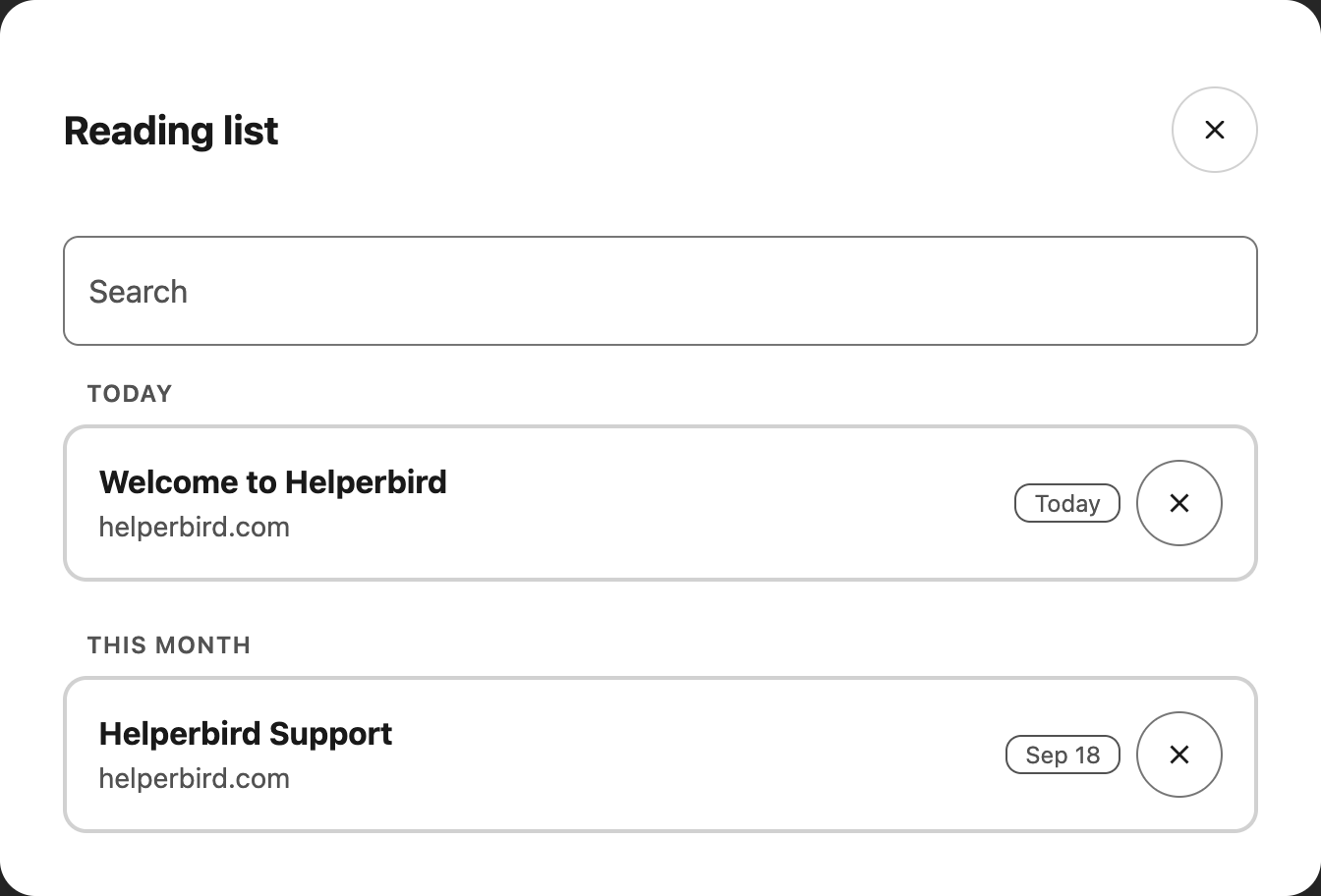
Pages are grouped by when you saved them, newest first, under Today, Yesterday, This week and This month. Anything older is grouped by the month it was saved in, such as August 2026.
Each row shows the page title, the website it came from, and the date you saved it. Three things are worth knowing before you go looking for a button:
- The whole row is the link, so click anywhere on it to open the page. There is no separate Visit button.
- Search is the magnifying glass in the top right. It matches the title and the address.
- Remove stays hidden until you hover over a row or tab to it, so at a glance the rows look like they have no controls. See removing a page.
Your list lives in your browser, not on a Helperbird server. Where it is kept, and why it does not follow you into a different browser, is covered in saving a page.
A Guide for Each Part
Video Tutorial
Need Additional Help?
If you have a problem getting started, contact the Helperbird support team. We will help.
Printed from the Helperbird Help Center · Updated September 22nd, 2026
Questions? We are happy to help — helperbird.com/support