
How to Resync Your Helperbird Subscription
Helperbird still showing Free after you paid? Press Check so it looks your subscription up now, and find that button on Chrome, Edge, Firefox, Safari and iPad.
On this page
Paid for Pro, but the extension still shows Free? Ask Helperbird to look your subscription up now. This page covers that one action and where the button lives on each browser.
Why Pro Can Show as Free
Helperbird checks your subscription about every eight hours, so something you bought, renewed or fixed a few minutes ago may not have been picked up yet.
If a check cannot get through, Helperbird shows a connection message. Your existing account details stay visible, but they are not confirmation that the latest check succeeded. A dropped connection does not cancel your subscription or sign you out.
Rechecking asks Helperbird to look it up now and updates the extension to match.
How to Recheck Your Subscription
Both routes do the same thing, and both start by opening Helperbird.
On a computer, click the Helperbird icon in your browser toolbar. On iPhone, tap the aA button in the address bar. On iPad, tap the puzzle piece icon. Then tap Helperbird.
Now click Settings. The Options menu opens.
From the popup
Available on Chrome, Edge and Firefox.
In the Options menu, click Check subscription.
From the settings page
Available on every browser. On Safari, iPhone and iPad this is the only way, because Check subscription is not in the Options menu there.
- In the Options menu, click Settings. The settings page opens in a new tab.
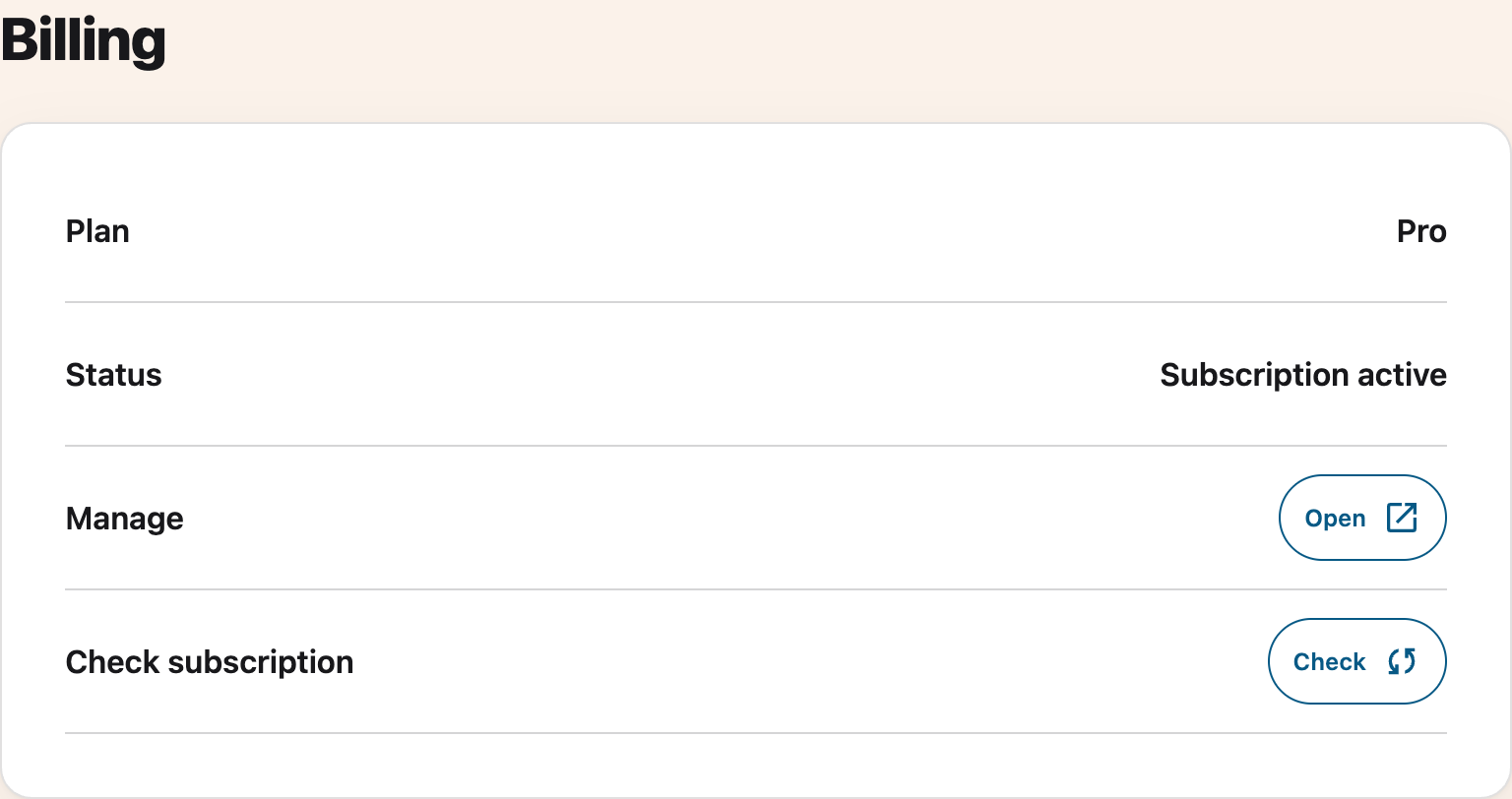
- Scroll to the Billing section.
- On the Check subscription row, click Check.
The Check button shows a spinner while the check runs and stays in place for keyboard focus. After a successful check, Plan and Status show the result. If the check fails, read the message and try again; your last displayed details stay visible.
 View full-size image (opens in a new tab)
If It Still Shows Free
Read the Status row first. It names what Helperbird found, such as "Subscription active", "Payment overdue" or "No subscription found". Every status and what to do about it is listed in managing your Helperbird Pro subscription.
- A payment is overdue or a card failed. Fix your card, then press Check again. See how to manage your Helperbird billing, including the email code route if no billing link is available.
- A connection message appears. Try Check again when your connection is working. On a school or workplace network, follow the firewall guide.
- Still Free or No active subscription. Work through why a subscription is not activating: browsers you never activated, the wrong email address, blocked networks and school deployments.
- Plan says Pro but one feature stays locked. Different problem. See Pro features still locked.
Need Additional Help?
If you have any questions or run into any issues, please contact the Helperbird support team. You can reach us at Helperbird support. We are happy to help you get the most out of Helperbird.
Printed from the Helperbird Help Center · Updated September 28th, 2026
Questions? We are happy to help — helperbird.com/support