
How to Add Text Boxes to PDFs in Helperbird
Learn how to add text boxes and annotations to any PDF using Helperbird's PDF Reader. Write notes, format text, add comments, and download your annotated PDF.
Jump to the stepsOn this page
What are PDF Annotations?
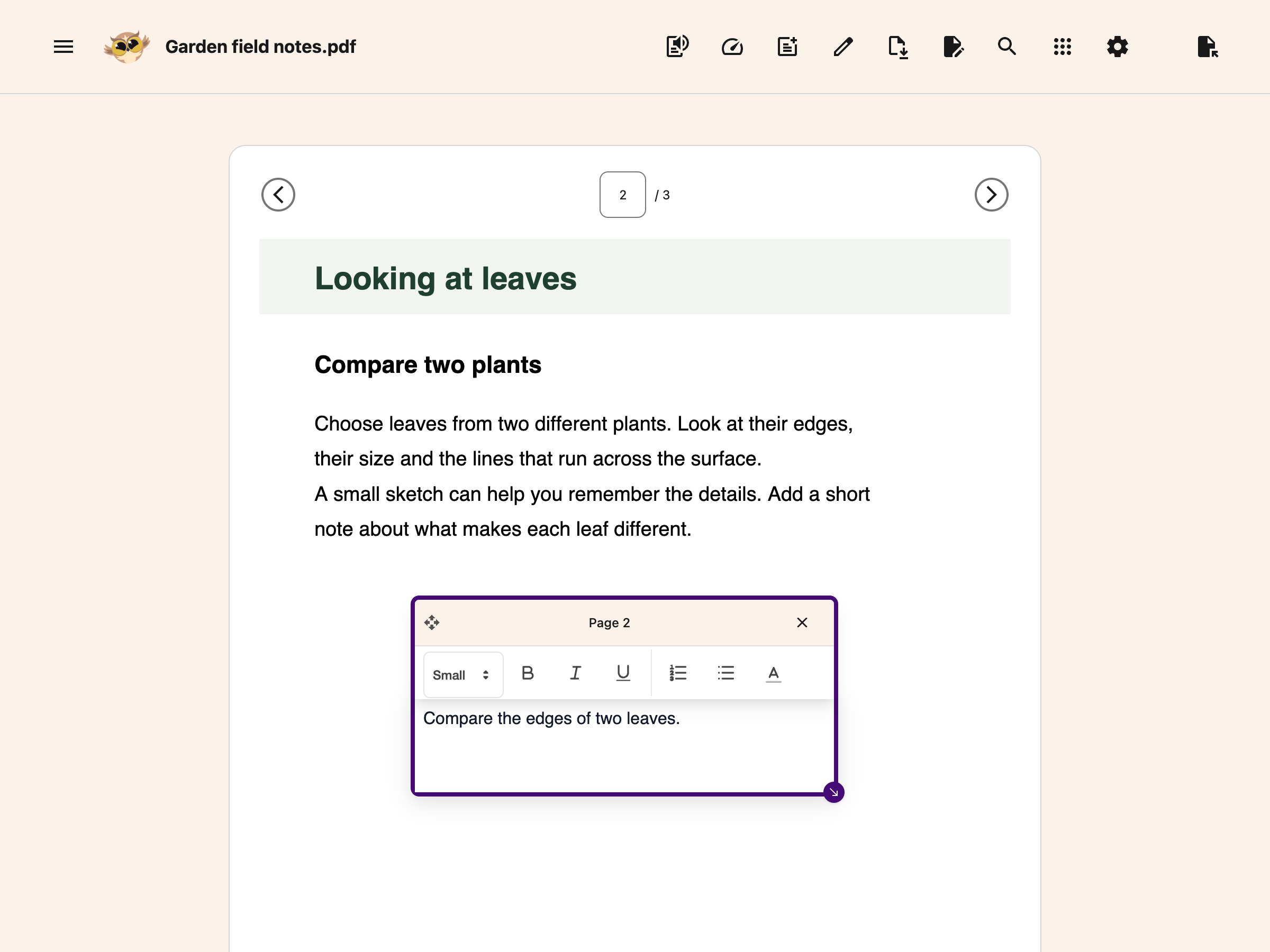
PDF Annotations let you add text boxes directly onto PDF documents. You can write notes, add comments, or fill in forms. The annotations become part of the PDF and can be saved and shared with anyone.
 View full-size image (opens in a new tab)
Who is This For?
This feature is helpful for:
- Students who want to add notes to study materials
- Anyone who needs to fill out PDF forms
- People who want to add comments to documents for review
- Researchers who need to annotate academic papers
- Anyone who wants to mark up PDF documents
Step 1: Open a PDF in Helperbird
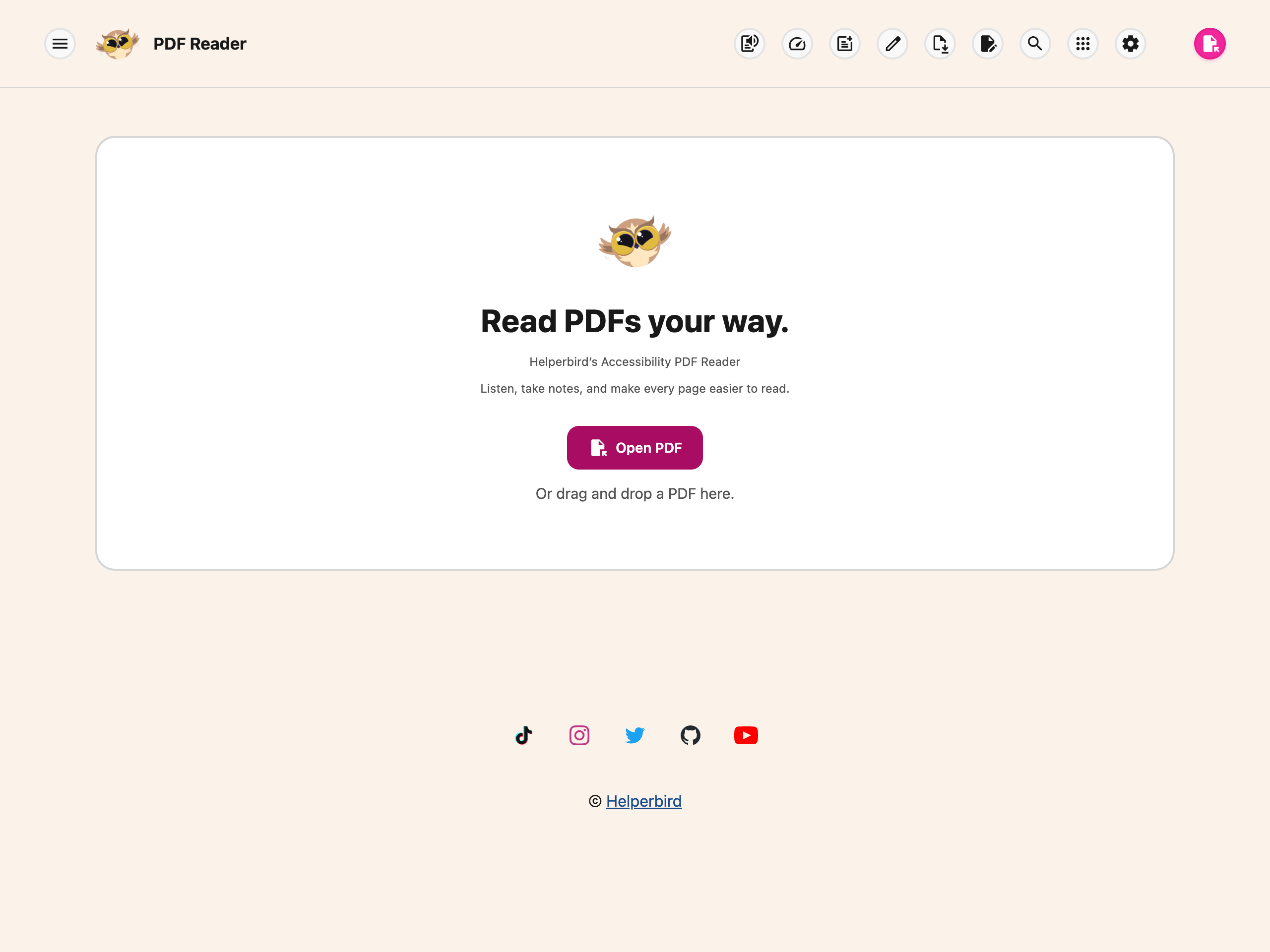
Open the PDF Reader, choose Open PDF, and select a file from your device. The page appears with its reading controls above it.
 View full-size image (opens in a new tab)
Step 2: Add a Text Box
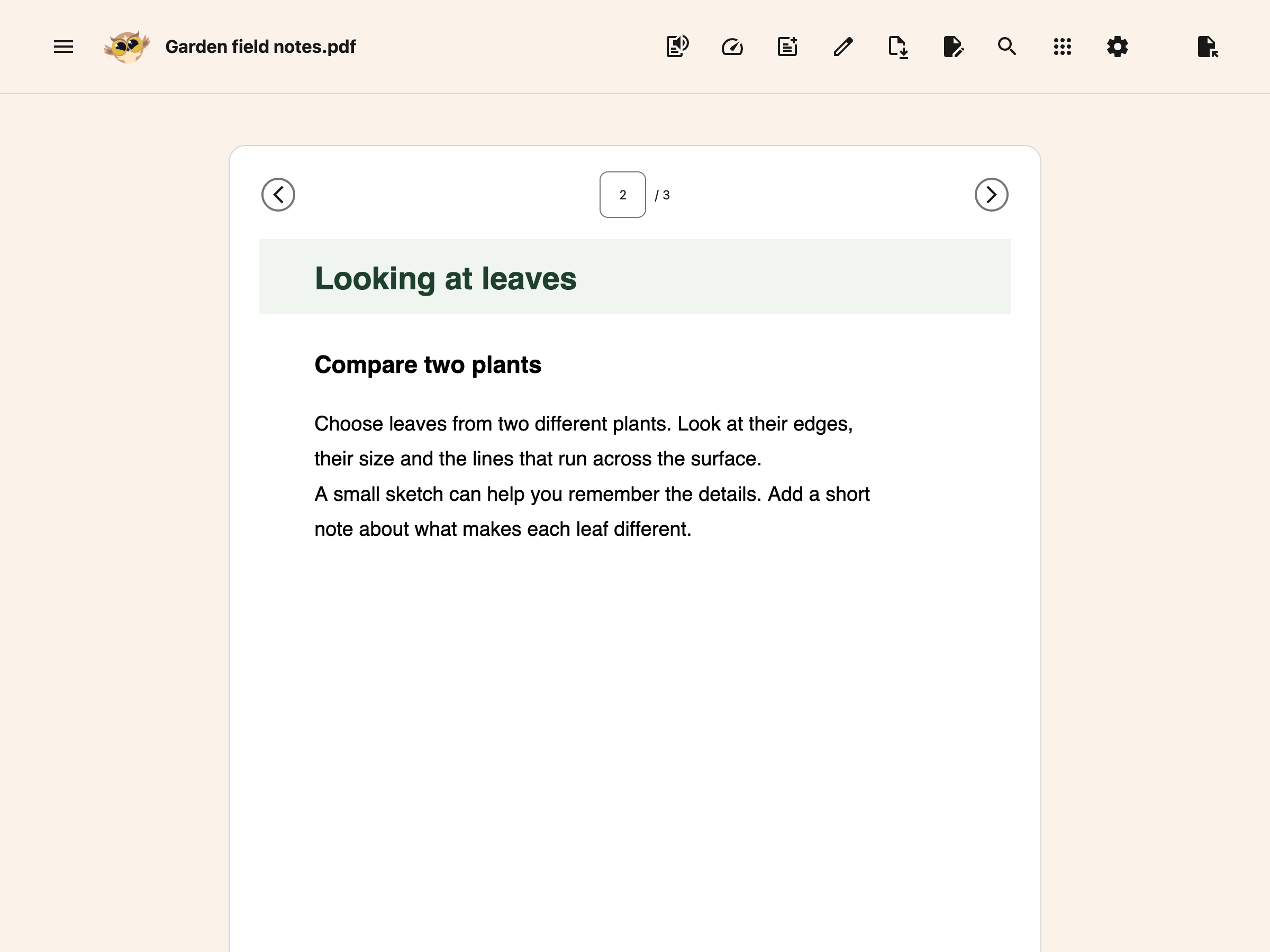
In the toolbar at the top of the PDF Reader, click the Add Textbox button (the document icon with a plus sign).
 View full-size image (opens in a new tab)
A text box will appear on the current page. You can drag it to any position and resize it by pulling the handle at the bottom-right corner.
View full-size image (opens in a new tab)
Click the Add Textbox button again to add more text boxes. Each new text box is slightly offset from the previous one so they don't stack on top of each other.
You can also paste text, links or an image with no field or dialog focused to make a new box. Pasting into an existing text box keeps editing that box.
Step 3: Type and Format Your Text
Click inside a text box and start typing. The text box will expand as you type.
A formatting toolbar appears attached to the text box while you edit. Use it to:
- Make text bold, italic, or underlined
- Change text colors and font sizes
- Add bulleted or numbered lists
View full-size image (opens in a new tab)
Supported formatting is kept when you download the PDF. Press Escape when you are finished editing a text box. Use the attached bar to move or remove it. Maths boxes also have an Edit equation button.
Step 4: Add Text from the Notepad
You can also write text in the Notepad and insert it as a text box on the PDF.
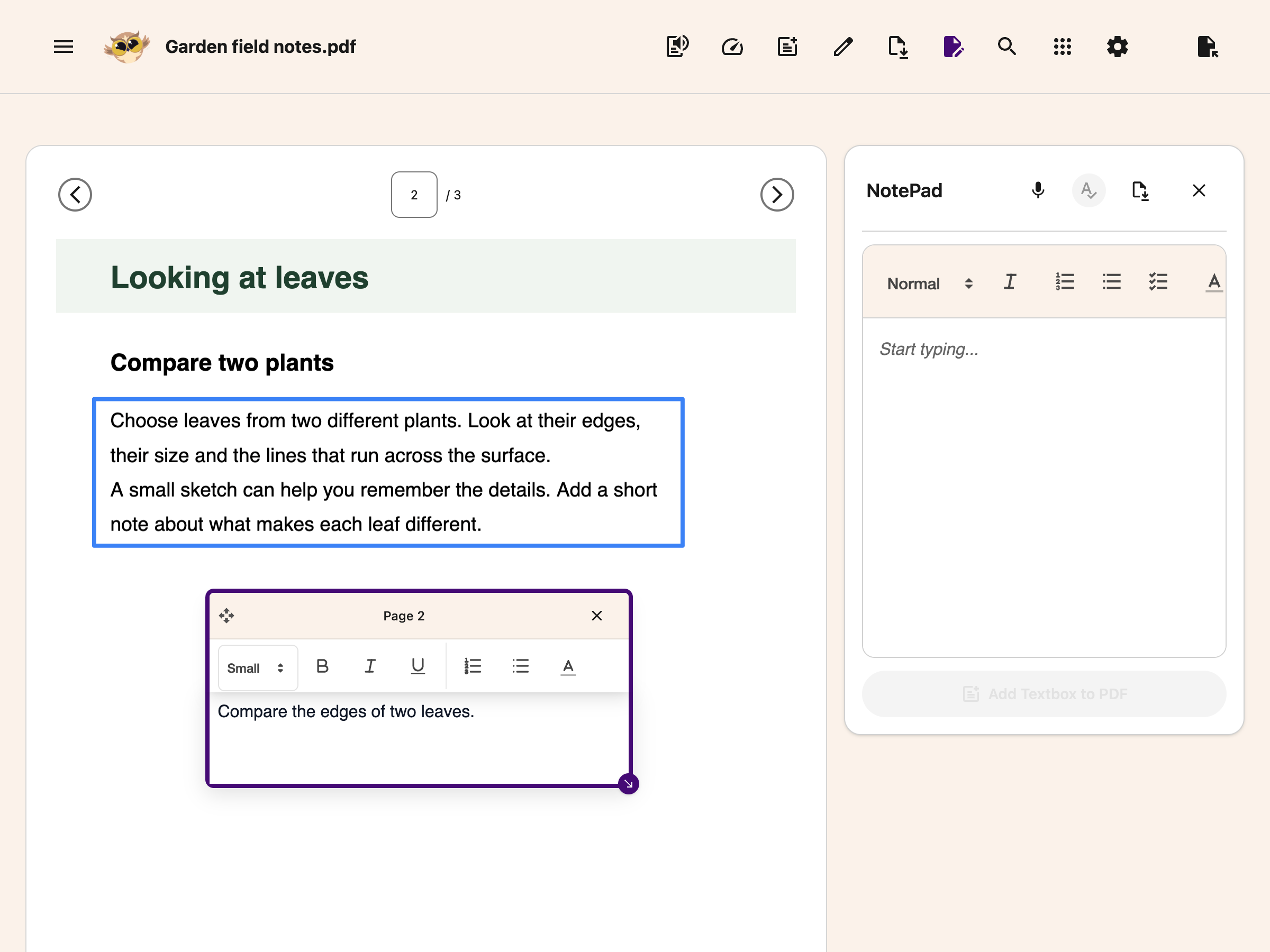
Click the NotePad button in the toolbar to open the split view. Type your notes in the Notepad panel, then click Add Textbox to PDF below the editor to place them on the current page. Both typing and inserting notes are free. The voice typing, grammar and equation tools need Helperbird Pro.
 View full-size image (opens in a new tab)
The Notepad also has a Download note button. It opens your browser's print dialog with your notes in it, so you can print them or choose Save as PDF to keep a copy.
Notes with images or equations become separate text and image boxes in the order you wrote them. If the full note will not fit or an image cannot load, Helperbird leaves the note and PDF unchanged.
Step 5: Download Your Annotated PDF
When you are finished adding your annotations, click the Download button (download icon with arrow) in the toolbar.
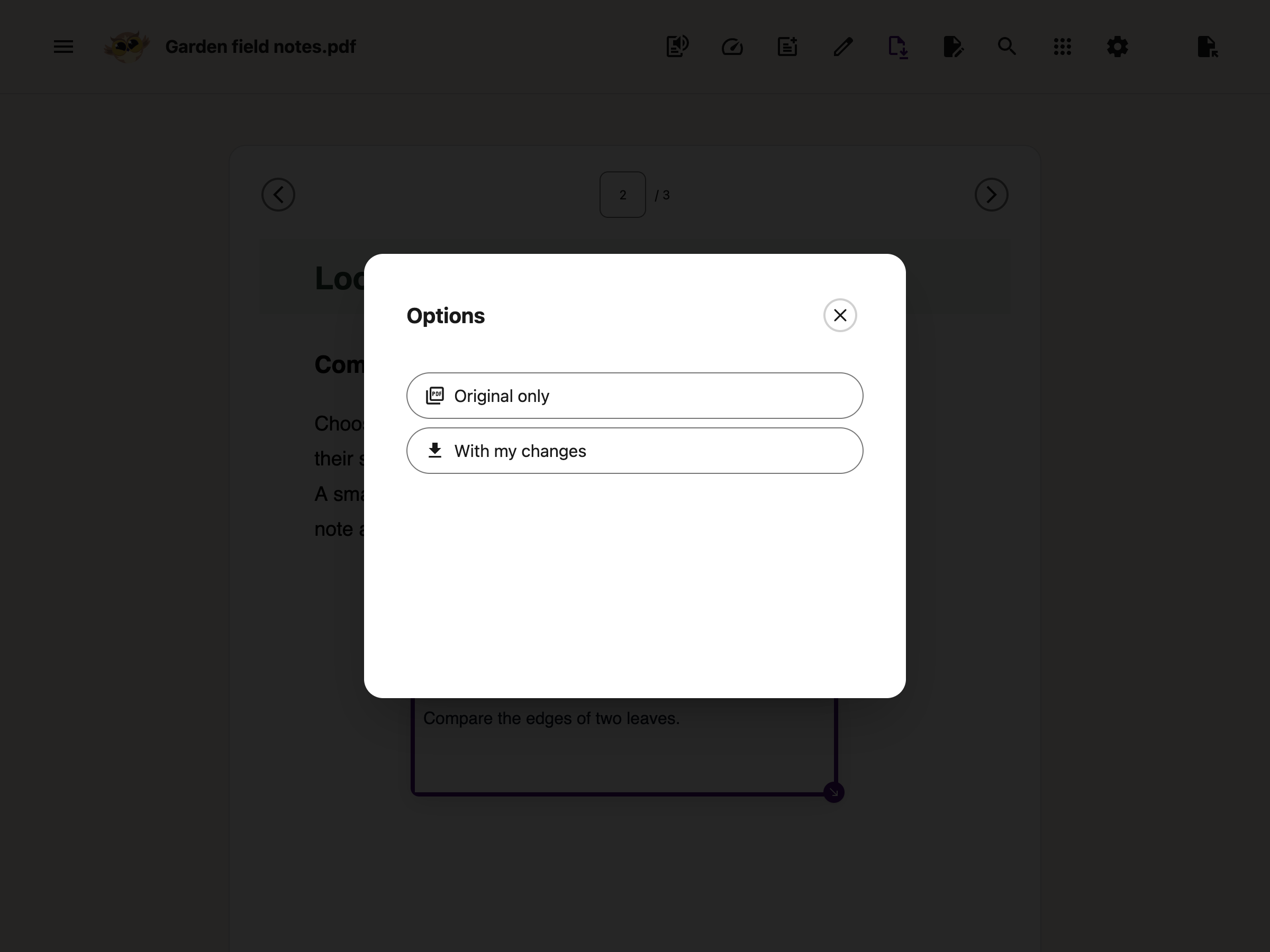
An options menu will appear with two choices:
- Original only - Download the original PDF without any annotations
- With my changes - Download the PDF with all your text boxes and formatting included
 View full-size image (opens in a new tab)
Click With my changes. A green notification saying "Downloaded with notes" will confirm your download. Your annotated PDF will have all text boxes permanently embedded, so anyone who opens it in any PDF reader will see them.
Tips
- Your annotations are saved as part of the PDF, so they are visible in any standard PDF reader.
- Combine text boxes with the Drawing Tools for detailed markup. Add a text box next to an arrow for context.
- Use the Notepad for longer notes and the direct text box for quick annotations on specific spots.
Related Guides
- How to Annotate and Export a PDF with Helperbird
- How to Use Drawing Tools on PDFs
- How to Save and Download Annotated PDFs
- How to Share and Export PDFs with Helperbird
- How to Use the PDF Reader in Helperbird
- How to Use Helperbird for Reading Long PDFs
Doing This Without a Mouse
Every part of a text box can be done from the keyboard, including positioning it one pixel at a time so the text sits on a form line rather than near it. See how to move and resize PDF text boxes with the keyboard.
Need Additional Help?
If you have any questions or run into any issues, please contact the Helperbird support team. You can reach us at Helperbird support. We are happy to help you get the most out of Helperbird.
Printed from the Helperbird Help Center · Updated September 25th, 2026
Questions? We are happy to help — helperbird.com/support