
How to Change Your Reading View in Helperbird Apps
Choose a font, text size, spacing, width and theme in Helperbird reading apps. Find each app’s controls and reset the view without deleting your saved work.
Jump to the stepsOn this page
What This Does
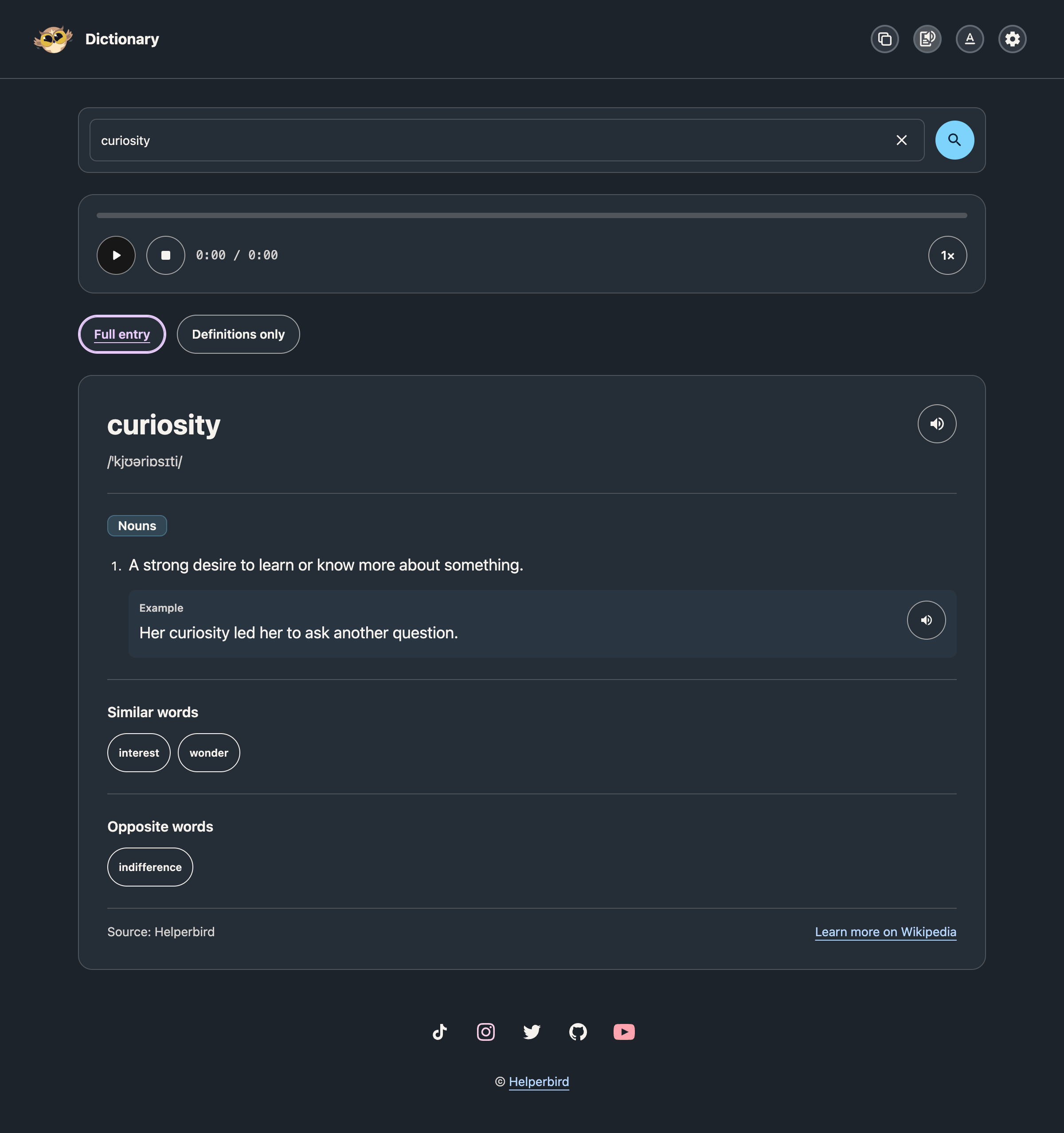
Helperbird's reading apps save their own display choices. You can use larger text in Dictionary and a different width in NotePad. Changing one app does not apply those preferences to every website or reader.
These controls change your view. They do not rewrite dictionary definitions, change the words in a PDF, or replace the formatting saved in your NotePad document.
Step 1: Find the Reading Controls
| Where you are | Text controls | Width and theme |
|---|---|---|
| NotePad | Text settings in the header | Settings |
| Dictionary | Text settings in the header | Settings |
| Reading Mode | Settings in the header | Reading Width and the Light or Dark button in the header |
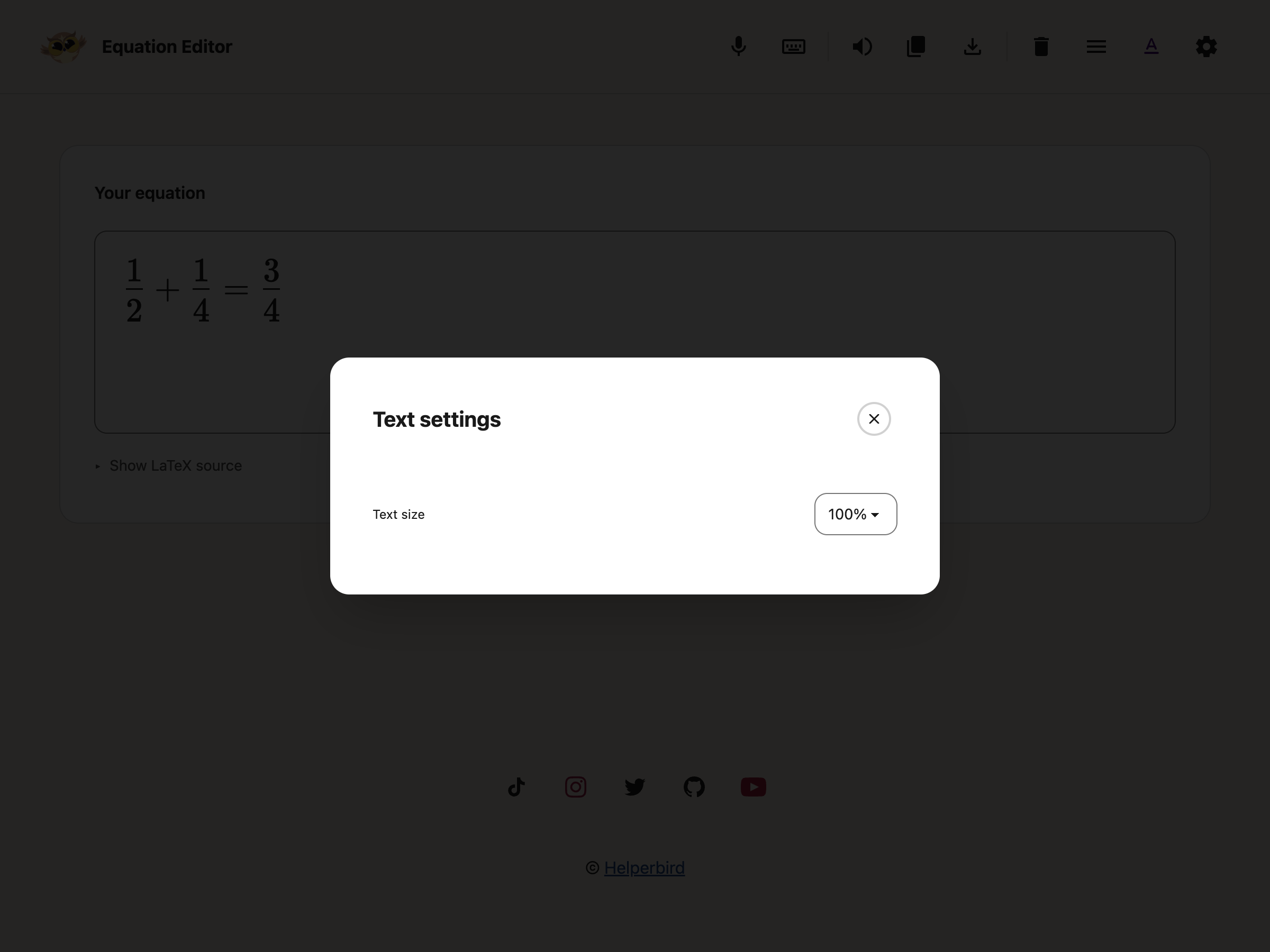
| Equation Editor | Text settings changes equation size | Settings |
| PDF Reader | Use zoom for the original page | Settings changes reader width and theme |
Reach a button with Tab to see its name. On a narrow Reading Mode view, open More options to reveal the header controls.
Step 2: Make the Text Comfortable
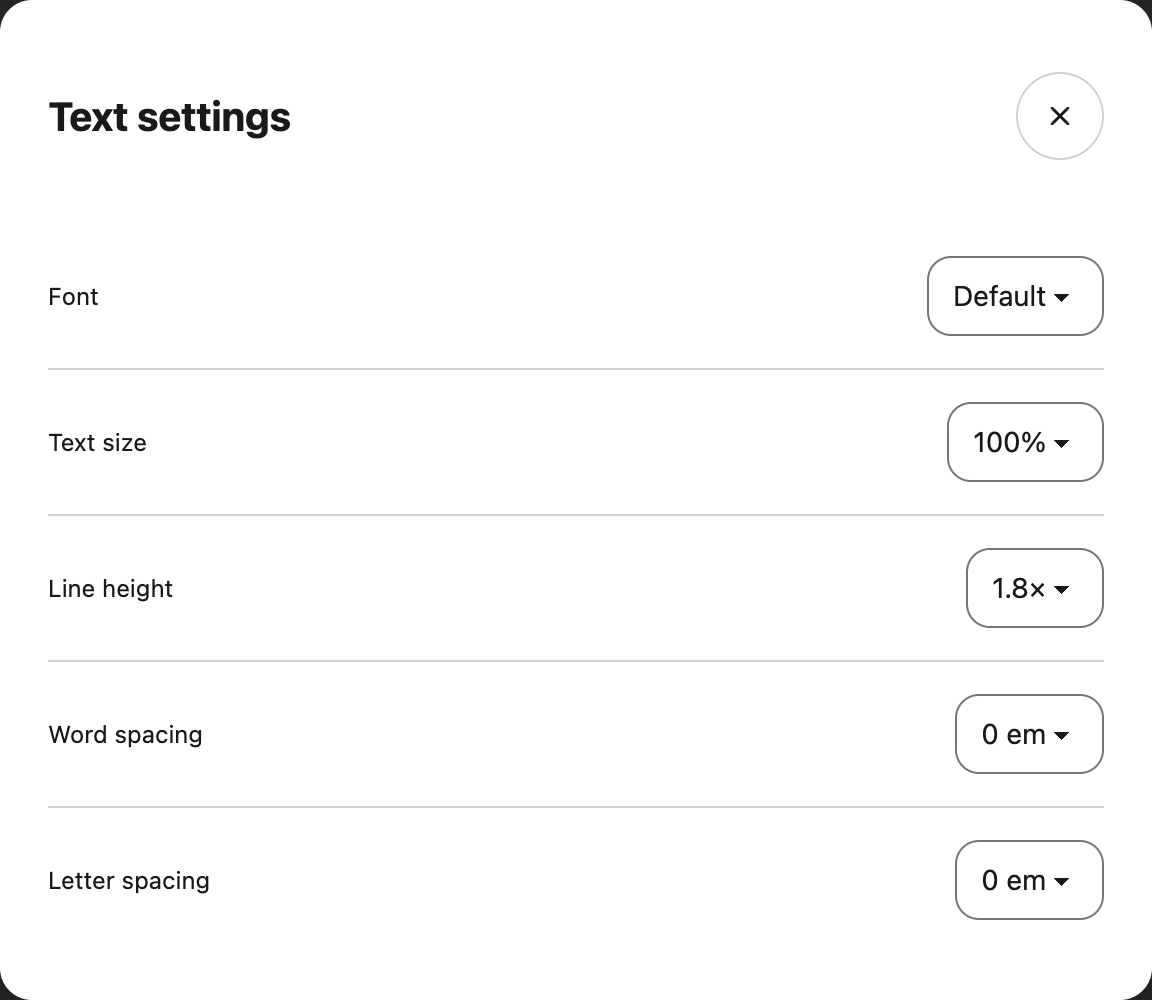
In NotePad, Dictionary or Reading Mode, choose a font and text size. Then adjust line height, word spacing or letter spacing if they help you follow the text. Change one option at a time so you can judge its effect.
 View full-size image (opens in a new tab)
The Equation Editor keeps the normal math font and symbol spacing. Its size control enlarges the displayed equation without changing the exported image.
 View full-size image (opens in a new tab)
PDF pages keep their original layout. Use Zoom and search for Fit page, Fit width and magnification. For reformatted PDF text, try Immersive Reader.
Step 3: Choose Width and Theme
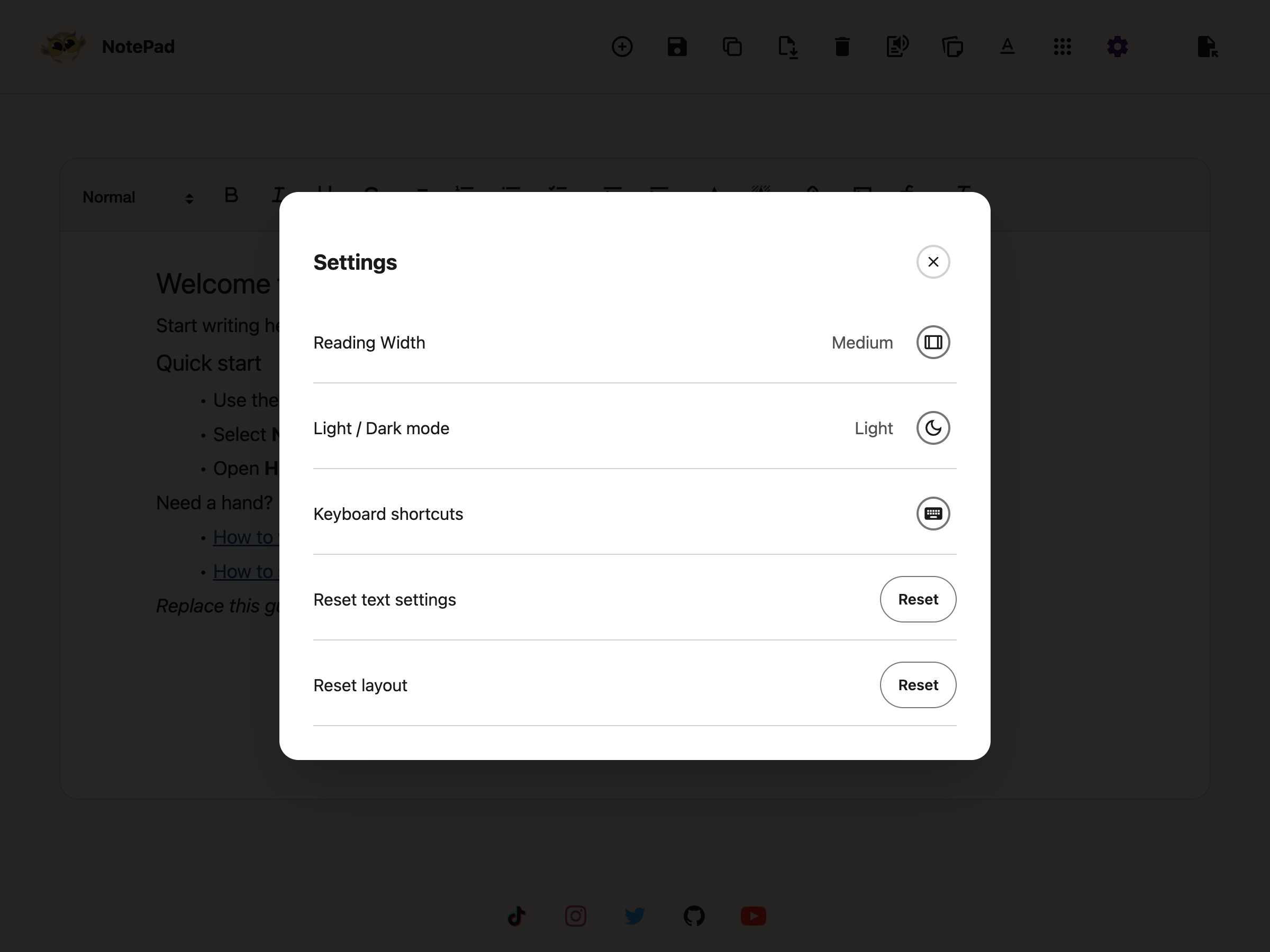
In an app's Settings, select the width button to cycle through Small, Medium and Large. The text beside it shows the current width. The Light or Dark button switches the theme.
 View full-size image (opens in a new tab)
The PDF theme changes the reader around the page. It does not recolor the original document.
Step 4: Reset Only What You Need
NotePad, Dictionary and Equation Editor offer two separate Reset buttons in Settings:
- Reset text settings restores the default font, size and spacing, or the default equation size.
- Reset layout restores the app's default width and theme. In Dictionary, it also returns to Full entry.
 View full-size image (opens in a new tab)
These resets do not delete your writing, notes or equation. They are separate from the Settings page's data deletion tools.
Need Additional Help?
See the guides for Dictionary, NotePad, Reading Mode, Equation Editor or PDF Reader.
Printed from the Helperbird Help Center · Updated September 25th, 2026
Questions? We are happy to help — helperbird.com/support