
How to Use Immersive Reader on Any Website
Learn how to use immersive reader on any website. Text-to-speech and reading tools for accessibility Support accessibility for everyone.
Jump to the stepsOn this page
What is Immersive Reader?
Immersive Reader is a reading tool made by Microsoft. It takes the text from a webpage and shows it in a clean, simple view without any distractions like ads, menus, or sidebars.
Immersive Reader also includes helpful features like text-to-speech, syllable breaking, parts of speech highlighting, and adjustable text size and spacing.
Who is This For?
This feature is helpful for:
- People with dyslexia who benefit from a simplified reading view
- Anyone who is distracted by busy webpage layouts
- Students who want to focus on the content they are reading
- People learning to read or learning a new language
- Anyone who wants text-to-speech with word highlighting
Step 1: Open Helperbird
Click the Helperbird icon in your browser toolbar. It looks like a small owl and is usually in the top-right corner of your browser.
This will open the Helperbird menu.
Step 2: Go to the All Features Section
Scroll down to the bottom of the Helperbird menu. You will see a section called All Features.
Click the arrow next to All Features to expand it and show all available features.
Step 3: Find Immersive Reader
Look through the list of features until you see Immersive Reader.
It has a book icon next to it.
Step 4: Click Immersive Reader
Click on Immersive Reader.
The webpage will transform into a clean reading view. You will see just the text and images from the page, without any of the extra elements like navigation menus, ads, or sidebars.
Step 5: Use Immersive Reader Features
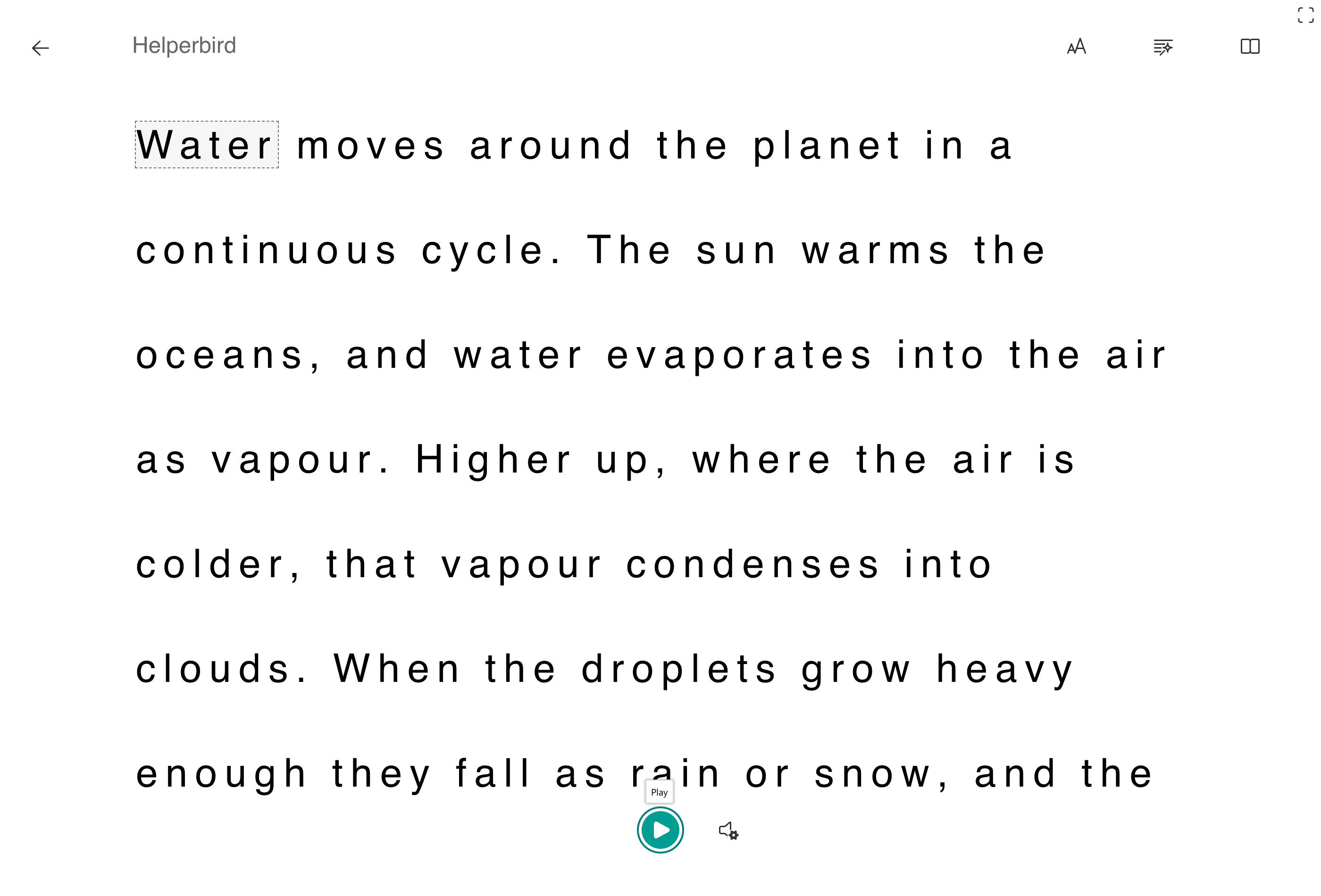
Immersive Reader opens with the text reflowed, spaced out and stripped of everything else on the page.
 View full-size image (opens in a new tab)
Three buttons in the top-right corner hold every setting, and each has its own guide:
- Text Preferences, marked AA, for text size, spacing, font and background color.
- Grammar Options for splitting words into syllables and colouring nouns, verbs, adjectives and adverbs.
- Reading Preferences for line focus and the picture dictionary. Translation lives here too.
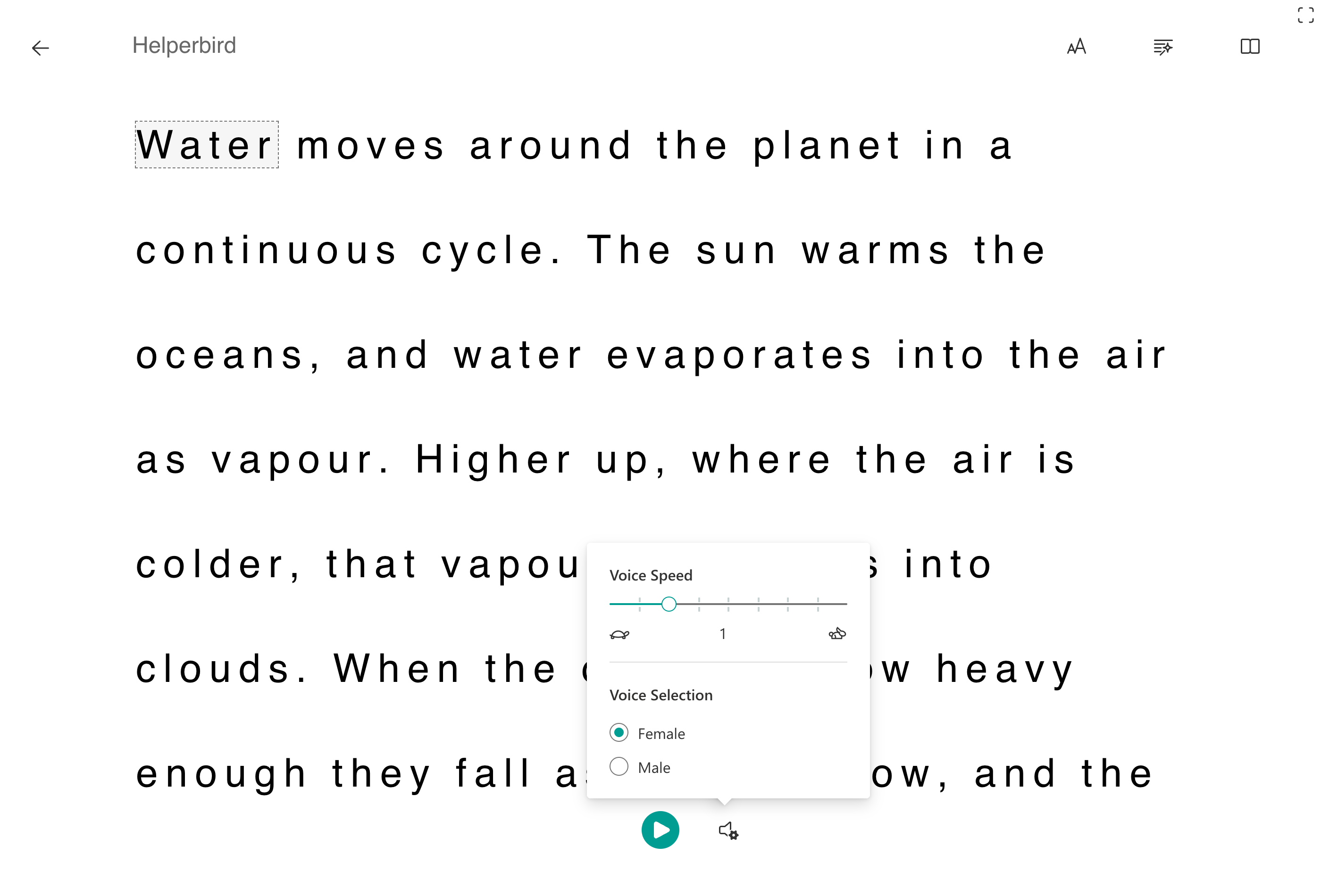
At the bottom, Play reads the text aloud and highlights each word as it goes. The speaker beside it opens the voice settings, where you choose the voice and how fast it reads.
 View full-size image (opens in a new tab)
To leave, press the back arrow in the top-left corner.
Reading Selected Text
If you only want to read part of a webpage:
- First, highlight the text you want to read by clicking and dragging your mouse over it
- Then open Helperbird and click the Immersive Reader button
- Immersive Reader will open with only your selected text
This is useful when you want to focus on a specific section of a long article.
Tip: Immersive Reader is especially helpful for long articles or academic content. The clean view removes distractions and the read aloud feature lets you listen while following along.
Frequently Asked Questions
Is Immersive Reader free? Yes! Immersive Reader is included in Helperbird Free. No Pro subscription required.
Does Immersive Reader work on all websites? It works on most websites with readable text content. Some complex web apps or sites with unusual layouts may not work perfectly.
Can I use Immersive Reader on PDFs? Yes! Open the PDF in Helperbird's PDF reader and use Immersive Reader from there.
What languages does Immersive Reader support? Immersive Reader supports over 60 languages for text-to-speech and translation features.
Can I save my Immersive Reader settings? Yes, your preferences (text size, colors, etc.) are saved automatically and will apply the next time you use Immersive Reader.
Related Guides
Using Immersive Reader in the PDF Reader
Immersive Reader is also built into Helperbird's PDF Reader, so you do not have to leave your document to use it.
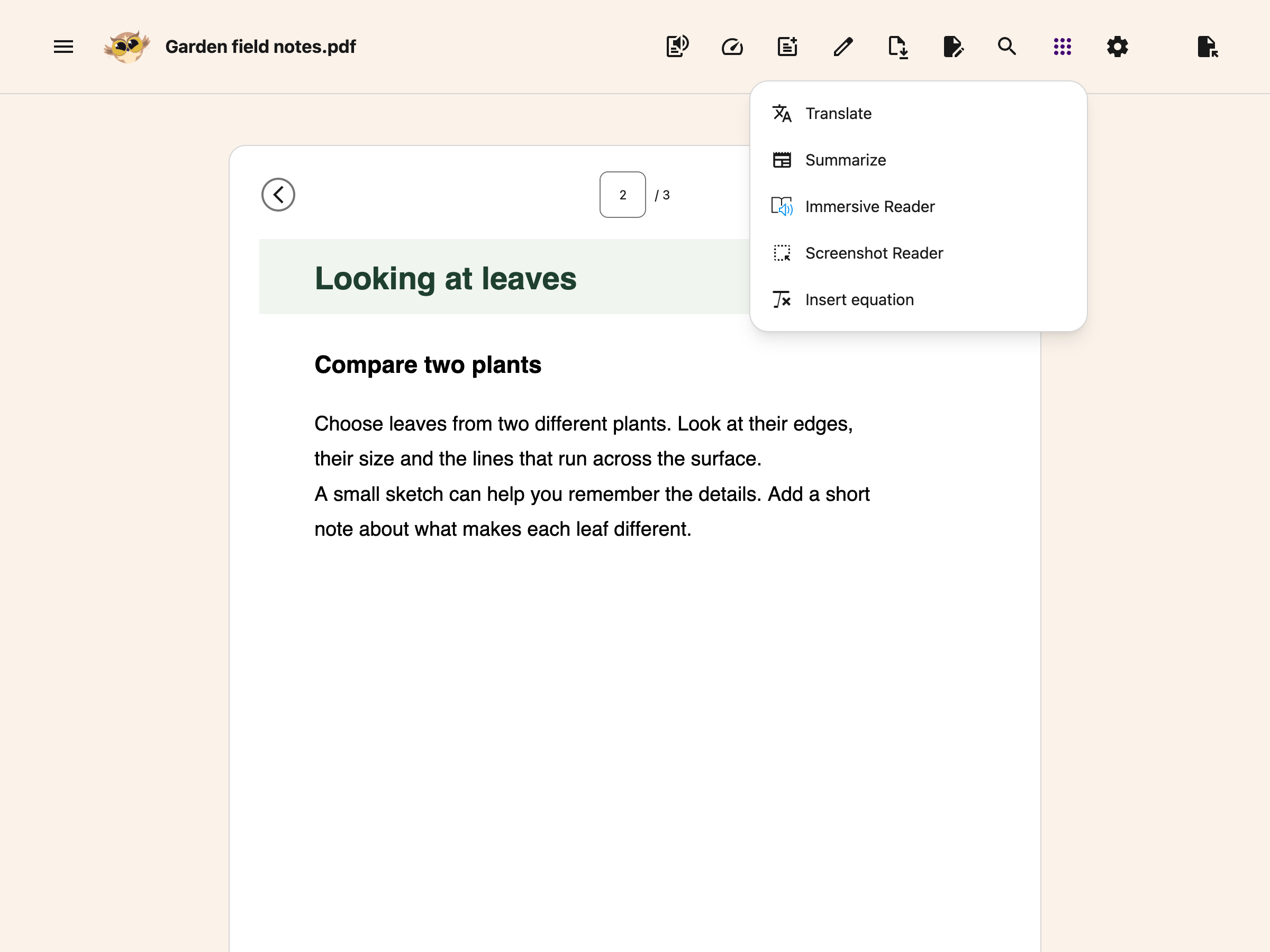
Open your PDF, then click the round button with the dots grid icon in the toolbar. It is the last button in the group, and it is labelled More options.
 View full-size image (opens in a new tab)
Choose Immersive Reader from the menu and the page you are reading, or just the text you have highlighted, opens in Immersive Reader.
It behaves exactly the same way there as it does on a website, and it uses the same settings, so anything you have chosen here carries over. See how to use the Tools menu in the PDF Reader.
Video Tutorial
If Immersive Reader is still opening, wait for that request to finish. Clicking again reuses the same opening request. After closing the reader or seeing an error, you can try again.
For the new PDF translation tabs, see translating the current PDF page. Translation inside Immersive Reader remains a separate option.
Need Additional Help?
If you have any questions or run into any issues, please contact the Helperbird support team. You can reach us at Helperbird support. We are happy to help you get the most out of Helperbird.
Printed from the Helperbird Help Center · Updated September 25th, 2026
Questions? We are happy to help — helperbird.com/support