
How to Export Your Helperbird Settings
Learn how to export your Helperbird settings so you can back them up or transfer them to another device or browser.
Jump to the stepsOn this page
Why Export Your Settings?
Exporting your settings creates a file that contains all your Helperbird preferences: your chosen colors, fonts, sizes, spacing, feature toggles, and every other customization you have made. This is useful when you want to back up your settings before resetting Helperbird, transfer your settings to a new computer or browser, or share your exact setup with someone else, like a teacher sharing a recommended configuration with students.
Step 1: Open Helperbird
Click the Helperbird icon in your browser toolbar. It looks like a small owl and is usually in the top-right corner of your browser.
This will open the Helperbird menu.
 View full-size image (opens in a new tab)
Step 2: Open the Settings Page
Click the gear icon in the top-left corner of the Helperbird menu. This will open the Settings page.
Step 3: Click Export Next to Settings
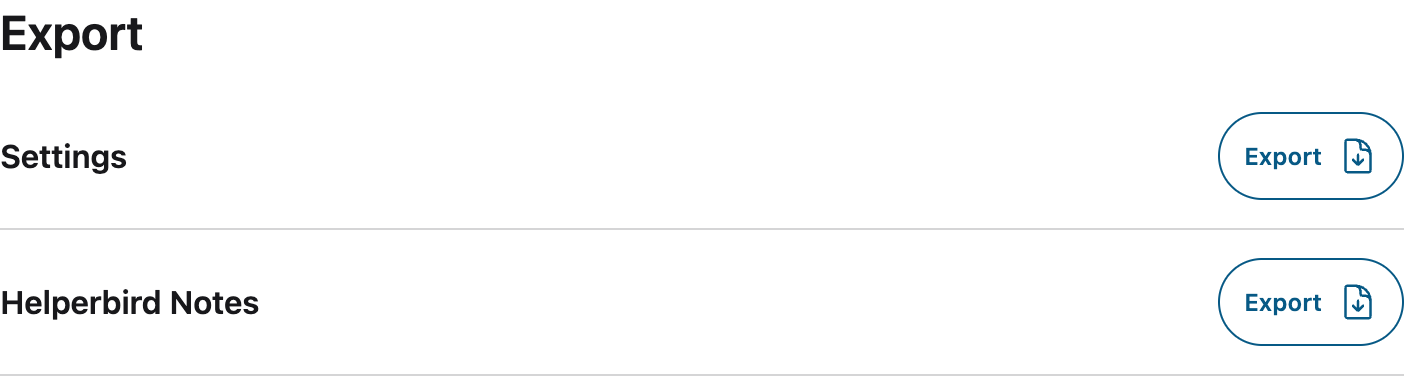
Scroll down to the Export section on the Settings page. You will see a Settings row with an Export button next to it.
Click the Export button.
Step 4: Save the File
Your browser will download a .helperbird file containing all your Helperbird settings. The file is named with today's date, for example helperbird-March-26-2026.helperbird. Save this file somewhere safe on your computer.
You can use it later to restore your settings using the Import Settings feature. The file does not include your subscription key or any personal account information.
Tip: Export your settings regularly, especially before resetting Helperbird or switching to a new computer. It only takes a few seconds and can save you the time of reconfiguring everything from scratch.
Video Tutorial
Need Additional Help?
If you have any questions or run into any issues, please contact the Helperbird support team. You can reach us at Helperbird support. We are happy to help you get the most out of Helperbird.
Printed from the Helperbird Help Center · Updated September 22nd, 2026
Questions? We are happy to help — helperbird.com/support