
How to Translate Any Website to Another Language
Translate a webpage or selected passage with Helperbird. Choose a language, press Translate, and learn how free, Pro and PDF translation results are displayed.
Jump to the stepsOn this page
What is Translate?
The Translate feature converts text on a website from one language to another. You can translate an entire webpage or just the text you select.
Helperbird uses Google Translate for free translations in many different languages. For Pro subscribers, selected-text translations appear inside Helperbird. Whole webpages open in Google Translate.
Who is This For?
This feature is helpful for:
- People reading websites in foreign languages
- Students researching content from other countries
- Anyone who wants to access information not available in their language
- People learning a new language who want to understand content
- Travelers looking up information in local languages
Step 1: Open Helperbird
Click the Helperbird icon in your browser toolbar. It looks like a small owl and is usually in the top-right corner of your browser.
This will open the Helperbird menu.
Step 2: Go to the All Features Section
Scroll down to the bottom of the Helperbird menu. You will see a section called All Features.
Click the arrow next to All Features to expand it and show all available features.
Step 3: Find Translate
Look through the list of features until you see Translate.
Click the open (arrow) button next to Translate.
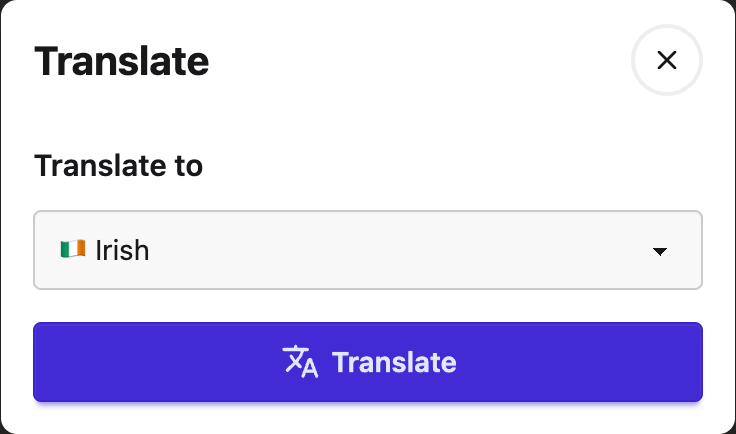
The Translate window opens with a language dropdown and one Translate button. There is no custom text box.
Step 4: Choose Your Language
Click the Translate to dropdown and choose the language you want to translate the page into.
Helperbird saves your choice, so it will already be selected the next time you open the Translate window.
Step 5: Translate the Page
Choose your language, then press Translate.
To translate the whole webpage, leave the page without a text selection. Helperbird opens it in Google Translate.
To translate one passage, highlight that passage on the webpage before opening Helperbird. The same Translate button uses your selection. Pro subscribers see the result inside Helperbird; free users see it in Google Translate.
Use the Close icon or press Escape to dismiss the window.
Tip: You can also highlight text on a webpage first, then use the Highlight Menu that appears to quickly translate just the selected text.
Using Translate in the PDF Reader
Translate is also built into Helperbird's PDF Reader, so you do not have to leave your document to use it.
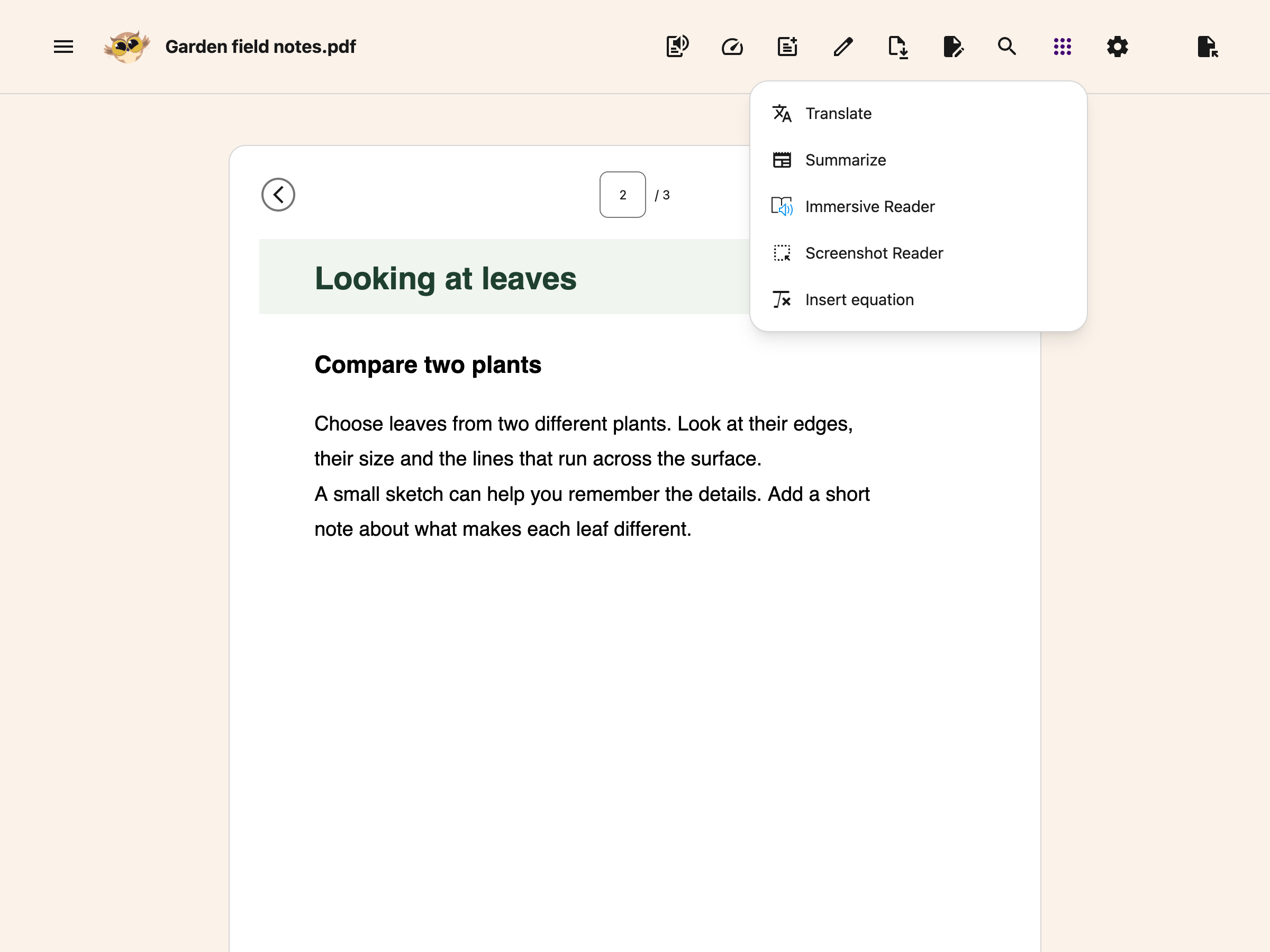
Open your PDF, then click the round button with the dots grid icon in the toolbar. It is the last button in the group, and it is labelled More options.
 View full-size image (opens in a new tab)
Choose Translate, pick a language, and press Translate. This translates only the current PDF page. Once it finishes, switch between Original PDF and Translation above the page. Use Helperbird's existing reading tools with the translated text.
See how to translate the current PDF page.
Troubleshooting
The whole page opened in Google Translate: Select the passage before opening Helperbird if you only want to translate those words.
The selected passage is too long: Free selected-text translation passes up to 5,000 characters to Google Translate. Select a shorter passage to check the complete result.
The PDF translation looks different: PDF Translate creates a reading view with the structure it can detect. It does not reproduce complex tables, columns or exact page layout.
Video Tutorial
 View full-size image (opens in a new tab)
Need Additional Help?
If you have any questions or run into any issues, please contact the Helperbird support team. You can reach us at Helperbird support. We are happy to help you get the most out of Helperbird.
Printed from the Helperbird Help Center · Updated September 25th, 2026
Questions? We are happy to help — helperbird.com/support