
How to Use Helperbird on iPhone and iPad
Use Helperbird in Safari on iPad and iPhone. Follow screenshots to find reading tools, change text spacing, choose a reading guide, and adjust color overlays.
Jump to the stepsOn this page
Helperbird adds reading tools to webpages in Safari on your iPhone or iPad. This guide helps you find the tools and adjust them. Some features require Helperbird Pro.
Install and enable Helperbird in Safari before you start.
Step 1: Open Helperbird in Safari
Open Safari and visit a webpage. Tap the page menu or extensions button beside the address bar, then choose Helperbird. On older versions of Safari, the page menu is labeled aA.
Step 2: Turn Helperbird On
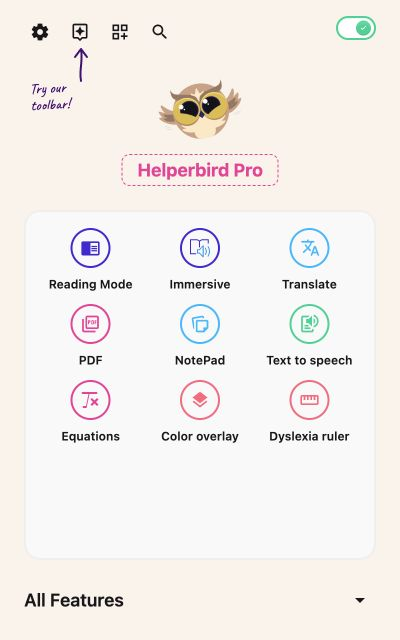
Turn on the main switch at the top right of Helperbird. A checkmark appears when it is on. Tap the switch again whenever you want to pause Helperbird.
 View full-size image (opens in a new tab)
Step 3: Use Helperbird Features
Tap a shortcut to open a tool. Expand All Features to find the full list.
- Text to speech reads text aloud. Voices depend on your device.
- Reading Mode opens an article in a simpler reading layout.
- Immersive Reader opens Microsoft's reader with read aloud and reading preferences.
- Text settings holds the font, text size, spacing, and alignment controls.
- Dyslexia support holds the dyslexia ruler, focus ruler, and reading guide.
- Color overlay adds a tint over the webpage.
Tools with options open in a panel. Use its Close button to return to the menu. Page tools, such as text settings, continue to apply after you close their panel.
Step 4: Customize Your Settings
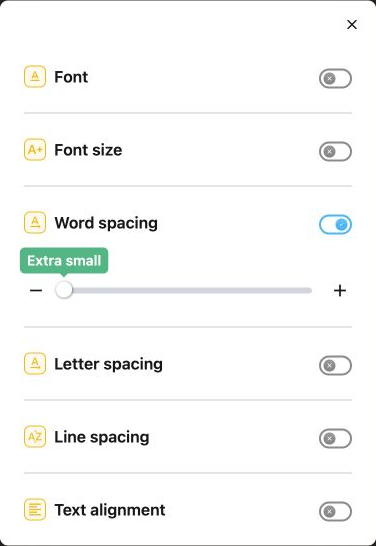
Open All Features → Text settings. Turn on the setting you want to change. For example, enable Word spacing, then use its slider or minus and plus buttons.
Enable Font to choose a typeface. The list includes Lexend, OpenDyslexic, Andika, and Atkinson Hyperlegible. You can also change text size, letter spacing, line spacing, and text alignment.
 View full-size image (opens in a new tab)
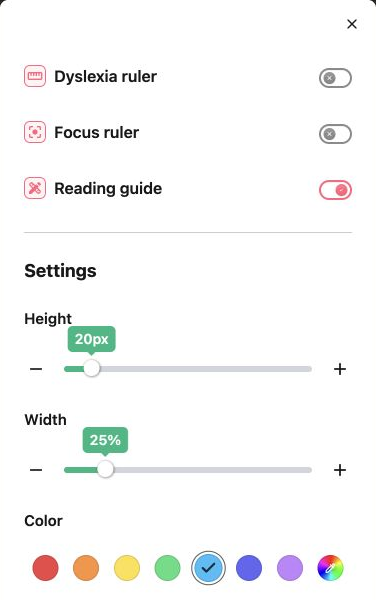
To mark the line you are reading, open All Features → Dyslexia support and turn on Reading guide. Adjust its height, width, color, and opacity. Return to the webpage and move your finger over the text. Only one of the three rulers runs at a time.
 View full-size image (opens in a new tab)
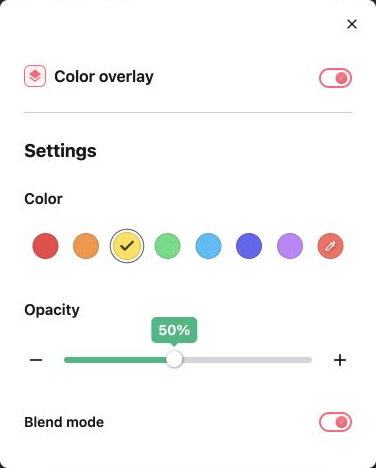
For a page tint, open Color overlay and turn it on. Pick a preset or custom color. Adjust Opacity to change its strength and Blend mode to change how it mixes with the page.
 View full-size image (opens in a new tab)
Changes save as you make them. Set up your preferences separately on each device; desktop browser settings do not automatically appear in Safari on iOS.
Step 5: Use the Helperbird App
Open the Helperbird app from your home screen if you need the Safari setup walkthrough again. Open the extension in Safari to use the reading tools, NotePad, and Reading List.
A Guide for Each Part
Troubleshooting
Helperbird does not appear in Safari: Check that it is enabled under Safari's Extensions settings. If you use Safari profiles, enable it for the profile you are using.
The webpage does not change: Check website permissions and Helperbird's main switch, then refresh the webpage. Font and spacing tools change page text, not words inside an image.
A school iPad will not let you enable it: Ask your administrator to review the Safari extension restrictions. See Helperbird greyed out on a managed iPad.
Need Additional Help?
Contact Helperbird support and tell us which device and webpage you are using.
Printed from the Helperbird Help Center · Updated September 14th, 2026
Questions? We are happy to help — helperbird.com/support