
How to Adjust Paragraph Width on Any Website
Learn how to use Helperbird's adjust paragraph width. Complete guide for improving web accessibility and reading support.
On this page
What is Paragraph Width?
Paragraph Width lets you control how wide text paragraphs appear on any website. Narrower text columns can be easier to read because your eyes don't have to travel as far across the screen.
This is a Helperbird Pro feature.
Who is This For?
Paragraph Width is helpful for people who find wide text columns hard to follow, readers on large monitors where text stretches too wide, anyone with reading difficulties like dyslexia, people who prefer a book-like reading experience, and users who want to reduce eye strain from long lines of text.
How to Adjust Paragraph Width
Step 1: Open Helperbird
Click the Helperbird icon in the top right corner of your browser to open the extension menu.
Step 2: Go to the All Features Section
Scroll down to the All Features section and expand it to see all available features.
Step 3: Find Paragraphs
Look through the list of features until you see Paragraphs.
Step 4: Open the Paragraphs Panel
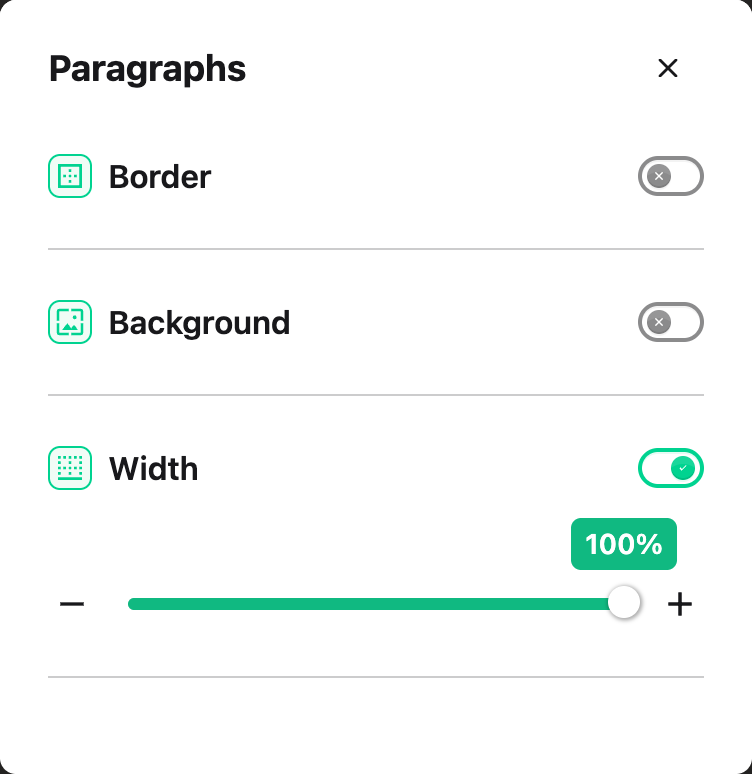
Click Open on the Paragraphs row. The panel has three settings: Border, Background and Width. Paragraph width is the one labeled Width. If you use the search bar instead, it appears as Line width.
Step 5: Turn on Width
Click the toggle switch next to Width to turn it on. The toggle will turn green when it is enabled.
 View full-size image (opens in a new tab)
Step 6: Adjust the Width
Use the slider to set your preferred paragraph width. Moving the slider left makes paragraphs narrower, while moving it right makes them wider.
Tip: A width of 60-80 characters per line is often considered optimal for comfortable reading.
Finding Your Ideal Width
Start by narrowing the text slightly and reading a few paragraphs. If it feels cramped, widen it a bit. The goal is to find a width where your eyes can follow from the end of one line to the beginning of the next without losing your place.
Related Guides
Need Additional Help?
If you have questions about Paragraph Width, reach out to our Helperbird support team and we'll help you out!
Printed from the Helperbird Help Center · Updated September 22nd, 2026
Questions? We are happy to help — helperbird.com/support