
How to Use the Colors Panel in Helperbird
Learn what the three settings in the Helperbird Colors panel do, and how to set your own text, link and background colors on any website you read.
On this page
What This Does
Open All Features → Colors. The panel holds three settings: Text, Links and Background.
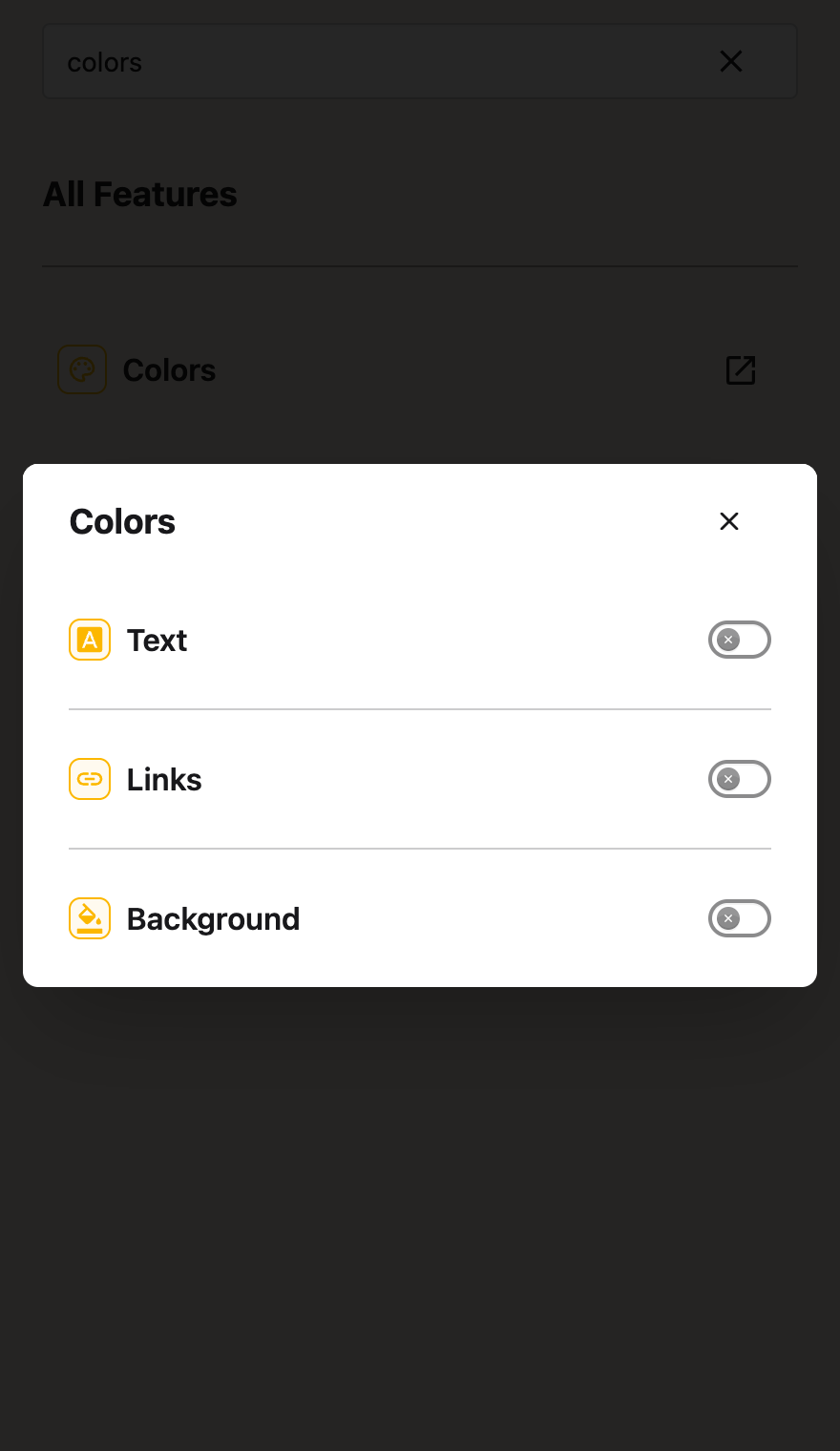 View full-size image (opens in a new tab)
They let you build your own color scheme for any website. Many people who read with dyslexia or low vision have one combination that works for them. These settings give you that combination on every page, instead of a preset someone else chose.
All three work the same way. Turn the toggle on, then pick a color from the swatches or set your own. Each one is separate, so you can use one or all of them.
Who is This For?
- Anyone who reads better on a colored background than on white
- People with low vision who need more contrast than a site gives
- Anyone who finds black text on white tiring
- Anyone who cannot see the color a site uses for its links
The Three Settings
| Setting | What it changes | Guide |
|---|---|---|
| Background | The page background color. | Background color |
| Text | The color of the text. It leaves links alone, which is why Link color is a separate setting. | Text color |
| Links | The color of every link. It has a second color for links you have already visited. | Link color |
To mark selected text, use Highlighter in All Features. Its separate palette controls highlight colors. See how to choose a highlight color.
Set Background and Text together. One without the other can leave you with text you cannot read.
Pick a Color
Turn on the setting you want, then choose one of seven rainbow swatches: red, orange, yellow, green, blue, indigo or violet. Choose Choose custom color to open the color picker for another shade, including black or white.
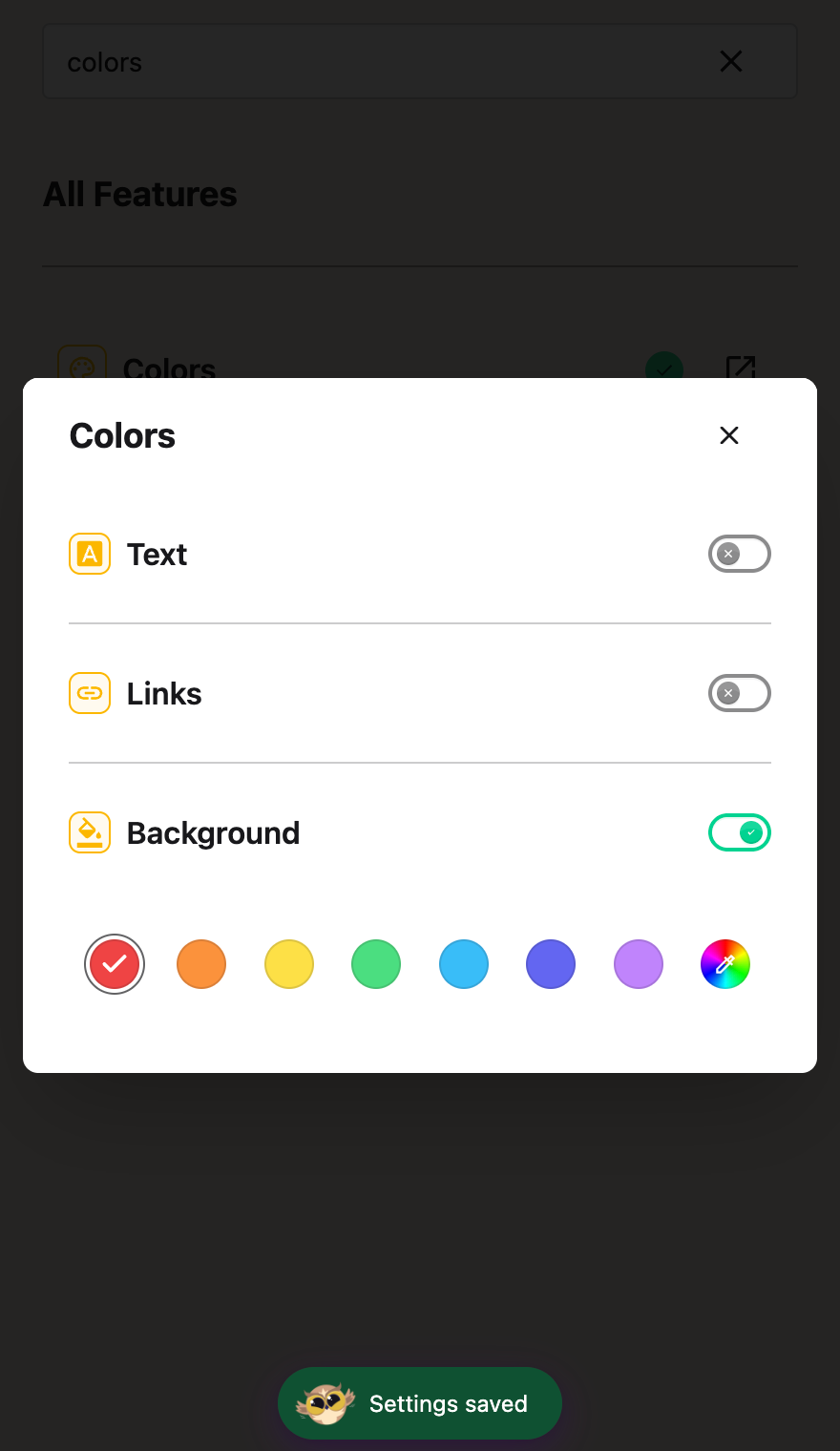 View full-size image (opens in a new tab)
The swatches stay in one row. In a narrow panel, scroll sideways to reach the remaining choices. Keyboard focus also brings a choice into view. Your saved custom color stays selected until you choose another.
Ruler and overlay color controls use the same row. Some controls, such as the beta word-highlighting color, offer presets without a Custom option.
If You Would Rather Use a Preset
Two other Helperbird tools give you a color change in one step.
- Color overlay puts a colored tint over the whole page. The page keeps its own colors underneath.
- Reading Mode shows the main article with your enabled text settings.
Related Guides
- Color blindness - Which Helperbird tools help when color is hard to see.
- Dark mode - Darken the page without setting colors by hand.
Need Additional Help?
If you have any questions or run into any issues, please contact the Helperbird support team. You can reach us at Helperbird support. We are happy to help you get the most out of Helperbird.
Printed from the Helperbird Help Center · Updated September 25th, 2026
Questions? We are happy to help — helperbird.com/support