
How to Open Your Helperbird Reading List
Learn how to open the Helperbird Reading list from the extension popup in three steps, and what you see on the list page before you have saved anything.
Jump to the stepsOn this page
What is the Reading List?
The Helperbird Reading list is somewhere to put pages you want to come back to. You save a page while you are on it, and it waits for you in a tidy list rather than in a pile of open tabs.
Reading List requires Helperbird Pro. You can also open it from Tools → Reading List in the Notepad. Free accounts see the Helperbird Pro dialog when they try to open the list. Use its login or subscription key link if you already subscribe.
This page is about getting the list open. For how the list page is laid out, and which of the two popup rows does what, see the Reading list tour.
Who is This For?
This is helpful for:
- Students collecting sources for an assignment
- Anyone who finds a long article and would rather read it properly later
- People who end up with dozens of tabs open
- Anyone gathering pages to read with Helperbird's reading tools
Step 1: Open Helperbird
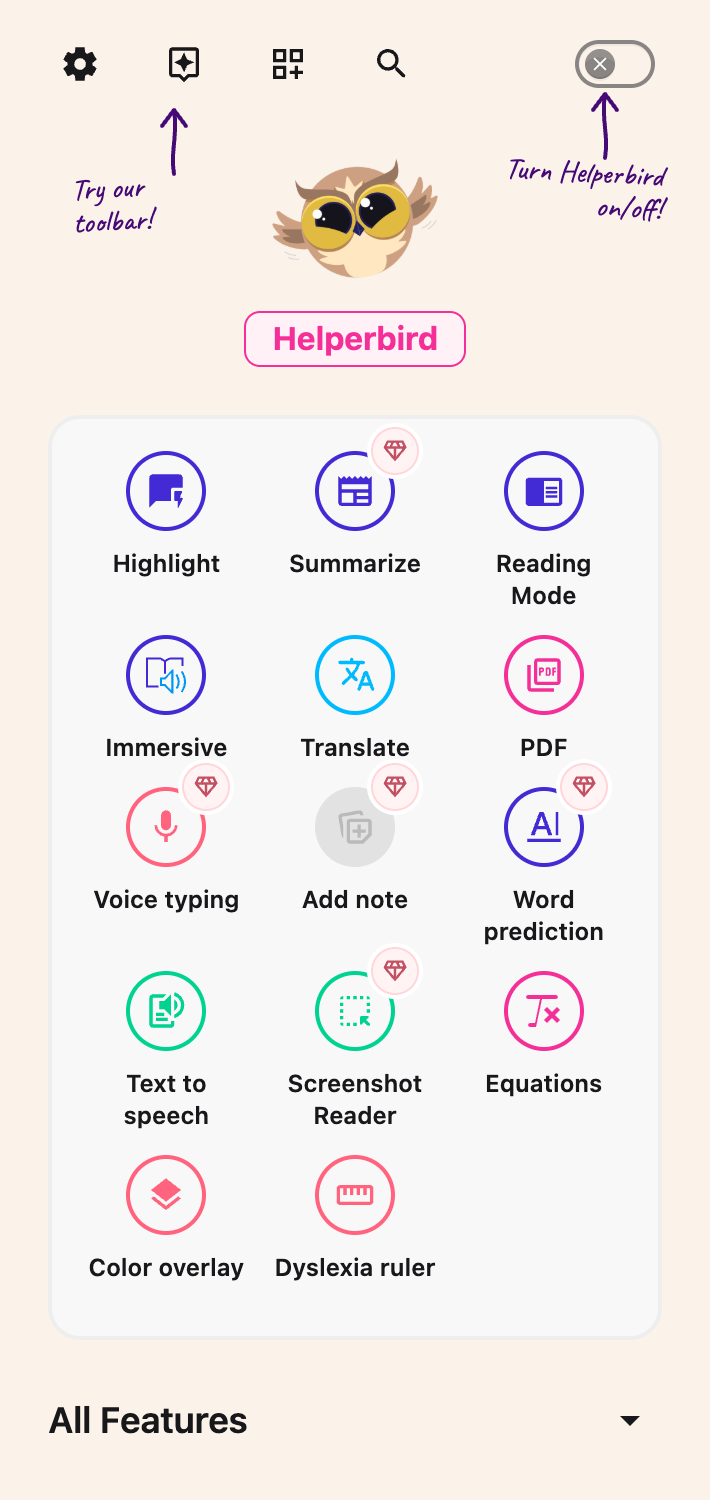
Click the Helperbird icon in your browser toolbar. It looks like a small owl and is usually in the top-right corner.
 View full-size image (opens in a new tab)
Step 2: Find the View Reading List Row
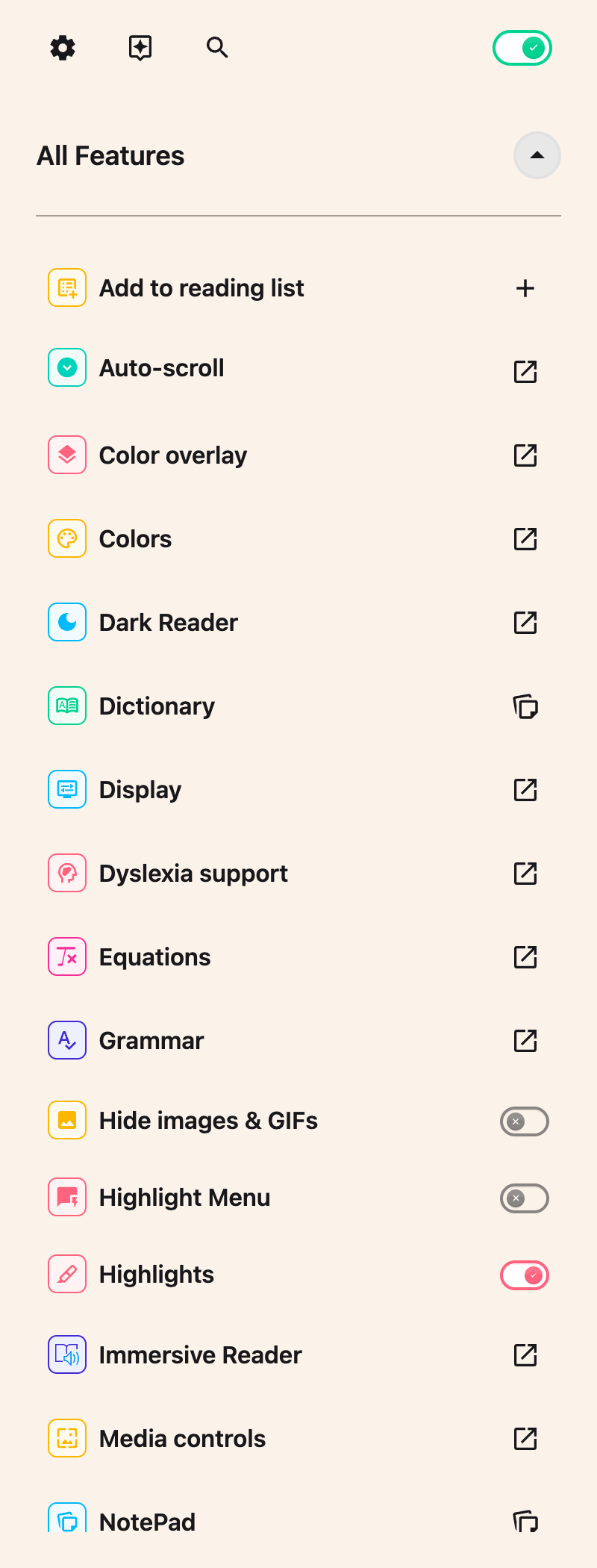
Open All Features at the bottom of the menu and look for View reading list. The list is alphabetical, so that row sits near the bottom.
 View full-size image (opens in a new tab)
A second row, Add to reading list, sits near the top. If you are not sure which one you want, see the two reading list rows.
If you save pages often, favourite it so it also appears in Quick Actions, labelled Reading list.
Step 3: Open the List
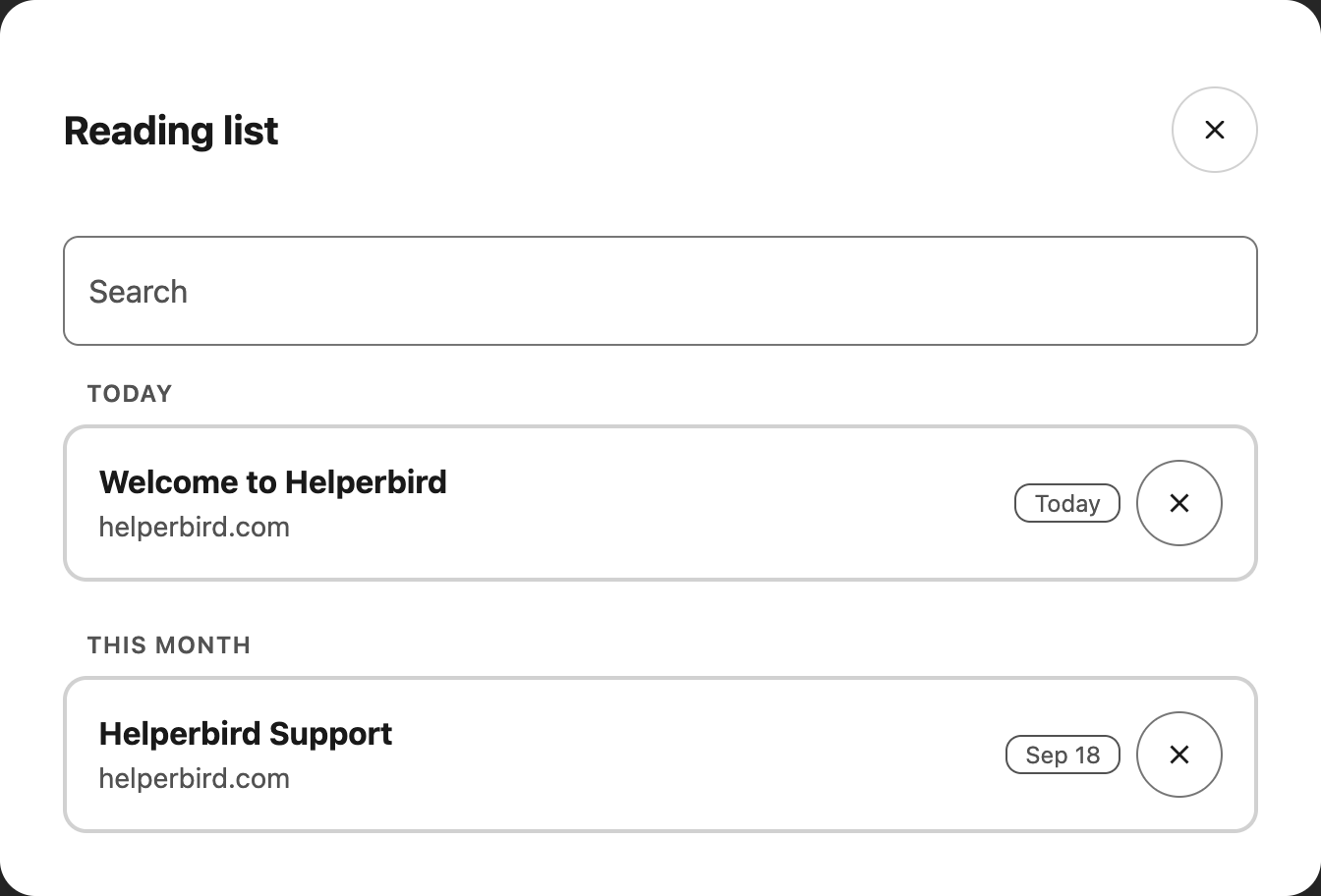
Click the button on the View reading list row. A new NotePad tab opens with the Reading list dialog.
The first time you open it, you see two welcome links. Your own saved pages appear alongside them.
 View full-size image (opens in a new tab)
Once you have saved some pages, they appear grouped by the day you saved them.
Need Additional Help?
If you have any questions or run into any issues, please contact the Helperbird support team. You can reach us at Helperbird support. We are happy to help you get the most out of Helperbird.
Printed from the Helperbird Help Center · Updated September 26th, 2026
Questions? We are happy to help — helperbird.com/support