
How to Use Reading Mode on Any Website
Learn how to use Helperbird's Reading Mode to create a clean, distraction-free reading experience. Reading Mode removes ads, sidebars, and clutter.
Jump to the stepsOn this page
What is Reading Mode?
Reading Mode removes distractions from a webpage and shows you just the main content. It gets rid of ads, navigation menus, sidebars, and other elements that can make reading difficult.
The result is a clean, simple view that looks like a book or document, making it much easier to focus on reading.
Who is This For?
This feature is helpful for:
- People who are distracted by ads and other page elements
- Anyone with dyslexia who benefits from simplified layouts
- People with ADHD who need fewer distractions
- Students reading articles for research
- Anyone who finds cluttered websites overwhelming
Step 1: Open Helperbird
Click the Helperbird icon in your browser toolbar. It looks like a small owl and is usually in the top-right corner of your browser.
This will open the Helperbird menu.
Step 2: Go to the All Features Section
Scroll down to the bottom of the Helperbird menu. You will see a section called All Features.
Click the arrow next to All Features to expand it and show all available features.
Step 3: Find Reading Mode
Look through the list of features until you see Reading Mode.
It has a document or page icon next to it.
Step 4: Click Reading Mode
Click on Reading Mode.
Helperbird extracts the main article into a focused reading view, away from the surrounding navigation and advertising. Results depend on how the website structures its content.
You will see just the main text and images from the article.
Step 5: Customize Your View
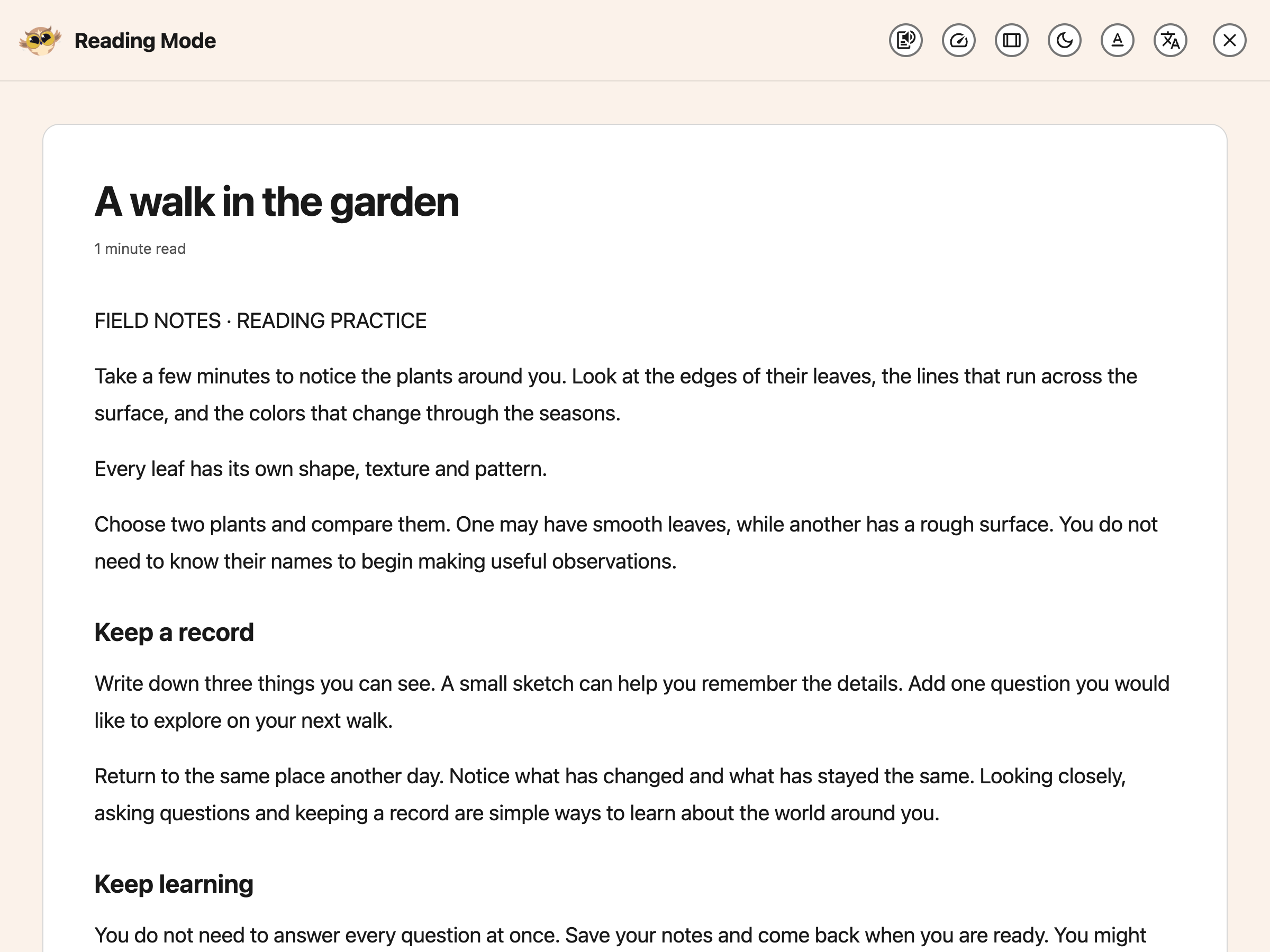
Use the buttons in the Reading Mode header. On a narrow screen, open More options to reach the controls.
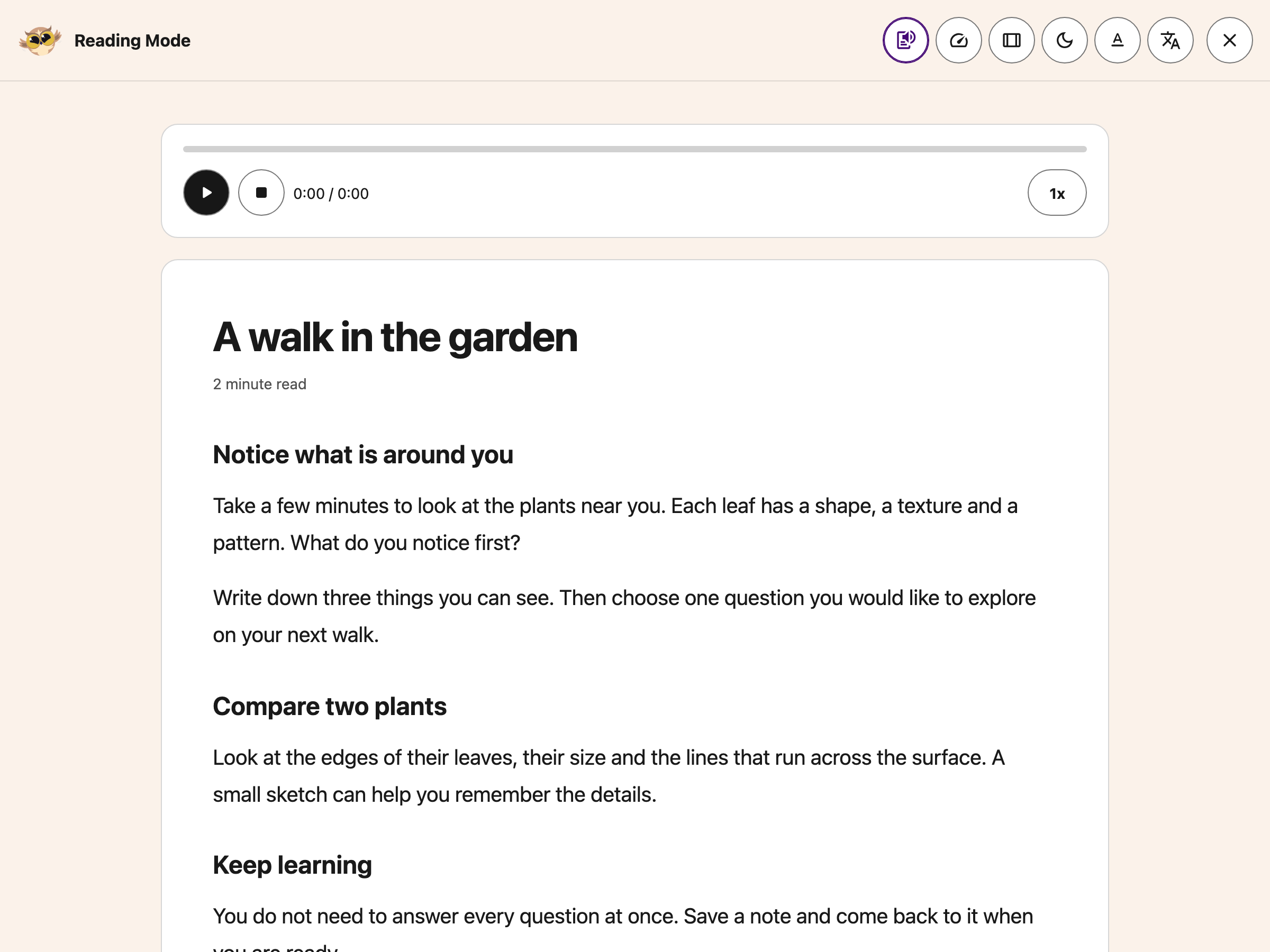
- Show read-aloud controls opens the Text to Speech player. Opening the player does not start speech. Choose Play when you are ready.
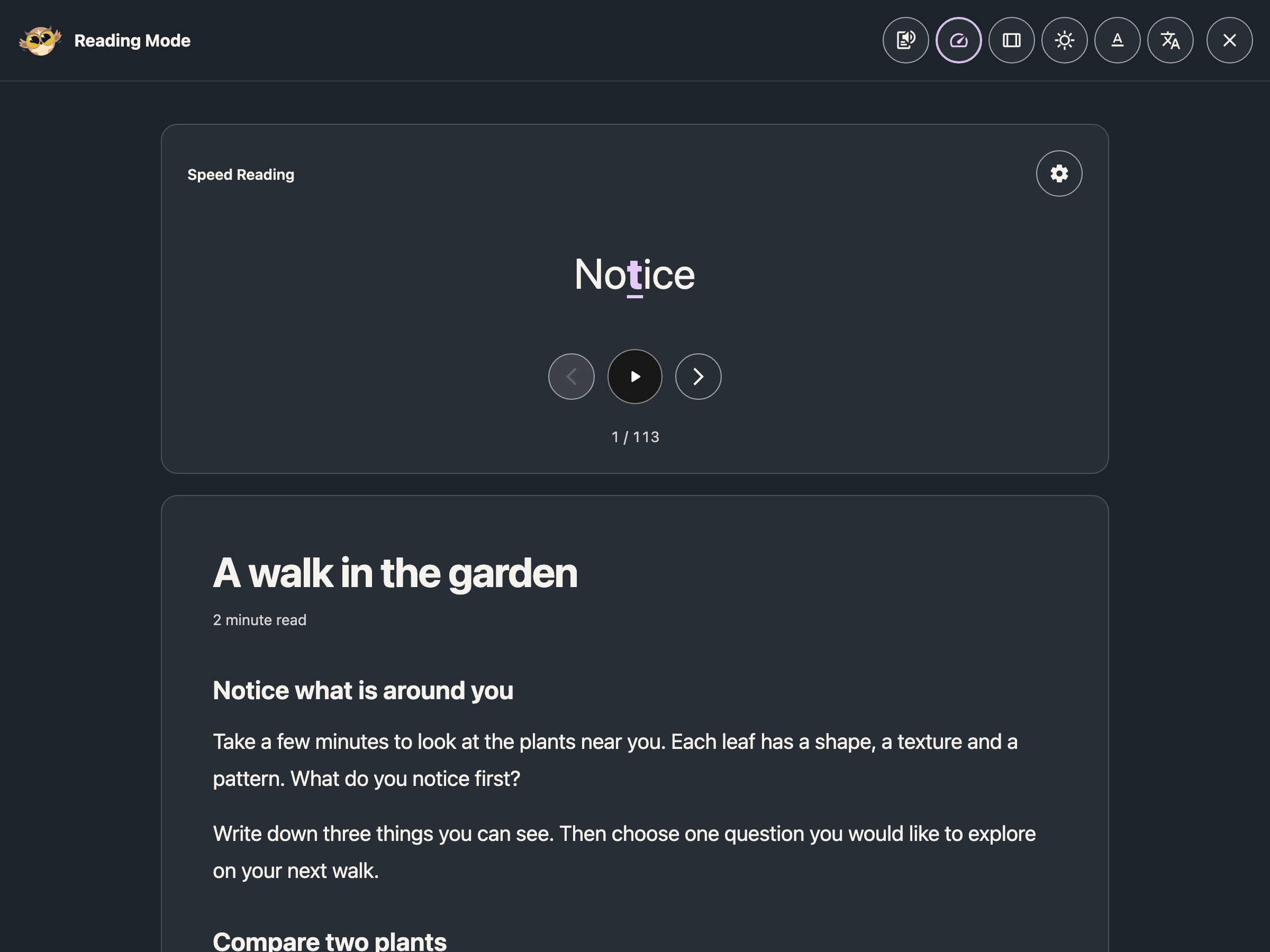
- Speed Reading shows one word at a time. Choose Play, Pause or the word arrows to control your pace.
- Reading Width cycles the article width.
- The Light or Dark button switches the reading theme.
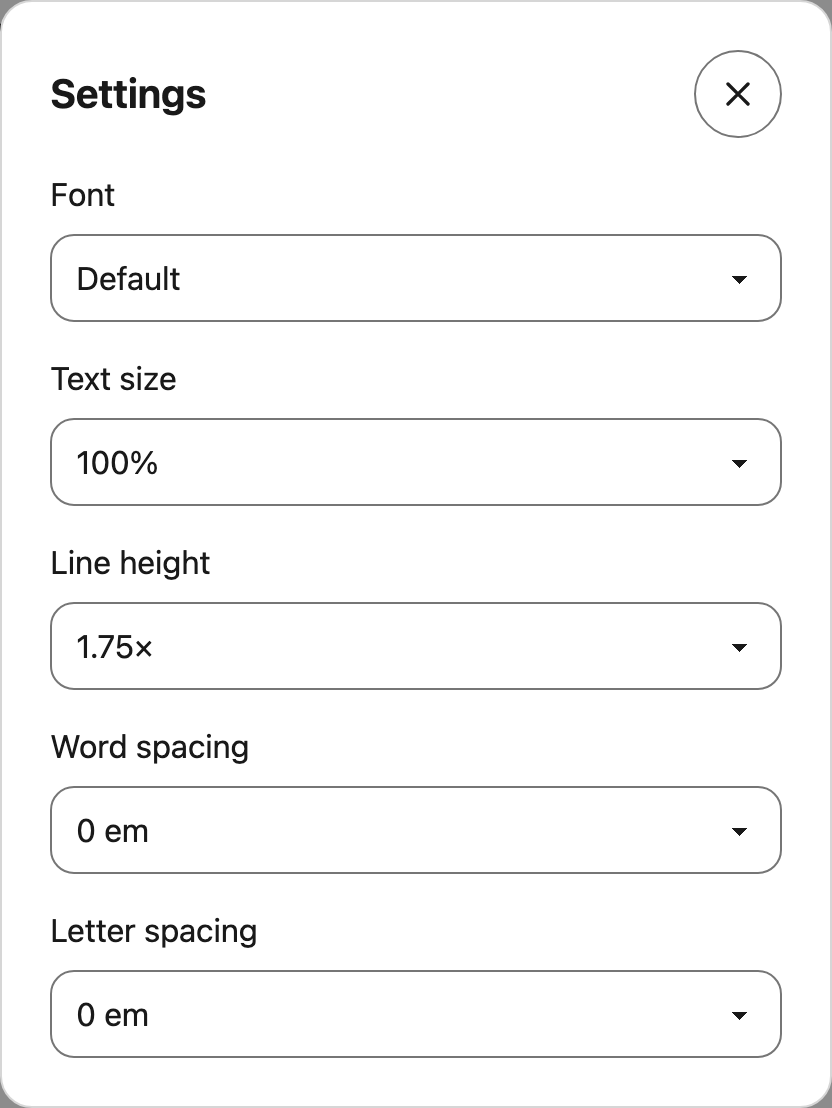
- Settings opens font, text size, line height, word spacing and letter spacing.
- Translate opens the article in Google Translate.
- Close returns to the webpage.
 View full-size image (opens in a new tab)
Reading Mode saves its own appearance choices. Changing these controls does not change the original webpage or your other Helperbird apps.
 View full-size image (opens in a new tab)
Wide tables and code blocks can scroll sideways. Code keeps its formatting and has a Copy control.
For a word-by-word view, follow the Speed Reading guide.
If the article includes a code block, Reading Mode keeps its spacing and uses syntax colors to distinguish parts of the code.

Step 6: Exit Reading Mode
When you are done reading, click the X button in the top corner of the Reading Mode view.
This will return you to the normal webpage. You can also press Escape to close Reading Mode.
Tip: Reading Mode works best on articles, blog posts, and news stories. It may not work well on pages that are mostly images or interactive content.
Frequently Asked Questions
Is Reading Mode free? Yes! Reading Mode is included in Helperbird Free.
Does Reading Mode work on all websites? Reading Mode works best on articles, blog posts, and news sites. Some complex web apps, paywalled content, or image-heavy sites may not work perfectly.
Where are the font and text-size controls? Open Settings in the Reading Mode header. These preferences belong to Reading Mode. Immersive Reader has its own controls.
Can I print from Reading Mode? There is no dedicated print button in the current Reading Mode toolbar. Your browser's print command may include the underlying webpage, so check its preview before printing.
What's the difference between Reading Mode and Immersive Reader? Reading Mode is Helperbird's built-in feature for clean reading. Immersive Reader is Microsoft's tool with additional features like syllable breaking and parts of speech highlighting. Both remove distractions, but Immersive Reader has more learning-focused tools.
 View full-size image (opens in a new tab)
 View full-size image (opens in a new tab)
Related Guides
Video Tutorial
Need Additional Help?
If you have any questions or run into any issues, please contact the Helperbird support team. You can reach us at Helperbird support. We are happy to help you get the most out of Helperbird.
Printed from the Helperbird Help Center · Updated September 25th, 2026
Questions? We are happy to help — helperbird.com/support