
How to Reset All Helperbird Settings
Learn what the Delete and Reset buttons in Helperbird settings each do, what each one removes, and which one to press before you lose any of your data.
Jump to the stepsOn this page
Delete and Reset Are Not the Same
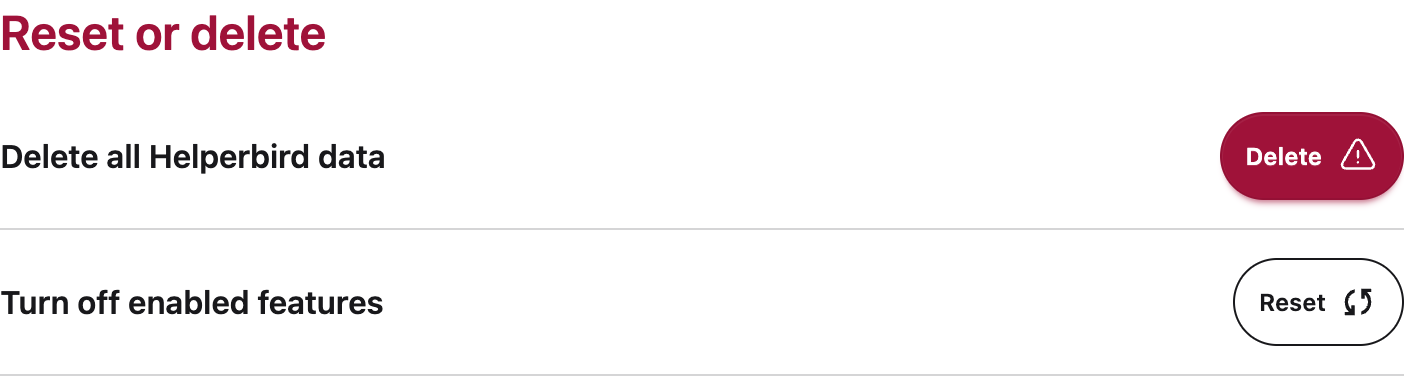
The Data section of the Helperbird settings page has two buttons, and they do very different things:
- The Delete all Helperbird data row has a red Delete button. It removes everything Helperbird stores in your browser. Your settings, notes, highlights, and sign-in are all deleted. This cannot be undone.
- The Turn off enabled features row has a yellow Reset button. It switches off every feature that is on. Your saved content and sign-in are kept.
If a feature is stuck or a page looks wrong, try Turn off enabled features first. Only use Delete when you want a clean slate.
Step 1: Open Helperbird
Click the Helperbird icon in your browser toolbar. It looks like a small owl and is usually in the top-right corner of your browser.
This will open the Helperbird menu.
Step 2: Open the Options Menu
Click the gear icon in the top-left corner of the Helperbird menu.
This will open the Options menu.
Step 3: Find the Data Section
In the Options menu, click Settings. The Helperbird settings page will open in a new tab.
Choose Data in the Settings section menu and find Reset or delete. You will see two rows: Delete all Helperbird data with a red Delete button, and Turn off enabled features with a yellow Reset button.
The next two sections explain each button. Read the one you need before you click anything.
Turn Off Enabled Features
Click Reset beside Turn off enabled features to switch off every Helperbird feature at once.
A confirmation dialog opens. Select Reset to continue or Cancel to keep your features on.
Reset turns features off. It does not delete anything:
- Every feature that is on turns off
- Your custom fonts, colors, and sizes are kept. Turn a feature back on and your choices come back with it
- Your notes, highlights, and annotations are kept
- You stay signed in
When it finishes, Helperbird shows the message Settings reset. Refresh to apply. Reload any open tabs to see the change.
Use Reset when a feature seems stuck, when a page looks wrong and you are not sure which feature caused it, or when you want everything off without losing your setup.
The Delete Button: Remove All Your Data
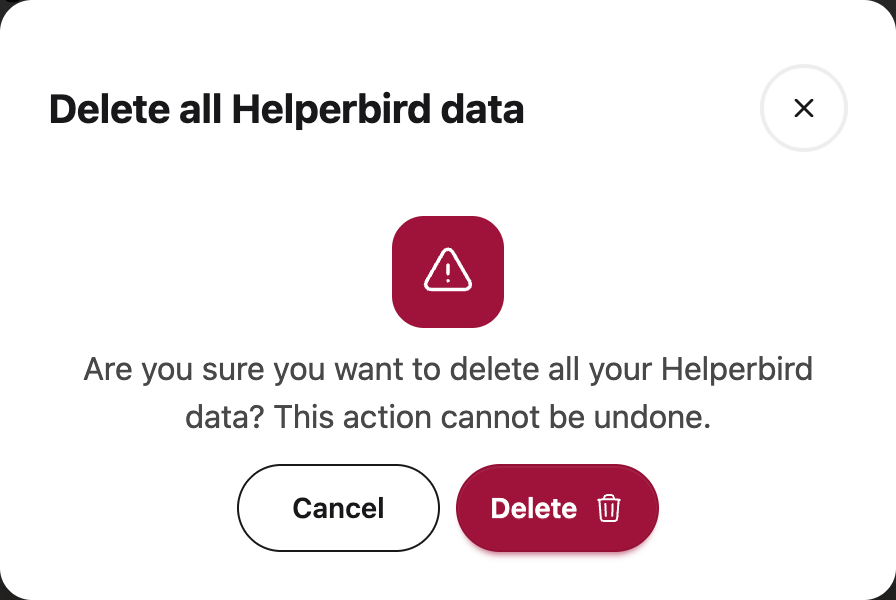
Click the red Delete button, on the row labeled Delete all Helperbird data, to remove everything Helperbird stores in your browser.
A confirmation dialog will ask if you are sure you want to delete all your Helperbird data. Click Cancel to keep your data, or Delete to go ahead.
After deletion, All data cleared stays on screen. Select Continue when you are ready to reload Settings.
Delete removes:
- Every feature setting, including your custom fonts, colors, and sizes
- Your saved notes, highlights, and annotations
- Your sign-in. Your subscription itself is not cancelled, but you will need your subscription key or login details to activate it again
- Everything else Helperbird stores, in both your browser's local and synced storage. If your browser syncs extension data across your devices, the data is removed there too
Deleting saved data cannot be undone. Export your content as well as your settings if you need to keep notes, highlights, or saved pages. If you might want your settings back later, export your settings first. You can import them again at any time.
An organization policy is not removed by these buttons. Your administrator must release managed settings; otherwise they can apply again.
Use Delete when turning features off did not fix the problem, when support has asked you for a full reset, or when you are handing the browser over to someone else.
What Each Button Keeps and Removes
| What | Turn off enabled features | Delete |
|---|---|---|
| Features that are on | Turned off | Turned off |
| Custom fonts, colors, and sizes | Kept | Deleted |
| Notes, highlights, and annotations | Kept | Deleted |
| Your sign-in | Kept | Removed |
| Asks you to confirm first? | Yes | Yes |
| Can it be undone? | Turn features back on | No |
Tip: If you are resetting because of a specific problem, turn features on one at a time afterwards to find which one was causing the issue.
Video Tutorial
 View full-size image (opens in a new tab)
 View full-size image (opens in a new tab)
Need Additional Help?
If resetting your settings did not fix the problem, please contact the Helperbird support team. You can reach us at Helperbird support. We are happy to help you troubleshoot.
Printed from the Helperbird Help Center · Updated September 22nd, 2026
Questions? We are happy to help — helperbird.com/support