
How to Make Google Slides Readable with Helperbird
Learn how to turn on the Helperbird beta setting that makes a view-only Google Slides deck readable, so fonts, rulers, colors and read aloud all work on it.
Jump to the stepsOn this page
The Problem This Solves
The Slides editor draws slide text differently from ordinary webpages. To read that text, use Screenshot Reader or the Google Workspace add-on. Helperbird’s notice links to More information about these options.
With this on, opening a supported view-only deck switches you to an HTML version of the same deck. Reading tools work directly in that view, so Helperbird no longer shows the add-on notice.
This is a beta feature, so it is still being worked on.
Who is This For?
This is helpful for:
- Students sent lecture slides as a view-only link
- Anyone who needs slides read aloud or in a different font
- People revising from a deck rather than a document
Step 1: Turn It On
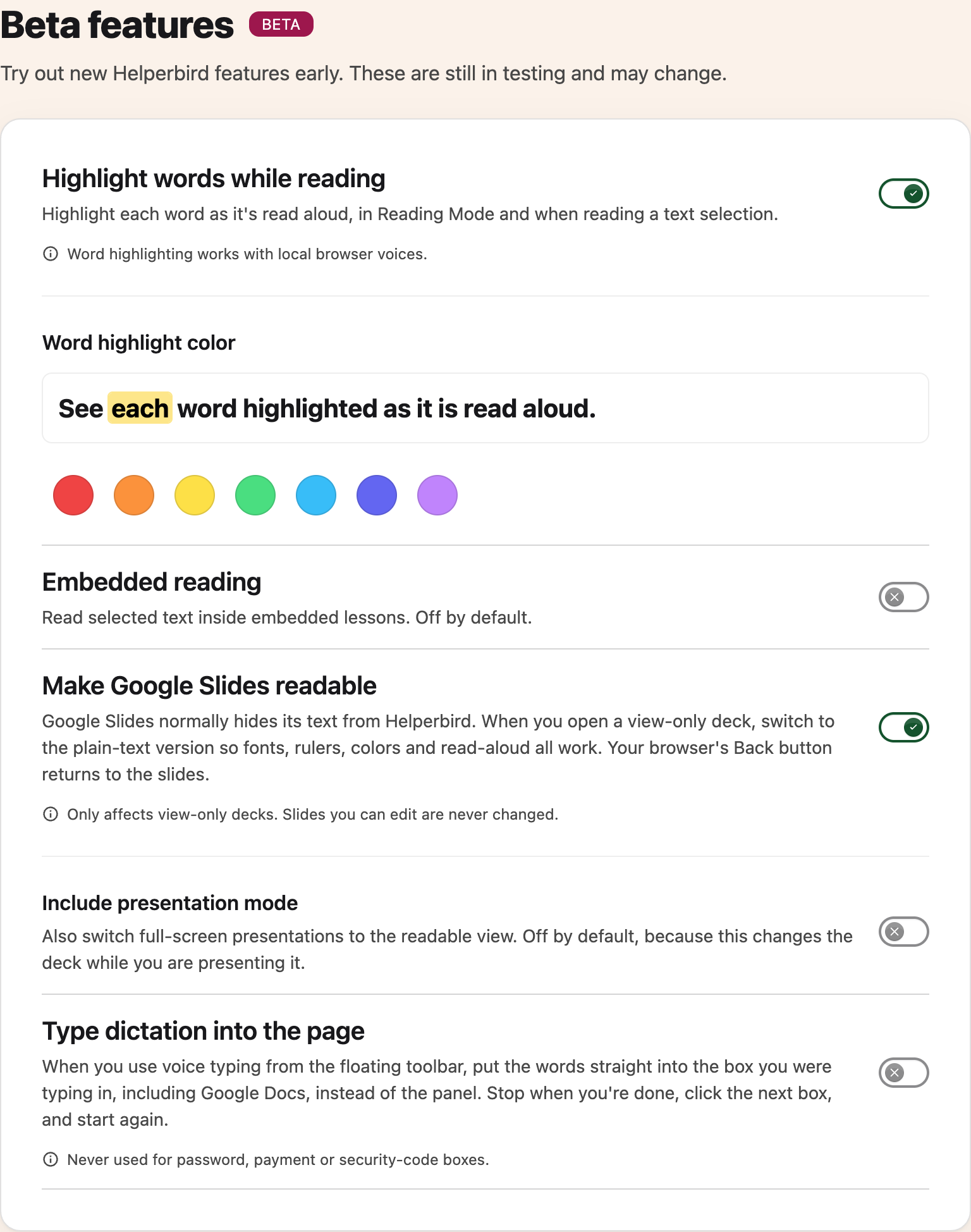
Beta features live on the settings page. Open Helperbird, open Options, choose Settings, and scroll to Beta features. See how to use beta features for the full route.
 View full-size image (opens in a new tab)
Turn on Make Google Slides readable.
Step 2: Open a Deck
Open a view-only Slides link as usual. Helperbird switches you to the readable version, and from there your fonts, rulers, colors and read aloud all work as they do anywhere else.
To get back to the slides as they were designed, press your browser's Back button.
Presentation Mode
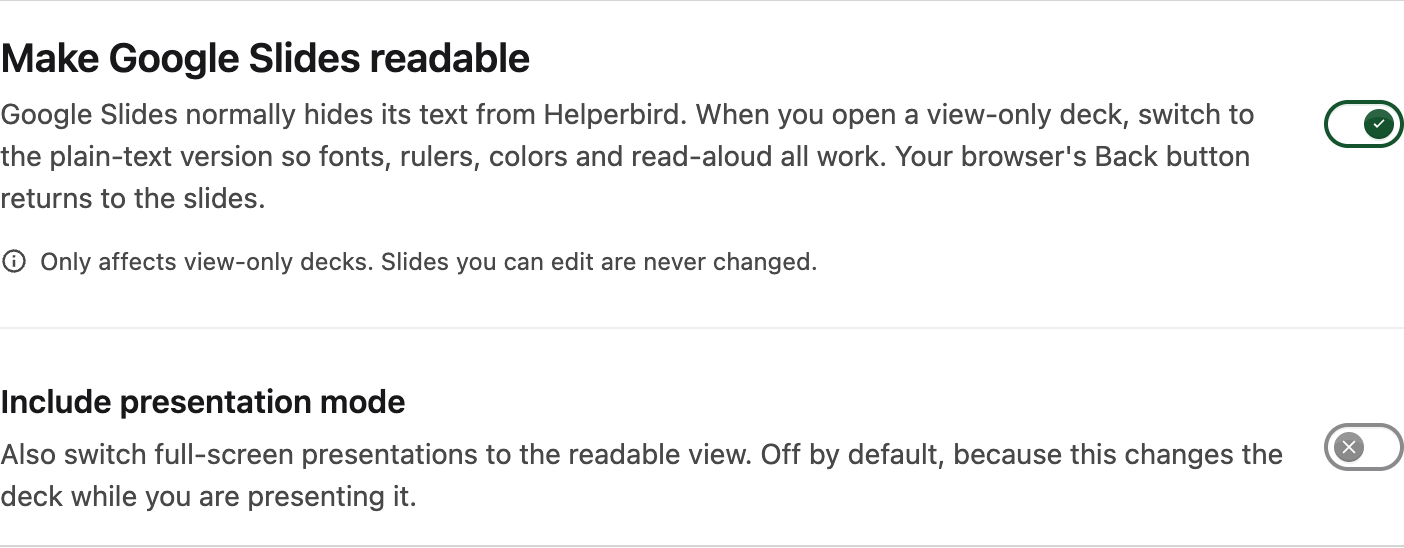
There is a second switch underneath, Include presentation mode, which is off to start with.
Turn it on and full-screen presentations switch to the readable view too. It is off by default for a good reason: it changes the deck while you are presenting it, which is rarely what you want in front of a room.
What It Never Changes
This only affects decks you are viewing. A deck you can edit is never touched, so there is no risk of it altering your own slides while you work on them.
 View full-size image (opens in a new tab)
Need Additional Help?
If you have any questions or run into any issues, please contact the Helperbird support team. You can reach us at Helperbird support. We are happy to help you get the most out of Helperbird.
Printed from the Helperbird Help Center · Updated September 22nd, 2026
Questions? We are happy to help — helperbird.com/support