
How to Use the PDF Reader in Helperbird
Read a PDF that is already open in Helperbird. Turn the pages, listen to any page with the text to speech player, and take notes in the panel beside it.
On this page
This guide covers reading a document that is already open in the Helperbird PDF Reader: moving through the pages, listening to them, and writing notes beside them.
If the reader is not open yet, start with how to open the PDF Reader. For a summary of the toolbar buttons and available tools, see using the PDF Reader.
Move Through the Pages
Use the Page field above or below the PDF. Type a page number and press Enter. The arrows beside it move one page at a time.
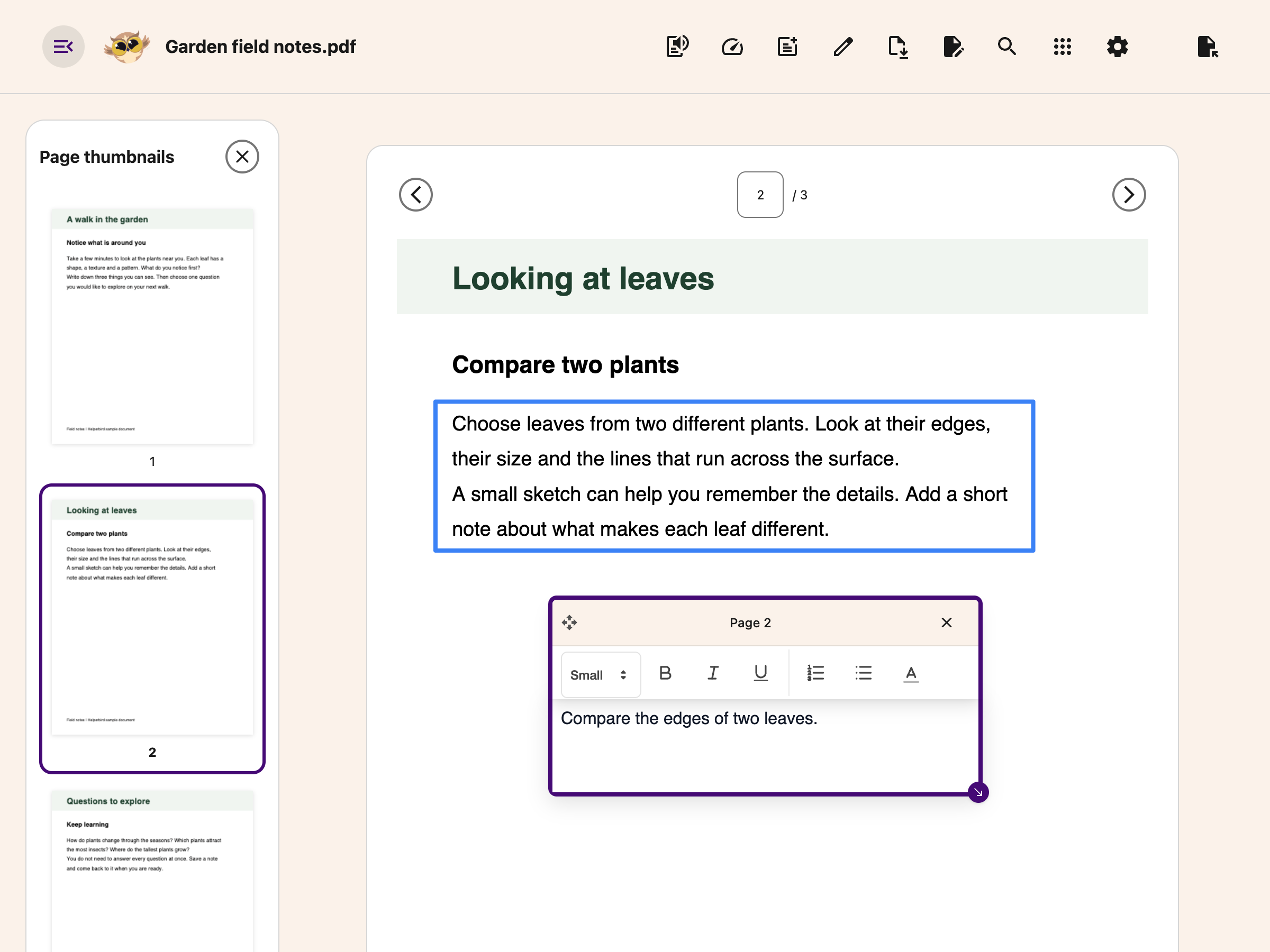
Choose Page thumbnails in the header to see small previews. Select a preview to open that page. Close the thumbnails when you want the space back.
 View full-size image (opens in a new tab)
When you are not typing in a note, text box or another control, Left and Right move between pages. Open Settings → Keyboard shortcuts for the full list.
Listen to the Page
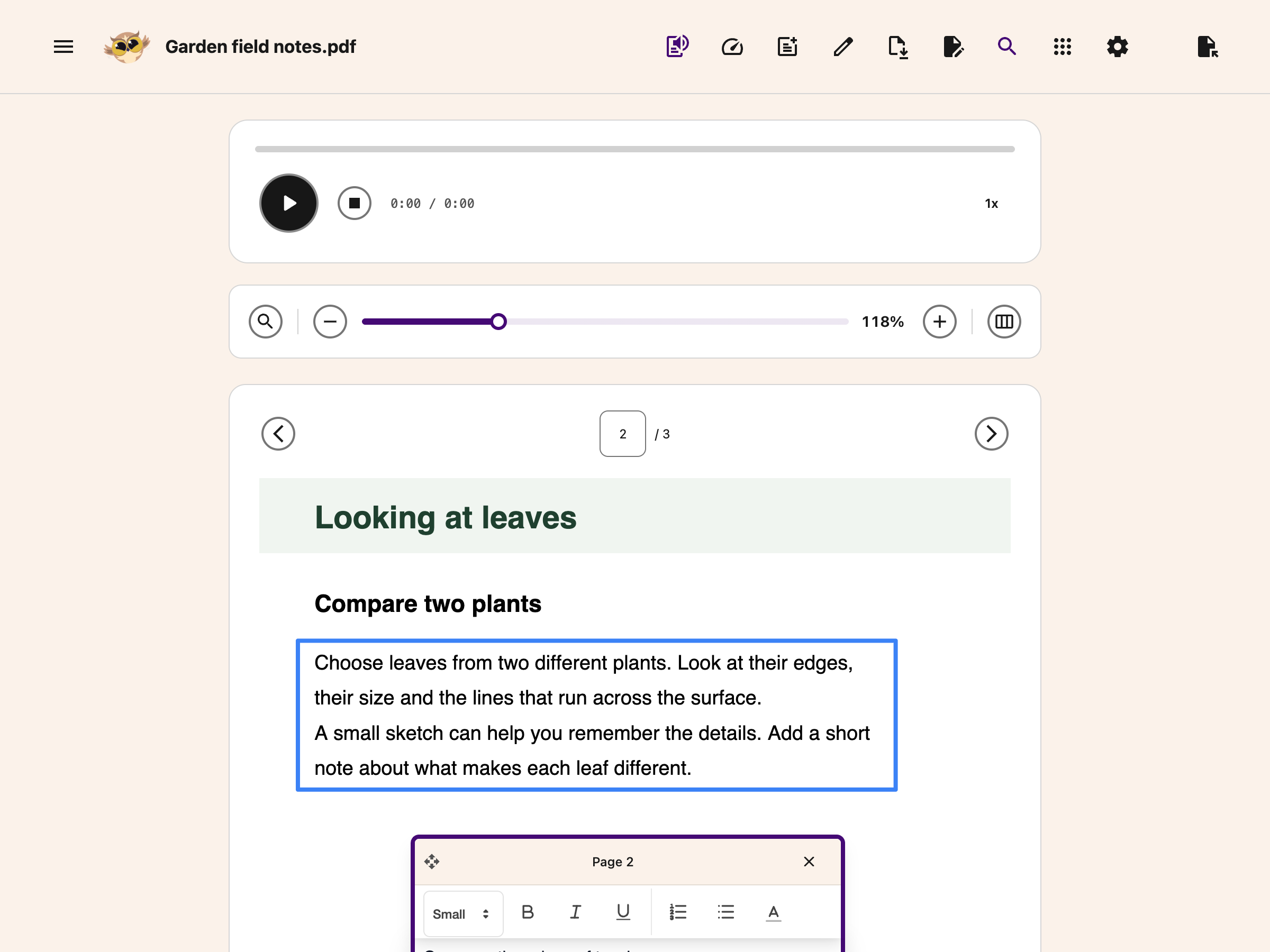
Click Text to Speech in the toolbar. A player bar opens above the document with play and pause, stop, a progress bar, and a speed button.
- Press play with nothing selected and the whole page is read.
- Highlight a sentence or a paragraph first and only that is read.
- The speed button cycles through 0.5x, 0.75x, 0.9x, 1x, 1.25x, 1.5x and 2x. The reader opens at 1x every time, whatever speed you use elsewhere in Helperbird.
When you press play with nothing selected and Helperbird is using one of your device's own voices, each word is highlighted as it is spoken and the page scrolls to keep it in view. With a neural voice, or when you highlighted text first, the page is read without the word highlight.
Reading stops when you turn the page, so press play again on the new one. The voice itself comes from your own settings, covered in how to use text to speech.
 View full-size image (opens in a new tab)
Read One Word at a Time
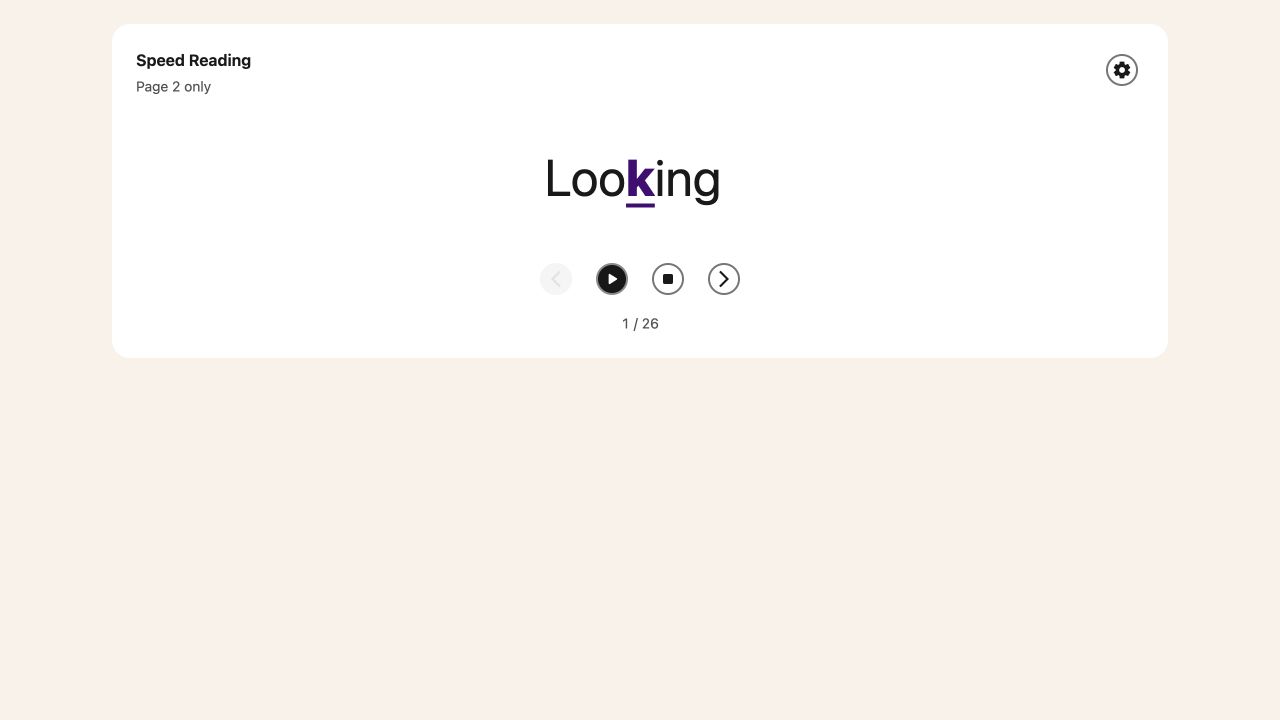
Choose Speed Reading in the header to open a word-by-word view of the current page. It stays paused until you choose Play. Turning to another page loads that page's words and pauses playback.
 View full-size image (opens in a new tab)
Use Tools on the card for playback speed and Highlight the middle letter for focus. Read the Speed Reading guide for the controls and scanned-page limits.
Take Notes Beside the PDF
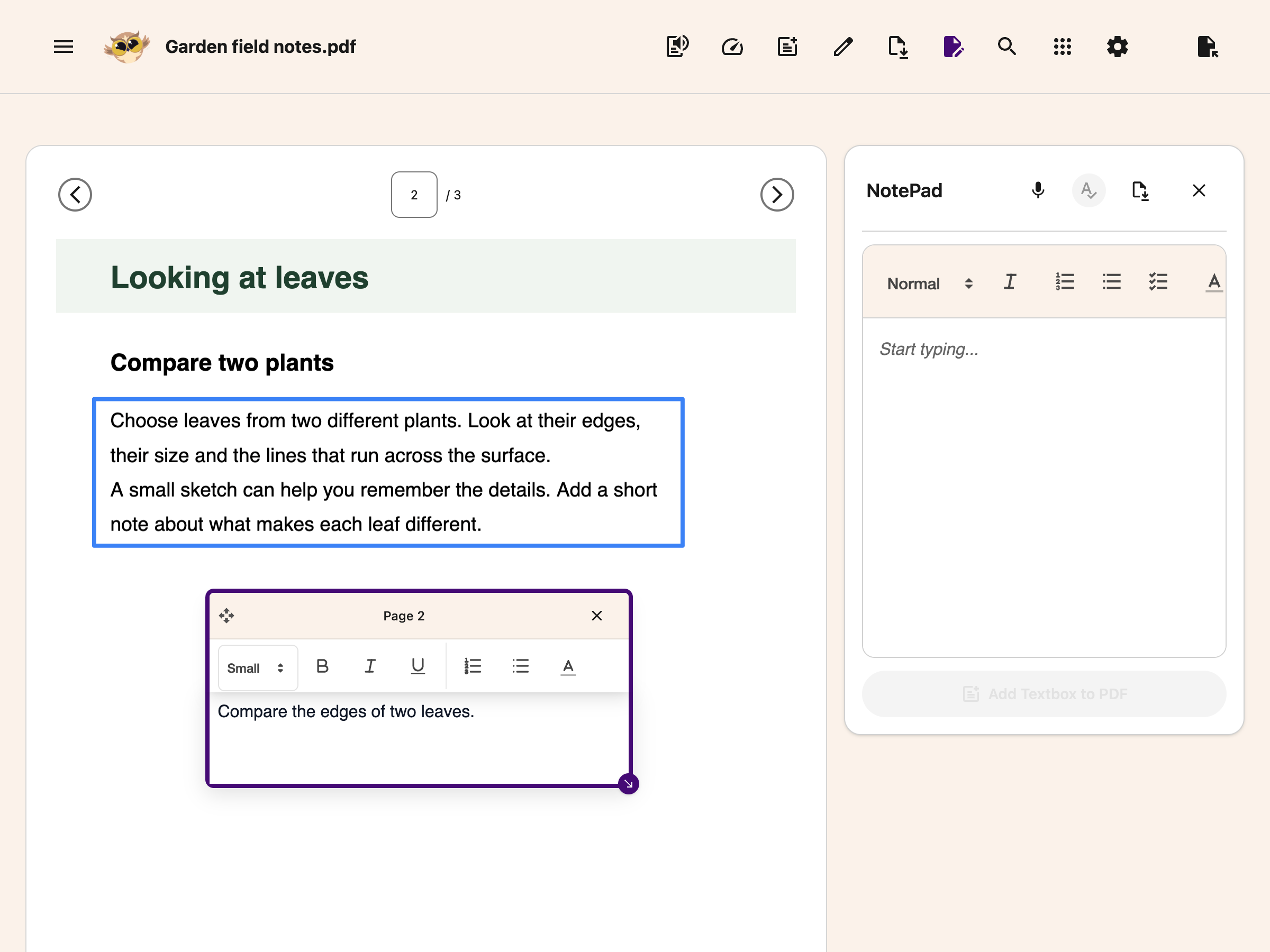
Click Notepad in the toolbar. The view splits, with your PDF on the left and a writing panel on the right. Click Notepad again, or the close button in the panel, to go back to the full-width document.
Drawing is free. Immersive Reader is also free for passages of up to 1,200 characters; select a shorter passage if the current page is too long.
Typing and formatting notes are free. Choose Add Textbox to PDF below the editor to place them on the current page, also for free. Voice typing, grammar and equation editing need Helperbird Pro and show a diamond above their icons.
 View full-size image (opens in a new tab)
Recovery is not a download. The current PDF and your notes can be restored from this device while its recovery copy is available. Opening a different PDF replaces that copy. Use Add Textbox to PDF, then download With my changes to keep a portable copy.
What the Notepad Buttons Do
| Button | What it does |
|---|---|
| Microphone (Pro) | Dictates into the panel instead of typing. A π badge on the button means maths mode is on, which you set in the popup |
| Grammar (Pro) | Rewrites what you have written with the corrections applied, up to 1,000 words at a time |
| Insert equation (Pro) | Adds maths at your cursor; click the equation later to edit it |
| Add Textbox to PDF | Adds your note to the current page. Text, pictures and equations become separate boxes in their original order |
| Download note | Opens your browser's print dialog with your notes in it. Choose Save as PDF as the destination to keep a copy. Check the print preview before saving |
If a picture cannot load or the complete note will not fit on the page, the transfer stops with a message. Your note and PDF stay unchanged. Shorten the note or add it in smaller parts.
Related Guides
Open the PDF Reader - Get the reader open and a file loaded.
The Tools menu - Immersive Reader, Translate, Summarize and Screenshot Reader.
Add text boxes to PDFs - Type onto the page itself.
Drawing tools on PDFs - Pen, shapes, lines and arrows.
Save and download PDFs - Which of your changes end up in the file.
Reading long PDFs - A working order for a long document.
Need Additional Help?
If you have any questions or run into any issues, contact the Helperbird support team. We are happy to help you get the most out of Helperbird.
Printed from the Helperbird Help Center · Updated September 28th, 2026
Questions? We are happy to help — helperbird.com/support