
How to Hide Your Highlights Without Deleting Them
Learn how to switch your saved Helperbird highlights out of view and back again, so you can read a clean page without losing what you marked.
Jump to the stepsOn this page
What This Does
Highlights are useful while you are working and distracting when you are not. This switch takes them off the page without deleting anything, so you can read the page clean and bring them back whenever you want.
Who is This For?
This is helpful for:
- Anyone re-reading a page they have already marked up heavily
- Students testing themselves without the answers highlighted in front of them
- Anyone who finds a page of color hard to read
- People about to share their screen who would rather not show their notes
Step 1: Open All Features
Open Helperbird and go to All Features. Scroll to the Highlighter row.
The row needs Helperbird Pro. On the free plan the toggle is replaced by a Pro feature badge that links to the upgrade page. It is not there at all on iPad or iPhone.
Step 2: Turn Highlights Off
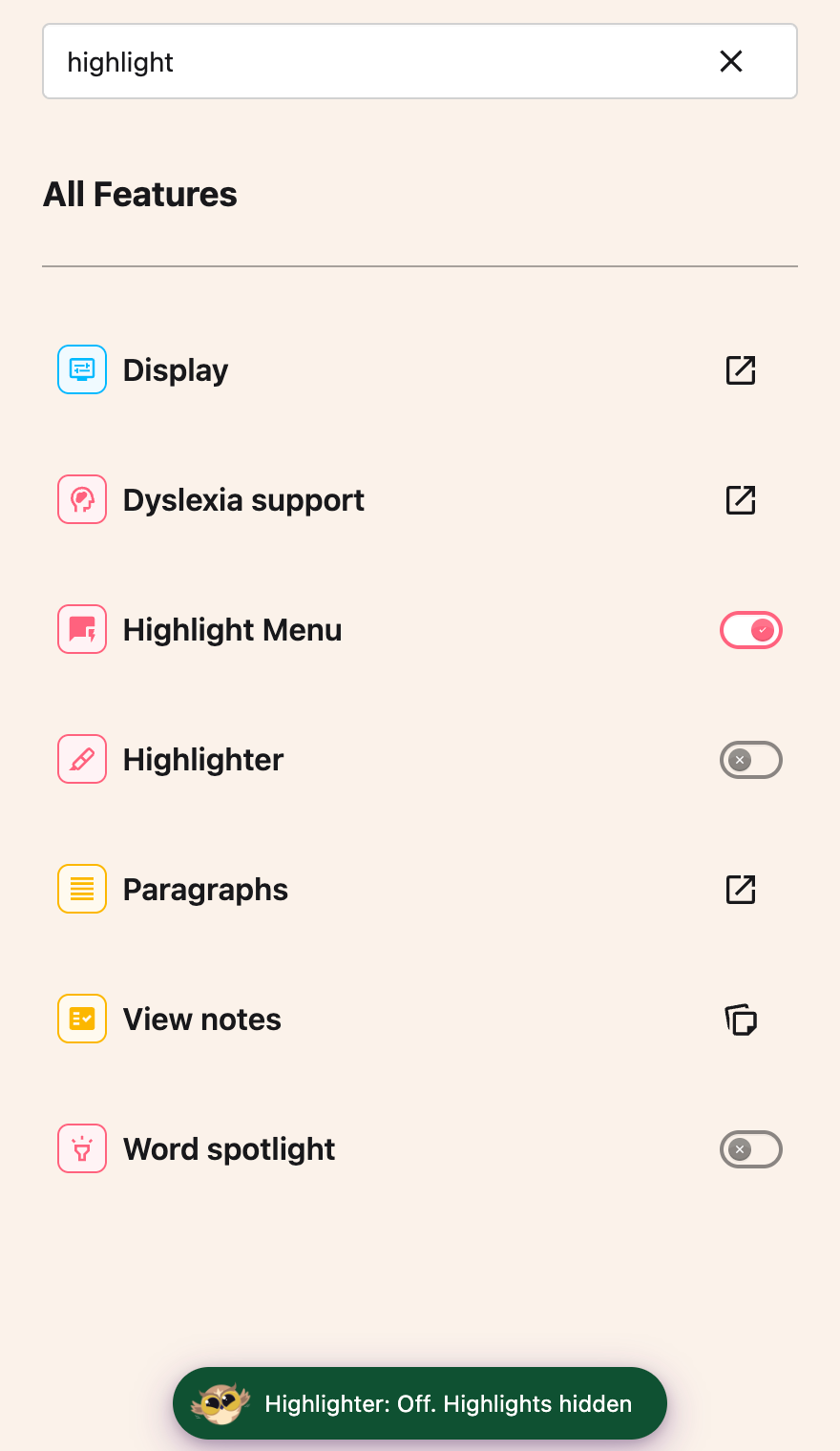
Turn Highlighter off. Saved marks and the color palette disappear, and a toast confirms the change after it is saved. The separate Highlight Menu stays available if its own toggle is on.
 View full-size image (opens in a new tab)
Nothing has been deleted. Every highlight is still saved, still attached to the page it was made on, and still listed in your notes.
Getting Them Back
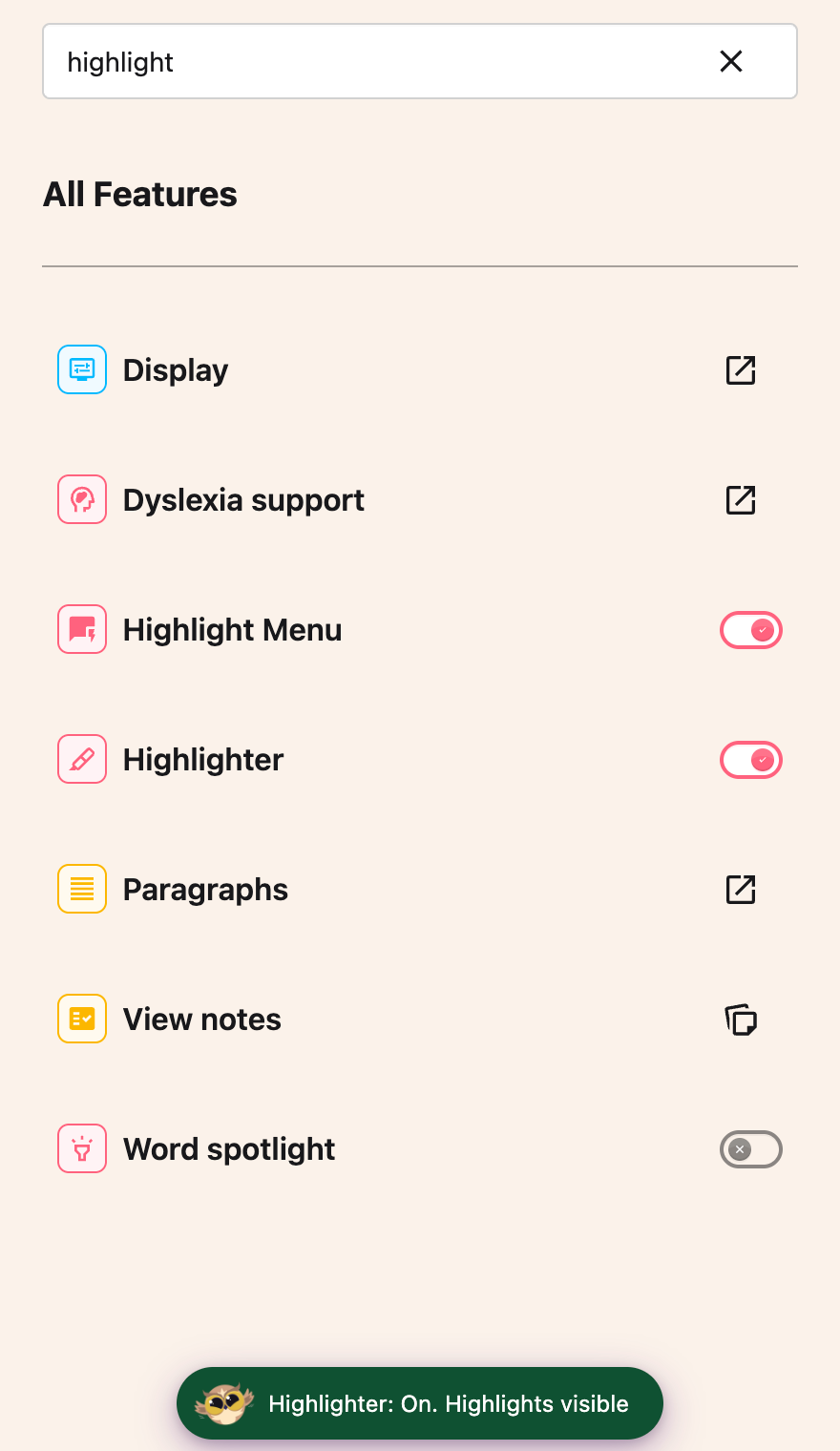
Turn Highlighter back on. A toast confirms the change and your saved marks reappear. Select text to use the color palette again. If saving fails, the toggle returns to its previous state and an error message appears.
 View full-size image (opens in a new tab)
If you actually want a highlight gone for good, that is a different job. See how to manage sticky notes and highlights.
See also how to highlight words and paragraphs.
Need Additional Help?
If you have any questions or run into any issues, please contact the Helperbird support team. You can reach us at Helperbird support. We are happy to help you get the most out of Helperbird.
Printed from the Helperbird Help Center · Updated September 25th, 2026
Questions? We are happy to help — helperbird.com/support