
How to Stop Animations on Any Website
Learn how to stop animations on any website. Disable moving content for better focus and accessibility Support accessibility for everyone.
Jump to the stepsOn this page
What is Reduce Motion?
Reduce Motion tells websites to minimize or stop animations and moving effects. This includes things like sliding menus, bouncing buttons, parallax scrolling, and other animated elements.
When enabled, websites that respect this setting will show simpler, calmer versions of their pages with less movement.
Who is This For?
This feature is helpful for:
- People with vestibular disorders who get dizzy from motion
- Anyone who experiences motion sickness from screen animations
- People with ADHD who find animations distracting
- Anyone with epilepsy who is sensitive to flashing or moving content
- People who prefer a calmer browsing experience
Step 1: Open Helperbird
Click the Helperbird icon in your browser toolbar. It looks like a small owl and is usually in the top-right corner of your browser.
This will open the Helperbird menu.
 View full-size image (opens in a new tab)
Step 2: Open the All Features Section
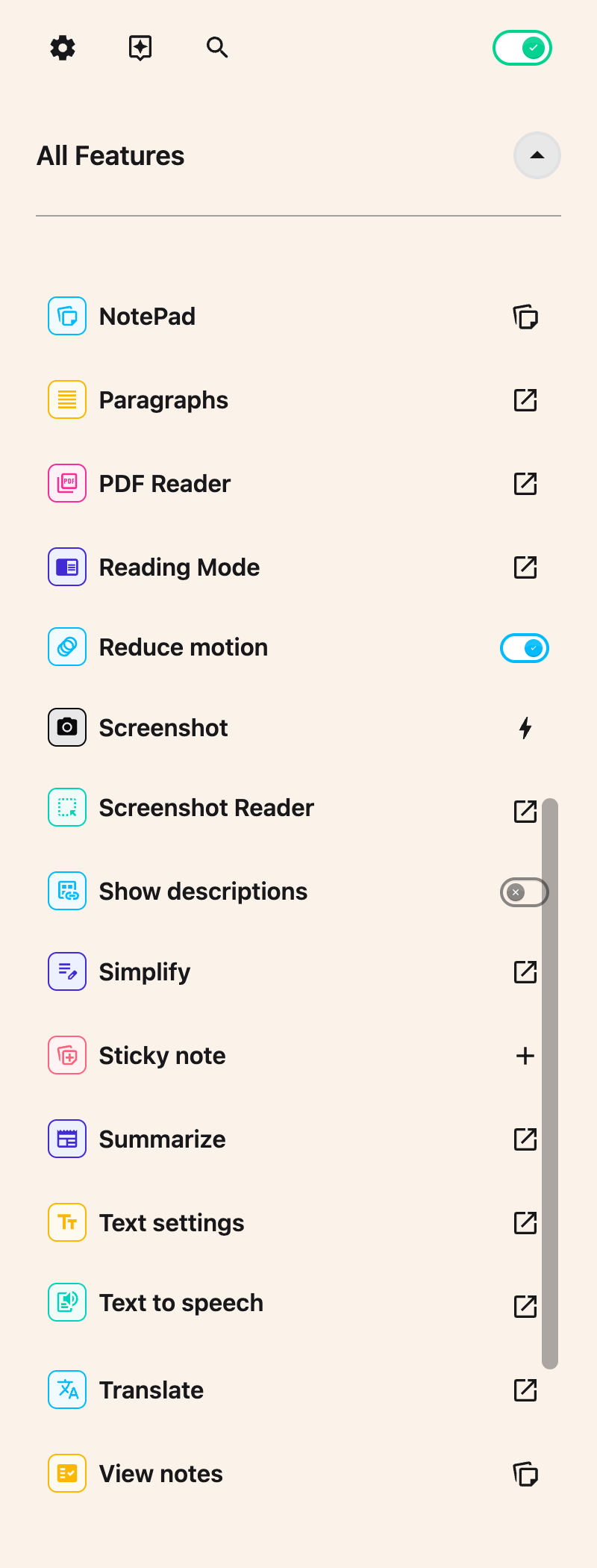
Scroll down to the bottom of the Helperbird menu. You will see a section called All Features.
Click the arrow next to All Features to expand it and show all available features.
Step 3: Find Reduce Motion
Look through the list of features until you see Reduce motion. It has its own row in the list, with a toggle switch right next to it.
Step 4: Turn on Reduce Motion
Click the toggle switch next to Reduce motion to turn it on. A green check badge will appear on the row to show the feature is active.
Websites will now show with reduced animations. The effect depends on how each website is built. Well-designed websites will respect this setting and show calmer versions of their animations.
Tip: For even fewer moving elements, turn on Hide images & GIFs in the same All Features list. That takes the pictures away entirely, animated ones included. See how to hide images and GIFs.
Need Additional Help?
If you have any questions or run into any issues, please contact the Helperbird support team. You can reach us at Helperbird support. We are happy to help you get the most out of Helperbird.
Printed from the Helperbird Help Center · Updated September 22nd, 2026
Questions? We are happy to help — helperbird.com/support