
How to Copy an Equation from Helperbird
Learn how to copy an equation out of Helperbird's Equation Editor as LaTeX, as MathML or as an image, and which format to pick for where you are pasting.
Jump to the stepsOn this page
What This Does
Copying takes the equation you have written and puts it on your clipboard, in one of three formats. Which one you want depends entirely on where you are about to paste it.
Who is This For?
This is helpful for:
- Students pasting an equation into an assignment
- Anyone moving maths into a document, a slide or a web page
- People who need maths that a screen reader can still read
Step 1: Write Your Equation
Write it in the editor first. See how to write an equation.
Step 2: Open Copy
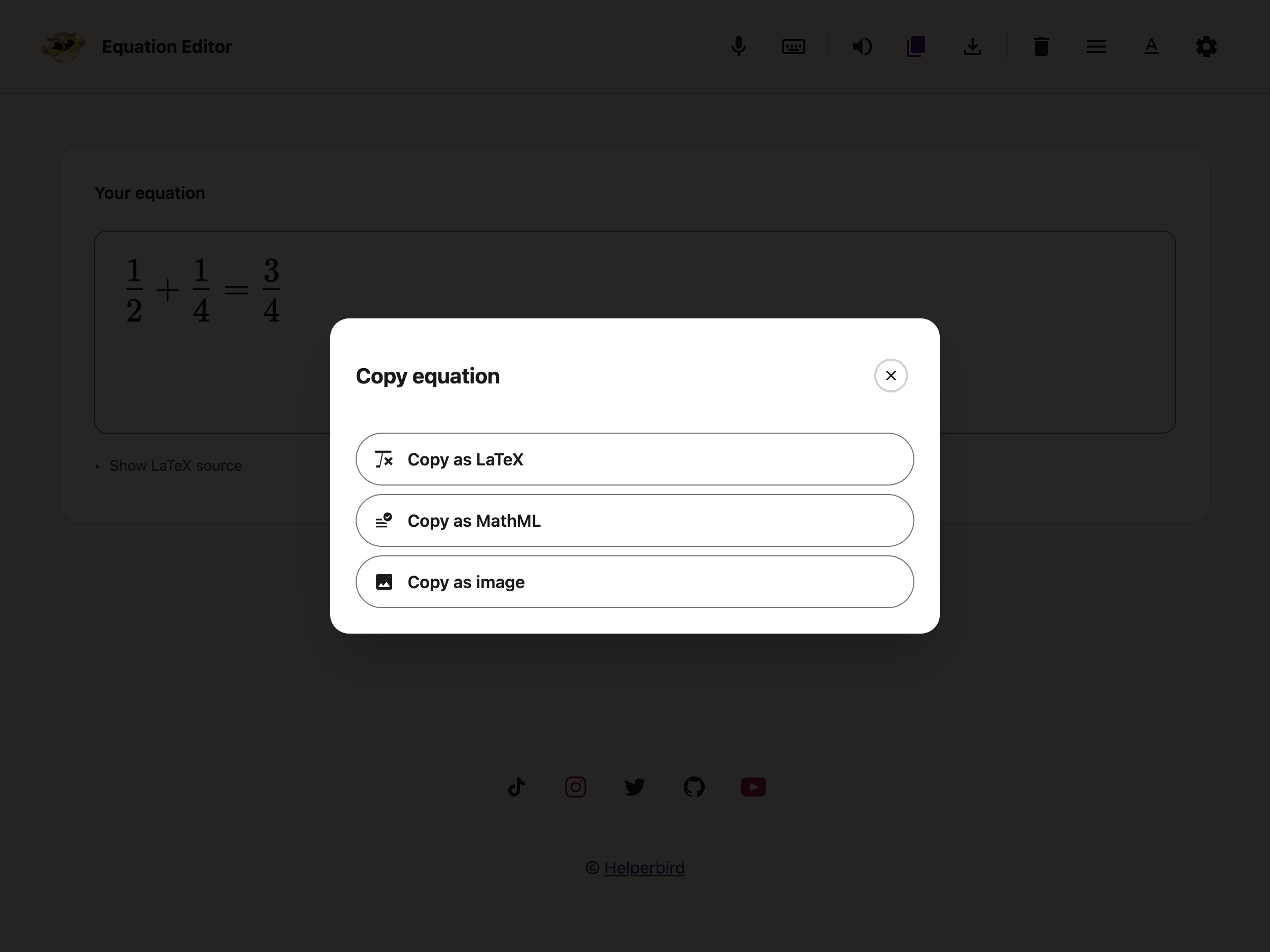
Click Copy in the toolbar and pick a format.
Which Format Should You Pick?
Copy as LaTeX gives you the plain-text version, like E = mc^2. Pick this for anywhere that understands LaTeX: a maths forum, a document written in LaTeX, or to paste back into this editor another day.
Copy as MathML gives you the equation as structured maths. Pick this when it needs to stay readable by a screen reader, or when you are pasting into a web page or a Word document where the maths should remain real maths rather than a picture. This is the accessible choice.
Copy as image gives you a picture of the equation. Pick this when nothing else will paste properly, such as a chat message or a slide. Be aware that a picture cannot be read by a screen reader and cannot be edited afterwards, so it is the last resort rather than the default.
If you need a file rather than a clipboard copy, download it as an image instead.
 View full-size image (opens in a new tab)
Need Additional Help?
If you have any questions or run into any issues, please contact the Helperbird support team. You can reach us at Helperbird support. We are happy to help you get the most out of Helperbird.
Printed from the Helperbird Help Center · Updated September 25th, 2026
Questions? We are happy to help — helperbird.com/support