
How to Use Explain Mode in the Screenshot Reader
Learn how to turn on Explain mode so Helperbird explains a chart, diagram or paragraph in plain language instead of just reading the words back to you.
Jump to the stepsOn this page
What Explain Mode Does
Normally the Screenshot Reader gives you back exactly the words it found in a picture. Explain mode does something different: it explains what you captured, in plain language.
Point it at a chart and it tells you what the chart shows. Point it at a paragraph you have read three times and it tells you what it means.
Who is This For?
This is helpful for:
- Anyone stuck on a paragraph that will not go in, however many times they read it
- Students meeting a diagram, chart or table in a subject they are new to
- People who find a formula easier to understand described in words
- Anyone reading in a second language
Step 1: Open the Screenshot Reader
Open Helperbird, go to All Features, and open Screenshot Reader.
Step 2: Turn On Explain Mode
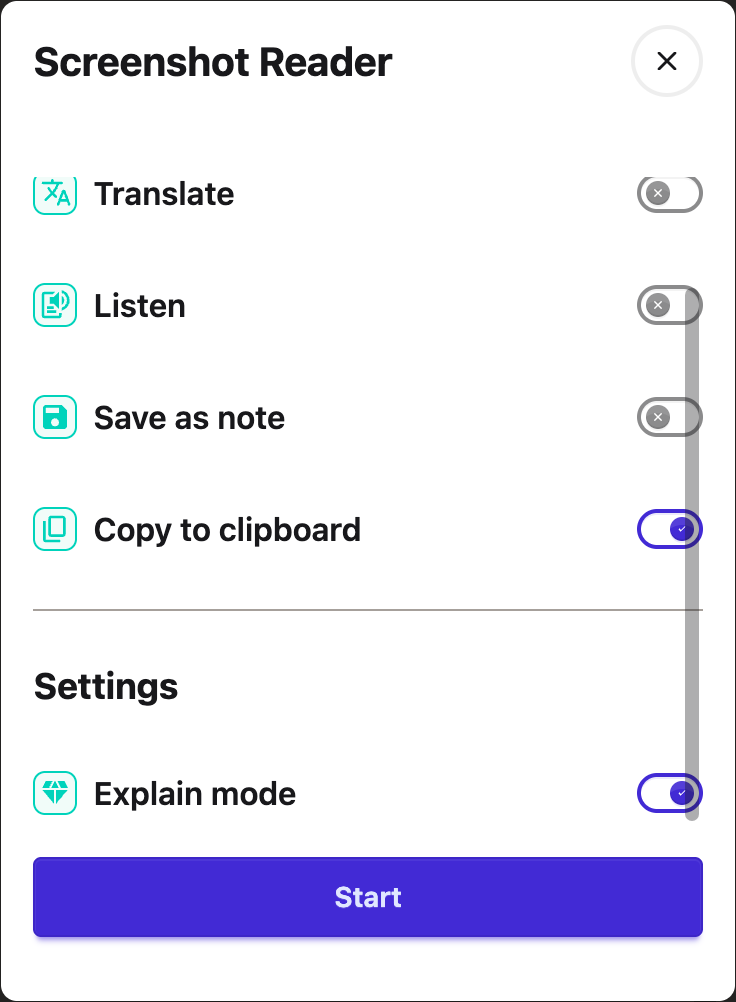
Scroll down to Settings inside the panel and turn on Explain mode.
 View full-size image (opens in a new tab)
This is a setting, not a one-off. It stays on until you turn it off, so remember to switch it back when you want the plain text again.
Step 3: Draw a Box
Press Start, then drag a box around whatever you want explained.
 View full-size image (opens in a new tab)
Step 4: Read the Explanation
The explanation appears in a card on the page. It has buttons to listen to it, copy it, or close it.
 View full-size image (opens in a new tab)
The listen button uses Helperbird's text to speech, so it uses the voice and speed you have chosen there.
When to Use It, and When Not To
Use it when the problem is understanding: charts, diagrams, formulas, dense or badly written paragraphs, or anything in unfamiliar jargon.
Turn it off when you want the actual words. If you are copying a quote, filling in a form, or need the text exactly as written, Explain mode gives you a description instead, which is not what you want. Switch it off and the Screenshot Reader goes back to giving you the text itself.
See also how to use the Screenshot Reader and how it handles equations.
Need Additional Help?
If you have any questions or run into any issues, please contact the Helperbird support team. You can reach us at Helperbird support. We are happy to help you get the most out of Helperbird.
Printed from the Helperbird Help Center · Updated September 22nd, 2026
Questions? We are happy to help — helperbird.com/support