
How to Turn On Dark Mode in Helperbird
Learn how to use Helperbird's turn on dark mode in helperbird. Complete guide for improving web accessibility and reading support.
Jump to the stepsOn this page
What is Dark Mode?
Dark Mode changes websites to use dark colors instead of bright white backgrounds. This makes websites easier on your eyes, especially when browsing in low-light conditions or at night.
Dark Mode inverts the colors on websites so that light areas become dark and dark text becomes light.
Who is This For?
This feature is helpful for:
- People who browse at night or in dimly lit rooms
- Anyone who finds bright screens uncomfortable
- People who experience eye strain from light backgrounds
- Anyone who prefers dark-themed interfaces
- People who want to reduce screen brightness
Step 1: Open Helperbird
Click the Helperbird icon in your browser toolbar. It looks like a small owl and is usually in the top-right corner of your browser.
This will open the Helperbird menu.
Step 2: Open the All Features Section
Scroll down to the bottom of the Helperbird menu. You will see a section called All Features.
Click the arrow next to All Features to expand it and show all available features.
Step 3: Find Dark Reader
Look through the list of features until you see Dark reader.
It has a moon icon next to it.
Step 4: Open Dark Reader Settings
Click on Dark reader to open it.
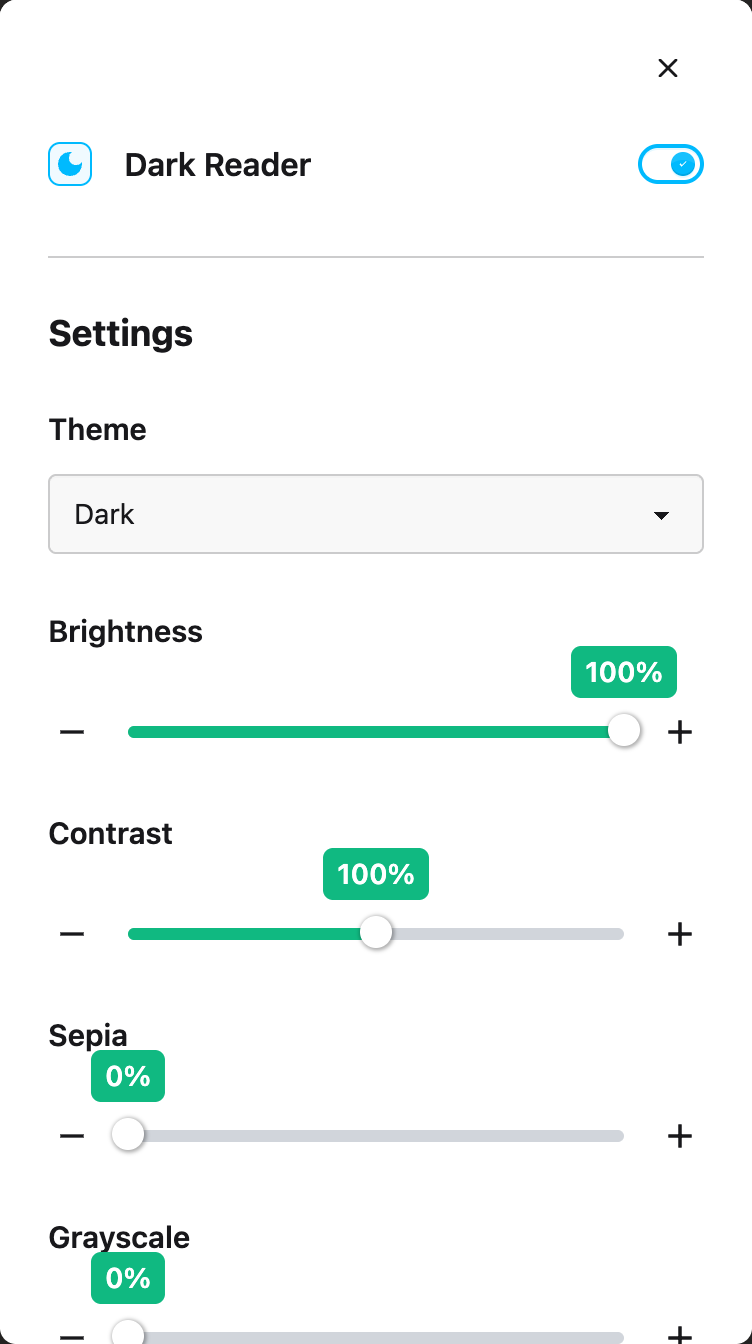
A settings panel will appear with options to configure Dark Mode.
Step 5: Turn on Dark Mode
In the Dark Reader panel, you will see a toggle switch at the top.
Click the toggle switch to turn Dark Mode on. The toggle will turn green when it is enabled.
The current webpage will immediately switch to a dark color scheme.
Step 6: Customize Settings
You can adjust how Dark Mode looks using the sliders in the panel:
Brightness - Adjust how bright or dim the dark theme appears
Contrast - Change the difference between light and dark elements
Grayscale - Add a grayscale effect to reduce color intensity
Sepia - Add a warm sepia tone to the dark theme
Experiment with these settings to find what is most comfortable for your eyes.
Tip: Dark Mode works great when combined with the Reduce Motion feature if you also want a calmer browsing experience.
 View full-size image (opens in a new tab)
Need Additional Help?
If you have any questions or run into any issues, please contact the Helperbird support team. You can reach us at Helperbird support. We are happy to help you get the most out of Helperbird.
Printed from the Helperbird Help Center · Updated September 22nd, 2026
Questions? We are happy to help — helperbird.com/support