
How to Enable and Use Keyboard Shortcuts in Helperbird
Learn about Helperbird keyboard shortcuts. Speed up your accessibility workflow with quick keys Support accessibility for everyone.
Jump to the stepsOn this page
What are Keyboard Shortcuts?
Keyboard shortcuts let you quickly activate Helperbird features by pressing key combinations instead of opening the menu and clicking. For example, you could press a few keys to instantly start text-to-speech or turn on Reading Mode.
Shortcuts are disabled by default because some websites have their own keyboard shortcuts that might conflict with Helperbird's.
Who is This For?
This feature is helpful for:
- People who want faster access to features
- Anyone who prefers using the keyboard over the mouse
- Power users who use Helperbird features frequently
- People with motor difficulties who find keyboard navigation easier
- Anyone who wants to be more efficient
Step 1: Open Helperbird
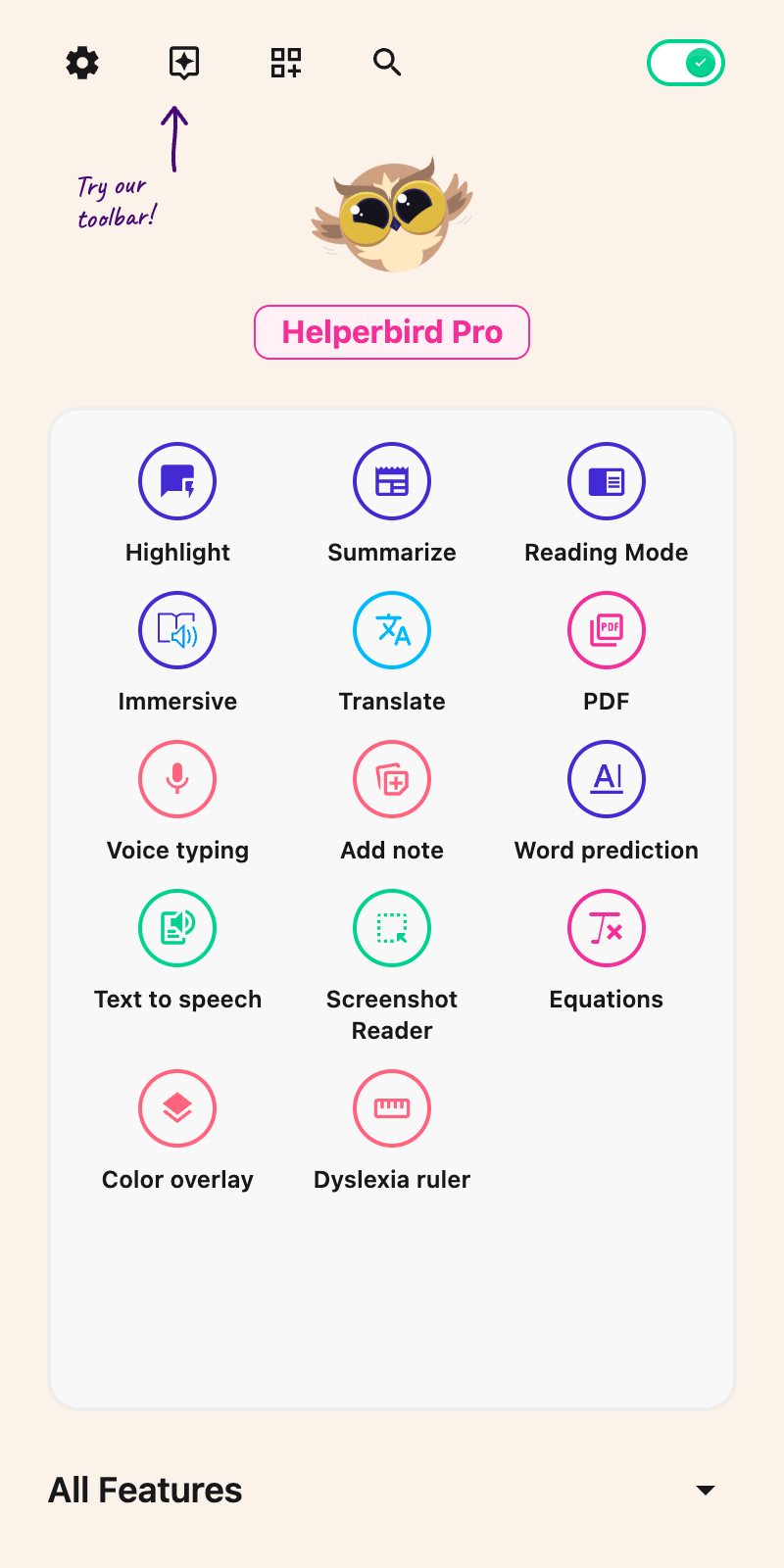
Click the Helperbird icon in your browser toolbar. It looks like a small owl and is usually in the top-right corner of your browser.
This will open the Helperbird menu.
 View full-size image (opens in a new tab)
Step 2: Open the Options Menu
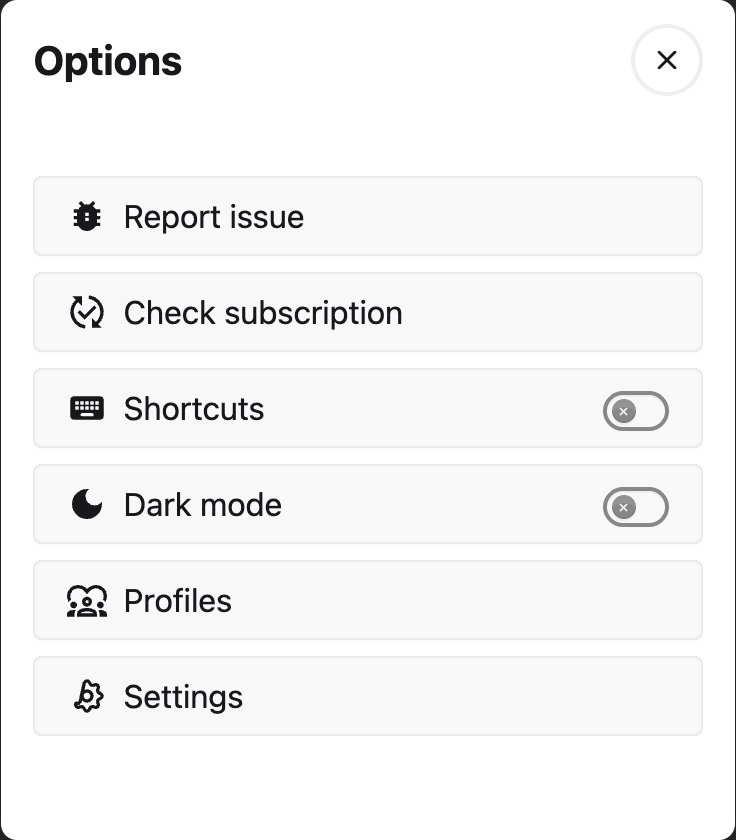
Click the gear icon in the top-left corner of the Helperbird menu.
This will open the Options panel with various settings and options.
 View full-size image (opens in a new tab)
Step 3: Enable Shortcuts
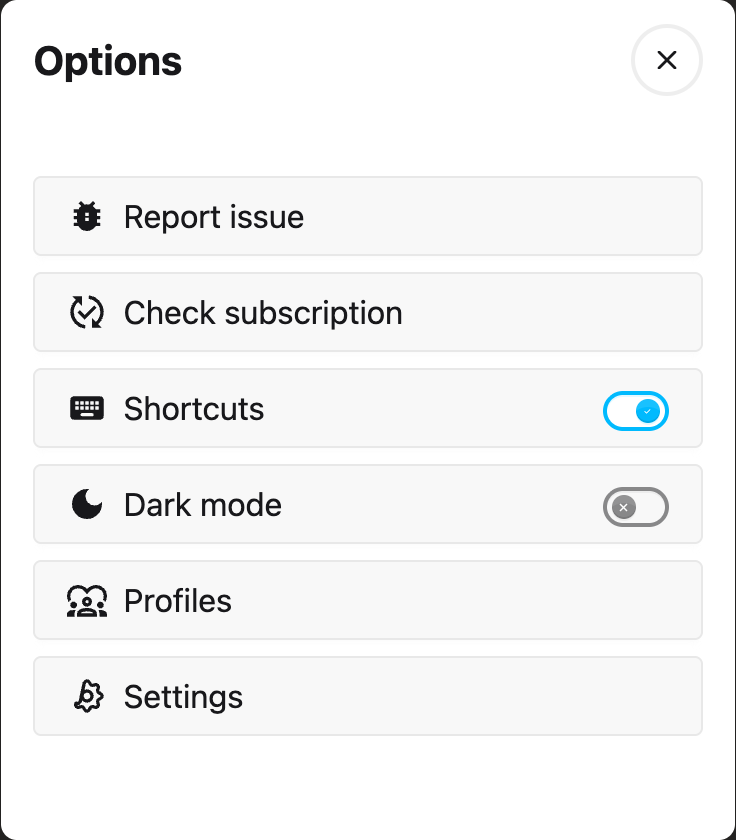
In the Options panel, look for Shortcuts with a toggle switch next to it.
Click the toggle switch to turn it on. A check mark shows that it is enabled.
You can now use keyboard combinations to quickly access Helperbird features.
View full-size image (opens in a new tab)
 View full-size image (opens in a new tab)
Step 4: Find the Shortcut You Want
Shortcuts in the Options panel is a switch, not a list. Clicking it again turns shortcuts back off, so leave it alone once it is on.
The full list is the table below on this page. There is no list inside the extension.
Important: On Mac, shortcuts use Option (⌥) + key. On Windows and Linux, shortcuts use Alt + Shift + key.
All Keyboard Shortcuts
Here is the complete list of every keyboard shortcut available in Helperbird.
| Feature | Mac | Windows / Linux |
|---|---|---|
| General | ||
| Turn Helperbird On/Off | Option + . | Alt + Shift + . |
| Notes & Annotations | ||
| Create a Sticky Note | Option + S | Alt + Shift + S |
| Reading | ||
| Reader Mode | Option + R | Alt + Shift + R |
| Immersive Reader | Option + I | Alt + Shift + I |
| Auto Scroll | Option + A | Alt + Shift + A |
| Colors & Tints | ||
| Overlay Tint | Option + O | Alt + Shift + O |
| Text Color | Option + T | Alt + Shift + T |
| Link Color | Option + L | Alt + Shift + L |
| Background Color | Option + B | Alt + Shift + B |
| Paragraph Background | Option + G | Alt + Shift + G |
| Text & Paragraphs | ||
| Paragraph Width | Option + X | Alt + Shift + X |
| Highlight Paragraphs | Option + Z | Alt + Shift + Z |
| Word Spacing | Option + F | Alt + Shift + F |
| Font Size | Option + U | Alt + Shift + U |
| Text Alignment | Option + J | Alt + Shift + J |
| Line Height | Option + K | Alt + Shift + K |
| Letter Spacing | Option + Q | Alt + Shift + Q |
| Custom Font | Option + N | Alt + Shift + N |
| Images & Visuals | ||
| Magnifier (Zoom) | Option + 1 | Alt + Shift + 1 |
| Tooltip Descriptions | Option + 2 | Alt + Shift + 2 |
| Hide Images | Option + 3 | Alt + Shift + 3 |
| Hide GIFs | Option + 4 | Alt + Shift + 4 |
| Saturation Control | Option + 6 | Alt + Shift + 6 |
| Accessibility | ||
| High Contrast Mode | Option + 7 | Alt + Shift + 7 |
| Dark Reader | Option + W | Alt + Shift + W |
| Emphasize Links | Option + 8 | Alt + Shift + 8 |
| Cursor Size | Option + 9 | Alt + Shift + 9 |
| Spell Check | Option + 0 | Alt + Shift + 0 |
| Reduce Motion | Option + M | Alt + Shift + M |
| Dyslexia Ruler | Option + D | Alt + Shift + D |
| Tools | ||
| Extract Text | Option + E | Alt + Shift + E |
| Translate | Option + C | Alt + Shift + C |
| Screenshot | Option + V | Alt + Shift + V |
Tip: Start with two or three shortcuts you use often. Bookmark this guide to return to the full list.
Need Additional Help?
If you have any questions or run into any issues, please contact the Helperbird support team. You can reach us at Helperbird support. We are happy to help you get the most out of Helperbird.
Printed from the Helperbird Help Center · Updated September 22nd, 2026
Questions? We are happy to help — helperbird.com/support