
How to Open a Saved Document in the Helperbird Notepad
Learn how to find and reopen a document you saved earlier in the Helperbird Notepad using the View button.
Jump to the stepsOn this page
What This Does
Open document shows the documents you have saved in the Notepad, so you can pick one up again.
Who is This For?
This is helpful for:
- Anyone returning to a draft from a previous session
- Students moving between several pieces of work
- Anyone checking what they have saved
Step 1: Open Documents
Click Open document in the toolbar. It is the pink button on the far right, on its own away from the others.
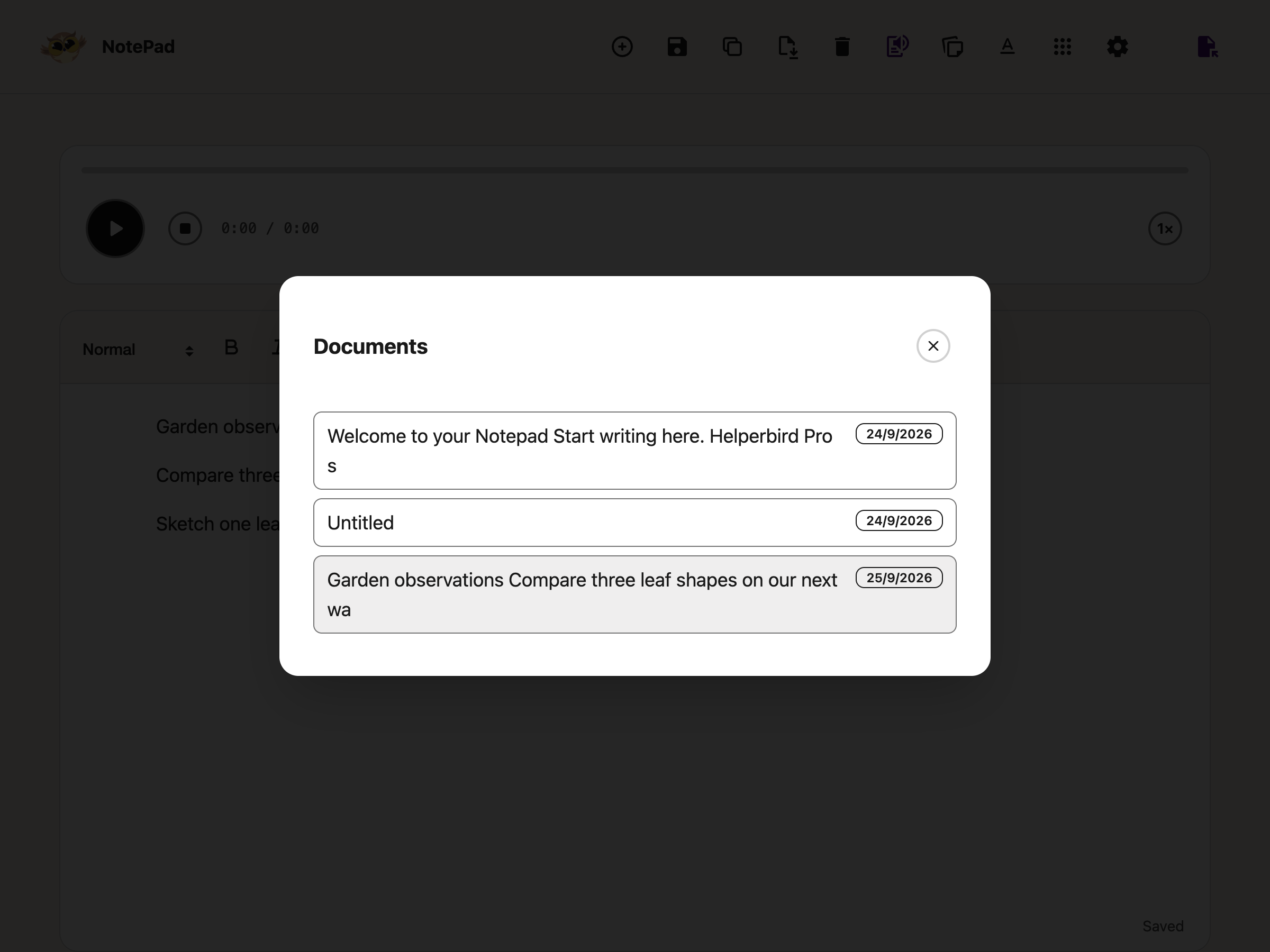
Step 2: Choose a Document
The Documents window lists everything you have saved. Click one to open it.
 View full-size image (opens in a new tab)
The document loads with your text and formatting as you left them.
If the list is empty, nothing has been saved yet. See how to save a document.
Need Additional Help?
If you have any questions or run into any issues, please contact the Helperbird support team. You can reach us at Helperbird support. We are happy to help you get the most out of Helperbird.
Printed from the Helperbird Help Center · Updated September 25th, 2026
Questions? We are happy to help — helperbird.com/support