
How to Use the Helperbird Notepad
Learn about the Helperbird Notepad's writing tools, autosave, captured notes, reading list, and Word, Markdown, and text downloads.
On this page
The Helperbird Notepad is a writing space with a toolbar across the top. This guide is the map of that toolbar: what each button does, and which guide covers it.
To get the Notepad open, see opening the Notepad.
What Each Toolbar Button Does
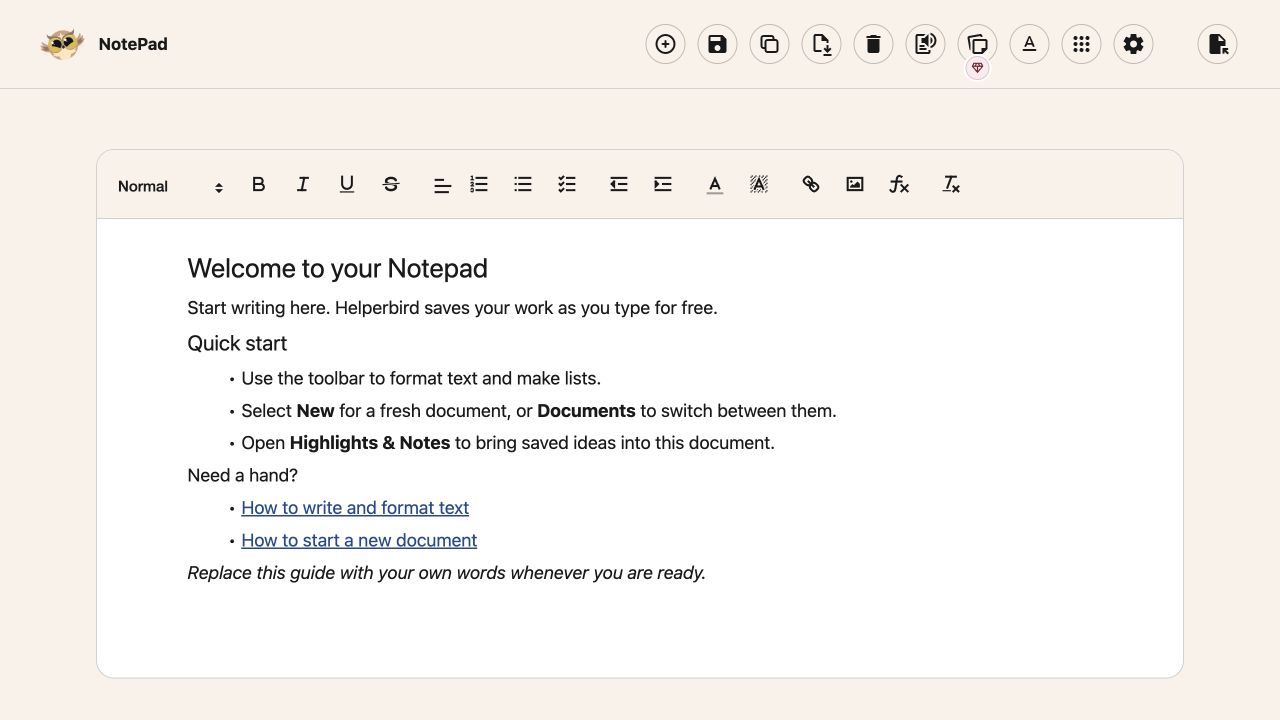
The top toolbar keeps document actions together. Hover over an icon, or reach it with Tab, to read its name.
| Control | What it does |
|---|---|
| New document | Starts a new document |
| Save | Saves your current document |
| Copy | Makes a second saved document |
| Download | Offers Word, Markdown and Text file |
| Delete | Opens a confirmation before deleting the current document |
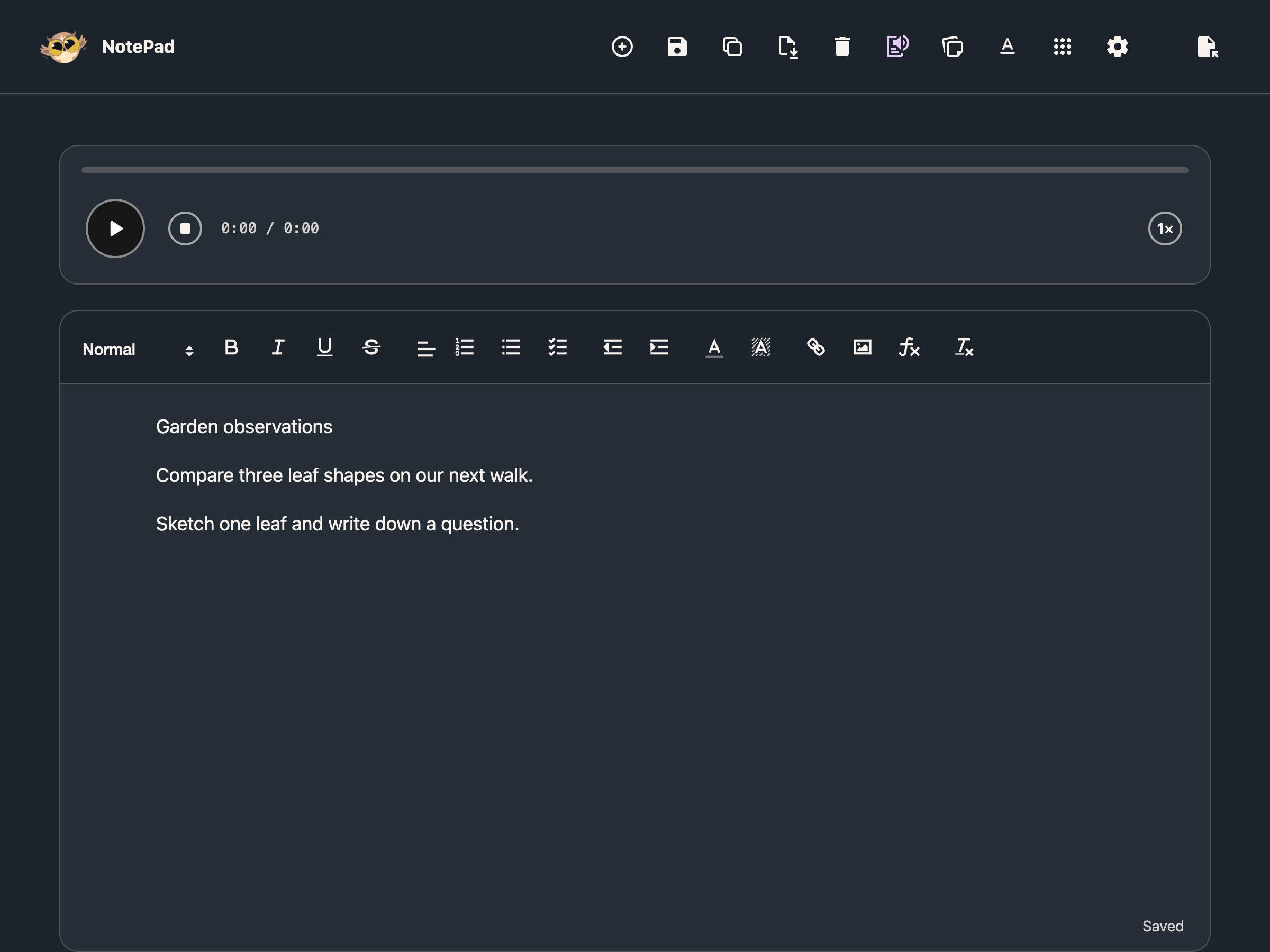
| Text to Speech | Shows or hides the reading player |
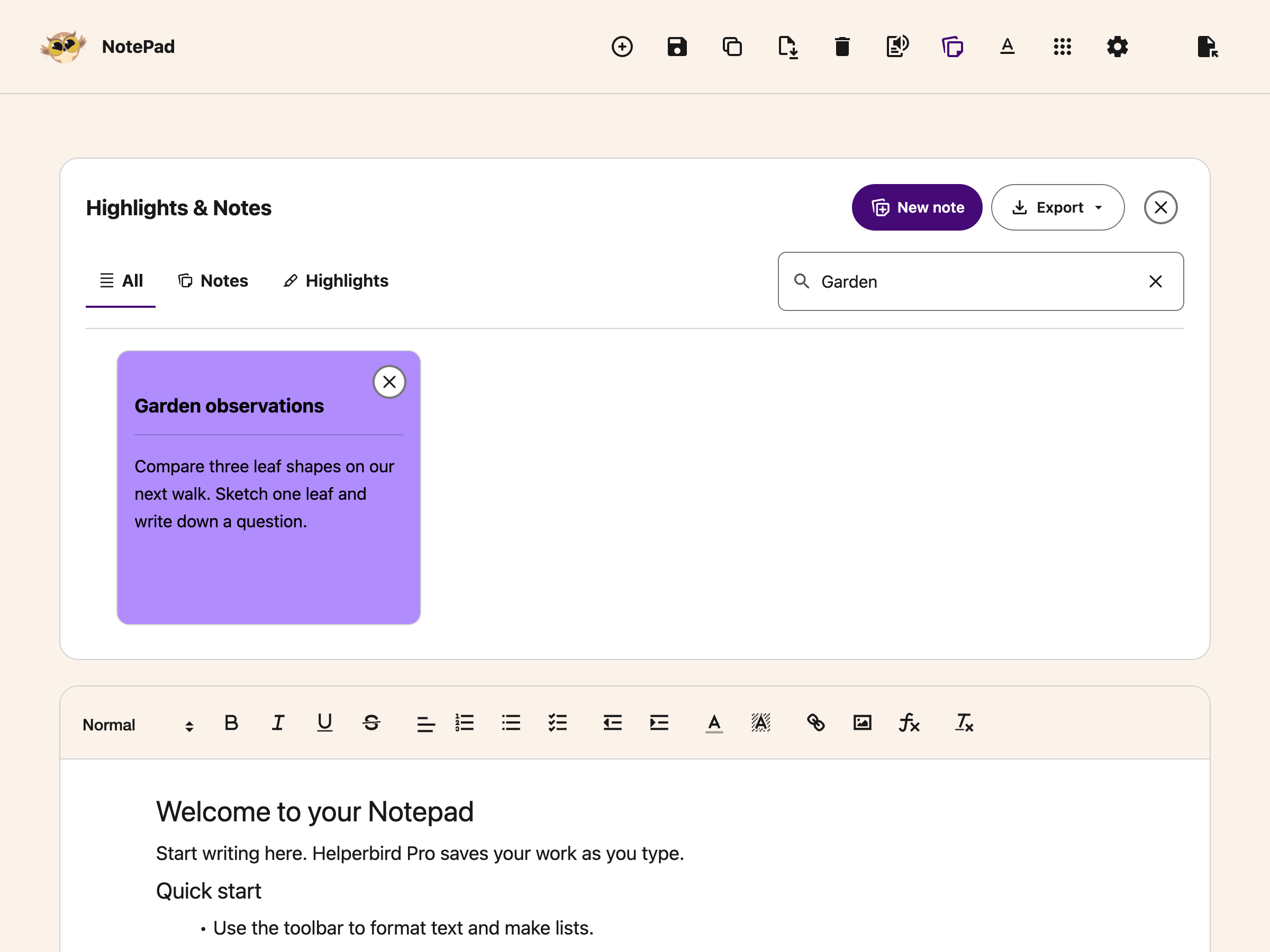
| Highlights & Notes | Opens your saved notes and highlights above the document |
| Text settings | Changes how the document looks while you read and write |
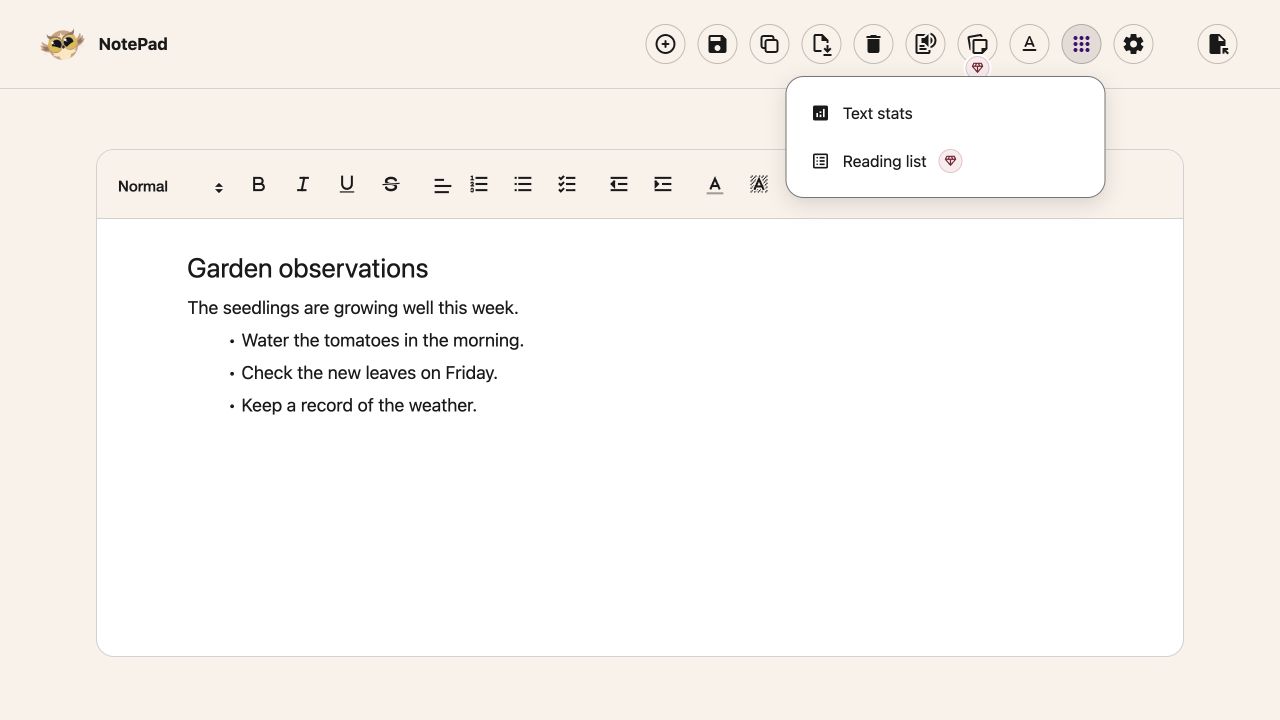
| Tools | Opens Text stats and Reading List (Pro) |
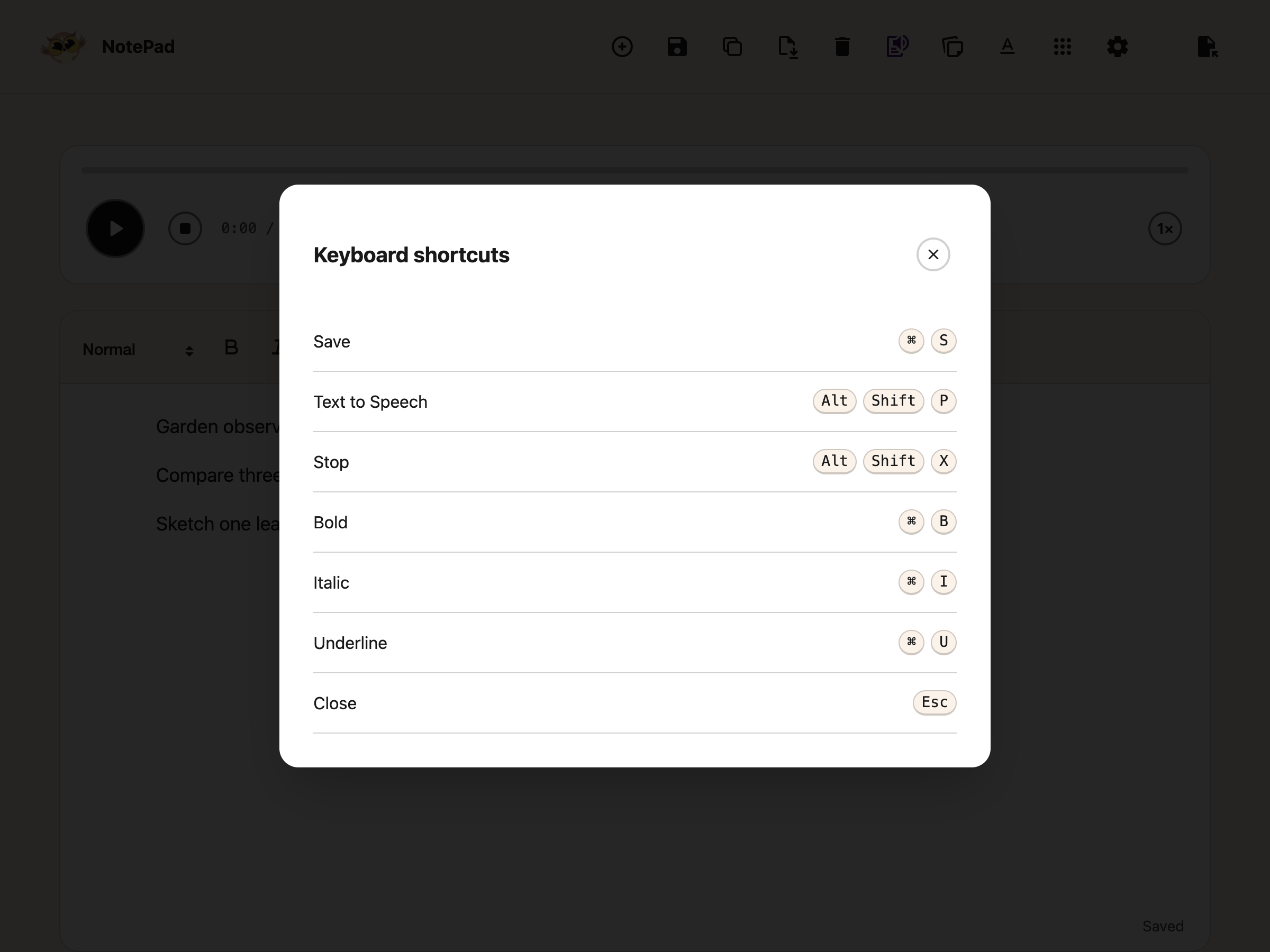
| Settings | Changes width or theme, shows shortcuts and offers separate resets |
| Open document | Opens saved documents |
 View full-size image (opens in a new tab)
Use Text to Speech to hear your writing. The NotePad listening guide explains the player.
 View full-size image (opens in a new tab)
Choose a Comfortable Reading View
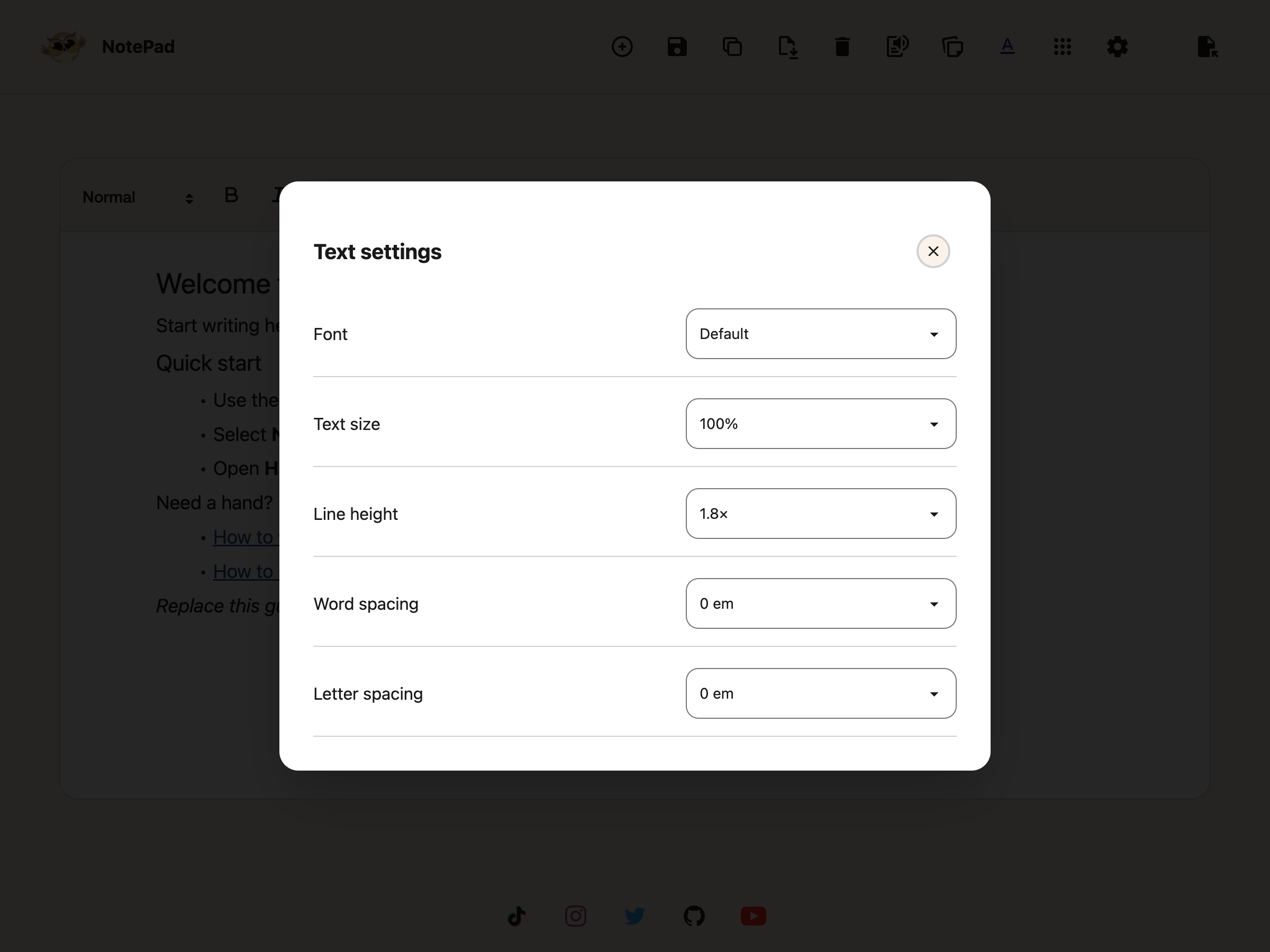
Text settings changes the font, text size, line height, word spacing and letter spacing. These are reading preferences. They do not replace the formatting you save in a document.
 View full-size image (opens in a new tab)
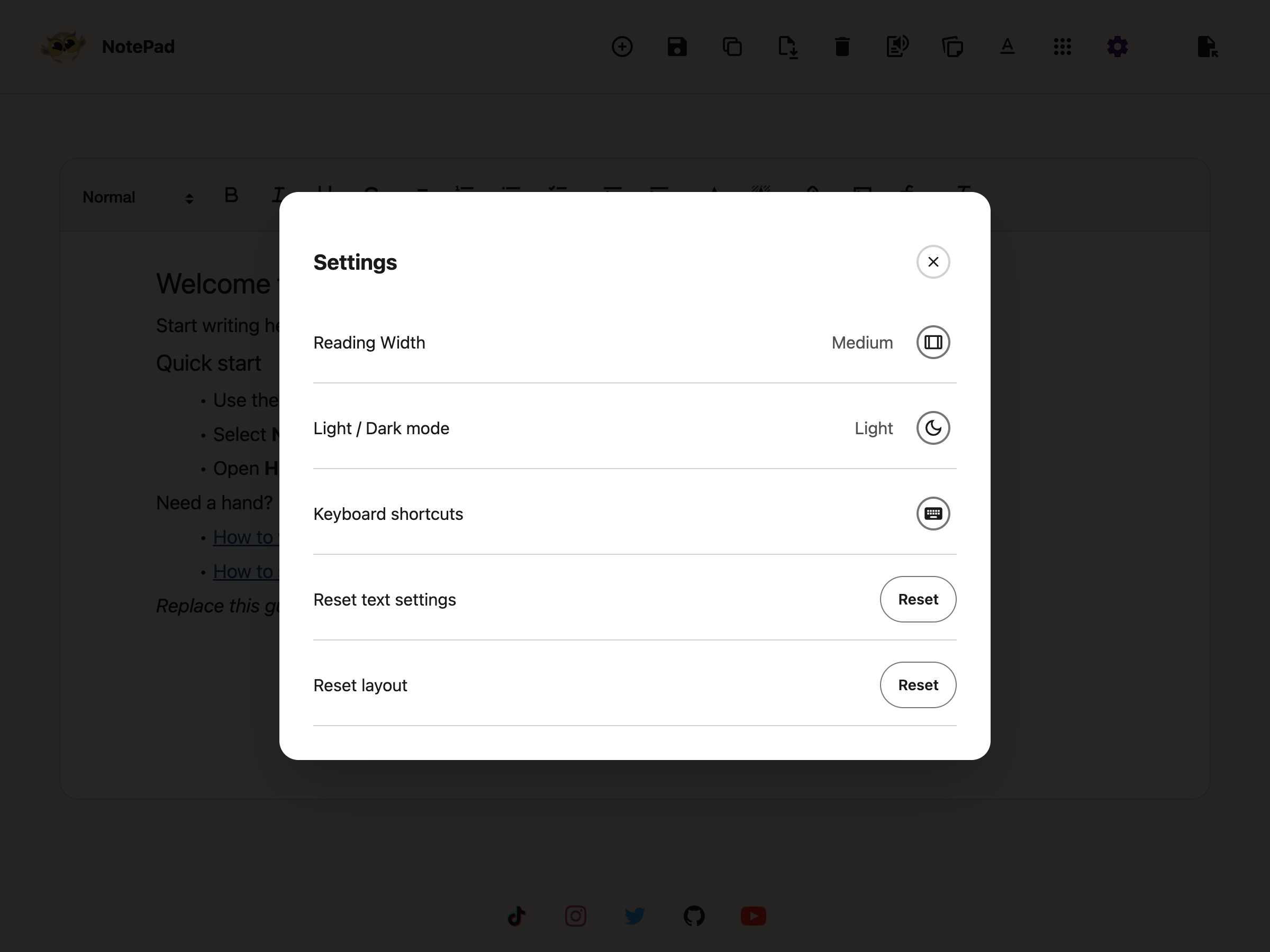
Open Settings for reading width, light or dark mode, and keyboard shortcuts. Use the Reset beside Reset text settings for font and spacing, or the one beside Reset layout for width and theme. Neither deletes your document.
 View full-size image (opens in a new tab)
 View full-size image (opens in a new tab)
 View full-size image (opens in a new tab)
Your choices save for your next visit to NotePad. See reading preferences across Helperbird apps.
Keep Notes Beside Your Writing
Choose Highlights & Notes to open its card above the document. An empty library offers New note. Once you have saved items, the filters and search help you find them.
 View full-size image (opens in a new tab)
Open a card to edit it or insert it into NotePad. Close the library when you want more space to write. Closing the library does not delete its contents.
Manage your notes and highlights.
Autosave and the Save Button
The Notepad autosaves changes as you write. Save remains available when you want to save explicitly. Switching documents also settles pending edits, but you should keep downloaded copies of important work.
Notepad writing and all document actions are free. Notes/Highlights and Reading List remain Pro features. Your browser's storage mode determines whether documents stay on this device or use supported account sync. Avoid editing the same saved collection in several Notepad tabs at once; autosave does not resolve conflicting edits.
Where your documents are kept, and what to do when a long one will not save, are covered in saving a document.
Add an Equation
Choose Insert equation in the text formatting toolbar to add maths at your cursor. Build it with your keyboard or the full-width math keyboard, then choose Insert. Click an inserted equation, or focus it and press Enter, to edit it later.
Adding and editing equations in the standalone Notepad is free. The side Notepad in the PDF Reader has free typing, formatting and insertion; its equation, voice and grammar tools still need Pro.
A Guide for Each Part
Need Additional Help?
Ran into a snag while getting started? Reach out to our friendly Helperbird support team, and we will help you sort it out.
Printed from the Helperbird Help Center · Updated September 26th, 2026
Questions? We are happy to help — helperbird.com/support