
How to Hear Your Sentence Read Back as You Type
Learn how to turn on Read sentence in Helperbird, so each sentence is read back to you as soon as you finish it and you can hear whether it makes sense.
Jump to the stepsOn this page
What This Does
Hearing your own writing read back is one of the most reliable ways to catch a sentence that does not say what you meant. Your eye skips over it; your ear does not.
With Read sentence on, Helperbird speaks each sentence back to you the moment you finish it, so you catch problems as you write rather than at the end.
Who is This For?
This is helpful for:
- Anyone with dyslexia who finds proofreading by eye unreliable
- Students who have been told to read their work aloud, done automatically
- Anyone writing in a second language who wants to hear whether it sounds right
- People who think more clearly by ear than by eye
Step 1: Turn Word Prediction On
Read sentence lives inside word prediction and only works while prediction is running. Open Helperbird, go to All Features, and turn on Word prediction.
Step 2: Turn On Read Sentence
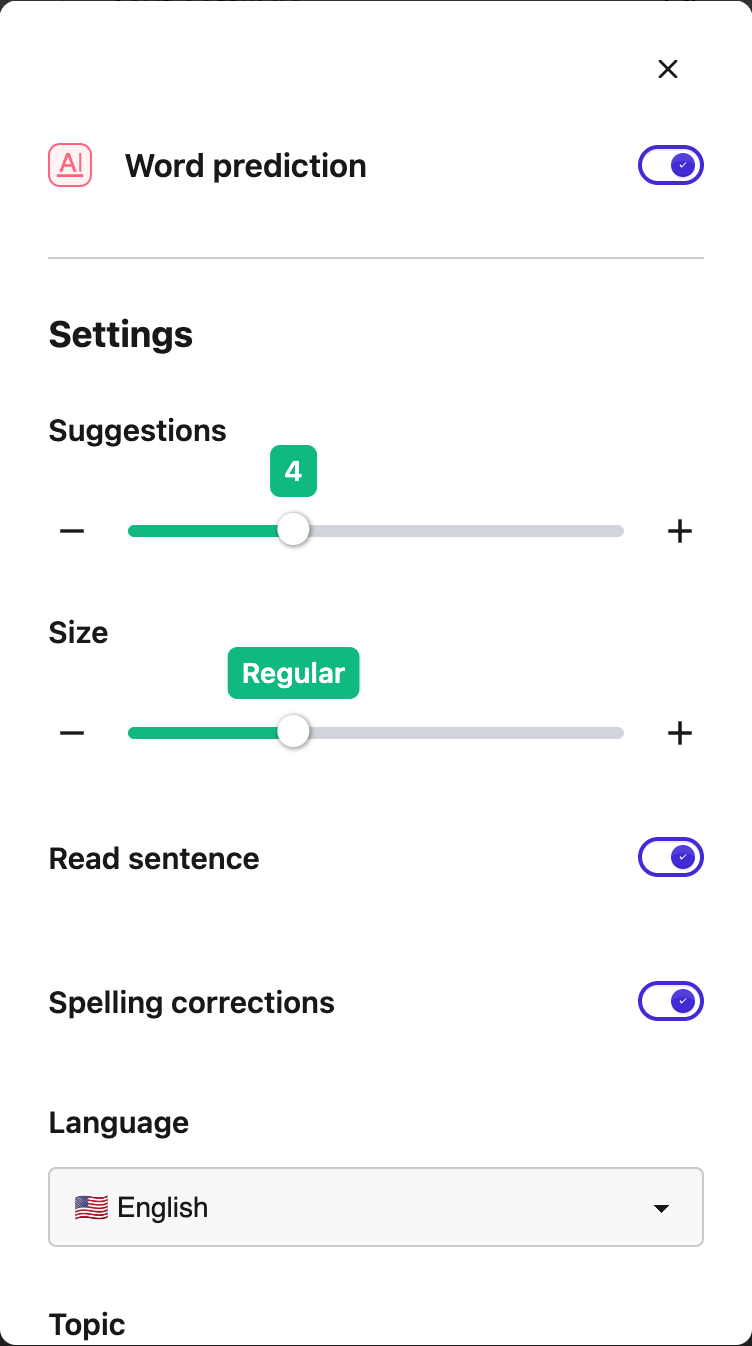
Open the word prediction options and turn on Read sentence.
 View full-size image (opens in a new tab)
Step 3: Write a Sentence
Type as normal. When you finish a sentence with a full stop, a question mark or an exclamation mark, Helperbird reads that sentence back to you.
It reads whole sentences, not each word as you type it, so it does not interrupt you mid-thought. If you never type a full stop, nothing is read.
Which Voice It Uses
It uses the same voice, speed and pitch as the rest of Helperbird's text to speech. Change them there and this follows.
It is worth picking a voice you are happy to hear often, and a slightly faster speed than you would use for reading a page, since you already know what the sentence says.
If You Hear Nothing
- Check word prediction itself is on. Read sentence does nothing on its own.
- Check you finished the sentence with
.,?or!. - Check a voice is chosen in your text to speech settings, and that your device is not muted.
This pairs well with word prediction for help while you write, and with the grammar checker for a check once you have finished.
Need Additional Help?
If you have any questions or run into any issues, please contact the Helperbird support team. You can reach us at Helperbird support. We are happy to help you get the most out of Helperbird.
Printed from the Helperbird Help Center · Updated September 22nd, 2026
Questions? We are happy to help — helperbird.com/support