
How to Zoom In and Magnify Any Website
Learn how to use Helperbird's zoom in and magnify any website. Complete guide for improving web accessibility and reading support.
Jump to the stepsOn this page
What is the Magnifier?
The Magnifier makes a whole web page larger. Text, images and buttons all grow together, so the page keeps its shape rather than reflowing.
It can also make a page smaller, which is useful when a site is designed for a bigger screen than yours.
In the extension this control is called Magnifier. If you have been looking for something called Zoom, this is it.
Who is This For?
This feature is helpful for:
- People with low vision who need larger text and images
- Anyone who finds website text too small to read
- People using small screens or sitting far from their monitor
- Anyone who experiences eye strain from squinting at small content
- People who want more control over how websites appear
Step 1: Open Helperbird
Click the Helperbird icon in your browser toolbar. It looks like a small owl and is usually in the top-right corner of your browser.
This will open the Helperbird menu.
Step 2: Open the All Features Section
Scroll down to the bottom of the Helperbird menu. You will see a section called All Features.
Click the arrow next to All Features to expand it and show all available features.
Step 3: Find Display
Look through the list of features until you see Display.
Step 4: Open Display
Click Open on the Display row.
A panel will appear showing various display settings you can adjust.
Step 5: Turn on the Magnifier
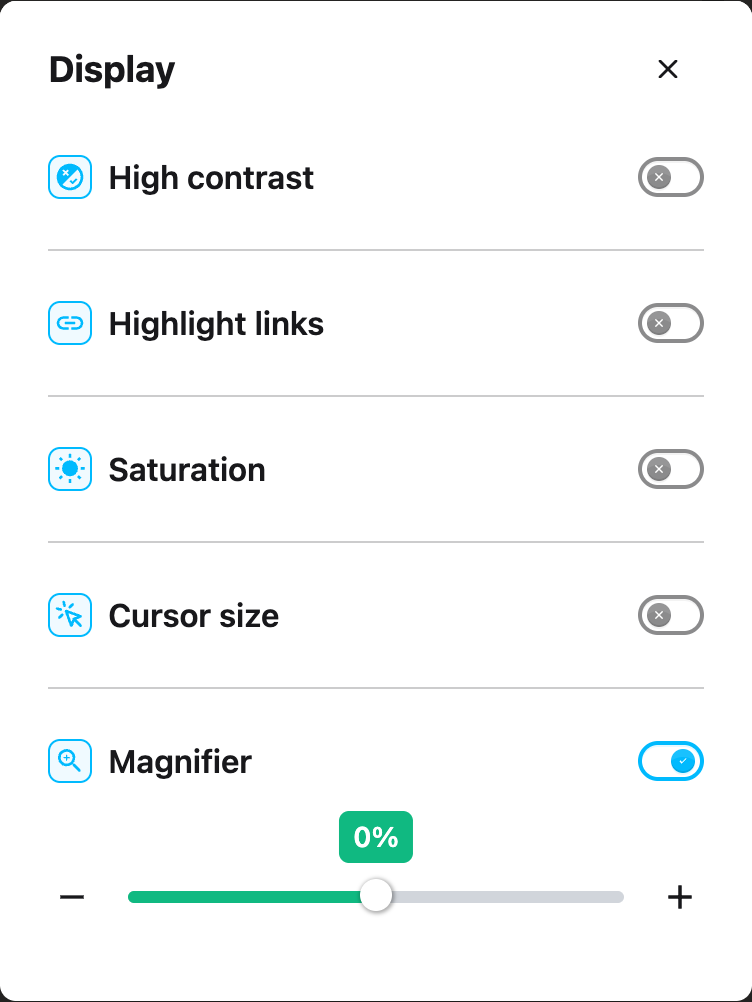
In the Display panel, look for Magnifier. It sits below High contrast, Highlight links, Saturation and Cursor size.
Click the toggle switch next to it to turn it on. The toggle will turn green when it is enabled.
Step 6: Adjust How Much
Once the Magnifier is on, a slider appears below the toggle.
Drag the slider to the right to zoom in and make the page larger. Drag it to the left to zoom out and make the page smaller.
The number beside it shows how much bigger or smaller the page is than normal, not an absolute zoom level.
- 0% is normal size, and is where the slider starts
- +100% is the largest, one and a half times normal
- -100% is the smallest, half normal size
It moves in steps of 10%. There is no 150% or 200% here: +100% is as large as it goes.
The zoom applies immediately so you can see the change right away.
Tip: Somewhere between +20% and +50% suits most people for everyday reading. Go further if you need it.
 View full-size image (opens in a new tab)
Video Tutorial
Need Additional Help?
If you have any questions or run into any issues, please contact the Helperbird support team. You can reach us at Helperbird support. We are happy to help you get the most out of Helperbird.
Printed from the Helperbird Help Center · Updated September 22nd, 2026
Questions? We are happy to help — helperbird.com/support