
How to Use Helperbird Speed Reading
Read one word at a time in Helperbird Reading Mode or PDF Reader. Choose a pace, pause when you need to, and use the buttons to step through individual words.
Jump to the stepsOn this page
What This Does
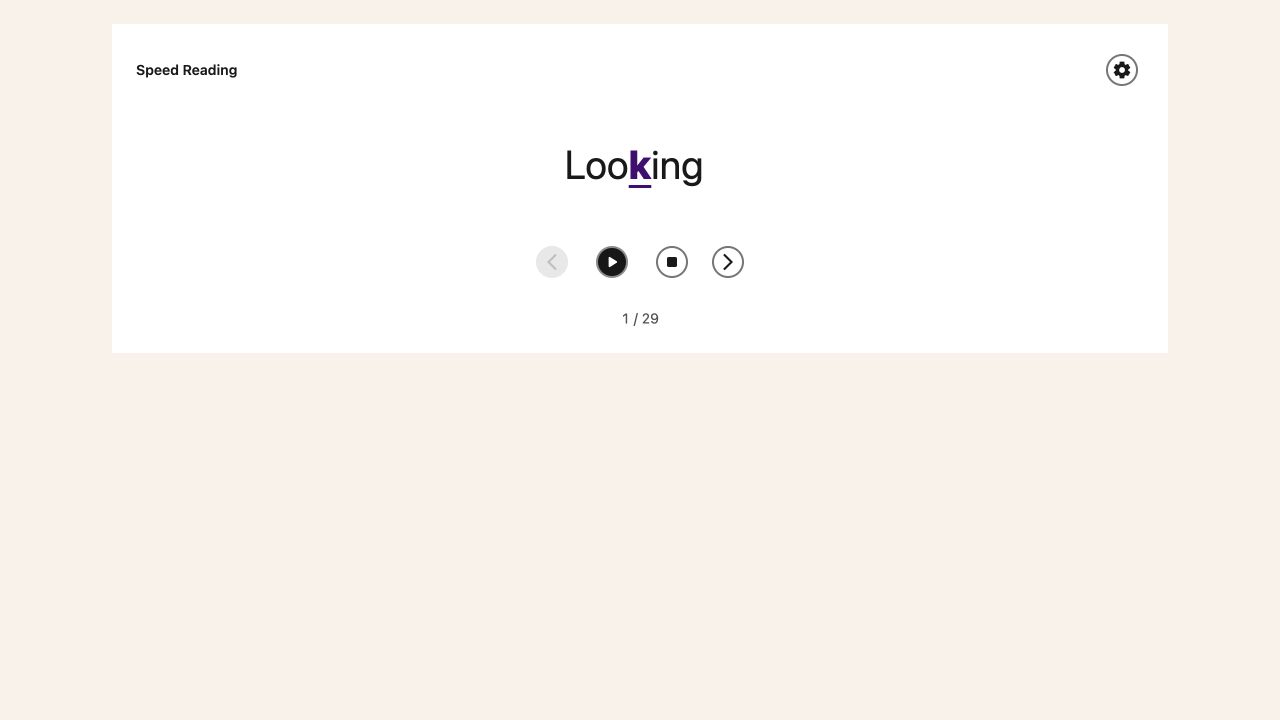
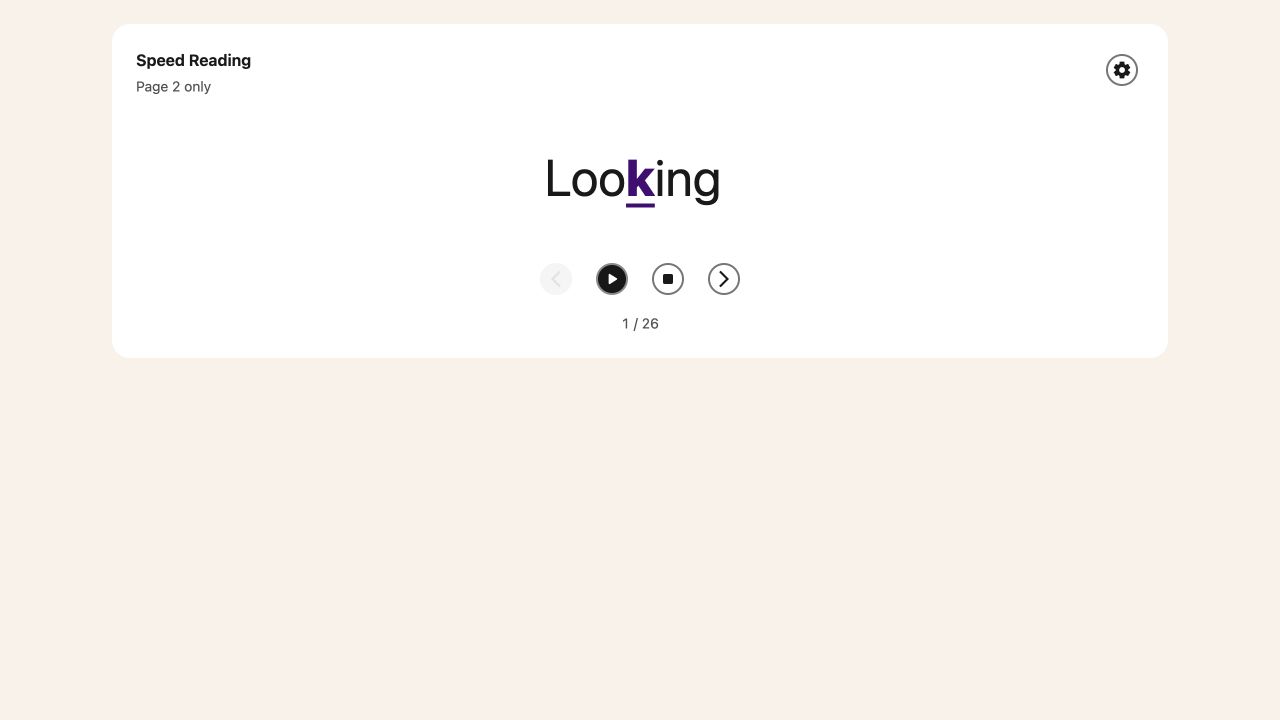
Speed Reading shows one word at a time above the original article or PDF. You choose when it starts and how quickly the words change. You can pause, step back or move forward without starting automatic playback.
This is a visual reading tool. To hear the words instead, use Text to Speech.
Who is This For?
Use it when you want to focus on a short passage, read at a steady pace, or review words one at a time. Choose a pace that lets you understand the text. You do not need to read faster to use this feature.
Step 1: Open Your Reading View
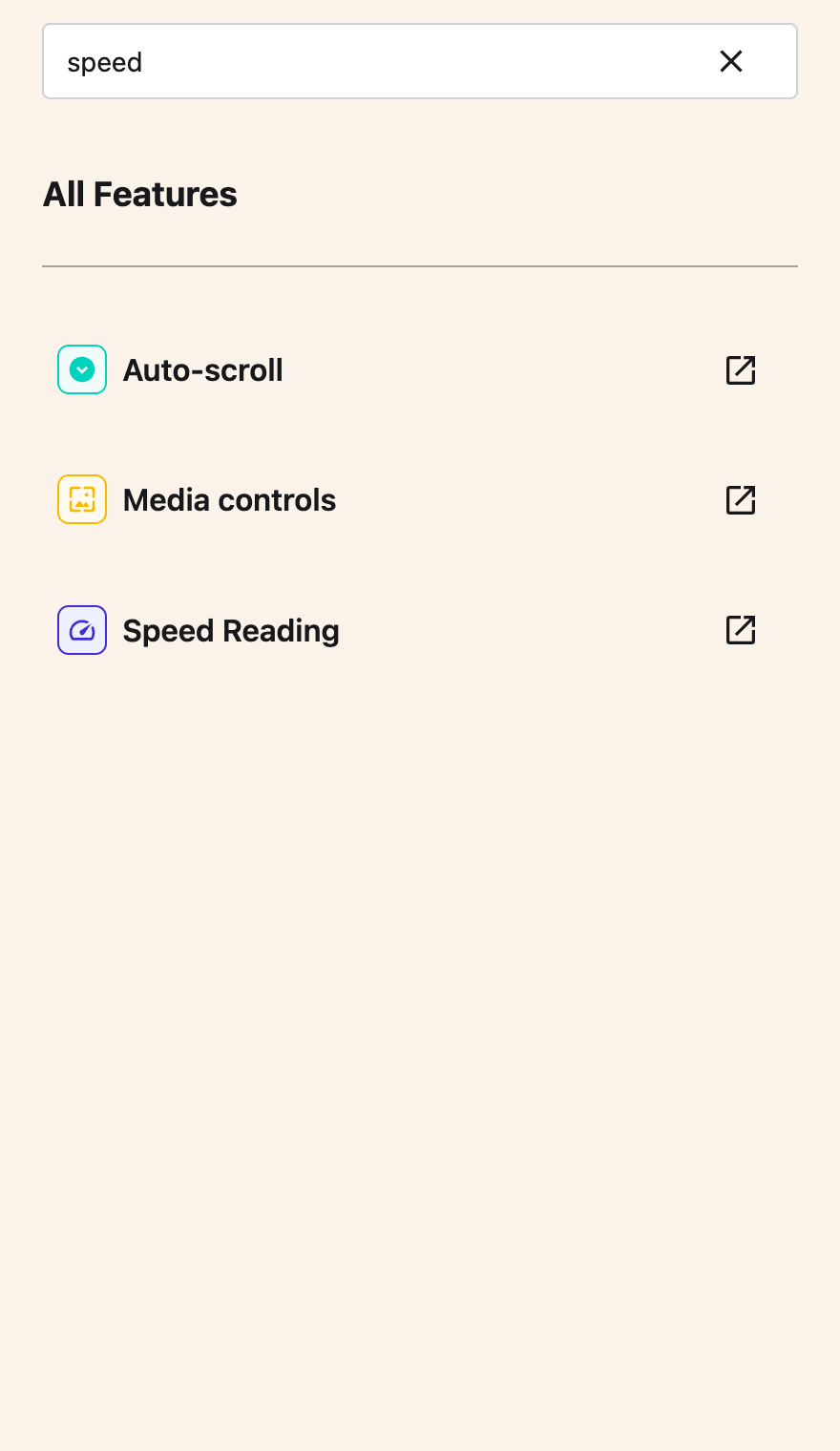
Open All Features in Helperbird and select Speed Reading. On a web article, Reading Mode opens with the Speed Reading card already visible. In Helperbird's PDF Reader, the shortcut opens the PDF's own card. Open a PDF first and choose the page you want to read.
 View full-size image (opens in a new tab)
You can also select Speed Reading in either reader's header. In Reading Mode on a narrow screen, open More options to reach the header controls.
Speed Reading is free. If your organization disables Reader Mode, the Speed Reading shortcut is also hidden and cannot launch either reader. It can also be restricted separately by your admin.
 View full-size image (opens in a new tab)
Opening the card does not start playback. The original text stays below it so you can check the surrounding sentence.
Step 2: Set Your Pace
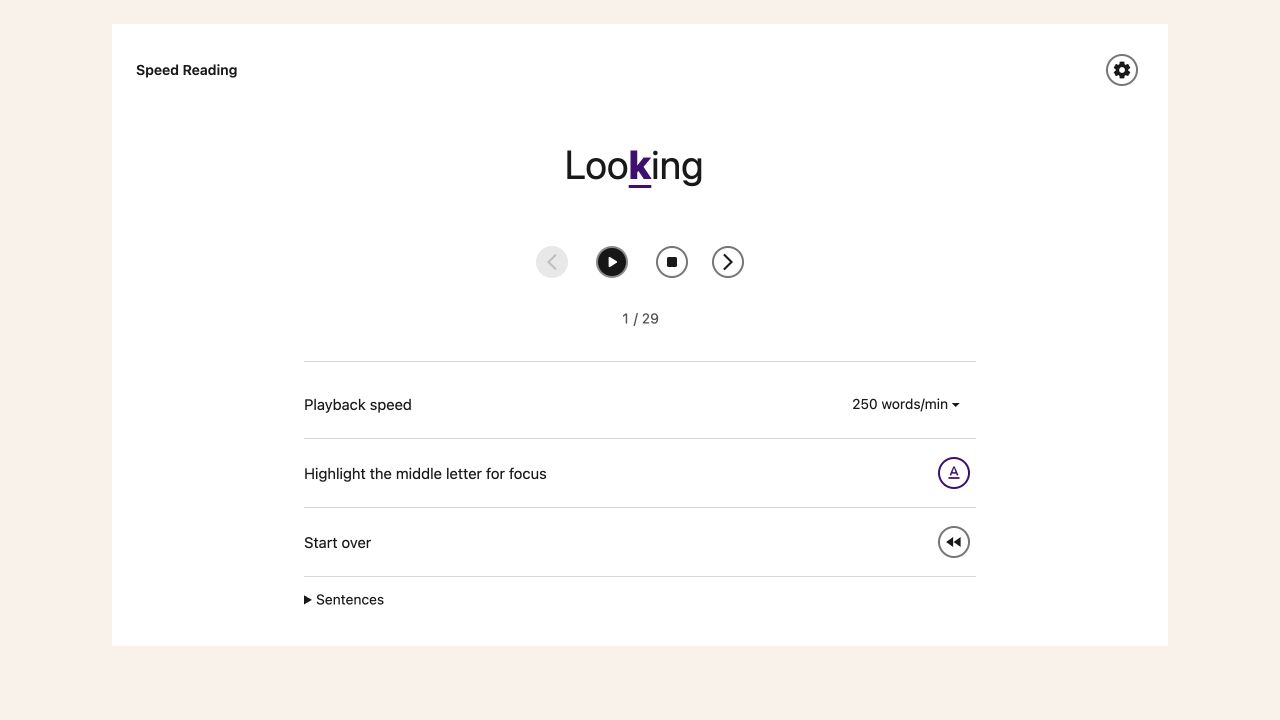
Open More options on the Speed Reading card. Choose Playback speed, measured in words per minute. Start slowly and adjust after trying a few sentences.
Turn Highlight the middle letter for focus on if the colored letter helps you follow each word. Turn it off if you prefer plain text. Start over returns to the first word.
Step 3: Read and Pause
Choose Play to start. Choose Pause whenever you need time to think. The previous and next word buttons move one word at a time and leave playback paused. Choose Stop to return to the first word without playing.
Use Tab to reach the controls and Enter or Space to activate buttons. The word count shows your position in the passage. Choose Speed Reading in the header again to hide the card.
Speed Reading always opens paused with Play and Stop visible, including when Reduce Motion is enabled. Choose Play when you are ready, or use the previous and next word controls to read at your own pace. Turning Reduce Motion on during playback pauses it until you choose Play again.
Reading a PDF
 View full-size image (opens in a new tab)
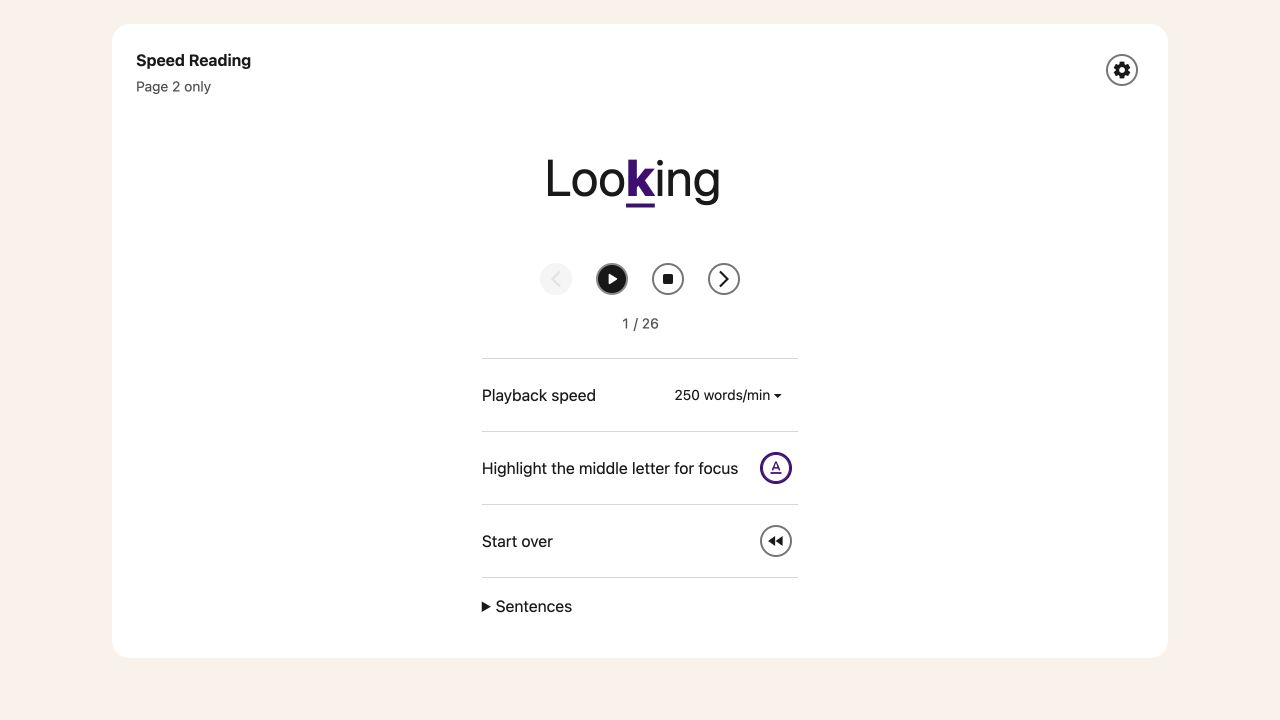
The PDF card reads the current page only. Turning to another page loads its words and pauses playback. Check the Page … only label before starting again.
 View full-size image (opens in a new tab)
A scanned page may have no readable text. Use Tools → Screenshot Reader to extract its text, or use a PDF with a text layer. An empty page cannot supply words to this card.
Need Additional Help?
See the PDF Reader guide or contact Helperbird support.
Printed from the Helperbird Help Center · Updated September 26th, 2026
Questions? We are happy to help — helperbird.com/support