
How to Add Equations to PDFs and Notepad
Write an equation in Helperbird, add it to a PDF or Notepad, and edit it later. Use your keyboard or the on-screen math keyboard.
Jump to the stepsOn this page
What This Does
Add fractions, powers and other equations to a PDF or Notepad. You see the maths as you type, then insert it as an image. Helperbird keeps the equation source in your saved workspace so you can change it later.
Adding and editing equations in the standalone Notepad is free. Equations in the PDF Reader, including its side Notepad, still need Helperbird Pro. Creating the equation image happens on your device.
Step 1: Open the Equation Editor
In the PDF Reader, open your PDF. Choose More options in the top toolbar, then Insert equation. Its icon shows a mathematical function.
In Notepad, put your cursor where you want the equation. Choose Insert equation beside the image button in the text toolbar. This also works in the Notepad beside a PDF.
Step 2: Write Your Equation
Type into Your equation. For example, type x^2 to write x squared. The field shows the result as you type.
Choose Show math keyboard to find fractions, roots and other symbols. The keyboard fills the width of your screen, with the editor above it. Choose More options beneath the equation field for the math menu. You can also type LaTeX, such as \frac{1}{2} for one half.
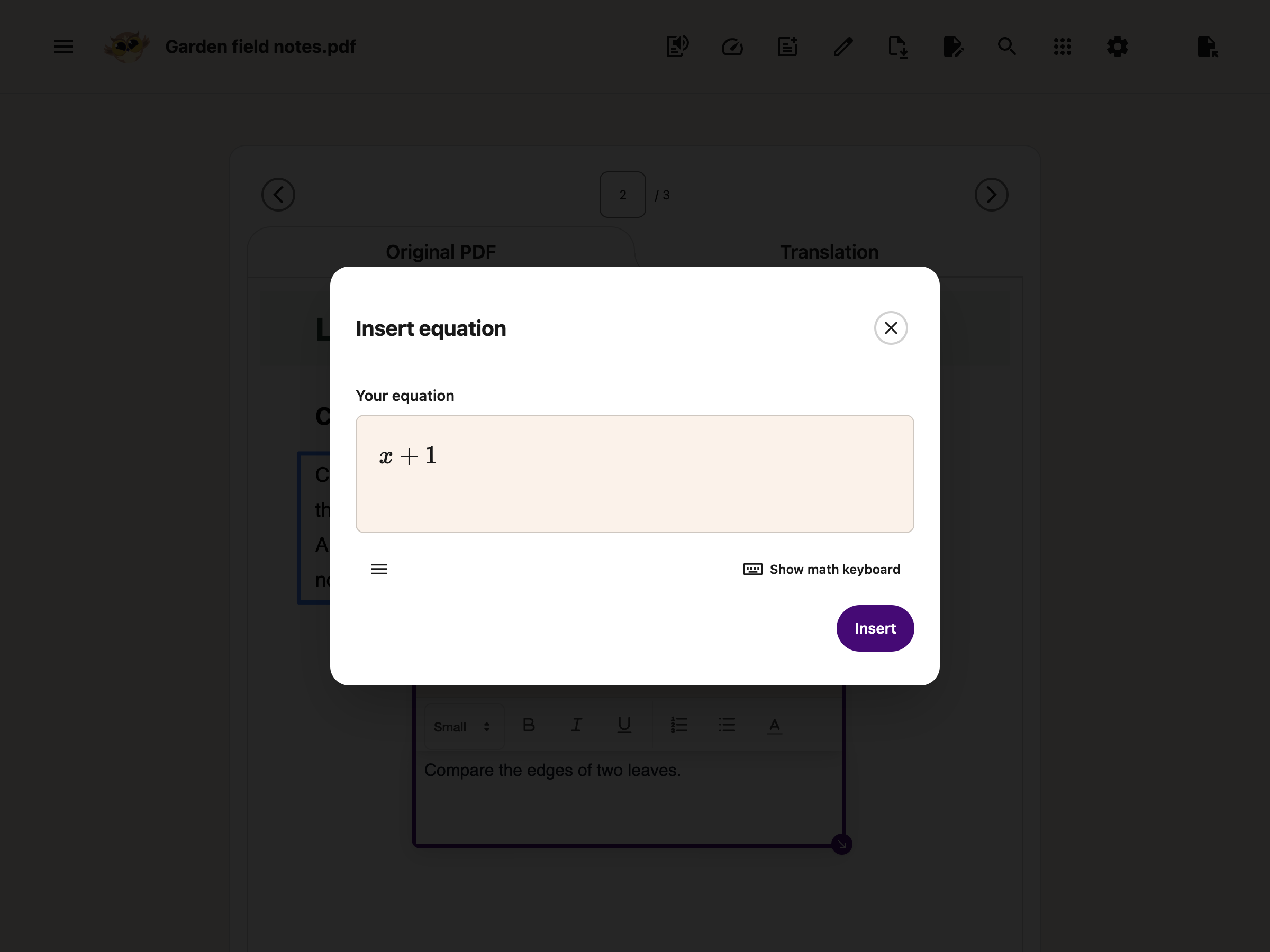
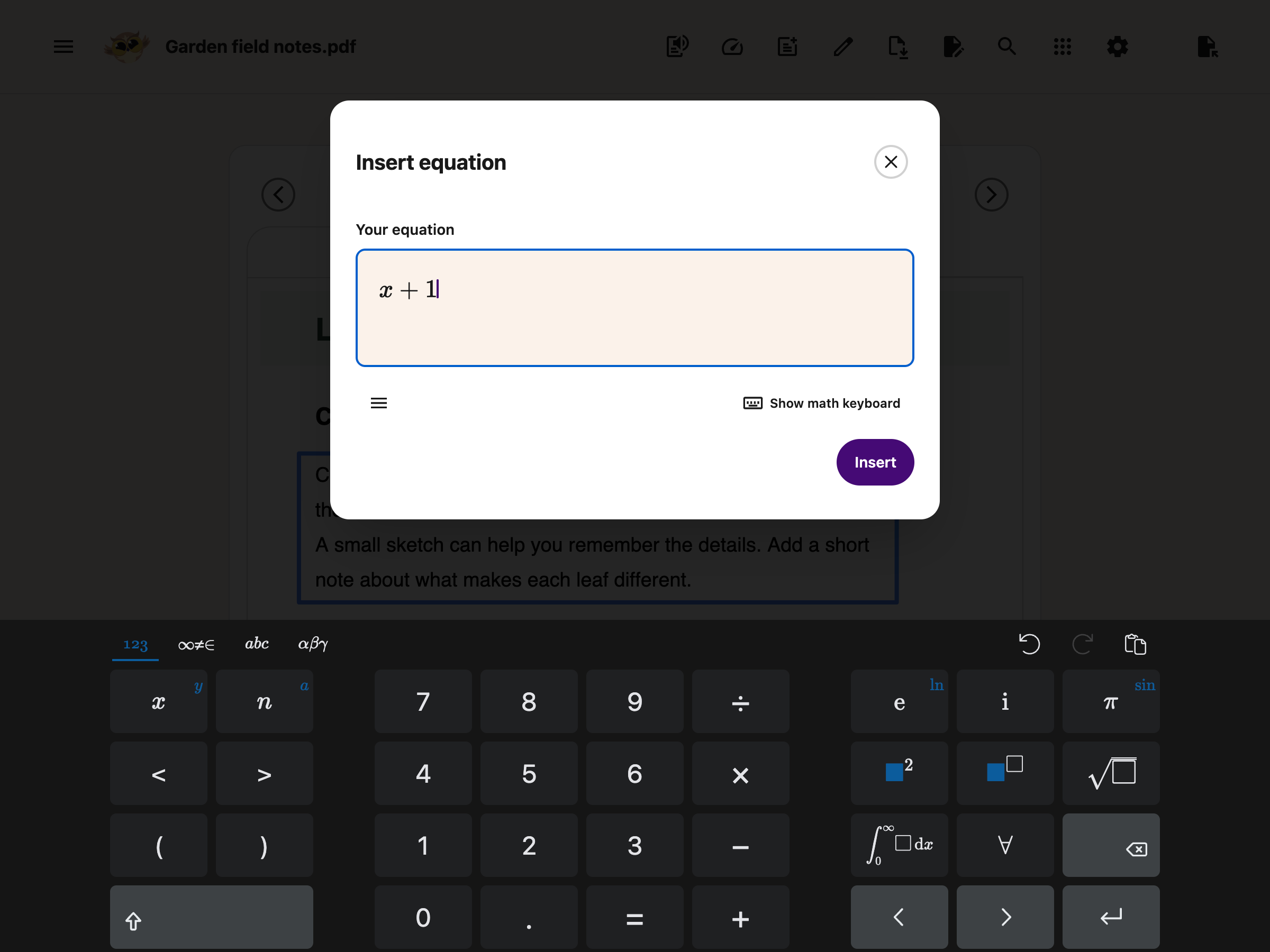
Step 3: Insert Your Equation
Choose Insert.
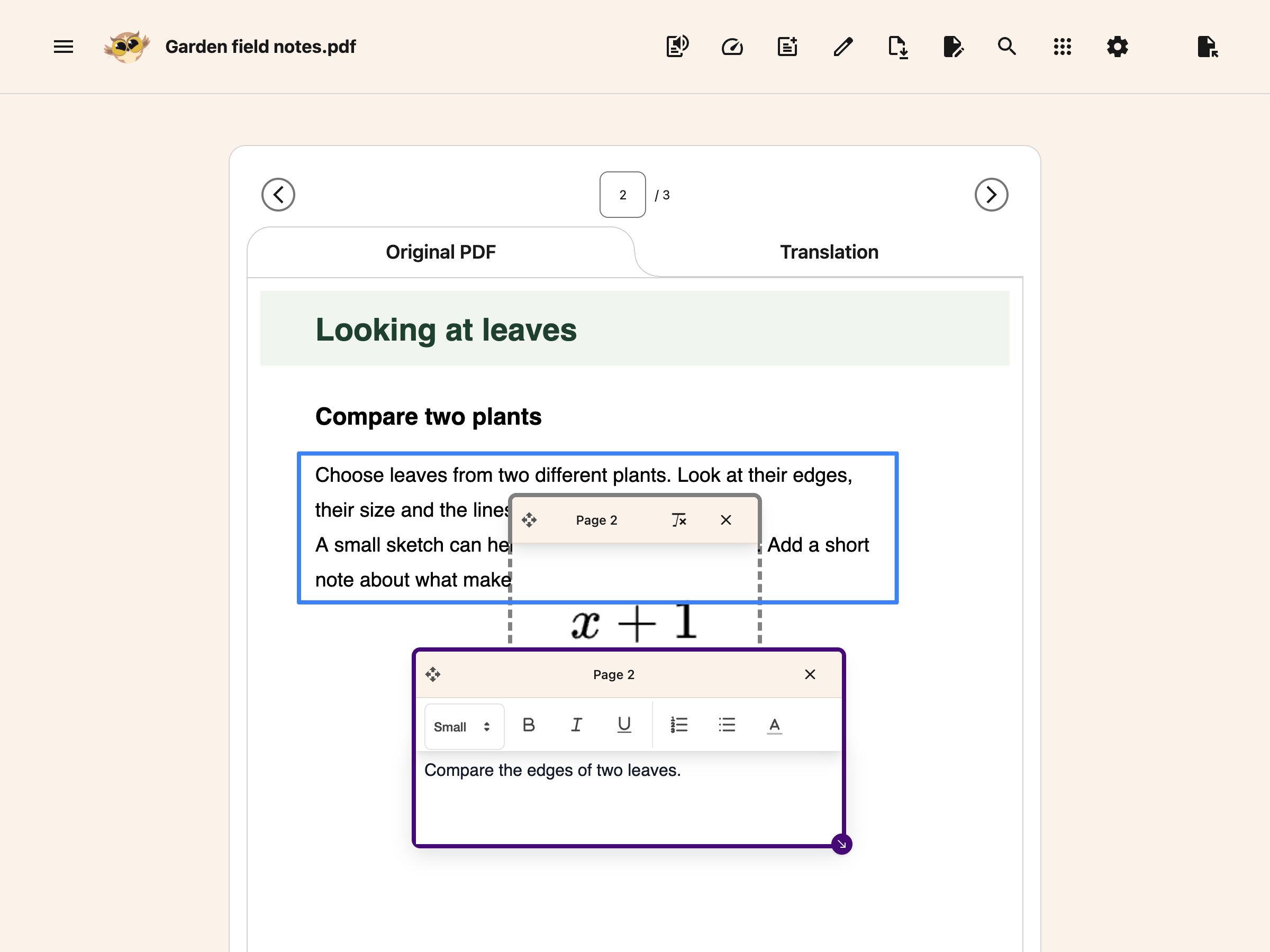
On a PDF, the equation appears on the current page. Drag it into place. Use the corner handle to change its size. You can also focus its image and use the arrow keys to move it.
In Notepad, the equation appears at your cursor. If you selected text, it replaces that selection.
Edit an Equation
On a PDF, choose Edit equation in the equation’s page bar, beside the remove button. In Notepad, click the equation, or focus it and press Enter.
Change the equation and choose Save. Close the dialog or press Escape to leave it as it was.
Helperbird adds a text description to equation images for screen readers.
Save and Download
Your current PDF workspace keeps equations with its other annotations in device-local recovery. Opening another PDF replaces that recovery copy. When you download, choose the option that includes your notes and drawings. The equation image becomes part of the downloaded PDF.
The downloaded PDF contains an image, not an editable or tagged maths object. Keep the original workspace if you need to edit the equation later. Its image description does not turn the downloaded PDF into an accessible maths document.
Notepad saves equations with your document. Word downloads include the image and its description. Plain text uses the description; Markdown keeps the LaTeX source.
For other ways to share maths, see Copy an equation from Helperbird.
Move Notepad Content into a PDF
In the PDF's side Notepad, choose Add Textbox to PDF below the editor. Text, ordinary pictures and equations become separate boxes in the order they appear in your note. Transferred equations keep their Edit equation control.
Typing and transferring a PDF side note are free. Creating or editing equations in the PDF Reader still needs Helperbird Pro. If an image cannot load or the full note will not fit, Helperbird shows a message and keeps the note and PDF unchanged.
See pasting text and images into a PDF for another way to add content.
Troubleshooting
Insert is unavailable: Write an equation first. Fill any empty fraction or root boxes before inserting it.
The equation cannot be inserted: Check the equation and try again. If you changed pages or documents, reopen Insert equation in the place you want to use.
I closed the dialog: Nothing is added until you choose Insert or Save.
Need Additional Help?
If you need help, contact Helperbird support.
Printed from the Helperbird Help Center · Updated September 26th, 2026
Questions? We are happy to help — helperbird.com/support