
How to Add a Color Overlay to Any Website
Add a color overlay or tint to any website with Helperbird. Pick a color, set the strength, and use Blend mode to cut glare and make reading easier.
Jump to the stepsOn this page
What is a Color Overlay?
A color overlay adds a transparent colored layer on top of the entire webpage. It is like looking through a sheet of colored plastic or glass.
Many people find that a tinted overlay reduces the harsh contrast of black text on white backgrounds. This can make text appear calmer and easier to read.
Who is This For?
This feature is helpful for:
- People with dyslexia who benefit from colored overlays
- Anyone with Irlen Syndrome or visual stress
- People who find bright white screens uncomfortable
- Anyone who experiences eye strain or headaches when reading online
- Students who need to read for long periods
Step 1: Open Helperbird
Click the Helperbird icon in your browser toolbar. It looks like a small owl and is usually in the top-right corner of your browser.
This will open the Helperbird menu.
Step 2: Open the All Features Section
Scroll down to the bottom of the Helperbird menu. You will see a section called All Features.
Click the arrow next to All Features to expand it and show all available features.
Step 3: Find Color Overlay
Look through the list of features until you see Color overlay.
It has a red icon with a layers symbol on it.
Step 4: Open Color Overlay
Click the Open button next to Color overlay to open it.
A panel will appear with the overlay toggle at the top and a Settings section below it.
Step 5: Turn on Overlay
At the top of the panel, look for the Color overlay toggle.
Click the toggle switch to turn it on.
A colored tint will immediately appear over the entire webpage, and a green Active badge will show next to the feature in the list.
Step 6: Customize the Overlay
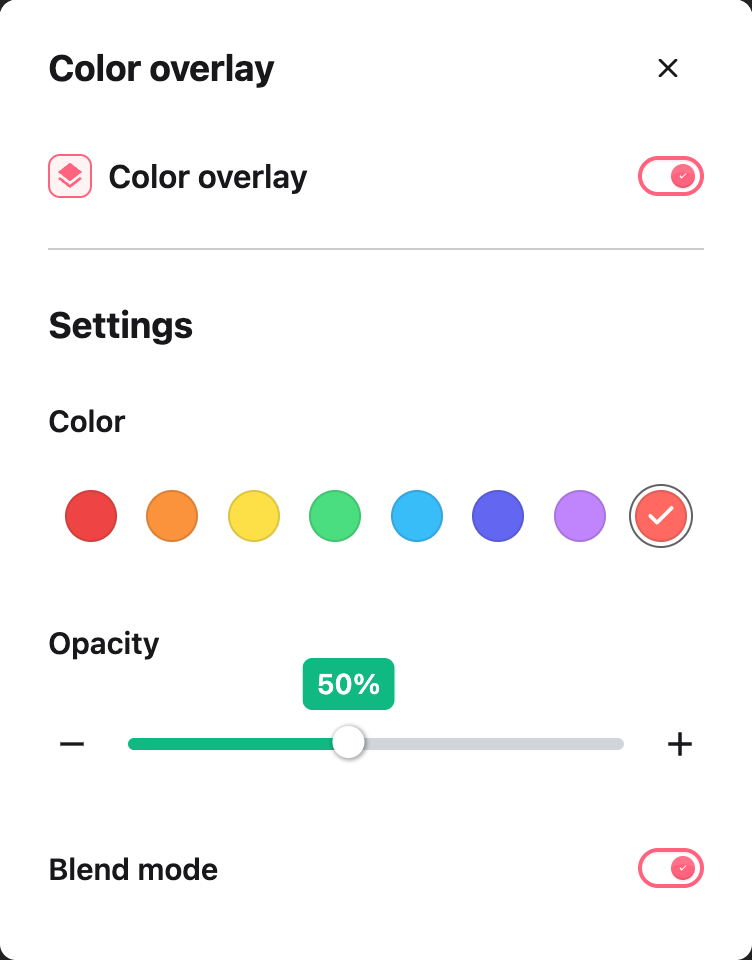
To adjust the overlay color and intensity, scroll down to the Settings section in the same panel.
Here you can choose different colors and adjust how strong the overlay appears.
 View full-size image (opens in a new tab)
Overlay Settings
In the Settings section, you can customize the following:
Color - Choose a color for the overlay from the color grid. Popular choices include yellow, blue, pink, and green. Different colors work better for different people, so try a few to find what is most comfortable for you.
Opacity - Adjust how strong the overlay is using the slider or the minus and plus buttons. A lower opacity makes the overlay more transparent, while a higher opacity makes the color more intense.
Blend mode - Control how the tint mixes with the page. It is on by default, which keeps text sharp under the color. Turn it off to see the exact color you picked on every page. Read the guide to Blend mode in the color overlay for when to use each setting.
The overlay's color and opacity are separate from the reading ruler settings, so you can adjust each one independently.
Tip: Many people with dyslexia or Irlen Syndrome find that certain specific colors work best for them. If you have worked with a specialist who recommended a particular overlay color, you can match it here. Try different colors and opacity levels to find what feels most comfortable for your eyes.
Video Tutorial
Need Additional Help?
If you have any questions or run into any issues, please contact the Helperbird support team. You can reach us at Helperbird support. We are happy to help you get the most out of Helperbird.
Printed from the Helperbird Help Center · Updated September 22nd, 2026
Questions? We are happy to help — helperbird.com/support