
How to Use the Reading Guide on Any Website
Follow text with a colored reading guide in Helperbird. Adjust its height, width, color and opacity, and keep your place as you move or scroll through a page.
On this page
What is the Reading Guide?
The Reading guide is a colored bar that follows your mouse or finger. Move it across a sentence or down the page to help keep your place.
You can change its height, width, color and opacity. The bar lets clicks and taps through to the page underneath, and it stays by your pointer as you scroll.
Who is This For?
Use the guide when you lose your place between lines, want a marker under a passage, or prefer to read a small section at a time. The Reading guide is free.
How This Differs From the Dyslexia Ruler
The Reading guide always follows your pointer. The Dyslexia ruler can follow your pointer or stay at a chosen position. The Focus ruler dims the page around a reading strip.
Only one runs at a time. Turning on the Reading guide switches the other two off. Its width is saved separately from the Dyslexia ruler's width; height, color and opacity are shared settings.
How to Turn On the Reading Guide
- Open Helperbird and expand All Features.
- Open Dyslexia support.
- Turn on Reading guide.
- Return to the page and move your mouse or finger over the text.
After choosing this ruler, you can bring it back with the Reading guide button on the floating toolbar.
Guide Settings
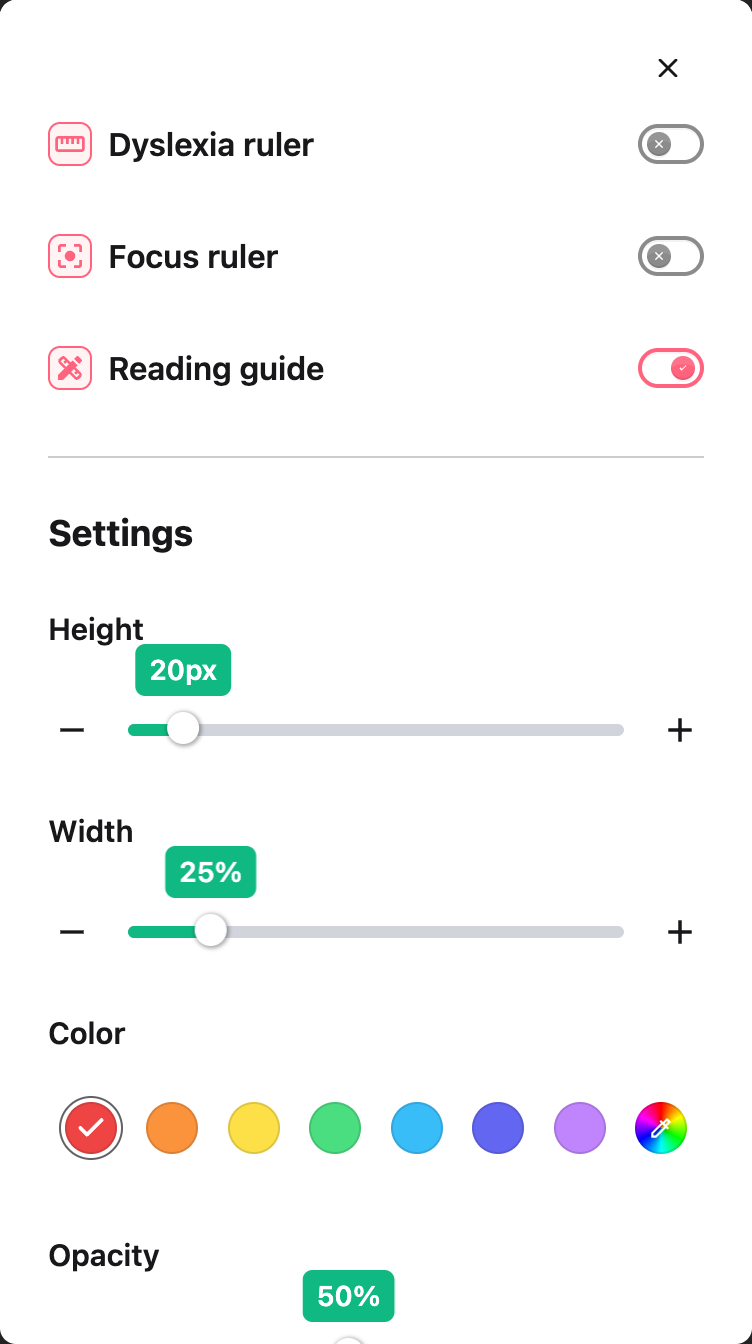
Find Settings below the three ruler switches in the same panel.
- Height: Make the bar thinner or taller, from 10 to 100 pixels.
- Width: Choose how much of the screen the bar covers. This changes the guide without changing your Dyslexia ruler's saved width.
- Color: Pick a rainbow preset or use Choose custom color for another color.
- Opacity: Lower it to see more of the page through the bar. Raise it for a more solid marker.
Use a slider or its minus and plus buttons to adjust a value. With keyboard focus on a slider, use the arrow keys. Changes save as you make them.
 View full-size image (opens in a new tab)
The guide always follows your pointer, so it has no Follow cursor or Position control. To keep a ruler in one place, use the Dyslexia ruler instead.
Troubleshooting
The guide covers too much text: Reduce Height or Width, or lower Opacity.
The guide reaches the edge of the screen: Move your pointer back over the text. The bar can extend beyond the visible edge without adding extra page scrolling.
The guide is missing: Check that Helperbird and Reading guide are on. Browser settings pages and other protected pages do not allow page tools.
Need Additional Help?
See color settings or contact Helperbird support.
Printed from the Helperbird Help Center · Updated September 22nd, 2026
Questions? We are happy to help — helperbird.com/support