
How to Delete a Document in the Helperbird Notepad
Learn how to delete a document you no longer need from the Helperbird Notepad, and what to check before you do.
Jump to the stepsOn this page
What This Does
Delete removes the document you have open from your saved documents.
Who is This For?
This is helpful for:
- Anyone tidying up old drafts
- Students clearing out finished assignments
- Anyone who has run out of room to save because of large old documents
Before You Delete
There is no undo, and deleted documents do not go to a recycle bin. If there is any chance you will want the writing again, download it as a Word or text file first. That takes a few seconds and the file is yours to keep.
Step 1: Open the Document
Open the one you want to remove, using Open document.
Check the page carefully before the next step, because Delete acts on whatever is currently open.
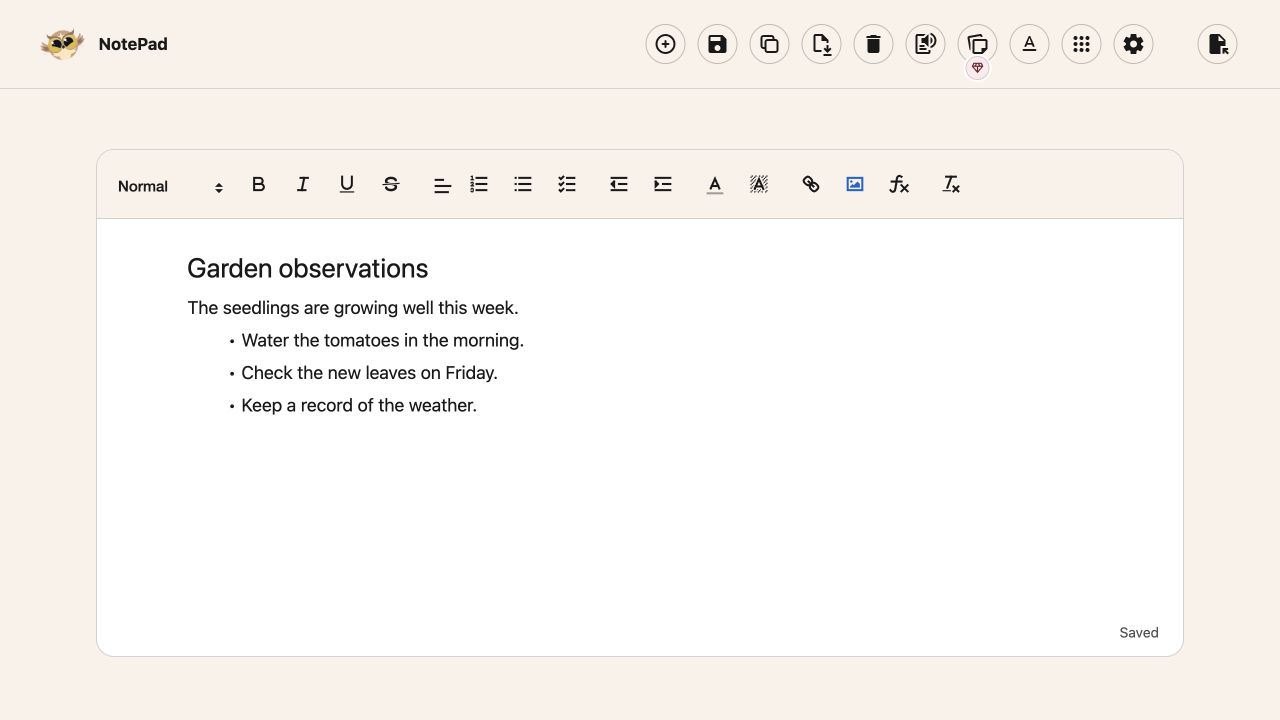
Step 2: Click Delete
Click Delete in the toolbar. It is the bin icon, beside Download.
 View full-size image (opens in a new tab)
The document is removed from your list.
Need Additional Help?
If you have any questions or run into any issues, please contact the Helperbird support team. You can reach us at Helperbird support. We are happy to help you get the most out of Helperbird.
Printed from the Helperbird Help Center · Updated September 25th, 2026
Questions? We are happy to help — helperbird.com/support