
How to Use Accessibility Profiles in Helperbird
Preview and apply Helperbird's eight accessibility profiles, see what each changes, and learn how to adjust or undo a profile.
Jump to the stepsOn this page
What are Accessibility Profiles?
Accessibility Profiles are starting points for your reading preferences. Preview a profile, apply it, and adjust individual features afterwards. They are not treatments or a guarantee of accessibility compliance. Free users can apply the settings available on their plan; Pro-only settings are included with an active Pro subscription.
Who is This For?
This feature is helpful for:
- People with dyslexia who need optimized font and spacing settings
- People with ADHD who benefit from reduced distractions and focus tools
- People with low vision who need larger text and high contrast
- Anyone who wants a quick starting point for accessible reading
- Teachers and support staff helping someone try a reading setup
Step 1: Open Helperbird Settings
Click the Helperbird icon in your browser toolbar to open the Helperbird panel.
Then click the Settings button (the gear icon) in the top-left corner of the panel.
This opens the Helperbird Settings page.
 View full-size image (opens in a new tab)
Step 2: Find the Profiles Section
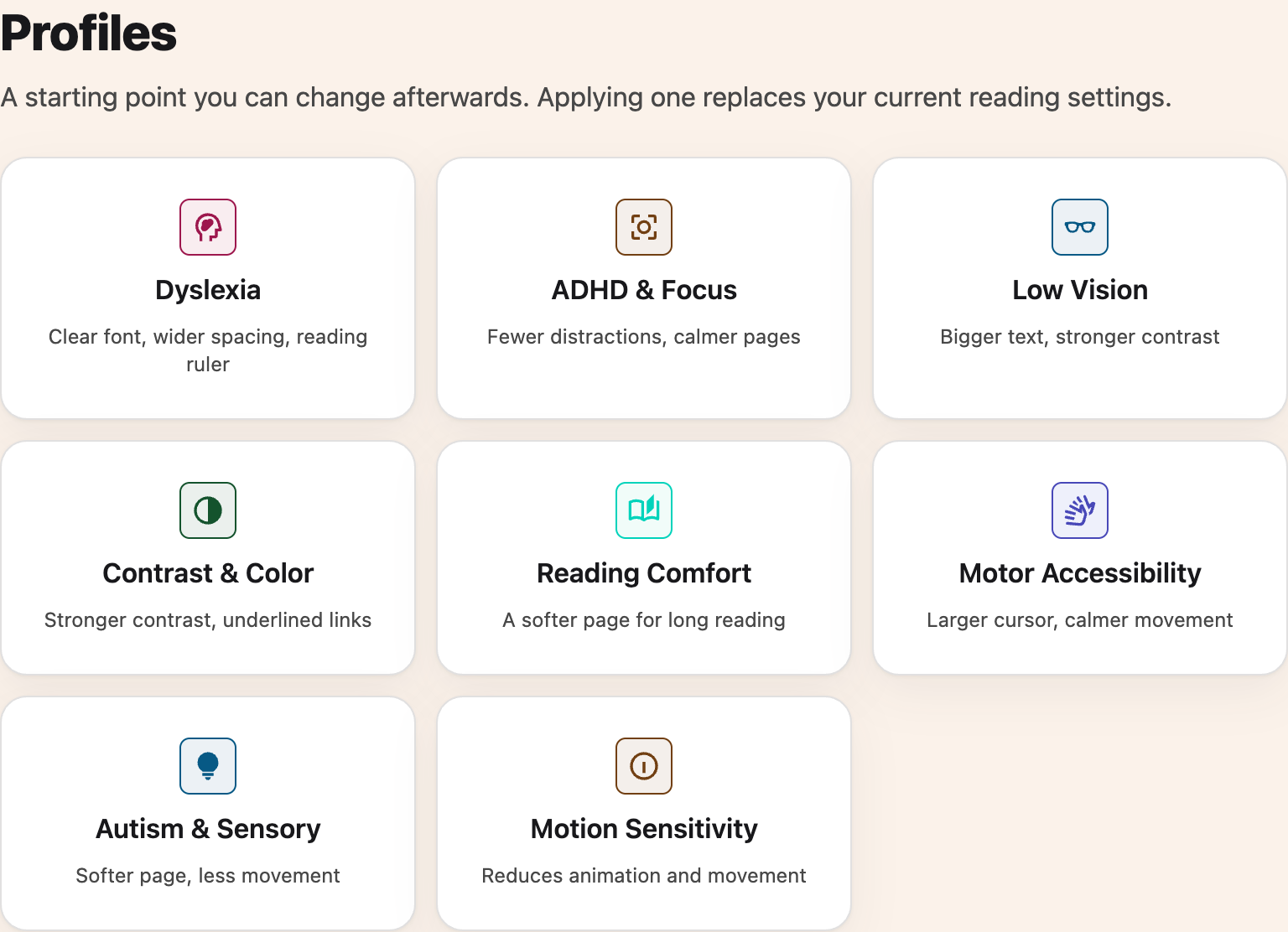
Choose Profiles in the Settings section menu, or scroll past Account and Billing. The Profiles section has eight cards.
Step 3: Choose a Profile
Click the profile card that matches what you need. The eight profiles are Dyslexia, ADHD & Focus, Low Vision, Contrast & Color, Reading Comfort, Motor Accessibility, Autism & Sensory, and Motion Sensitivity.
Step 4: Review and Apply
A window appears showing the profile name and a list of exactly what it will change, so nothing happens without you seeing it first. The Dyslexia profile, for example, lists the Verdana font, wider letter and word spacing, and a reading ruler.
Review the list, then click Apply.
Your settings will update immediately. A confirmation message will appear to let you know the profile has been applied.
Available Profiles
Each profile replaces your reading settings and updates your quick actions. The preview lists the settings available on your plan before you apply them.
Dyslexia switches to Verdana, widens letter and word spacing, opens a line-style reading ruler, raises the line height, narrows paragraphs, and left-aligns text.
ADHD & Focus opens a line-style reading ruler, narrows paragraphs, raises the line height, hides GIFs, and reduces motion. Still images stay visible. Reading Mode is added to your quick actions, not opened automatically.
Low Vision switches to Atkinson Hyperlegible, zooms the page to 150%, turns on Increased Contrast, underlines links, adjusts spacing and paragraph width, and left-aligns text. It does not invert page colors.
Contrast & Color turns on Increased Contrast and underlines links. Font, text-spacing, and paragraph-width overrides are off.
Reading Comfort uses a cream background, increases text size and line height, narrows paragraphs, and left-aligns text.
Motor Accessibility enlarges the cursor, zooms the page to 125%, reduces motion and raises the line height.
Autism & Sensory sets a cream background, switches to Verdana, reduces motion, hides GIFs, raises the line height, and narrows and left-aligns paragraphs. Still images stay visible.
Motion Sensitivity reduces motion and hides GIFs. It keeps still images, with text-size, spacing, and paragraph-width overrides off. It cannot guarantee that all moving or flashing content is removed.
If a profile is close but not exactly right, apply it and then adjust the individual settings. The profile is a starting point, not a lock.
Tips
- A profile replaces your current reading settings. Export your settings first if you want to keep a copy.
- Use Undo to restore the setup from before your most recent profile change while the Settings page remains open. Reloading or closing the page clears this undo option.
- After applying a profile, you can still adjust individual settings to fine-tune things to your preference.
- You can switch profiles at any time. Review the preview each time, including any settings that will be switched off.
- Trying two or three profiles is a quick way to find out what actually helps you, which is often not the one you expected.
Related Features
- Dyslexia Fonts - Choose your reading font from 32 options, 29 of them on iPad and iPhone.
- Reading Ruler - Focus on one line at a time.
- Color Overlay - Add a tinted overlay to reduce eye strain.
- Reading Mode - Strip a page back to the article.
- Text to Speech - Listen to any page read aloud.
- Accessibility Profiles Feature Page - Overview of all available profiles.
Video Tutorial
Need Additional Help?
If you have any questions or run into any issues, please contact the Helperbird support team. You can reach us at Helperbird support. We are happy to help you get the most out of Helperbird.
Printed from the Helperbird Help Center · Updated September 22nd, 2026
Questions? We are happy to help — helperbird.com/support