
How to Look Up a Word in the Helperbird Dictionary
Learn how to search for a word in the Helperbird Dictionary and read its definitions and example sentences, grouped by part of speech.
Jump to the stepsOn this page
What This Does
You type a word into the Helperbird Dictionary and it shows you what the word means, how it is used in a sentence, and other words close to it in meaning.
Who is This For?
This is helpful for:
- Students meeting a word they do not know in a reading
- Anyone who wants a definition in plain language
- People learning English
- Anyone who finds a full page of search results overwhelming
Step 1: Open the Dictionary
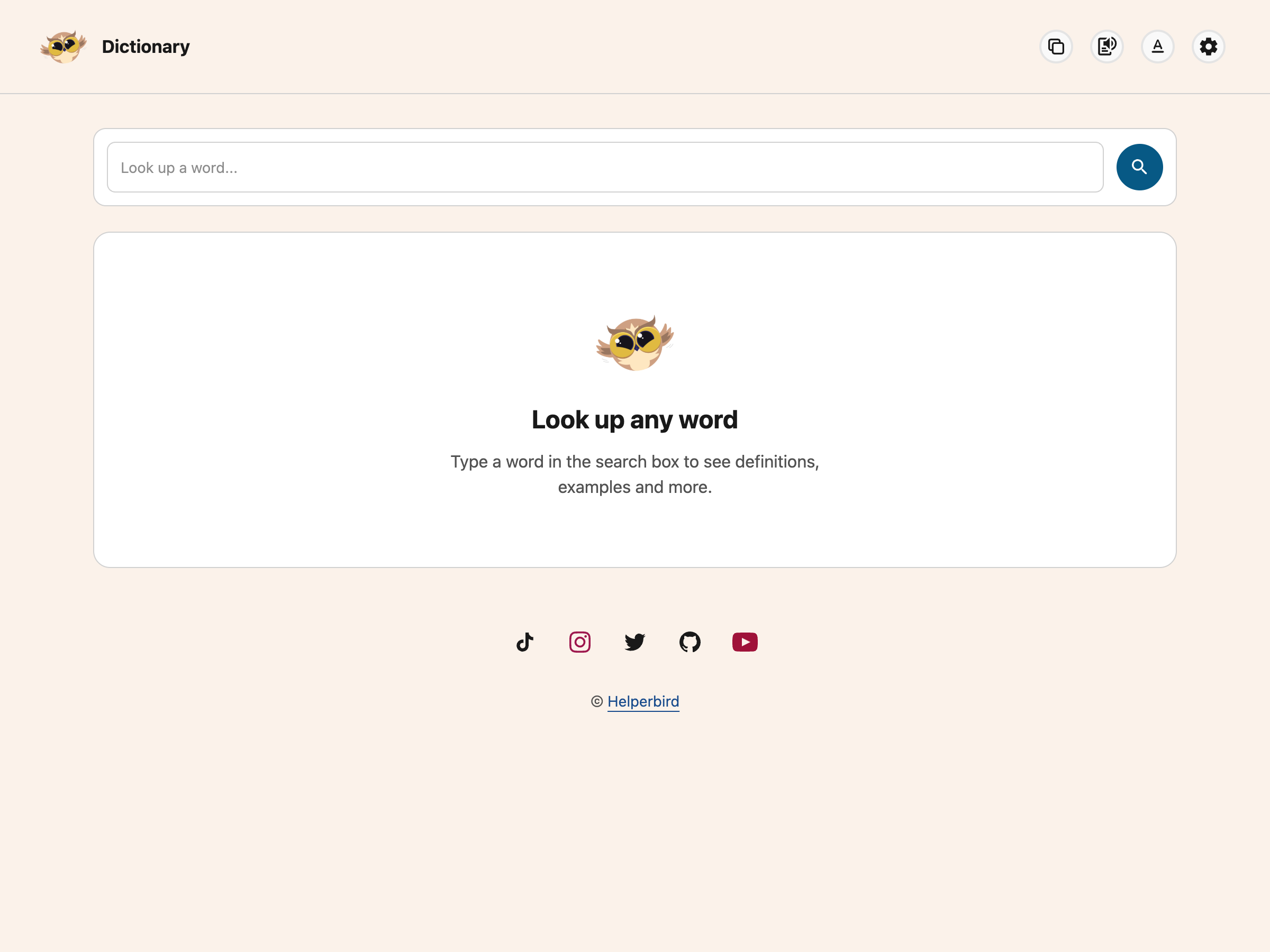
See how to open the Helperbird Dictionary if it is not open yet. It starts with an empty search box and the message Look up any word.
 View full-size image (opens in a new tab)
Step 2: Type Your Word
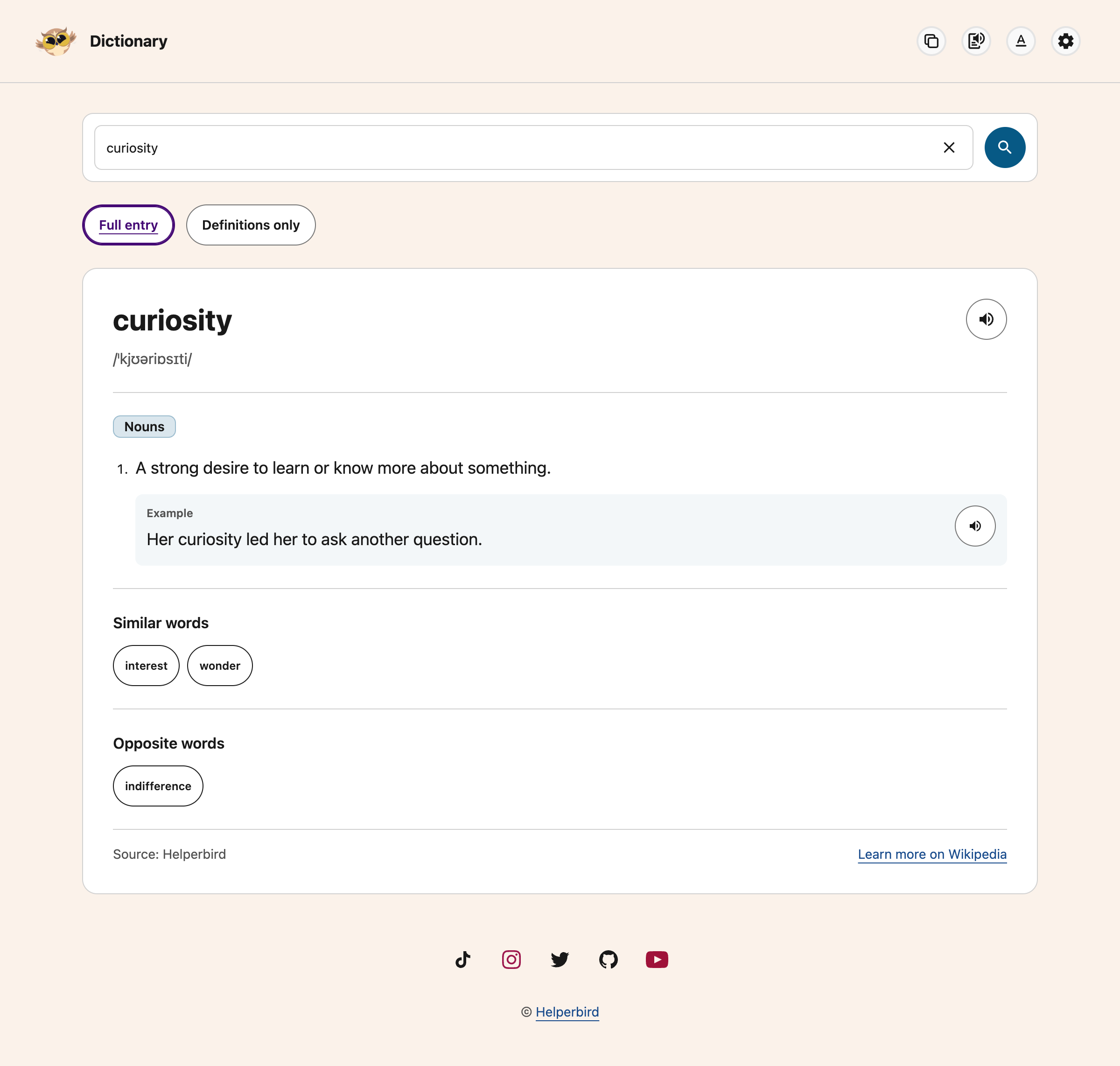
Click the box at the top and type a word or short phrase, up to six words or 120 characters. The example below looks up curiosity. Lookups require Helperbird Pro and an internet connection.
Press Ctrl+K (⌘K on Mac) to focus and select the search. The clear button inside the field clears it.
Step 3: Press Enter
Press Enter to look the word up. You can also click the magnifying glass to the right of the box, which does the same thing.
 View full-size image (opens in a new tab)
Reading the Result
The word appears at the top with a speaker button beside it. Each example has its own speaker button. Learn more on Wikipedia appears below the result, beside Source: Helperbird.
Helperbird provides AI-generated definitions, which can contain mistakes. The Wikipedia link is further reading, not the source of the definition.
Underneath, the meanings are grouped by part of speech, so all the noun meanings sit together under a Nouns heading, all the verb meanings under Verbs, and so on. This separates different uses of the same word.
Within each group you get:
- Definition - what the word means
- Example - a sentence using the word that way
A word with several meanings gets several Definition and Example pairs, one after another.
If a Section is Missing
The Dictionary only shows what it has. Pronunciation and Opposite words appear for words that have them and are left out for words that do not. Some words have no opposite, so no Opposite words section appears. That is normal and not an error.
If a word is not found, check the spelling or try a shorter search. If a request fails, select Try Again. Loading placeholders show while the lookup is running; they are not an empty result.
The Dictionary is English only, and the Wikipedia link goes to the English Wikipedia.
Need Additional Help?
If you have any questions or run into any issues, please contact the Helperbird support team. You can reach us at Helperbird support. We are happy to help you get the most out of Helperbird.
Printed from the Helperbird Help Center · Updated September 22nd, 2026
Questions? We are happy to help — helperbird.com/support