
How to Summarize Text on Any Website with Helperbird
Learn how to use Helperbird to summarize long articles, web pages, and text into short, easy-to-read summaries. A complete guide to the Summarize feature.
Jump to the stepsOn this page
What is Summarize?
The Summarize feature takes long blocks of text and turns them into a short list of key points. Instead of reading an entire article or page, you get the main ideas in a few lines.
Summarize is a Pro feature. You need a Helperbird Pro subscription to use it.
Who is This For?
This feature is helpful for:
- Students who need to understand long articles or textbook passages
- Researchers who want to scan content faster
- Anyone who finds long text overwhelming or difficult to process
- People with ADHD or reading difficulties who benefit from shorter text
- Anyone who wants to save time while browsing
Step 1: Open the Summarize Panel
Click the Helperbird icon in your browser toolbar. It looks like a small owl and is usually in the top-right corner of your browser.
In the Helperbird menu, find Summarize and click the Open button beside it. The Summarize panel appears with a text box and a Summarize button.
Summarize is not available in the popup on Google Docs or on PDF files. For PDFs, use Helperbird's PDF Reader instead.
Step 2: Choose What to Summarize
You have three ways to give Helperbird the text:
- Highlight text on the page. Click and drag to select a paragraph, a section, or the full article, then leave the text box empty.
- Type or paste your own text. Put the text straight into the box in the Summarize panel. It can come from anywhere, an email, a document, or another app.
- Do nothing. Leave the box empty and select nothing. Helperbird reads the main content of the whole page for you, skipping menus and ads.
The text box holds up to 1,000 characters. A counter under the box shows how much you have used, for example 250 / 1000. The counter turns red when you get close to the limit, and the box stops accepting text once you reach it. If your text is longer, summarize it in parts.
If you typed or pasted text, Helperbird uses that first, even if you also have text selected on the page.
Step 3: Click Summarize
Click the Summarize button at the bottom of the panel. A grey placeholder shows while Helperbird works, and a "Creating summary..." message confirms when the summary arrives.
A few things can stop the summary:
- On the free plan the Summarize button is greyed out and does nothing. The feature row in the popup shows a diamond Pro feature badge.
- If the page has no readable text and you gave Helperbird nothing to work with, you see "Select some text first". Highlight some text or paste it into the box, then try again.
- If the summary fails, you see "Can't summarize this page". Try again with a smaller piece of text.
Step 4: Read the Summary
The summary replaces the text box. Each key point appears on its own line, so you can read them one at a time.
Three buttons appear under the summary: Listen, Start over, and Copy.
Listen, Start Over, and Copy
- Listen sends the summary to Helperbird's text to speech, so you can hear the key points read aloud.
- Start over clears the summary and the text box, so you can run a new one without closing the panel.
- Copy puts the whole summary on your clipboard. You see a "Copied" message when it works.
Hover over each button to see its name. When you are done, close the panel or press Escape.
Using Summarize in the PDF Reader
Summarize is also built into Helperbird's PDF Reader, so you do not have to leave your document to use it.
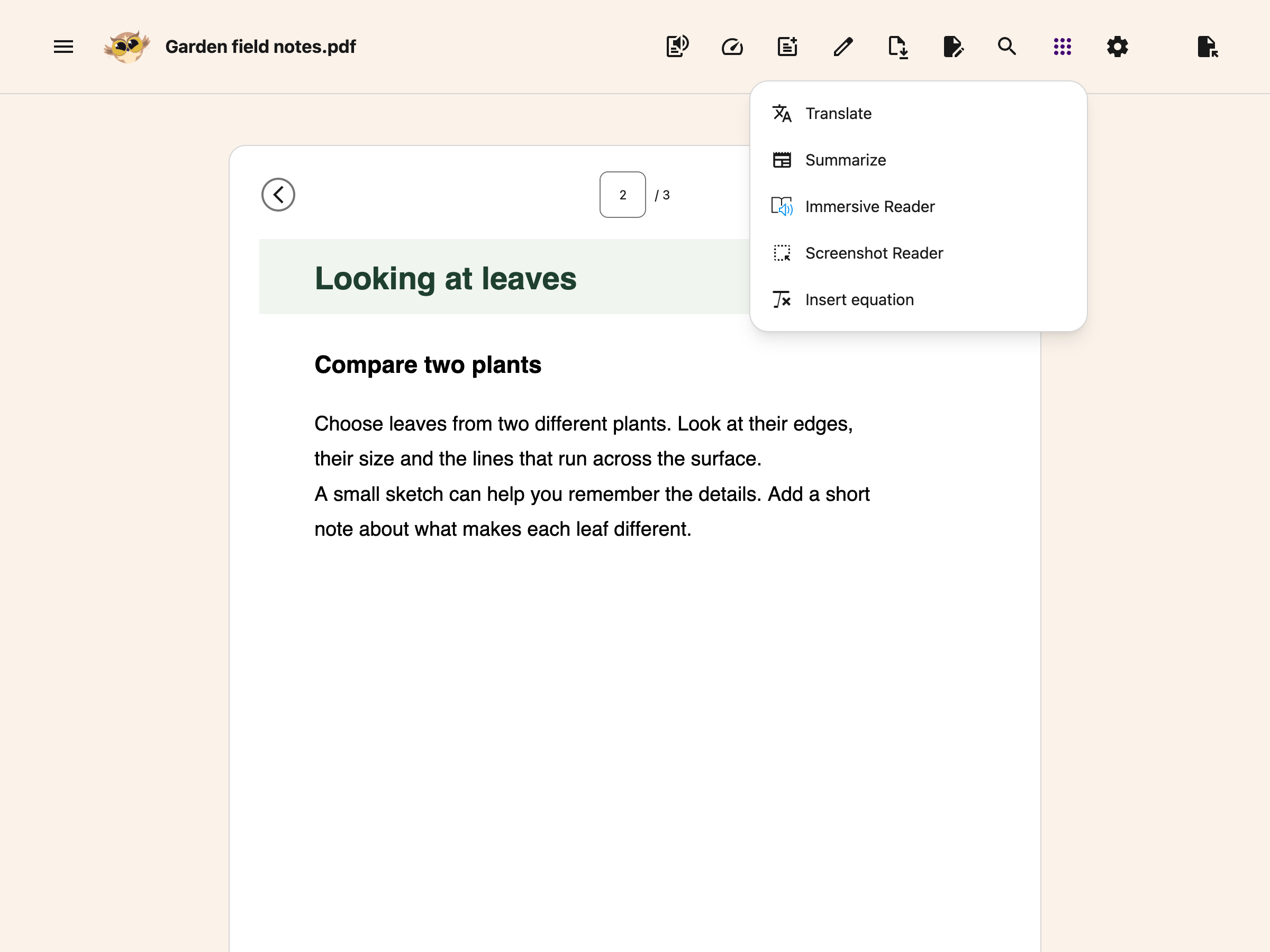
Open your PDF, then click the round button with the dots grid icon in the toolbar. It is the last button in the group, and it is labelled More options.
 View full-size image (opens in a new tab)
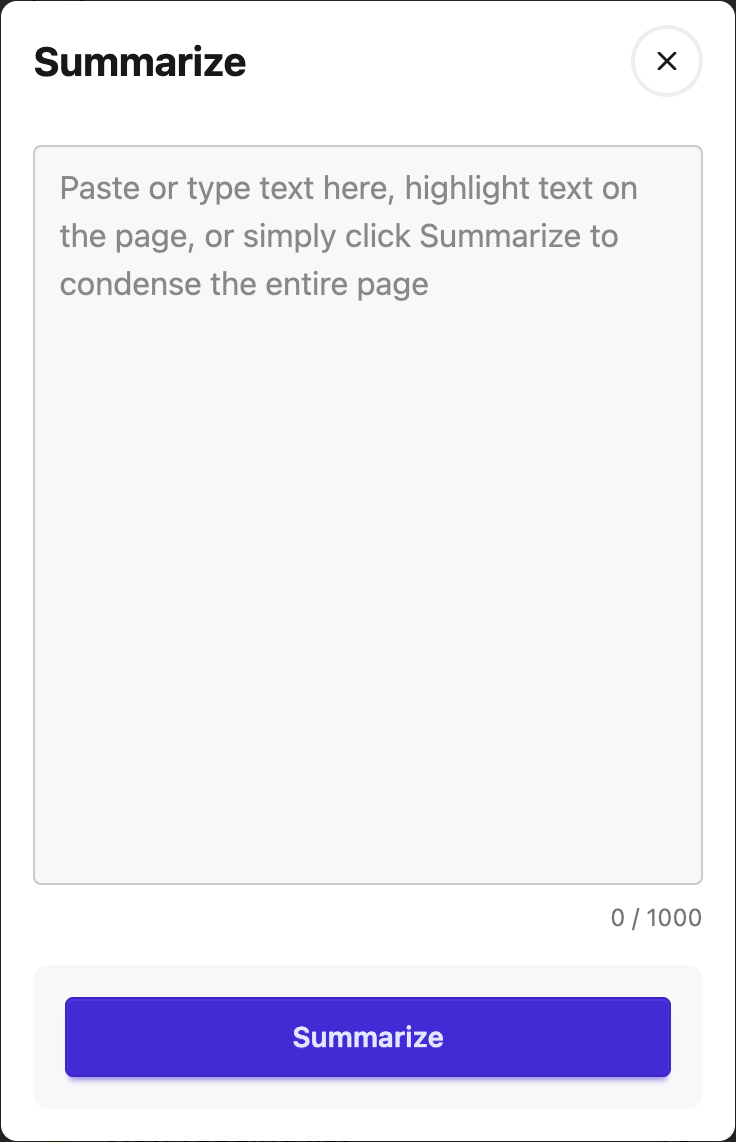
Choose Summarize from the menu. A panel called Summary opens with one Summarize button. Select a passage before opening it to summarize that passage, or leave the page unselected to summarize the whole page.
The PDF version is smaller than the one in the popup. It shows the summary as a list of points, but it does not have the Listen, Start over, or Copy buttons, and there is no box for typing your own text. See how to use the Tools menu in the PDF Reader.
Video Tutorial
 View full-size image (opens in a new tab)
Need Additional Help?
If you have any questions or run into any issues, please contact the Helperbird support team. You can reach us at Helperbird support. We are happy to help you get the most out of Helperbird.
Printed from the Helperbird Help Center · Updated September 25th, 2026
Questions? We are happy to help — helperbird.com/support