
How to Use Beta Features in Helperbird
Learn how to turn on Helperbird beta features from the settings page.
Jump to the stepsOn this page
What are Beta Features?
Beta features are new Helperbird features you can try before they are finished. They work, but they are still being tested and may change.
You turn each one on separately, so you can try just the one you are interested in and leave the rest alone. You can switch any of them back off at any time.
Who is This For?
This is for:
- Anyone who wants to try new features early
- People who have asked for something and want to see it as soon as it lands
- Anyone happy to give feedback on a feature that is still settling down
If you would rather everything stayed predictable, you can leave these switched off.
Step 1: Open the Settings Page
Open Helperbird, click the gear icon, then click Settings at the bottom of the Options list. The settings page opens in a new tab.
If you need it in more detail, see how to open the settings page.
Step 2: Find Beta Features
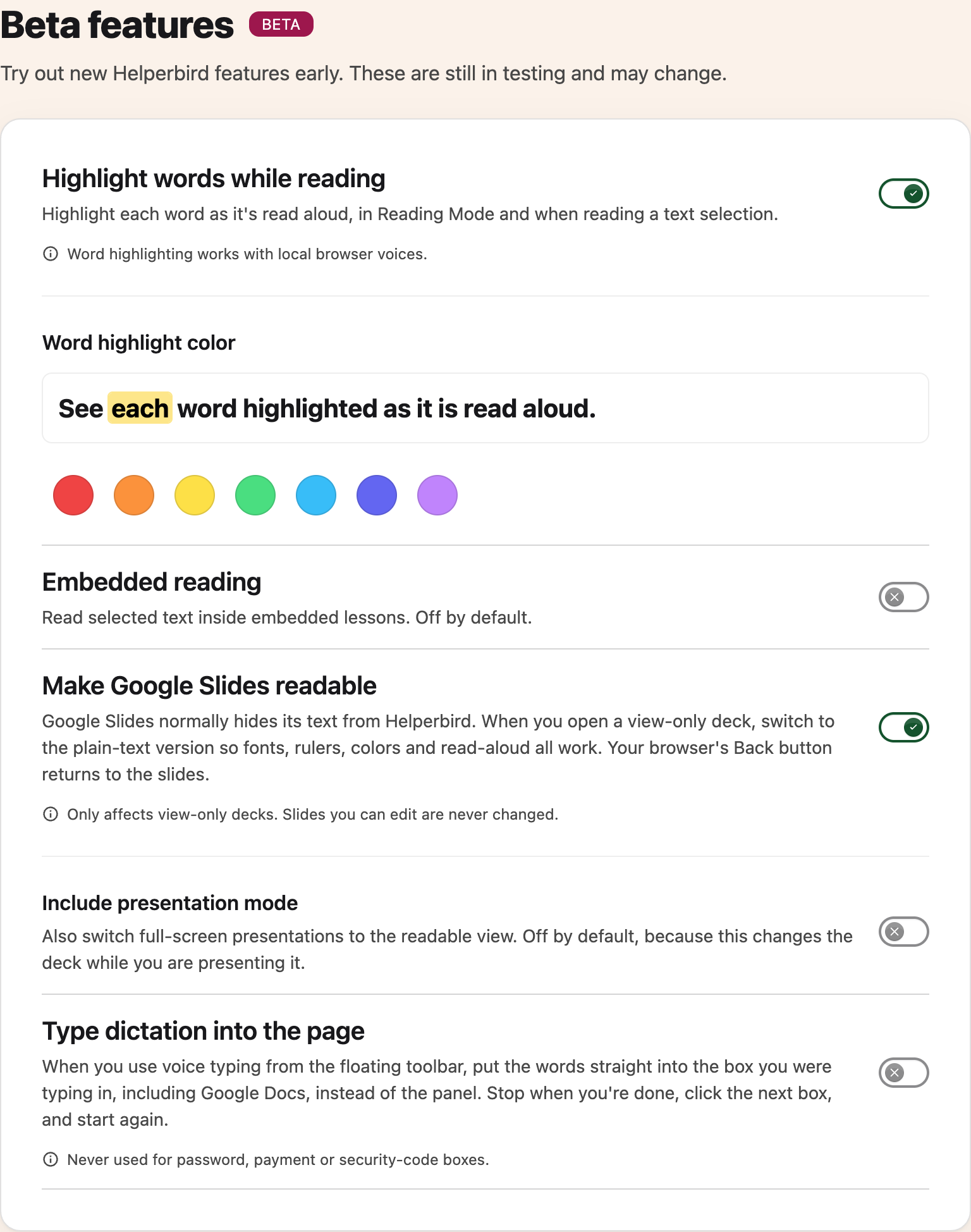
Scroll down the settings page until you see Beta features.
 View full-size image (opens in a new tab)
Step 3: Turn One On
Click the switch next to the feature you want to try. Your choice saves automatically. If a page that was already open does not respond, refresh it. You can switch the beta back off at any time.
What is Available Right Now
Each feature has its own switch and guide:
- Embedded reading tries to read text selected inside supported embedded lessons. It is off by default; lesson platforms vary.
- Highlight words while reading lights up each word as it is spoken, so your eye follows the voice.
- Make Google Slides readable unlocks a view-only Slides deck, which normally hides its text from Helperbird entirely.
- Type dictation into the page puts dictated words straight into the box you are using, Google Docs included, instead of into a panel.
Beta features can change or be withdrawn. If one stops behaving, turn it off and let us know.
If the Switches are Greyed Out
If a switch shows Managed by your admin, your organization has decided this setting for everyone and you cannot change it yourself. Speak to whoever manages Helperbird where you work or study.
 View full-size image (opens in a new tab)
Need Additional Help?
If you have any questions or run into any issues, please contact the Helperbird support team. You can reach us at Helperbird support. We are happy to help you get the most out of Helperbird.
Printed from the Helperbird Help Center · Updated September 22nd, 2026
Questions? We are happy to help — helperbird.com/support