
How to Use the Tools Menu in the PDF Reader
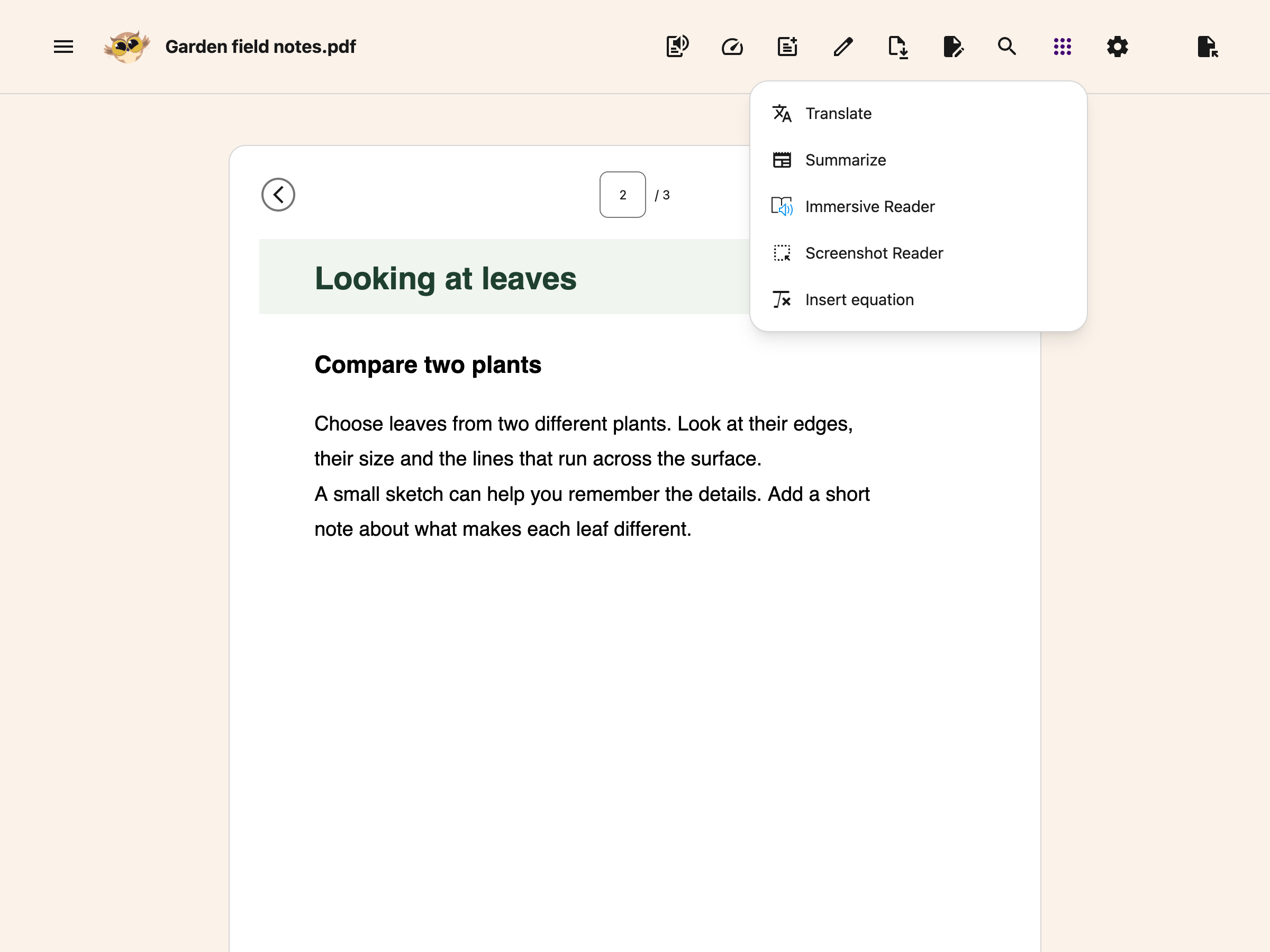
The Tools menu in the Helperbird PDF Reader. Reach Immersive Reader, Translate, Summarize and Screenshot Reader on your document without leaving the tab.
On this page
The Tools menu brings reading tools and equations into your PDF. Immersive Reader is free for up to 1,200 characters per launch. Translate, Summarize, Screenshot Reader and Insert equation need Helperbird Pro. Opening a PDF, searching it, changing zoom, drawing and typing notes are free.
What the Tools Menu Is
Choose the round dots-grid button labelled Tools in the main PDF toolbar. It is separate from Zoom and search, which shows or hides the search and zoom bar.
Choose the Whole Page or One Passage
The tools use different parts of the document:
- Immersive Reader and Summarize use selected text when you have a selection. Otherwise, they use the current page. On the Translation tab, they use the translated text.
- Translate always translates the current original PDF page, even if you selected a shorter passage.
- Screenshot Reader uses the area you capture on the original PDF.
- Insert equation adds a new equation image to the original PDF page.
Open the Menu
- Open a PDF and go to the page you want.
- Select a passage first if you want to use only that text with Immersive Reader or Summarize.
- Open Tools and choose a tool.
What Each Tool Does
Immersive Reader opens a reading view with read aloud, text settings, a picture dictionary and learning tools.
Translate asks for a language, then translates the current page. When it finishes, the dialog closes and Original PDF and Translation tabs appear. Use the main reading tools with the translated text.
Summarize produces a shorter version of the selected text or current page. Check the source for details that a summary may leave out.
Screenshot Reader extracts words and equations from an area you capture. Use it when a PDF page is a scan and its text cannot be selected.
Insert equation opens an equation field with a math keyboard. Insert the result as a movable image. Equation rendering happens on your device.
When a Tool Will Not Run
No document is open: Choose Open PDF first.
No selectable text: Use Screenshot Reader for a scan. PDF Translate does not run image recognition automatically.
A tool has a diamond: It needs Pro. In this menu, the diamond sits on the tool’s icon; navigation buttons show it directly below the button. On the free plan, choosing a paid tool opens Unlock Helperbird Pro. Search, zoom, drawing and typed notes remain free.
Immersive Reader says the text is too long: Select a shorter passage of up to 1,200 characters or use Helperbird Pro for longer passages.
Translation fails: Stay on the same page and try again. Selecting a shorter passage does not limit PDF Translate to that passage.
Related Guides
Need Additional Help?
Contact Helperbird support with the tool name and what happened.
Printed from the Helperbird Help Center · Updated September 28th, 2026
Questions? We are happy to help — helperbird.com/support