
How to Paste Text and Images onto a PDF
Paste copied text, links or images onto a PDF page in Helperbird. Move and resize the new boxes, keep editing your notes, and download a copy with your changes.
Jump to the stepsOn this page
What This Does
Paste copied text, a link or an image onto the current PDF page to create a new box. You can move or resize it before downloading your work. Pasting and typing into PDF boxes are free.
Step 1: Open Your PDF
Open a PDF in Helperbird and go to the page where you want to add the content.
Copy your text or image. To add a picture, copy the image itself; copying its web address adds a link as text.
Step 2: Paste onto the Page
Close any open dialog and click outside the text boxes, Notepad and search field. Press Ctrl + V on Windows or Command + V on Mac.
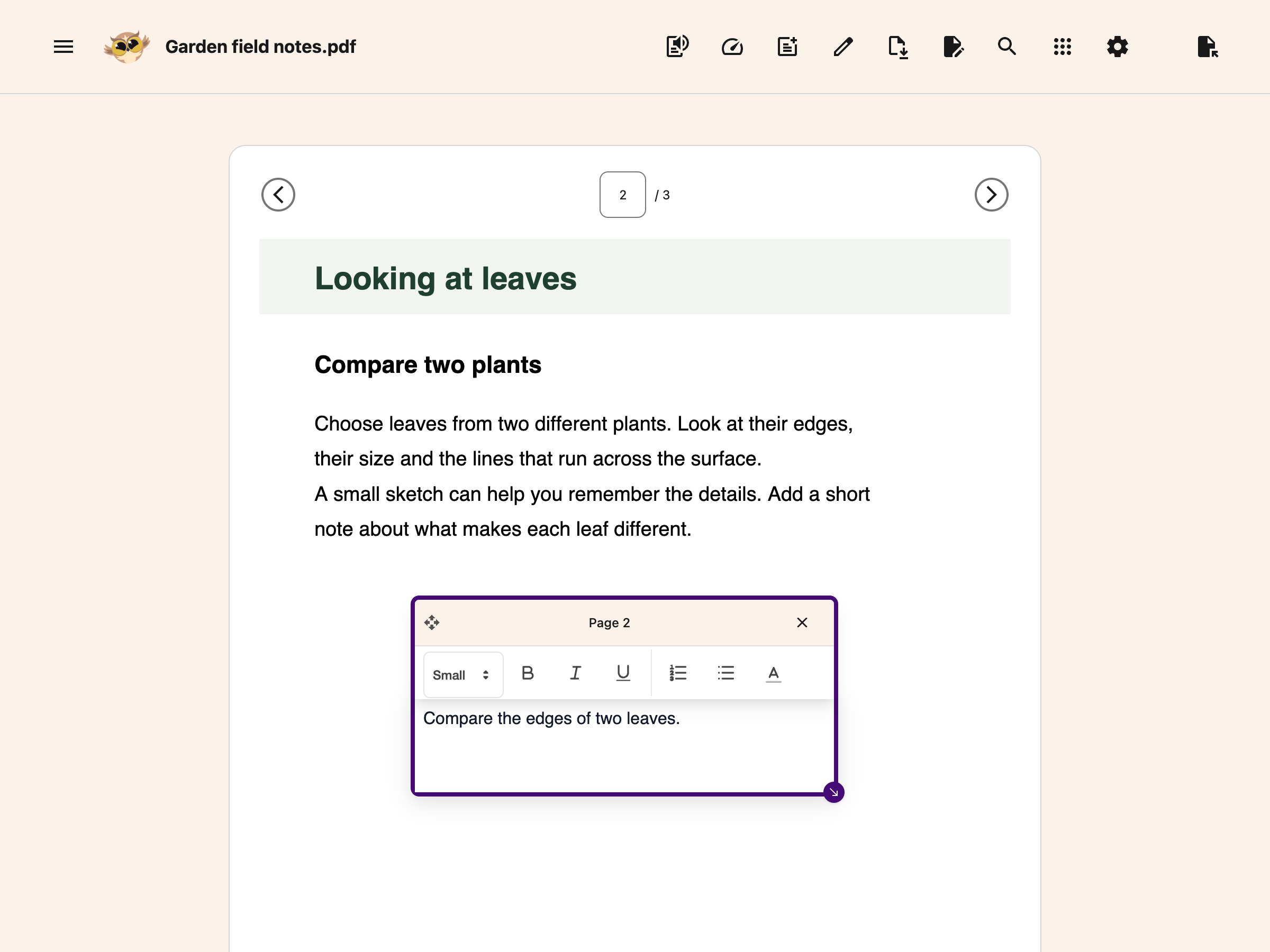
Text or a link becomes a new editable text box. A copied image becomes an image box. Supported text formatting and links are kept; pasted web content does not recreate a whole webpage.
 View full-size image (opens in a new tab)
If a text box already has focus, paste goes into that box instead. This also lets you paste into the side Notepad without making a new PDF box.
Step 3: Place and Edit the Box
Use the move handle in the attached bar to position the box. Drag the corner handle to resize it. For text, click inside the box to type and use its formatting toolbar.
To remove a box, choose its remove button. Your original PDF text remains underneath; these boxes do not replace or edit that text.
You can also write in the side Notepad and choose Add Textbox to PDF. Notes with pictures or equations become separate text and image boxes in the same order.
Step 4: Download Your Changes
Choose Download, then With my changes. The downloaded PDF includes your text and image boxes.
Boxes become part of the downloaded page. Keep your Helperbird workspace if you need to move or edit them later. See saving an annotated PDF.
Troubleshooting
No new box appeared: Check whether Notepad, a text box, search or a dialog has focus. Click outside it and paste again.
An image could not be added: Try copying the image again, or use a smaller PNG or JPEG. Unsupported or very large images may not load.
Notepad content will not fit: Shorten the note or add it in smaller parts. If the full transfer cannot finish, Helperbird keeps your note and PDF unchanged.
Need Additional Help?
For maths, see adding equations to PDFs and Notepad. You can also contact Helperbird support.
Printed from the Helperbird Help Center · Updated September 25th, 2026
Questions? We are happy to help — helperbird.com/support