
How to Change the Cursor Size in Google Chrome, Firefox, or Edge

Learn how to change cursor size in Chrome, Firefox, or Edge with Helperbird for better visibility Support for all learners and educators. Learn how to make your mouse cursor larger using Helperbird. A bigger cursor is easier to see and track on the screen.

·

What is Cursor Size?

The Cursor Size feature lets you make your mouse pointer larger than normal. A bigger cursor is easier to spot and follow as you move it around the screen.

This replaces the small default cursor with a larger, more visible version.


Who is This For?

This feature is helpful for:

  • People with low vision who have trouble seeing the standard cursor
  • Anyone who loses track of their cursor on the screen
  • People using high-resolution displays where cursors appear small
  • Anyone with motor difficulties who needs a larger target
  • People who find the default cursor too small

Step 1: Open Helperbird

Click the Helperbird icon in your browser toolbar. It looks like a small owl and is usually in the top-right corner of your browser.

This will open the Helperbird menu.


Step 2: Open the All Features Section

Scroll down to the bottom of the Helperbird menu. You will see a section called All Features.

Click the arrow next to All Features to expand it and show all available features.


Step 3: Find Display Options

Look through the list of features until you see Display options.


Step 4: Open Display Options

Click on Display options to open it.

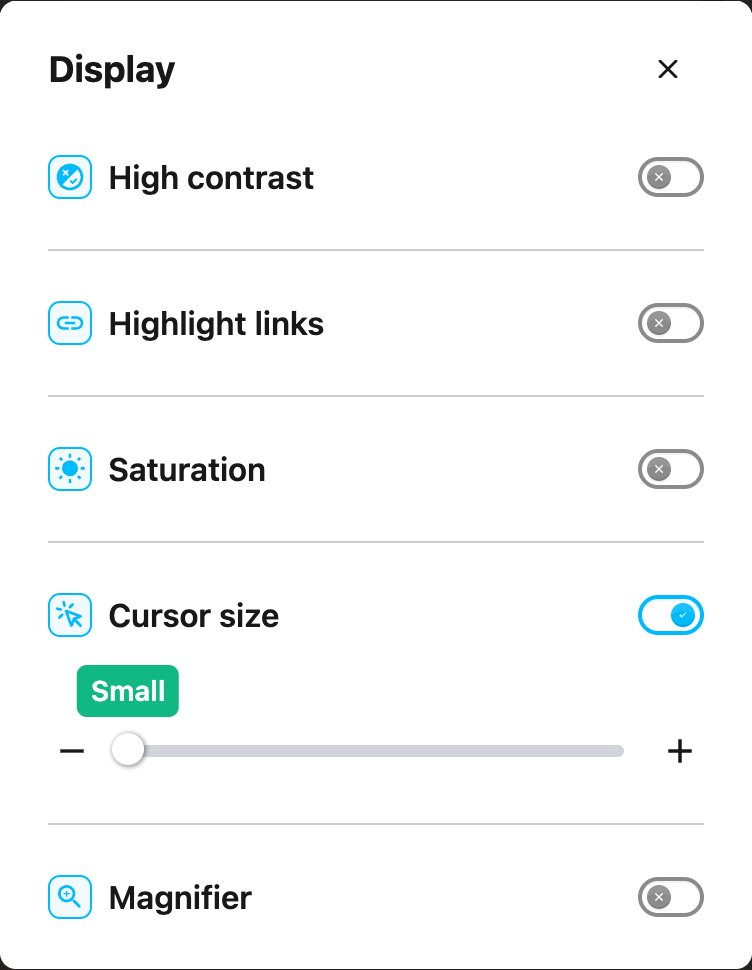
A panel will appear showing various display settings you can adjust.


Step 5: Turn on Cursor Size

In the Display options panel, look for Cursor size.

Click the toggle switch next to it to turn it on. The toggle will turn green when it is enabled.


Step 6: Adjust the Size

Once Cursor size is turned on, a slider will appear below the toggle.

Drag the slider to the right to make the cursor larger. Drag it to the left to make it smaller.

A label will show you the current size setting (Small, Medium, Large, etc.).

The change happens immediately so you can see the new cursor size right away.

Tip: If you have a high-resolution display, you may want to use a larger cursor size. The default cursor can look very tiny on 4K monitors.

Video Tutorial


Need Additional Help?

If you have any questions or run into any issues, please contact the Helperbird support team. You can reach us at Helperbird support. We are happy to help you get the most out of Helperbird.

What People Are Saying

Join over 1,000,000 people who use Helperbird every day.

It's helped me immensely with being able to focus and process words on any website

Emily Chan

Emily Chan

Helperbird user

Brilliant extension! Have tired it for my daughter and she has come on leaps in school. While there are plenty of free features, the paid ones are only 30 USD a year. Can't recommend this enough.

Gary O'Connor

Gary O'Connor

Helperbird user

Helperbird is an excellent extension supporting a range of learning differences. Aside from providing many evidence-based dyslexia-assistive tools, the extension also functions as an easy-to-use, feature-rich web experience customization tool suitable to support a wide range of cognitive differences (i.e., color blindness and ADHD-related focus concerns, among others). Also, the developer is a very good person who supports the various learning-different communities in many ways, including by designing the free version of Helperbird to provide enough functionality to be beneficial to people who cannot afford to subscribe to the full-function version.

Kirk Smith

Kirk Smith

Helperbird user

I really liked the ease of setting up and also accessing the tool while you are on chrome. I had no trouble, and within a week found myself using it without even noticing.

Daniel C.

Daniel C.

Account Executive

A truly great extension! We installed this on all of our 200 Chromebooks across the 3 special schools i work in and it has greatly helped our students use technology to learn. It not only helps our dyslexic learners, but also our autistic and ADHD students by helping remove distractions and making the web a more accessible place. Support is fast and efficient, and updates are very regular with new features constantly being added!

Josh Sharrad

Josh Sharrad

Helperbird user

I found this extension on a whim to help myself. Suffering with post concussion syndrome symptoms and working remotely is really hard! This extension basically saved my job. It gave me back productivity and the ability to read the screen. This extension has so many neat features I never even knew I needed. I love this and you will too! You don't need to be dyslexic or have dyslexia for this extension to benefit you. Do yourself a giant favor and get it! I highly recommend it!

Catherine Contillo

Catherine Contillo

Helperbird user

Helperbird logo: Stylized owl with large yellow eyes and a beige face, against a green background.

Download Helperbird

Make browsing easier and more accessible with tools like Text to Speech, Immersive Reader, and more.