
Find a help guide

All help guides

How to Open a Page from Your Helperbird Reading List

Learn how to open a page you saved to your Helperbird Reading list, and how to read it with Helperbird's reading tools once you are there.

Jump to the steps
On this page

What This Does

Opens one of your saved pages so you can read it.


Who is This For?

This is helpful for:

  • Anyone coming back to something they saved earlier
  • Students working through a set of sources one at a time

Step 1: Open Your List

Open your Reading list from the Helperbird popup. See how to open your reading list.


Step 2: Click the Page

Click anywhere on a row and that page opens.
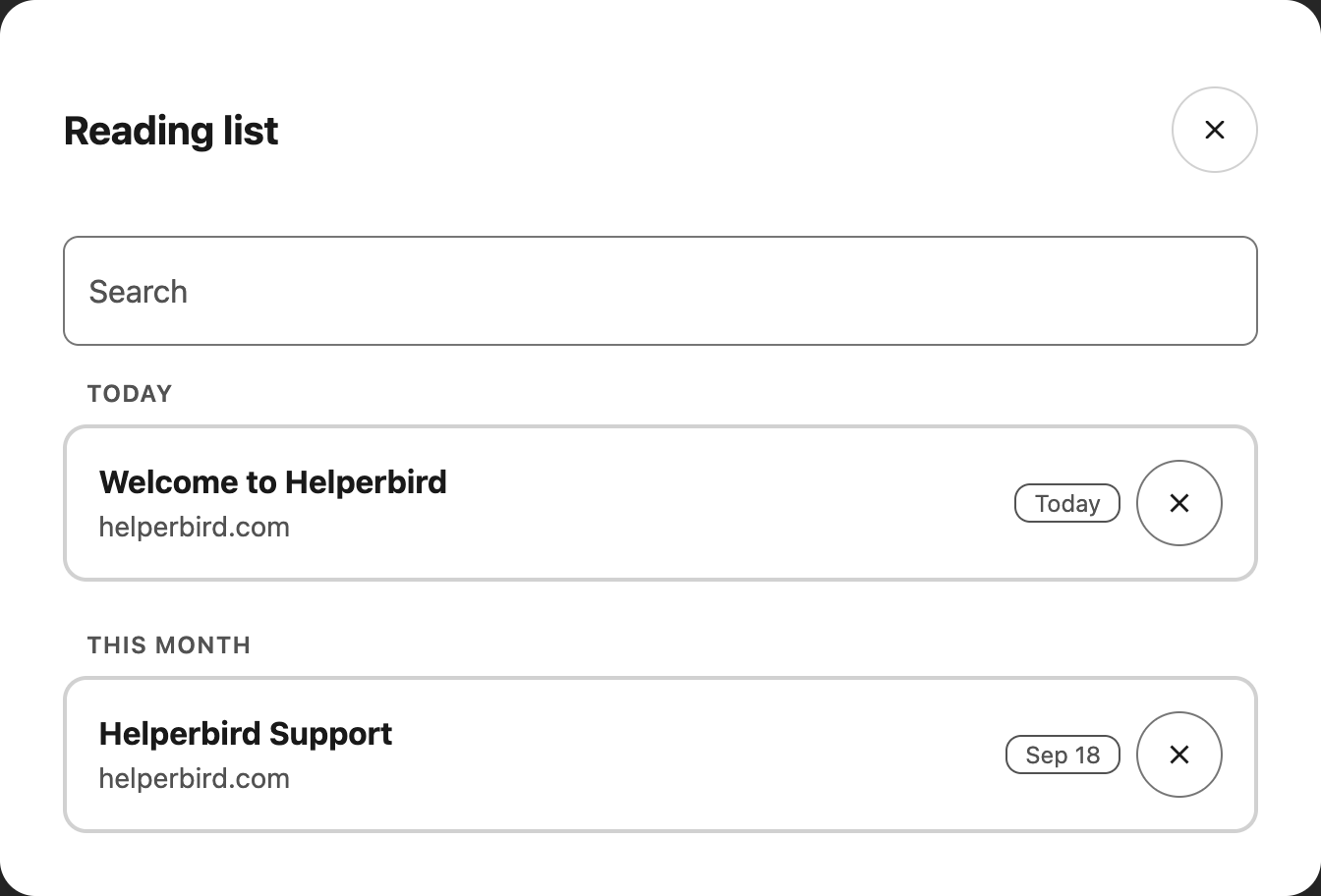
Reading list dialog with a search field and saved pages grouped by dateView full-size image (opens in a new tab)

The whole row is the link, so you do not need to aim at the title. If you are using a keyboard, tab to the row and press Enter.

There is no separate button to open a page. The only other control on a row is Remove, and that appears only when you hover over the row or move to it with the keyboard.


Reading It with Helperbird

Once the page opens, all of Helperbird's website tools work on it as normal. If you saved it because it looked like hard going, this is the moment for:


Need Additional Help?

If you have any questions or run into any issues, please contact the Helperbird support team. You can reach us at Helperbird support. We are happy to help you get the most out of Helperbird.

Printed from the Helperbird Help Center · Updated September 22nd, 2026

Questions? We are happy to help — helperbird.com/support

A few guides for your next step.

All help guides

Reviews from the Chrome Web Store, Firefox Add-ons and G2

Join over 1,000,000 people who use Helperbird every day.

you can finetune your experience ...

Where to start! Firstly, I'd like to thank Robert (the developer) for his generosity - the app is extremely cheap as apps go. It is very apparent that this app is a labour of love - Robert is constantly working on it and improving things, adding new features, etc. As someone with ADHD and ASD, I have always had to piece-meal together the features I need to help me study effectively - half a dozen different apps / extensions, and even then they don't quite meet my expectations. Helperbird, however, offers SO MUCH more, and all in one place - you can finetune your experience to your heart's desire. The features I particularly love are summarise, simplify, sticky notes, highlighting, and the amazing immersive reader with TTS. I can't sing Helperbird's praises enough. Thank you, Robert, for such a thoughtful - and genuinely helpful - app. You are empowering the neurodivergent everywhere.
Firefox userHelperbird user

The customizable features are a g...

This chrome extension is absolutely amazing. I'm a Primary school teacher and it helps children with a broad range of needs. It's so easy to set up. I love the way it syncs across devices so set up is seamless across all the children's computers. The customizable features are a game changer for allowing children to enjoy reading and accessing the web in our school. The best application I have ever seen for school children. Looking forward to trying the iPad application soon.
Luke MccarthyTeacher
Incredible Tool, and Simple to Use!
Verified G2 reviewerVerified User in Information Technology and Services
Helperbird logo: a stylized owl with large round yellow eyes and a beige face.

Download Helperbird

Text to speech, dyslexia fonts, reading rulers, color overlays, and 44 more.

Free to add, and the everyday tools stay free. Works in Chrome, Edge, Firefox and Safari.