
How to Use Auto Scroll on Any Website
Learn how to use Helperbird's Auto Scroll feature to automatically scroll through web pages at your preferred speed. Perfect for hands-free reading.
Jump to the stepsOn this page
What is Auto Scroll?
Auto Scroll automatically scrolls web pages at a steady pace you control. Instead of manually scrolling, the page moves on its own while you read. You can adjust the speed to match your reading pace.
This is a Helperbird Pro feature.
Who is This For?
Auto Scroll is helpful for people who want hands-free reading, those with motor difficulties that make scrolling uncomfortable, readers who prefer a consistent reading pace, anyone reading long articles or documents, and people using text-to-speech who want the page to follow along.
Step 1: Open Helperbird
Click the Helperbird icon in your browser toolbar. It looks like a small owl and is usually in the top-right corner of your browser.
This will open the Helperbird menu.
Step 2: Open the All Features Section
Scroll down to the bottom of the Helperbird menu. You will see a section called All Features.
Click the arrow next to All Features to expand it and show all available features.
Step 3: Find Auto Scroll
Look through the list of features until you see Auto-scroll.
Step 4: Open the Auto Scroll Panel
Click the open button (the small arrow icon) on the Auto-scroll row.
A panel will appear showing the auto scroll controls.
Step 5: Turn on Auto Scroll
In the Auto-scroll panel, click the Start button.
The page will immediately start scrolling down automatically. While the page is scrolling, the button changes to Stop, click it whenever you want the page to stop moving. Closing the panel also stops the scrolling.
Step 6: Adjust the Speed
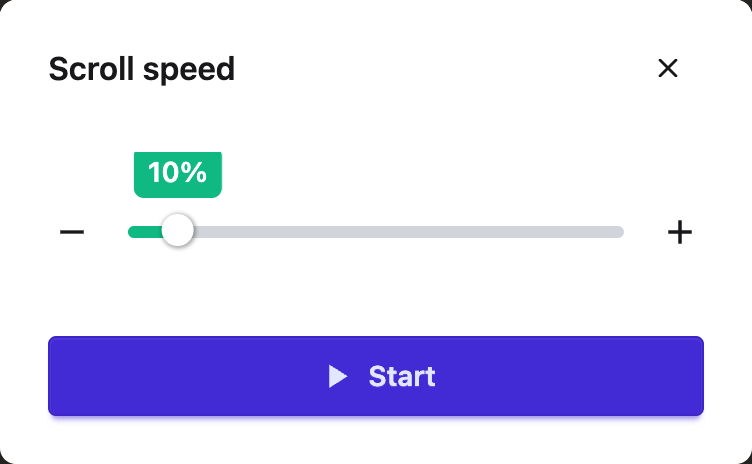
At the top of the panel you will see a Scroll speed slider, with a bubble above it showing the current value.
Drag the slider, or use the - and + buttons on either side of it, to adjust how fast the page scrolls:
- Slide to the left to scroll slower
- Slide to the right to scroll faster
Find a speed that matches your comfortable reading pace.
Tip: Start with a slower speed and increase it as you get used to auto-scrolling. Auto scroll stops on its own when you reach the bottom of the page, and you can press the Stop button at any time.
Stopping Auto Scroll
To stop scrolling, click the Stop button in the Auto Scroll panel. Closing the panel also stops scrolling, and Auto Scroll stops on its own when the page reaches the bottom.
Tip: If you have keyboard shortcuts enabled in Helperbird, you can press Option + A (Mac) or Alt + Shift + A (Windows/ChromeOS) to start or stop Auto Scroll.
Related Guides
Video Tutorial
 View full-size image (opens in a new tab)
Need Additional Help?
If you have questions about Auto Scroll, reach out to our Helperbird support team and we'll help you out!
Printed from the Helperbird Help Center · Updated September 22nd, 2026
Questions? We are happy to help — helperbird.com/support