
How to Add a Saved Note to Your Notepad Document
Learn how to use My Notes in the Helperbird Notepad to search the notes and highlights you saved while reading, and drop one into what you are writing.
Jump to the stepsOn this page
What This Does
While you read, Helperbird lets you save notes and highlight passages on any page. Highlights & Notes brings those into the Notepad, so you can pull a quote or a thought straight into what you are writing instead of hunting for it again.
Who is This For?
This is helpful for:
- Students writing something up from pages they read earlier
- Anyone gathering quotes for an essay or a report
- People who research first and write afterwards
- Anyone who has highlighted something and cannot remember where
Step 1: Open Highlights & Notes
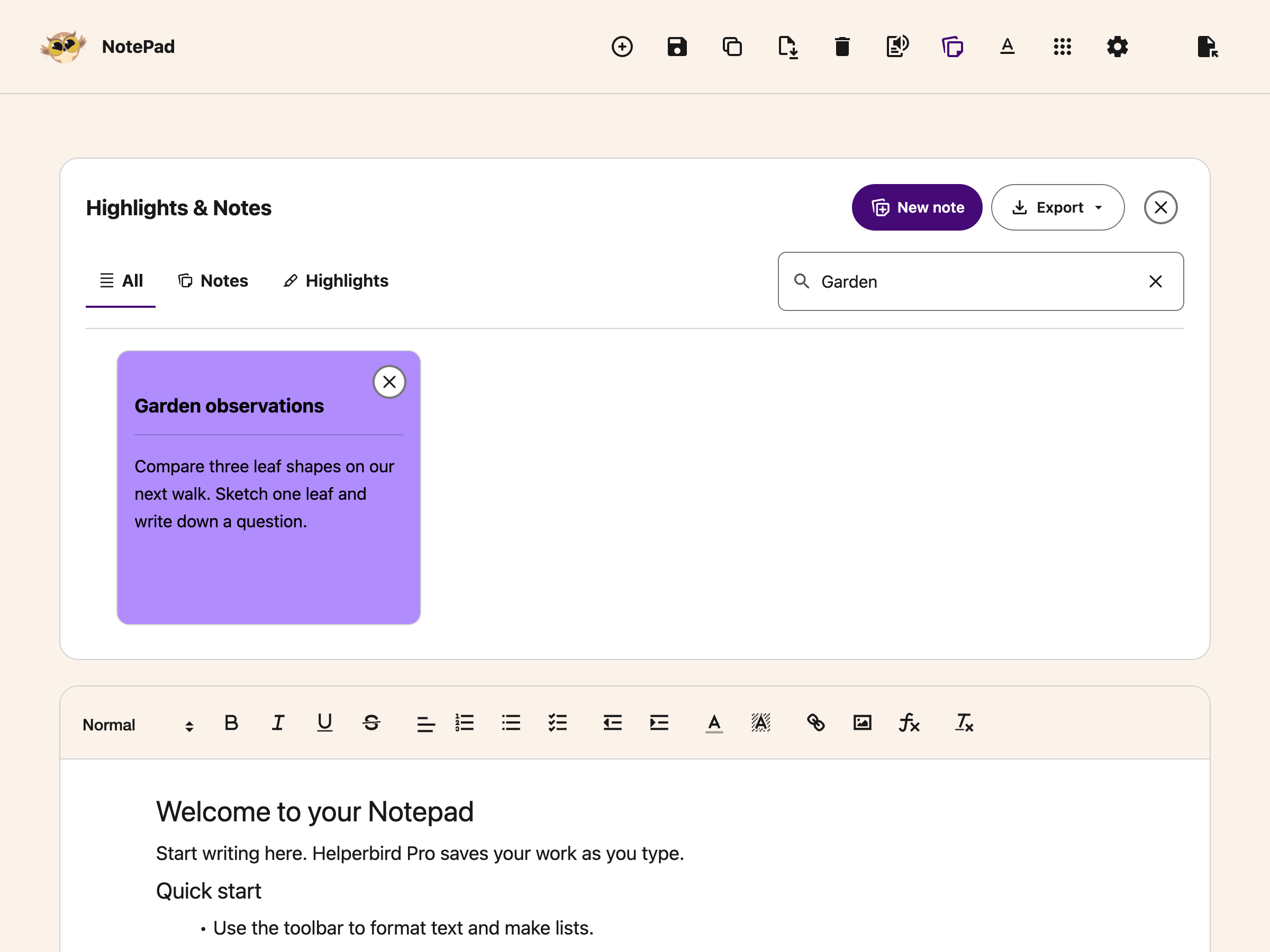
Choose Highlights & Notes in NotePad's top toolbar. The library opens above the document, so your writing stays on the same page.
Saved items appear as cards. If the library is empty, choose New note or save a highlight from a webpage.
 View full-size image (opens in a new tab)
Step 2: Find the Note
Use All, Notes or Highlights to filter your saved items. Type into Search notes and highlights… to narrow the cards. The clear button inside the field removes your query.
Step 3: Click It to Add It
Open the card you want. Its editor shows the note text or captured highlight. Choose Insert into Notepad to add it to your document.
The saved item remains in your library. Close the library when you want more room to write.
Need Additional Help?
If you have any questions or run into any issues, please contact the Helperbird support team. You can reach us at Helperbird support. We are happy to help you get the most out of Helperbird.
Printed from the Helperbird Help Center · Updated September 25th, 2026
Questions? We are happy to help — helperbird.com/support